
Imagine transforming your WordPress theme with just a few lines of code. Sounds like magic, right?
That’s the power of shortcodes. If you’ve ever wanted to add dynamic content to your theme files without diving into complex coding, you’re in the right place. By learning how to add shortcodes directly to your theme file, you can unlock a new level of customization and functionality on your site.
Whether you’re a seasoned developer or a curious WordPress enthusiast, mastering this skill can set your website apart from the rest. Get ready to take control of your site’s features and design, effortlessly enhancing your user experience. Dive in, and let’s discover how you can easily integrate shortcodes into your WordPress theme files.
Understanding Shortcodes
Shortcodes are small pieces of code. They make tasks easy in WordPress. Shortcodes can add videos, forms, or galleries to a page. They are like magic words for your site. You type the code, and WordPress shows the content. It’s simple and quick. Adding a shortcode to a theme file is useful. It helps customize pages without much fuss. WordPress reads these codes and changes them into content. This makes your site look professional. Using shortcodes saves time and effort. No need for long HTML or complex code. Just a few words, and you’re done. Keep your site neat and tidy with shortcodes.
Benefits Of Using Shortcodes
Shortcodes make adding features easy. They save time and effort. You don’t need coding skills. Just type the shortcode and get results. Simple commands can create forms or galleries. They enhance site functionality without complex steps. Shortcodes make websites look better. They are quick and efficient. Any user can learn them fast. Shortcodes are flexible tools for all themes. They work in many places on the site. You can put them in posts, pages, or widgets. This makes them very useful. Shortcodes help make sites interactive. They can create buttons or maps. They improve user experience with little effort. Shortcodes are powerful yet easy to use. Everyone can add them to their site.
Identifying The Right Theme File
Identifying the correct theme file is key for adding shortcodes in WordPress. Locate the file where you want the shortcode to appear. Often, this is the template file responsible for rendering the specific page or section.
Locating Theme Files
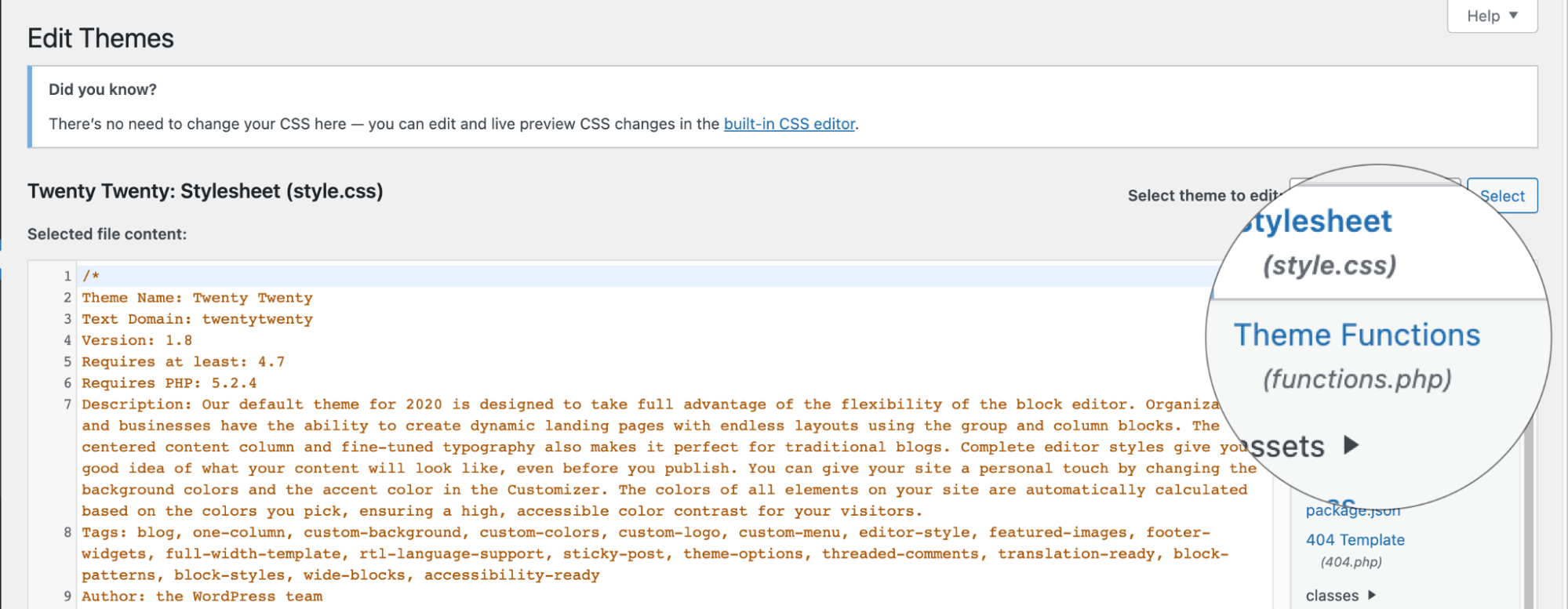
WordPress theme files are in your website’s theme directory. You can find them in the wp-content/themes folder. Each theme has its own folder. Inside, there are files like header.php, footer.php, and functions.php.
These files help structure your site. To edit, go to the WordPress dashboard. Click on Appearance and then Theme Editor. Make sure to back up files before changes. This keeps your site safe.
Common Theme File Locations
Common places for adding shortcodes are single.php, page.php, and sidebar.php. They control different parts of your website. Choose the right file based on where you want the shortcode.
For instance, use single.php for blog posts. Use page.php for static pages. Check the file names to understand their roles. This helps in placing your shortcode correctly.
Credit: www.a2hosting.com
Preparing To Add Shortcodes
Always create a backup of your theme files. This is very important. It keeps your site safe. You can use plugins to make backups. These plugins save your files. Store these files on your computer. So, you can restore them if something goes wrong. Backups ensure peace of mind. They are like a safety net for your site.
A child theme is a copy of your main theme. It helps you to change your site. Without touching the main theme files. First, create a new folder for the child theme. Add two files: style.css and functions.php. In style.css, add theme details. In functions.php, link the child to the parent theme. This way, your changes won’t get lost during updates.
Adding Shortcode To Theme File
Open your WordPress dashboard. Navigate to Appearance and select Theme Editor. This is where theme files live. Always create a backup before editing files. Find the file you want to edit. It could be header.php or footer.php. Add your shortcode where you need it. Be careful with changes. Small errors can break your site.
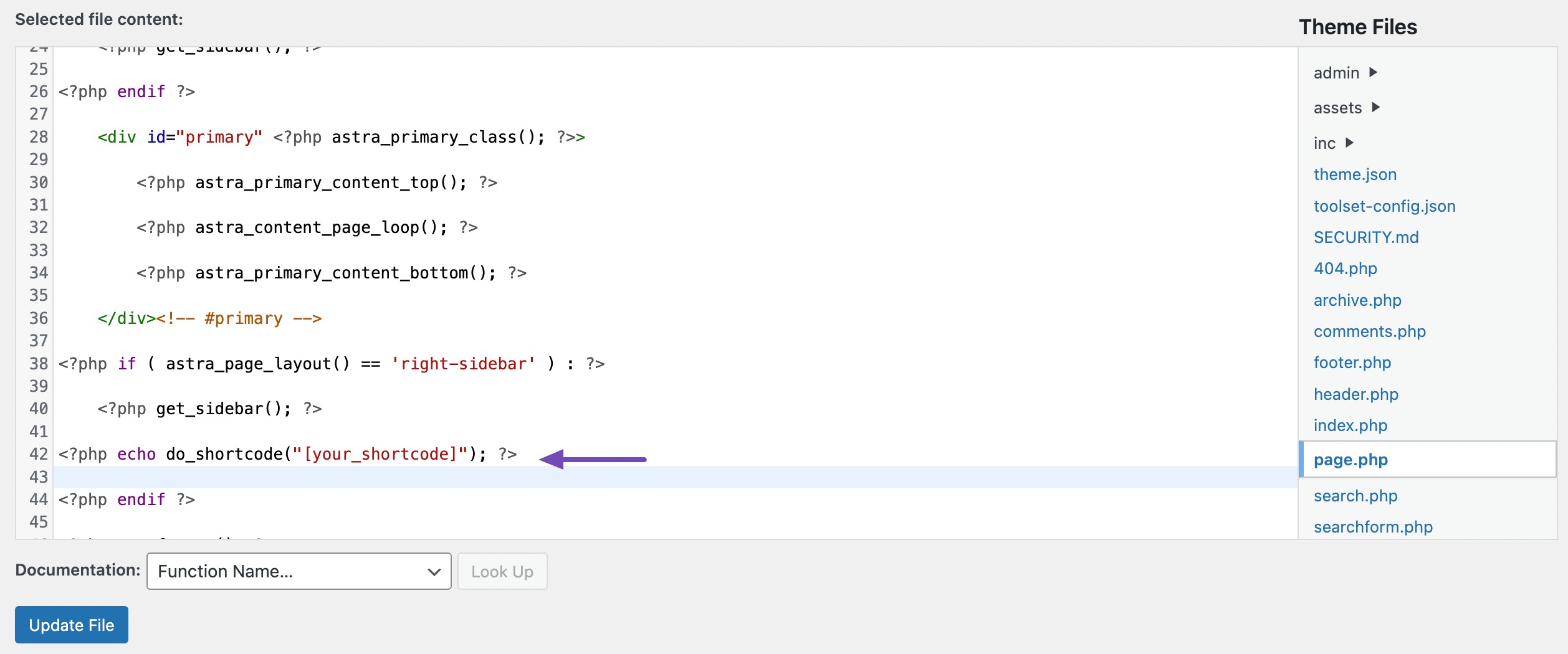
Shortcodes need a special function. Use the do_shortcode function. It allows shortcodes in PHP files.
Here is how to do it: php echo do_shortcode('[your_shortcode]'); ?.
Replace [your_shortcode] with your actual shortcode. This tells WordPress to process it.
Use this function in the correct file. Always check your site after changes. Make sure everything works smoothly.
Credit: www.wpbeginner.com
Testing Shortcode Functionality
After adding a shortcode, it’s time to preview changes. Open your WordPress site. Navigate to the page or post with the shortcode. Check if it displays correctly. If it looks good, you did it right! If not, don’t worry.
Previewing Changes
Sometimes the shortcode does not show correctly. This could be due to a typo in the code. Double-check your work. Make sure the syntax is correct. Ensure that you have closed all tags. Preview the page again. Does it work now?
Troubleshooting Common Issues
If the shortcode still doesn’t work, check your WordPress version. Some shortcodes need a newer version. Update WordPress if needed. Plugins can also cause issues. Deactivate plugins one by one. See if the shortcode works then. These steps usually fix the problem.
Best Practices For Shortcode Use
Keep your code neat. Organize your shortcodes well. Use comments to describe each part. This helps you and others understand the code. Avoid clutter by removing unused code. Neat code runs better. It is easier to fix problems.
Check your code with different themes. Make sure it works everywhere. Test on many browsers. This helps find issues early. Always update your code. New updates can fix bugs. Compatibility keeps your site running smoothly.
Advanced Customization Tips
Adding shortcodes directly to a WordPress theme file enhances customization. Open the relevant theme file and insert the shortcode using PHP tags. Ensure the theme file supports PHP execution for seamless integration.
Custom Shortcode Development
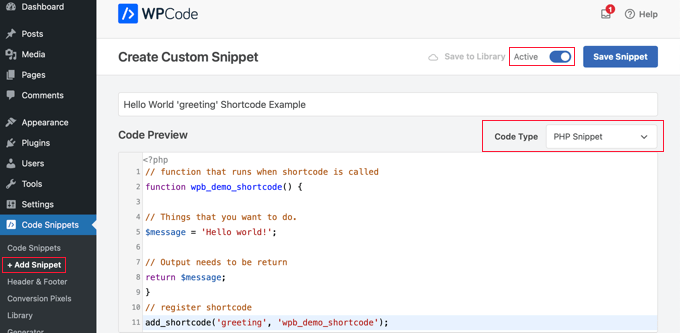
Making your own shortcodes can be fun. First, open your theme file. Find the functions.php file. This file helps you add shortcodes. Start by using the function add_shortcode(). Create a name for your shortcode. Think of something simple and clear. Use PHP code to define what your shortcode does. Test it on your WordPress site. Check if it works well.
Integrating With Plugins
Plugins can make shortcodes stronger. Install a plugin that supports shortcodes. Look for popular ones like Shortcodes Ultimate. This plugin adds more features. You can use shortcodes easily. Make sure the plugin works well with your theme. Sometimes, plugins need updates. Keep your plugins up-to-date. This ensures everything runs smoothly. Explore different plugins for more options.
Credit: rankmath.com
Frequently Asked Questions
How Do I Locate Theme Files In WordPress?
To locate theme files in WordPress, access your hosting account’s file manager. Navigate to `wp-content/themes/your-theme-name`. Here, you’ll find all the theme files. You can also use an FTP client like FileZilla. This allows for easier navigation and file editing.
What Is A WordPress Shortcode?
A WordPress shortcode is a small code snippet. It allows users to add dynamic content. Shortcodes simplify complex tasks and improve functionality. You can insert them into posts, pages, and widgets. They make customizations easier without needing extensive coding knowledge.
Can I Add Shortcode To Any Theme File?
Yes, you can add shortcodes to any theme file. Open the desired theme file in a text editor. Use the `do_shortcode()` function to insert your shortcode. This function processes and displays the shortcode’s output. Ensure you save changes and test your site.
How Do I Edit A WordPress Theme File?
To edit a WordPress theme file, use an FTP client. Alternatively, access the file manager in your hosting account. Navigate to `wp-content/themes/your-theme-name`. Open the desired file in a text editor. Make your changes, save, and upload back to the server.
Conclusion
Adding shortcodes to your WordPress theme file is simple. It enhances functionality without complex coding. With this guide, you can easily insert shortcodes. Practice often helps in understanding better. Keep experimenting with different shortcodes. Make your site interactive and user-friendly.
Shortcodes save time and effort. They offer a straightforward way to customize content. Follow steps carefully to avoid errors. Always backup your files before changes. Explore new possibilities with shortcodes. Improve your site’s appeal and usability. Enjoy creating a dynamic WordPress site with ease.
Happy coding!


