
Are you eager to customize your WordPress site but feel overwhelmed by the technical stuff? You’re not alone.
Many WordPress users want a unique look and feel for their site but struggle with how to achieve it. Fortunately, adding options to your WordPress theme can transform your site without needing to be a coding wizard. Imagine having the power to tweak colors, fonts, and layouts with just a few clicks.
It’s like having a digital toolkit at your fingertips. In this guide, we’ll walk you through straightforward steps to add options to your WordPress theme, empowering you to craft a website that truly reflects your vision. Ready to turn your website dreams into reality? Let’s dive in and unlock your site’s full potential.
Credit: www.sitepoint.com
Choosing The Right Theme
Picking the right theme is important. It shapes your website’s look. Always choose a theme that suits your style. Check if it is responsive. This means it looks good on phones and computers. A theme should be easy to customize. This helps in adding options later. Look for themes with many positive reviews. Happy users mean good quality. Also, make sure the theme is updated often. Regular updates fix bugs and add features.
Themes should have support from developers. If something goes wrong, you need help. Check if the theme has good documentation. This will guide you when adding options. Themes with clean code are better. They are faster and safer. Choose wisely for a great website experience.
Preparing Your Development Environment
Start with a good local server. Choose software like XAMPP or MAMP. They simulate a server on your computer. This helps in testing your theme before going live. Install a fresh copy of WordPress on your local server. It gives a clean slate to work on. Always backup your work. Mistakes happen, so be prepared.
Use a code editor like Visual Studio Code. It helps in writing clean code. Install Git for version control. Track changes and revert if needed. Plugins like Advanced Custom Fields are vital. They add extra options to your theme. Debugging tools are crucial too. They help find and fix errors quickly.
Understanding Theme Options Framework
Discovering how to add options to a WordPress theme involves using a Theme Options Framework. This tool allows customization without altering core code, offering a user-friendly interface to adjust settings and styles. Enhance your site’s functionality effortlessly by integrating this framework into your theme development process.
Popular Frameworks
Theme options frameworks make WordPress themes flexible. They let users change settings easily. Some well-known frameworks are Redux, Kirki, and Options Framework. Redux is great for its simple interface. Kirki offers many customization choices. Options Framework is perfect for beginners. Each has its unique features and strengths. Consider what suits your needs best.
Choosing A Framework
Selecting the right framework is important. First, decide what features you need. Do you want a lot of options? Or just a few? Next, think about ease of use. Some frameworks are more user-friendly. Finally, check compatibility with your theme. Some frameworks may not work well with all themes. Test them before making a decision. This will save time and effort later.
Creating A Custom Options Page
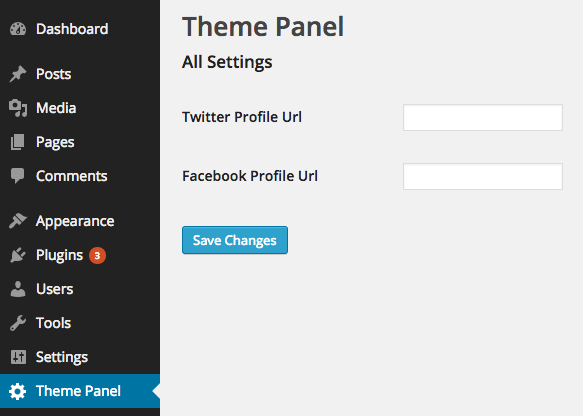
Begin by writing a function to create a menu page in WordPress. Use the add_menu_page() function. This function adds a new page in the admin dashboard. Choose a page title and a menu title. Define a capability to control access. Set a unique slug for the page. This slug helps identify the page. Specify a function that displays the page. Add an icon for visual appeal. Decide the position in the menu.
Start by creating a function to display fields. Use the add_settings_section() function. This function groups settings together. Next, use add_settings_field() to add individual fields. Define a title and a field type. Set a name and default value. Use register_setting() to make fields saveable. This function links settings to the database. Always validate and sanitize input data. This keeps data safe and clean.
Implementing Advanced Options
Enhance your WordPress theme by adding advanced options. Use the WordPress Customizer API for seamless integration. This approach offers flexibility, allowing users to personalize their website with ease.
Color Pickers And Image Uploads
Adding color pickers to your theme is easy. They help users choose colors. Use the WordPress Customizer API. It allows you to create a color picker field. Your users can select colors for different elements. Include image uploads for more personalization. Users can upload images for backgrounds or headers. These features make your theme more interactive. Users enjoy customization.
Typography And Fonts
Typography is important. It affects how your site looks. Add options to change fonts. Let users select font styles and sizes. Include Google Fonts for variety. This way, users can choose from many fonts. It adds a personal touch. Easy to read fonts improve user experience.
Custom Css And Scripts
Offer custom CSS options. Users can style their site. They can add their own CSS code. It gives them control over design. Allow custom scripts. Users can add JavaScript for extra features. These options enhance the theme. Users can make unique changes.
Saving And Retrieving Options
Using WordPress Settings API is an easy way to save options. This API helps store theme settings safely. Use it to manage theme data. First, register your setting using register_setting(). It keeps your data secure. Then, add a settings section with add_settings_section(). This organizes your options neatly. Finally, create fields using add_settings_field(). These fields collect user input.
Displaying Options on the Frontend is important for users. Use get_option() to retrieve stored data. This function fetches your saved settings. Then, display these settings on your site. You can show options in widgets or pages. Make sure to sanitize all data before display. This keeps your site safe. Use simple HTML and CSS for styling. Keep the design clean and user-friendly.
Testing And Debugging
Adding options to a WordPress theme involves editing code files. Testing and debugging ensure the features work correctly. Always back up your theme before making changes to avoid data loss. Use WordPress debugging tools to identify errors efficiently.
Common Issues
Sometimes themes don’t work well. They can break or look wrong. Broken layouts are a big problem. Missing styles happen too. Themes might not fit all screens. A slow theme is not fun. Plugins can conflict with themes. Themes may not update right. Debugging helps find these problems.
Tools For Debugging
Good tools make debugging easier. Error logs show what went wrong. Browser Developer Tools help too. They check how a site looks. PHP Debugging tools find code problems. WordPress Debugging Plugins are also useful. They find theme errors. Online forums can help solve issues. Many people share solutions there.
Best Practices For Theme Options
User-friendly options make themes easy to use. Users should find choices quickly. Keep labels clear and simple. Help users understand what each option does. Avoid confusing terms. Use icons where helpful.
Organize settings well. Group similar options together. Use tabs for different settings. This helps users navigate easily. They should not feel lost or overwhelmed. Feedback on changes should be instant. Users need to see results right away.
Fast themes are loved by users. Optimize your theme code. Keep it clean and simple. Avoid heavy scripts. These slow down loading times. Images should be small but clear. Use compressed formats to save space.
Cache settings can boost speed. Make sure caching is enabled. Responsive design is key. Themes must work on all devices. Test on phones, tablets, and computers. Updates should be regular. Keep your theme fast and secure.
Resources For Further Learning
Discover tutorials and forums to learn adding options to your WordPress theme. Explore step-by-step guides for customizing settings effortlessly. Enhance your skills with resources that simplify the process.
Online Tutorials And Courses
Many websites offer easy tutorials for WordPress. YouTube has many free videos. They show steps on adding theme options. Websites like Udemy and Coursera have courses too. These courses are often affordable. They help beginners learn quickly. Some courses even give certificates. This can be helpful for your resume.
Community Forums And Groups
Joining forums can be very helpful. WordPress.org has a big forum. Many people share their experiences there. Facebook has groups for WordPress users. People ask questions and get answers quickly. Reddit also has many WordPress communities. These groups are friendly and welcoming. They help you learn and solve problems fast.
Credit: blog.templatetoaster.com

Credit: www.namecheap.com
Frequently Asked Questions
How To Customize WordPress Theme Options?
Customizing WordPress theme options involves accessing the theme settings in the WordPress dashboard. Navigate to Appearance > Customize. Here, you can modify various aspects like colors, fonts, and layouts. Some themes offer additional options for customizing headers, footers, and widgets.
Always save changes after editing to ensure they take effect.
Can I Add Custom Options To A Theme?
Yes, you can add custom options using the WordPress Theme Customizer API. This allows you to create custom panels, sections, and settings. By writing custom code in your theme’s functions. php file, you can integrate new options. Alternatively, use plugins like Advanced Custom Fields for easier customization.
Do I Need Coding Skills To Add Options?
Basic coding skills are helpful but not always necessary. Many themes come with user-friendly interfaces for customization. Plugins can also simplify the process without requiring extensive coding knowledge. However, for advanced customizations, understanding HTML, CSS, and PHP is beneficial.
What Plugins Help Add Theme Options?
Several plugins can enhance theme options, such as Advanced Custom Fields, Redux Framework, and Customizer. These plugins offer intuitive interfaces to add custom settings, fields, and panels. They simplify the process of extending theme functionality without diving deep into code, making customization accessible for beginners.
Conclusion
Adding options to your WordPress theme enhances user experience. It makes customization easy for beginners. Start by accessing your theme’s functions. php file. Use code snippets to add new features. Remember to back up your files before changes. Test each addition on a staging site first.
This prevents errors on your live website. Customize thoughtfully to keep your site efficient. A well-managed theme improves site performance and user engagement. Take small steps and learn as you go. Your website will reflect your unique style and needs.
Enjoy the creative process!


