
Are you tired of your current WordPress.com theme and ready for a fresh look? Changing your theme can transform your website’s appearance and enhance your visitors’ experience.
But where do you start? Don’t worry; you’re not alone. Many WordPress users feel overwhelmed when it comes to switching themes, but it doesn’t have to be complicated. In this guide, you’ll discover how simple it is to change themes on WordPress.
com. Imagine captivating your audience with a stunning design that reflects your brand perfectly. By the end of this article, you’ll not only know how to switch themes effortlessly but also how to choose one that aligns with your goals. Let’s dive in and give your site the makeover it deserves.
Getting Started With WordPress Themes
Themes are like clothes for your website. They change how your site looks. A good theme makes your site look nice. It also makes it easy to use. Themes can be simple or fancy. Some have many colors and styles. Others are plain.
It’s important to pick a theme that matches your site. The right theme helps visitors find information easily. It also makes your site look professional. WordPress offers many themes to choose from. Some themes are free. Others cost money.
Picking the right theme is important. A good theme can make your site faster. Visitors will stay longer if your site is fast. A slow site can make them leave. The theme affects how your site works on phones. Many people use phones to browse. Make sure your theme works on all devices.
Choose a theme that matches your brand. This helps people remember your site. A good theme also helps with search engine ranking. It makes it easier for people to find you online.

Credit: wordpress.com
Accessing The WordPress Dashboard
First, visit the WordPress.com website. Enter your username and password. Click the login button. Now, you are in your account. Easy, right?
After logging in, look at the top of the page. Find the My Site button. Click it. You will see a menu on the left. The Dashboard is here. This is where you manage everything. Change settings, add posts, and more.
Exploring Theme Options
Visit the WordPress theme library. Many themes to choose from. Use filters to find what you like. Filters help pick colors, styles, and layouts. Free and paid themes are available. Choose what fits your needs.
Use the search bar to find themes by name. Type the name of a theme you like. Results show themes matching the name. This is quick and easy. Saves time if you know what you want.
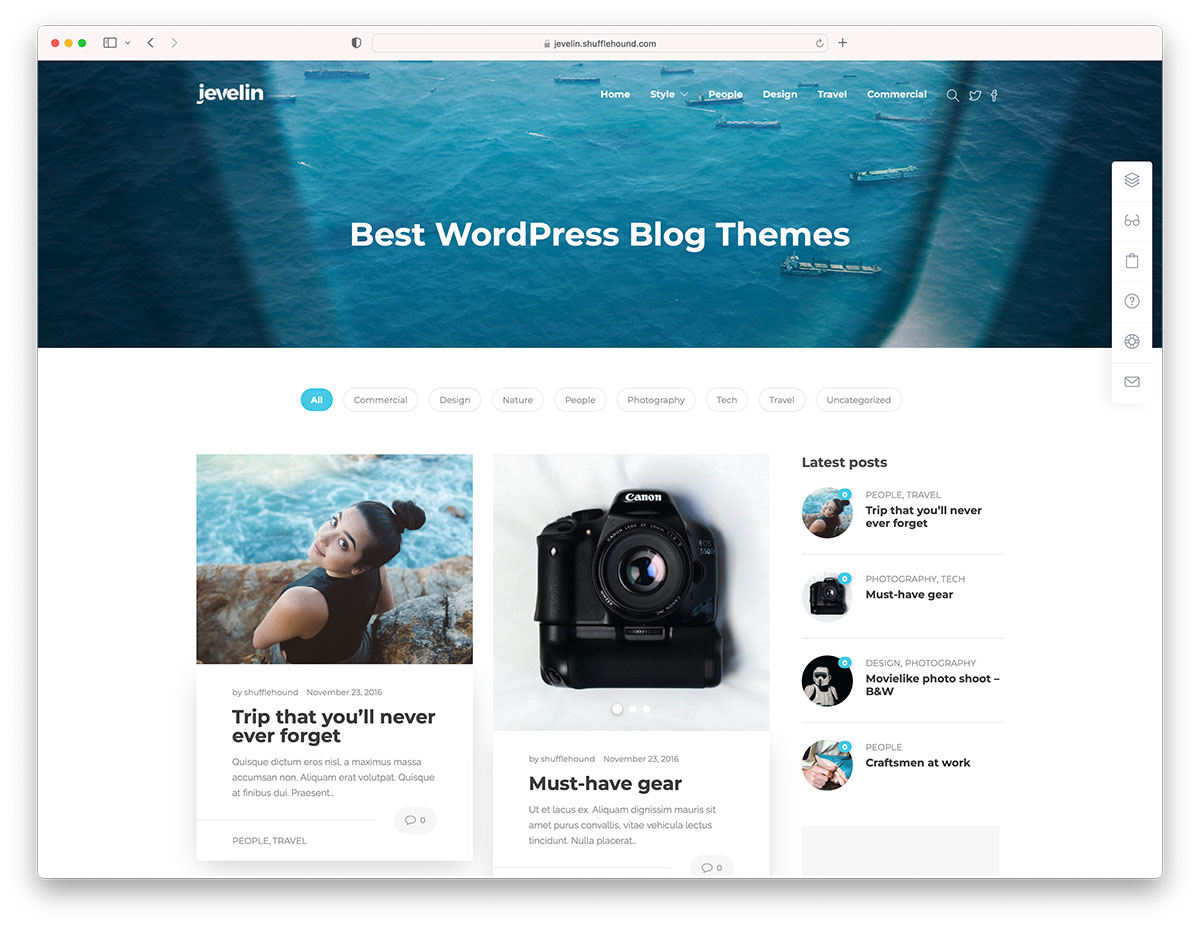
Click on a theme to see a live preview. This shows how the theme looks on your site. Check if the style matches your content. Make sure it looks good on phones and computers. Try different themes before choosing one.
Credit: colorlib.com
Installing A New Theme
First, log into your WordPress.com account. Go to the dashboard. Find the Appearance option in the menu. Click on it. Now, choose Themes. You will see many themes. Pick one you like. Click on the Install button. Wait for the theme to install. This can take a moment. Once done, you are ready to activate it.
After installing, find the Activate button. Click on it. Now, your new theme is active. Check your site. See how it looks. You can change themes anytime. Just repeat these steps. It’s very easy.
Go to the Customizer in the dashboard. Here, you can make changes. Change colors, fonts, or layout. Make your site look unique. Preview changes as you go. No worries if something goes wrong. You can always reset to default. Have fun exploring options.
Customizing Theme Settings
The Customizer Tool is easy to use. It lets you change your theme. You can see changes live. This tool helps make your site unique. Try different settings and see what works. It’s a fun way to learn.
Colors and fonts can change your site’s look. Choose from the color palette. Pick colors that match your style. Fonts make reading easy. Choose a font that fits your message. Experiment with different options to find the best mix.
Widgets add features to your site. They can show recent posts or social links. Menus help visitors find pages. Add menus for easy navigation. Arrange widgets and menus to fit your site’s design. They make your site more interactive.
Managing Theme Updates
Keeping your theme updated is very important. Updates fix bugs and add new features. They also make your website more secure. Old themes can have problems. These problems can make your site vulnerable. Hackers look for these problems. So, always update your theme. It keeps your site safe and fast.
First, go to your WordPress dashboard. Then, find the Themes option under the Appearance menu. Check if there are any updates available. A notice will show if an update is needed. Click on the Update button. It will update your theme. Make sure you have a backup before updating. This is just in case anything goes wrong. Updating is easy and quick.
Troubleshooting Common Issues
Changing themes on WordPress. com can sometimes lead to common issues. Users might face challenges with layout or missing widgets. Troubleshooting involves checking theme compatibility and ensuring all plugins are updated.
Theme Compatibility Problems
Not all themes work well with every plugin. This can cause errors. Always check theme details first. Choose themes that support your plugins. Some themes may not display properly. Update them regularly. Keep plugins updated too. If a theme breaks, try another one. Always back up your site first. This prevents loss of data.
Resolving Display Issues
Display issues can ruin a website’s look. Wrong settings can be the cause. Double-check theme settings. Check color and font settings. Sometimes images do not load correctly. Reduce image size if needed. Clear browser cache to see changes. If problems persist, contact support. They can offer quick solutions. Keep a record of changes made. This helps track what works.

Credit: wordpress.com
Frequently Asked Questions
How Do I Change My Theme On WordPress.com?
To change your theme on WordPress. com, log into your dashboard. Navigate to Appearance > Themes. Browse through available themes, preview, and activate the one you like. This process is straightforward and allows customization to match your site’s aesthetic and functionality needs.
Can I Customize My WordPress.com Theme?
Yes, you can customize your WordPress. com theme. Use the Customizer to change colors, fonts, and layouts. Access it by navigating to Appearance > Customize. Make adjustments to suit your preferences. Some themes offer more options than others, so explore what your chosen theme provides.
Are WordPress.com Themes Free?
Many themes on WordPress. com are free. You can explore a wide range without cost. However, premium themes are available for purchase. They offer advanced features and customization options. Choose based on your needs and budget to enhance your site’s appearance.
How Do I Preview A WordPress.com Theme?
To preview a WordPress. com theme, go to Appearance > Themes in your dashboard. Click on a theme you like and select “Live Preview. ” This lets you see how your site looks with the new theme before activating it, ensuring it fits your vision.
Conclusion
Changing themes on WordPress. com is simple and rewarding. Themes help personalize your website’s look. They enhance user experience and engagement. Start by exploring available themes. Preview them to see how they fit your content. Then, activate your chosen theme.
Always check your site’s appearance afterward. This ensures everything displays correctly. Regular updates keep your theme fresh and functional. Experiment with different styles. Find what best matches your brand or message. Your site should reflect your vision and goals. Enjoy customizing your WordPress site.
It gives a personal touch to your online presence.


