
Are you eager to give a single page on your WordPress site a fresh look without altering the rest of your website? Changing the theme of just one page can seem tricky, but it’s entirely doable—and can make a significant impact on how visitors perceive your content.
Imagine having the power to transform the mood and style of a page to better suit its purpose, all while maintaining the cohesive feel of your entire site. This article will guide you step-by-step through the process, unraveling the mystery and empowering you with the knowledge to make your page stand out.
Stay with us, and discover how easy it can be to customize your WordPress page with precision and flair.

Credit: warptheme.com
Choosing A New Theme
Switching up your WordPress page theme can be simple. First, install the new theme in your dashboard. Then, use a plugin like “Page Theme” to apply it to just one page. Customize settings to fit your style. This allows distinct designs without altering the entire site.
Identifying Compatible Themes
Choosing a new theme is fun. Compatible themes work best with your site. Check if the theme fits your WordPress version. Some themes need special plugins. Always read the theme details. Look for user reviews. They help you know if a theme is good. A good theme should load fast. Fast themes keep visitors happy.
Considering Design Aesthetics
Design matters for your page. Choose a theme that looks nice. It should match your brand. Colors and fonts should fit your style. Themes with many design options are best. You can change them as you like. Check for theme demos online. They show how the theme will look.
Checking For Theme Responsiveness
Responsive themes are important. They work on all devices. Many people use phones to visit sites. Your theme should look good on small screens. Test the theme on different devices. Make sure images and text fit well. A responsive theme keeps users happy.

Credit: themeplace.pro
Installing A Theme Plugin
First, pick a plugin that is well-rated. Check user reviews. Ensure it’s compatible with your version of WordPress. Avoid plugins with few downloads. Popular plugins are usually safer.
Go to your WordPress dashboard. Click on Plugins. Select Add New. Search for your chosen plugin. Click Install Now. Wait for the installation to finish.
After installation, activate the plugin. Go to Installed Plugins. Find your plugin. Click Activate. Check if the theme options appear. Explore settings and features.
Creating A New Page Template
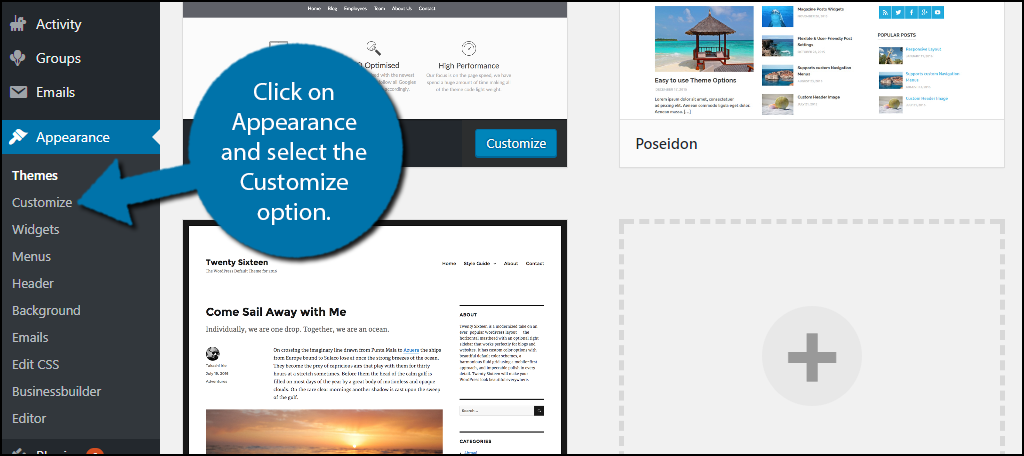
First, log in to your WordPress Dashboard. This is where you manage your site. Look for the menu on the left side. Find the section called Appearance. Click on it. Here, you can see different options. One of them is the Theme Editor. But be careful. Making changes here can affect your site.
Inside the Appearance menu, find Theme Editor. Click on it. A warning might pop up. It’s to remind you about changes. Look for the right-hand side. There are many files listed. These are part of your theme. You’ll need to find the one called page.php. This file controls how pages look.
You need a new file for a custom look. In the editor, create a new file. Name it something like custom-page.php. Make sure to start with the line: php / Template Name: Custom Page / ?. This tells WordPress it’s a new template. Save your changes. Now, this template is ready to use.
Credit: www.greengeeks.com
Applying The Theme To A Specific Page
Assigning the New Template to a Page is easy. First, log into your WordPress dashboard. Then, go to the page you want to change. Find the “Page Attributes” box on the right. Under “Template,” choose your new template. Click “Update” to save the changes. Your page now has a new theme.
Verifying Theme Changes on the Page is important. Visit your website to see the changes. Refresh the page if needed. Make sure the new theme looks good. Check if all elements are in place. Ensure the page is easy to read.
Troubleshooting Common Issues can help if things go wrong. Sometimes, the page doesn’t update. Clear your browser’s cache. This might solve the problem. If not, try another template. Contact your theme’s support if issues persist. They can help fix theme problems.
Customizing The Page Theme
Pick a color that matches your page. This color should make text easy to read. Select fonts that fit your style. Bold fonts are easy to see. Use different sizes for headings and body text. Make sure all text is easy to read.
Custom CSS helps change the look of your page. You can add your own styles. This makes your page unique. Add CSS code in the WordPress editor. Change colors, fonts, and layout with CSS. CSS is powerful but needs careful use. Too much CSS can make things messy.
Include extra features like sliders or galleries. These make pages more fun. Use plugins to add these features. Plugins are easy to find in WordPress. They add special functions to your page. Check that they work well with your theme. This ensures your page looks good.
Testing And Reviewing
Ensuring Cross-Browser Compatibility can be tricky. Test your theme on different browsers. Firefox, Chrome, and Safari are popular choices. Check how your page looks on each one. Make sure the design is consistent. Fix any issues you find. This helps users have a smooth experience.
Checking Mobile Responsiveness is important too. Many people use phones to browse. Open your page on different devices. Try it on a tablet and a smartphone. Ensure all elements fit nicely. Make sure text is readable. Adjust layouts if needed. This keeps your site user-friendly.
Gathering Feedback and Making Adjustments is key. Ask friends to review your page. Listen to their suggestions. Check if they face any problems. Use their feedback to improve your page. Small changes can make a big difference. Keep your audience happy and engaged.
Frequently Asked Questions
How Do I Change The Theme For One Page?
To change the theme for one page in WordPress, use a plugin like “Multiple Themes. ” This plugin allows you to select a different theme for individual pages. Simply install the plugin, configure it, and choose the desired theme for the specific page you want to change.
Can I Use Different Themes On Different Pages?
Yes, you can use different themes on different pages in WordPress. This is achievable with plugins that allow multiple themes. These plugins let you assign specific themes to individual pages, ensuring a unique look for each page without affecting the entire site.
Is It Easy To Change Page Themes In WordPress?
Changing page themes in WordPress is relatively easy with the right plugin. Plugins like “Multiple Themes” simplify the process. They provide a user-friendly interface that allows you to select and apply different themes to individual pages quickly and efficiently.
What Plugins Help With Changing Page Themes?
Plugins like “Multiple Themes” and “Page Theme” help change page themes in WordPress. They allow you to assign different themes to specific pages. These plugins offer flexibility and customization options, making it easy to create a unique look for different sections of your website.
Conclusion
Changing a theme on one WordPress page is simple. Follow the steps outlined above. First, choose a compatible plugin. Install it and activate the theme switcher. Next, pick the page you want to change. Select your desired theme. Save your settings.
Check the page to ensure it looks right. This technique lets you customize without coding. Remember, each page can have a unique look. It enhances your site’s appeal. Try it today and see the difference. Happy customizing!


