
Have you ever wanted to enhance your WordPress site without getting tangled in complicated coding? You’re in the right place!
Shortcodes are a powerful tool that can simplify the process of adding features and functionalities to your website. Whether you want to embed a video, display a gallery, or add a custom button, shortcodes make it easy. But what if you need to add them directly to your theme files?
Don’t worry—it’s simpler than you might think. By learning how to add shortcodes to your theme file, you can unlock a new level of customization and control. Read on to discover how you can seamlessly integrate shortcodes into your theme files, and transform your WordPress site with ease and confidence.

Credit: instawp.com
Understanding Shortcodes
Shortcodes are special codes in WordPress. They make adding features easy. You can add a gallery or video without code. Just use a shortcode. It’s like a magic word in your post. They start with brackets, like this: [shortcode]. Shortcodes save time and effort. They help keep your content clean. No mess, just neat features. Use them to make your site better.
Shortcodes bring many benefits to your WordPress site. They are simple to use. No need for coding skills. Just copy and paste them. Shortcodes also keep your content tidy. They make adding complex features easy. Your pages load faster with shortcodes. They reduce the need for heavy plugins. Shortcodes also help with design. You can create custom layouts easily. Great for beginners and experts alike.
Locating Theme Files
Start by opening your WordPress dashboard. Look for the Appearance tab. Click on it. Next, select Theme Editor. You’ll see many files here. These are your theme files. Be careful while editing them. Changes here affect your site.
Find the functions.php file. This file helps with shortcodes. Search for it in the Theme Editor. It’s usually on the right side. Click on the file. Now, you can add your shortcode. Make sure to save changes. Always make a backup first. This keeps your site safe.
Creating A Custom Shortcode
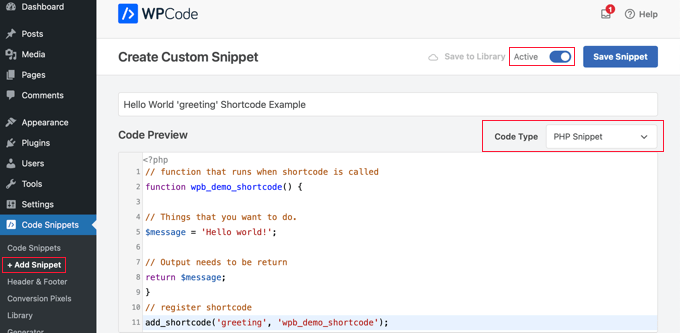
Start by writing a function. This function tells WordPress what to do. Use simple PHP code. It should return a string or HTML. This is what the shortcode will show. Do not forget to use clear names for your function. This helps you remember what it does. Keep the code clean and easy.
Next, register the shortcode with WordPress. Use the add_shortcode() function. This function connects your shortcode to WordPress. Give it a unique name. This name is what you will use in posts. Once registered, you can use it anywhere. It is simple and effective.
Adding Shortcodes To Theme Files
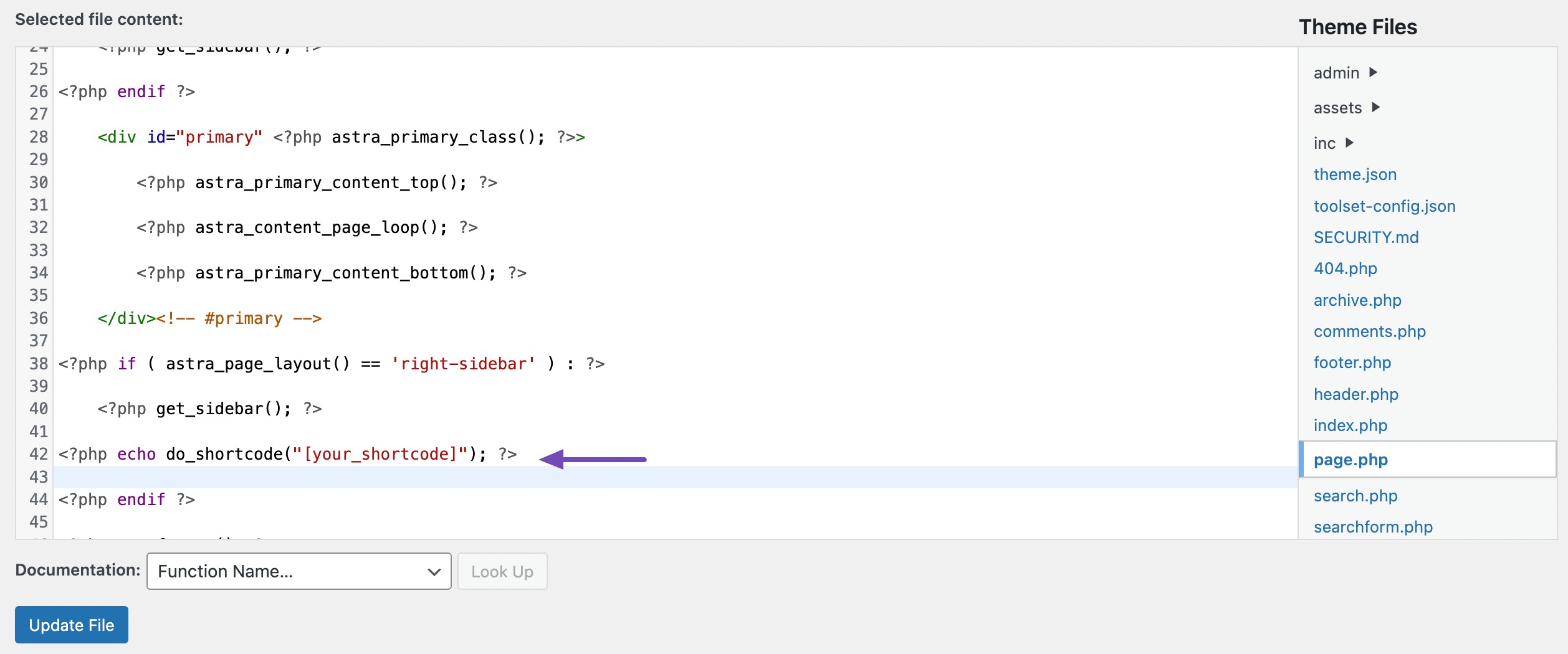
To add shortcodes to a theme file, open the PHP file. You need to place the shortcode. Use the PHP function do_shortcode(). For example, php echo do_shortcode('[your_shortcode]'); ?. This will display the shortcode’s output. Ensure the file is saved. Refresh your webpage to see changes. It’s simple yet effective. Customize your theme easily.
Widgets can also use shortcodes. Go to the WordPress dashboard. Navigate to Appearance, then Widgets. Choose your desired widget area. Add a Text widget. Paste your shortcode inside. Save the widget. Check your site to see the results. Shortcodes make widgets more dynamic. They enhance website functionality. Simple and useful.
Testing Shortcodes
To check if the shortcode works, add it to a page or post. Save and open the page in a browser. Look for the output from the shortcode. If you see it, the shortcode works well. If not, check the shortcode code. Maybe a small mistake is there. Correct it and try again.
Sometimes, shortcodes do not work. Check the WordPress version. It should be updated. Look at the theme file. Make sure the code is correct. Remove extra spaces or wrong symbols. If still not working, ask for help from forums or experts.
Credit: rankmath.com
Best Practices
Maintaining clean code is very important in WordPress. Shortcodes can make code messy. Always write neat and tidy code. Use comments to explain your code. This helps others understand your work. Organize your code well. Use proper indentation. Keep your code short and simple. Avoid using unnecessary functions. Neat code is easy to debug. It also helps in long-term maintenance.
Ensuring compatibility with different themes is crucial. Shortcodes might not work with all themes. Always test your shortcodes. Check them on different browsers. Make sure they do not break your site. Use WordPress functions wisely. This ensures compatibility. Update your shortcodes regularly. Keep them current with WordPress updates. This prevents future issues. Compatibility ensures a smooth user experience.
Credit: www.wpbeginner.com
Frequently Asked Questions
What Are WordPress Shortcodes?
Shortcodes in WordPress are small code snippets that enable users to execute functions. They help in embedding content easily without writing lengthy codes. Shortcodes are enclosed within square brackets, making them user-friendly for non-developers. They provide flexibility, allowing you to add dynamic content to posts, pages, and widgets.
How Do I Create A Custom Shortcode?
To create a custom shortcode, use the `add_shortcode()` function in your theme’s `functions. php` file. Define a callback function that outputs the desired content. Register this function with `add_shortcode()` by providing a unique shortcode name. Once created, use this shortcode in posts or pages to display the content.
Can Shortcodes Be Added To Theme Files?
Yes, shortcodes can be added to theme files. Use the `do_shortcode()` function to execute them directly in PHP files. Insert this function within the desired theme file and pass the shortcode as a string. This enables shortcodes to function seamlessly within theme templates and layout files.
Why Use Shortcodes In WordPress Themes?
Shortcodes simplify content management by providing reusable code snippets. They enhance flexibility by allowing dynamic content integration without programming skills. By using shortcodes, you can maintain consistent design and functionality across your website. They are ideal for embedding galleries, forms, and other interactive elements effortlessly.
Conclusion
Adding shortcodes to your WordPress theme file is simple. Follow each step carefully. Make sure to test changes after adding code. Shortcodes can enhance website functionality. They offer quick solutions without complex coding. Regular updates ensure compatibility and security. Keep exploring new shortcode options.
Practice makes perfect with WordPress customization. Enjoy the creative process. Enhance your site’s features with ease. Your website will benefit from these changes. Happy coding and designing!


