
Are you looking to breathe new life into your website by converting your Bootstrap theme into a dynamic WordPress site? You’re in the right place!
Imagine having the best of both worlds: the sleek, responsive design of Bootstrap paired with the powerful, user-friendly features of WordPress. This transformation is not just a technical upgrade; it’s an opportunity to enhance your site’s functionality, improve your SEO, and give your visitors a seamless experience.
You don’t need to be a coding wizard to achieve this—just follow a few straightforward steps. Ready to turn your static design into a dynamic masterpiece? Let’s delve into how you can make this conversion effortlessly and efficiently. Your website’s new look and enhanced performance are just a few clicks away!
Preparing Bootstrap Theme
Transforming a Bootstrap theme into a WordPress site involves setting up WordPress, creating a theme folder, and converting HTML files into PHP templates. Integrate dynamic content using WordPress functions to ensure seamless functionality.
Analyze Theme Structure
First, look at the theme files. They have HTML, CSS, and JavaScript. Check the folders and files. Understand how they work together. Note the header, footer, and main content. These parts are important for WordPress.
Gather Necessary Files
You need to copy the HTML, CSS, and JavaScript files. Also, get the images used in the theme. Place them in a new folder. Name it WordPress Theme. Keep the folder organized. It helps in the next steps.

Credit: www.charityandbiscuits.com
Setting Up WordPress Environment
Converting a Bootstrap theme into WordPress involves setting up a development environment. Start by installing WordPress locally using tools like XAMPP. Then, integrate the Bootstrap theme by creating a custom WordPress theme folder and converting HTML files into WordPress templates.
Install WordPress Locally
Start by downloading WordPress from its official site. Extract the files on your computer. Open your local server application. Launch the server to run WordPress. Create a new database for WordPress. This helps store all your site data. Use phpMyAdmin for database setup. Adjust settings for database username and password. WordPress needs these to connect to your database. Run the WordPress installer in your browser. Follow the installation steps. Complete the setup by entering required information. Your local WordPress site is now ready.
Create Child Theme
Building a child theme is smart. It keeps your changes safe. Use a text editor for this task. Create a new folder in the WordPress themes directory. Name it after your child theme. Make a style.css file inside this folder. Add necessary header information. Include your parent theme’s details. Create a functions.php file. Use it to enqueue the parent theme’s styles. This ensures proper styling. Your child theme allows customization without losing changes. Always activate the child theme before making edits.
Integrating Bootstrap With WordPress
Start by changing your HTML files into PHP templates. Copy your HTML code into a new file. Name it with a .php extension. This is important for WordPress. Use WordPress tags to replace static content. For example, replace your page title with php wp_title(); ?. This makes your site more dynamic. Your theme will now use WordPress functions. The header, footer, and sidebar should also be separate PHP files. This structure is key for WordPress themes.
Add Bootstrap CSS to your theme. Download Bootstrap files or use a CDN link. Place the CSS link in your theme’s header.php file. This is necessary for styling. Next, include Bootstrap JS in the footer.php file. Add jQuery before Bootstrap JS. WordPress loads jQuery by default. Ensure it loads correctly. This makes your theme responsive and interactive. Check your theme’s appearance. Make sure Bootstrap styles work well.
Customizing Theme Functions
Transforming a Bootstrap theme into a WordPress site involves modifying theme functions. This process enables seamless integration, ensuring a dynamic and customizable user experience. By adjusting the theme’s functions, developers can create a WordPress site that retains Bootstrap’s aesthetics while leveraging WordPress’s robust functionality.
Add Custom Functions
Begin by creating a child theme. This keeps your changes safe during updates. Use the functions.php file. Add new functions here. This file helps control theme behavior. Be careful with your code. A small mistake can break the site. Test each change you make. It ensures everything works well. Use comments to explain your code. This helps in understanding later.
Enqueue Scripts And Styles
Scripts and styles help your theme look good. Use wp_enqueue_scripts to add them. This function is in the functions.php file. It ensures files load correctly. Use the wp_register_script function first. Then, use wp_enqueue_script. This is for JavaScript files. For CSS, use wp_enqueue_style. Organize your files well. Name them clearly. This avoids confusion. Check your site after changes. Make sure it loads properly.
Creating WordPress Templates
Transforming a Bootstrap theme into a WordPress template involves integrating Bootstrap’s responsive design with WordPress’s functionality. Start by converting HTML files into WordPress PHP templates. Then, use WordPress functions to manage content dynamically.
Header And Footer Templates
Converting a Bootstrap theme to WordPress needs header and footer templates. The header file often starts with header.php. This file includes the website’s title and metadata. Essential for SEO. The footer file is named footer.php. It holds the closing HTML tags and footer content. These files ensure a consistent look across all pages. They help maintain the design flow. Each page uses the same header and footer. This saves time and keeps things organized. The header and footer make the site look neat. They provide structure and style.
Page And Post Templates
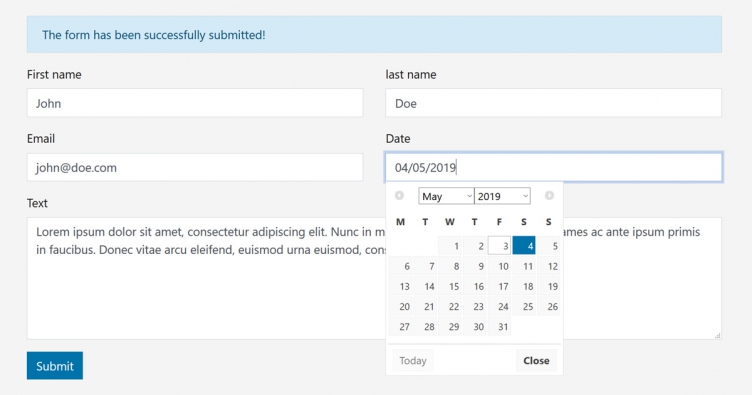
Page and post templates are vital for WordPress themes. The page template is for static pages. Pages like ‘About Us’ or ‘Contact’. It helps maintain the layout. The post template is for blog posts. Each template is a PHP file. They define how content appears. You can customize the look of each page. Templates make it easy to change layouts. They give flexibility to design. Having different templates is helpful. It ensures a uniform look on the site.
Credit: www.acf-extended.com
Utilizing WordPress Features
Widgets and menus make a site more user-friendly. Widgets add extra features like search bars. Menus help users find pages easily. Both are simple to set up in WordPress. Go to the Appearance tab in your WordPress dashboard. Click on Widgets or Menus to start. Drag and drop items to arrange them. Save changes to update your site.
Custom post types give a site more flexibility. They allow you to create content beyond regular posts and pages. Use them for portfolios, testimonials, or products. WordPress has plugins that help. Custom Post Type UI is a popular choice. Install it from the plugins menu. Follow the steps to create your new post type. Assign it a name and settings. Your site can now handle more content types.
Testing And Debugging
Converting a Bootstrap theme to WordPress involves testing and debugging to ensure seamless integration. Simplify the process by identifying errors early and adjusting code accordingly. Debugging helps maintain functionality and design consistency, crucial for a user-friendly experience.
Check Cross-browser Compatibility
Browsers can show websites differently. Test your site on Chrome, Firefox, and Safari. Make sure everything looks the same. Check layout, fonts, and colors. Fix any differences you find. Use tools like BrowserStack. They help you test on many browsers. Make sure your site works well everywhere.
Debug Common Issues
WordPress themes can have bugs. These bugs can break your site. Check for broken links. Fix any missing images. Look for errors in your code. Use tools like Debug Bar. They help find issues fast. Test your site often. Make sure everything works. Use error logs for more help. Always keep your theme updated. Updates can fix bugs.
Deploying The Theme
Uploading your theme to a live server is simple. First, ensure your files are ready. Use an FTP client like FileZilla for uploading. Connect to your server using credentials. Then, find the wp-content/themes directory. Upload your theme files here. Refresh your WordPress dashboard to see your theme. Activate it to make it live. Check your website to ensure everything looks good.
Performance is key for a good user experience. Start by optimizing images. Use tools to compress images without losing quality. Minimize CSS and JavaScript files. This reduces load times. Check for unnecessary plugins. Remove them to speed up your site. Use caching plugins like W3 Total Cache. This can significantly improve speed. Regularly update your theme and plugins. Updates often fix bugs and improve performance. Monitor your site speed using tools like Google PageSpeed Insights.

Credit: m.youtube.com
Frequently Asked Questions
What Is Bootstrap In WordPress?
Bootstrap is a popular front-end framework. It helps in designing responsive and mobile-friendly websites. By integrating it with WordPress, you can enhance your theme’s design and functionality effortlessly. This combination allows developers to create dynamic, attractive, and user-friendly WordPress sites.
How Do I Start Converting A Theme?
Begin by analyzing the Bootstrap theme’s structure. Identify its components and layout. Then, create a child theme in WordPress. Transfer the HTML, CSS, and JavaScript from Bootstrap to WordPress. Make sure to test each element for compatibility and functionality.
Can I Use Bootstrap With Any WordPress Theme?
Yes, you can integrate Bootstrap with almost any WordPress theme. However, it’s essential to ensure compatibility and responsiveness. Some themes may require additional customization. Always test thoroughly to guarantee a seamless integration that enhances your site’s design and performance.
What Tools Help In Conversion?
Several tools assist in theme conversion. Use code editors like Sublime Text or Visual Studio Code. Browser developer tools can inspect and tweak elements. WordPress plugins might offer integration support. These tools simplify the conversion process, ensuring accuracy and efficiency.
Conclusion
Converting a Bootstrap theme to WordPress is simple. Follow the steps carefully. Start by understanding WordPress structure. Then, integrate Bootstrap CSS and HTML. Use the WordPress loop for dynamic content. Create custom post types if needed. Don’t forget widgets and plugins.
Test thoroughly for responsiveness. Keep your code clean and organized. Practice makes perfect, so keep learning. Soon, you’ll convert themes effortlessly. Your WordPress site will look great with a Bootstrap base. Enjoy the creative process. It’s rewarding to see your design come alive.
Happy converting!


