
Are you ready to give your WordPress website a fresh new look? Adding a new theme can transform your site’s appearance and enhance its functionality.
But, if you’re using HostGator and aren’t quite sure how to get started, you might feel a bit overwhelmed. Don’t worry; you’re not alone! Many website owners face the same challenge. The good news is, with the right guidance, you can easily add a WordPress theme to your HostGator account and elevate your site’s design in no time.
By following our step-by-step guide, you’ll not only learn how to seamlessly integrate a new theme but also gain confidence in managing your website’s appearance. Curious to see how simple it really is? Let’s dive in and unlock the potential of your WordPress site together!
Choosing The Right Theme
Picking the right theme is important. The theme should fit your site’s style. A simple design often works best. Fast loading is key for good performance. Make sure the theme is responsive. It should look good on phones and tablets. Check if it works with popular plugins. This helps in adding features later. Look for themes with good reviews. Trust themes that many people like.
Themes can be found in many places. The WordPress Theme Directory is a good start. It has many free themes. ThemeForest offers both free and paid options. Their collection is big. StudioPress is famous for its Genesis themes. These are clean and fast. Elegant Themes offers premium themes like Divi. This is a favorite for many users. Always check the theme’s rating before downloading.
Preparing For Installation
Before installing a new theme, backup your website. This saves your site if problems happen. Use a plugin or Hostgator backup tool. Plugins like UpdraftPlus are easy to use. Make sure all your files are safe. Backups protect your work and data. Always have a recent backup. This helps avoid stress.
Verify your WordPress version is up-to-date. Older versions might cause issues. Check your PHP version too. Themes need the latest PHP. Go to your Hostgator control panel. Find the PHP version setting. Update if needed. Latest versions make sure things run smoothly. Themes work better with new versions. Keep your software current.
Accessing Hostgator Control Panel
First, go to the Hostgator website. Enter your username and password. Click the login button. This takes you to your account page.
On the account page, find the cPanel link. It’s usually on the dashboard. Click it. This opens the control panel. Here, you can manage your website. It’s simple and easy.
Credit: www.hostgator.com
Uploading Theme Via WordPress Dashboard
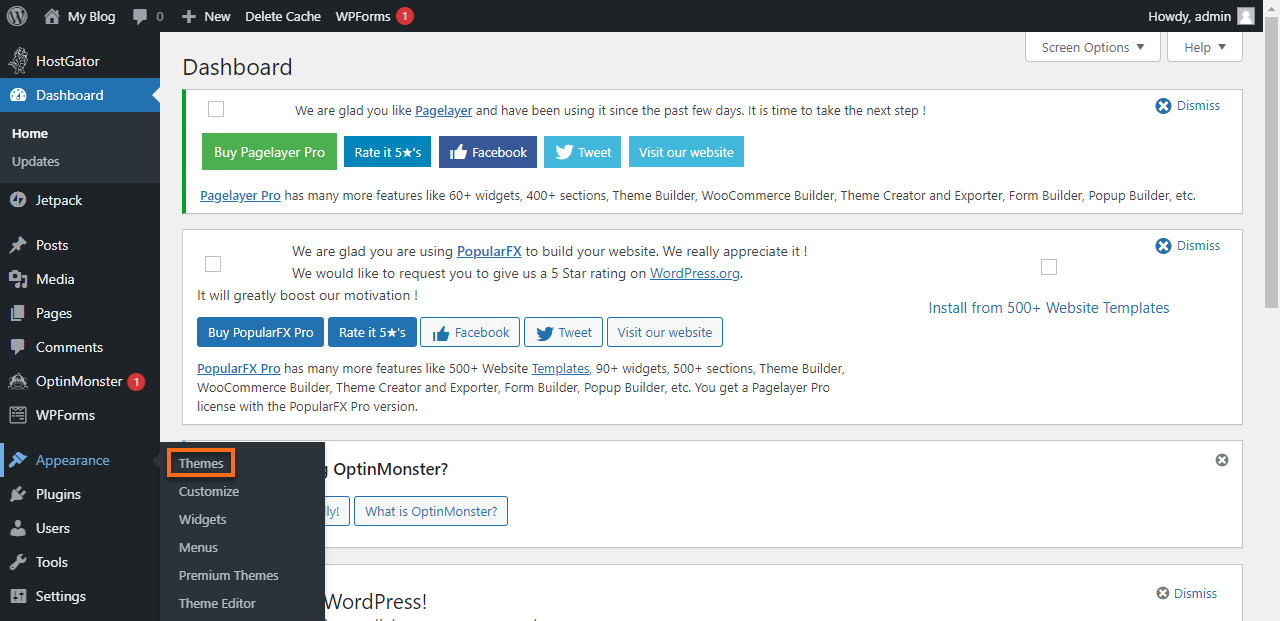
Log in to your WordPress dashboard. Look for the Appearance tab on the left side. Click on it. This will open a list. Find and click on Themes. Here, you can see all your current themes. You can add new themes too. This is the first step to add a theme.
Click on the Add New button at the top. You will see a new page. Click on the Upload Theme button. Choose your theme file from your computer. It should be a .zip file. Click on Install Now. Wait for the upload to finish. Once done, click Activate to make it live. Now your new theme is ready to use!
Installing Theme Via File Manager
Access Hostgator’s File Manager to add a WordPress theme easily. Upload the theme’s ZIP file to the “themes” folder in your WordPress directory. Activate the theme through the WordPress dashboard to start customizing your site.
Locating The File Manager
Find the File Manager in your Hostgator account. It helps you manage files. Look for it in the control panel. Click to open it. You see many folders here. Find the public_html folder. This folder holds your website files. Click on it to open. Here is where your theme files go.
Uploading Theme Files
You need to upload theme files now. Start by finding the wp-content folder. Open it to see subfolders. Look for the themes folder. This is where you place theme files. Click on the Upload button. Select your theme zip file. Wait for it to upload. Once done, extract the zip file. Your new theme is ready to use!

Credit: www.hostgator.com
Using Ftp For Theme Upload
Download an FTP client like FileZilla. Open the client and find the Host field. Enter your Hostgator details. Look for the username and password fields. Add your Hostgator login info. Choose the port number, usually 21. Click Quickconnect to connect to your server.
Locate your theme files. They are usually in a zip folder. Extract the files on your computer. Find the public_html folder in your FTP client. Open the wp-content folder. Go to the themes folder. Drag and drop theme files into this folder. Wait for the transfer to complete. Check your WordPress dashboard. Activate the new theme from there.
Activating And Customizing The Theme
Activate your WordPress theme on Hostgator by accessing the dashboard. Customize the appearance by adjusting colors and layout to fit your style. Ensure your theme is responsive for mobile users, enhancing the user experience on all devices.
Activating The New Theme
Open the WordPress dashboard. Go to the Appearance tab. Click on Themes. Find your new theme. Click Activate. Your theme is now live. Check your website. Make sure it looks good.
Customizing Theme Settings
Open the Customize option under Appearance. You can change colors. You can change fonts. Adjust the layout. Add your logo. Change the site title. Preview changes. Make sure you like them. Save your settings. Your site now looks unique. Explore more settings for fun. Make sure your site feels personal.
Troubleshooting Common Issues
Easily add a WordPress theme to HostGator by accessing your cPanel, then navigate to the WordPress dashboard. Upload your desired theme in the ‘Appearance’ section. Ensure compatibility and activate it for a seamless website update.
Theme Compatibility Problems
Themes sometimes don’t work well together. Check the theme version first. It should match your WordPress version. Old themes may cause issues. Look for updates. Plugins can also clash with themes. Disable all plugins. Then, activate one by one. This helps find the faulty plugin. Review theme documentation. It often lists known issues. If problems persist, contact theme support. They can offer advice or solutions.
Fixing Upload Errors
Upload errors can be frustrating. Ensure the file size is within limits. Large files may not upload. Check your internet connection. A weak signal can interrupt uploads. Verify file format. It must be zip for WordPress themes. Clear browser cache regularly. A full cache can block uploads. Try using another browser. Some browsers handle uploads better. Double-check your Hostgator settings. Incorrect settings can prevent uploads.

Credit: www.hostgator.com
Frequently Asked Questions
How Do I Upload A WordPress Theme To Hostgator?
To upload a WordPress theme to HostGator, log into your WordPress dashboard. Go to ‘Appearance,’ then ‘Themes,’ and click ‘Add New. ‘ Upload your theme’s. zip file and click ‘Install Now. ‘ Finally, activate the theme to complete the process.
Can I Use Free WordPress Themes On Hostgator?
Yes, you can use free WordPress themes on HostGator. Simply access the WordPress theme repository from your dashboard. Choose a theme, click ‘Install,’ and then ‘Activate. ‘ This provides a cost-effective way to customize your site.
What Are The Steps To Activate A Theme On Hostgator?
To activate a theme on HostGator, navigate to ‘Appearance’ in your WordPress dashboard. Select ‘Themes,’ then choose your desired theme. Click ‘Activate’ to apply it to your site. Ensure your theme is compatible with your plugins.
Is It Possible To Customize WordPress Themes On Hostgator?
Yes, customizing WordPress themes on HostGator is possible. Use the ‘Customizer’ in your WordPress dashboard for changes. You can adjust colors, fonts, and layout. For advanced customization, consider using a child theme.
Conclusion
Adding a WordPress theme to Hostgator is simple. Follow the steps carefully. First, choose a theme that suits your needs. Download it to your computer. Go to your Hostgator cPanel. Find the WordPress dashboard. Click on “Appearance,” then “Themes. ” Upload your theme file.
Activate it, and you’re done. Now, your website has a fresh look. Remember to customize it further. Explore the settings and options. Make sure it reflects your brand. Keep your site updated. This ensures security and smooth performance. Enjoy your new website design!


