
Are you tired of your WordPress theme’s current look? Want to give your website a fresh feel without a complete overhaul?
Changing the background color can transform your site’s appearance with just a few clicks. This simple tweak can make your content pop, enhance readability, and reflect your personal style or brand identity. Imagine the immediate impact a new color palette could have on your visitors, drawing them in and keeping them engaged.
In this guide, we’ll walk you through the easy steps to change your WordPress theme’s background color, ensuring your site stands out and resonates with your audience. Ready to give your website a vibrant makeover? Let’s dive in!
Choosing The Right Theme
Theme Compatibility is key when changing your background color. Some themes let you change it easily. Others might not. Always check if the theme is compatible with your needs. Some themes have built-in options for this. They are easy to use. Look for themes with customization features. This makes your job easier.
Customization Options are important for personalizing your site. Themes with many options offer more flexibility. You can change colors, fonts, and more. This helps make your site unique. Always explore the theme settings. Some themes allow color changes directly. Others might need a plugin. Choose a theme that suits your style.
Accessing Theme Customizer
Navigating the Dashboard is the first step. Start at the WordPress dashboard. Click on “Appearance”. Find the “Customizer” option. It’s easy to locate. Look on the left panel.
Once inside, explore many options. Colors, fonts, layouts are available. Changing the background color is simple. Click “Colors” or “Background”. Choose your favorite shade. Preview changes instantly. Save your work. Enjoy your new design.
Locating the Customizer is straightforward. Begin at the dashboard. Look for the “Appearance” tab. Click “Customizer” from the menu. It’s on the left side. The Customizer opens up. Now, you can edit your theme. Change the background color easily. Select the “Colors” section. Pick a new color. Watch the preview. Hit save to keep changes.
Using The Background Color Settings
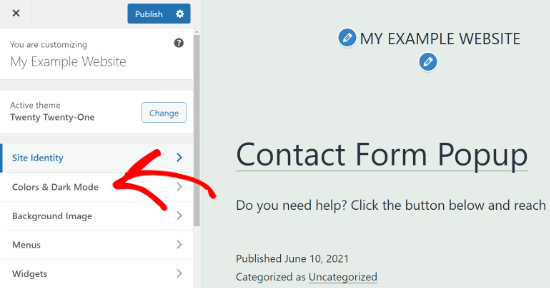
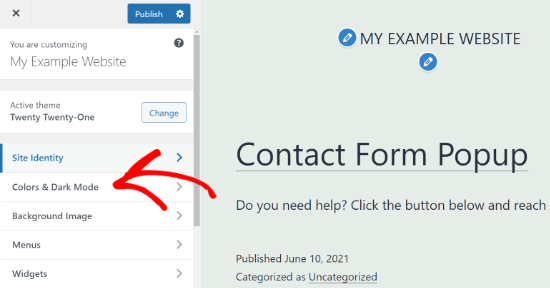
To change the background color, start by accessing the WordPress Dashboard. Look for the Appearance section on the left menu. Click on it. You will see a submenu. Find and select Customize. A new page will open. Here, search for the Colors option. It is usually under the Theme Options or similar settings. Click on it to explore further.
Now, you can see different color options. Choose the background color setting. A color picker tool will appear. Click on it to select a new color. You can use the slider to adjust shades. Once satisfied, hit the Save or Publish button. Your new background color is now active.
Credit: www.wpbeginner.com
Css Customization For Advanced Users
Discover how to change the background color of your WordPress theme using CSS customization. Advanced users can easily modify the style sheet to personalize their site’s appearance. Tailoring your theme’s colors enhances the visual appeal and user experience.
Accessing Additional Css
To change the background color, first open your WordPress dashboard. Find the “Appearance” tab on the left menu. Click on “Customize” to open the Customizer screen. Look for the “Additional CSS” option. This is where you can add your own CSS code. You can see your changes live on the right side. Make sure you save the changes by clicking “Publish.”
Writing Custom Css Code
In the “Additional CSS” box, type your custom code. For changing the background color, use this code: body {background-color: #yourcolorcode;}. Replace “yourcolorcode” with the color you want. Use color names or hex codes. Make sure your code is correct. Check if the color appears as you want. You can always change it later. Click “Publish” to save your changes.
Saving And Previewing Changes
Click the preview button in the theme settings. This shows your changes before saving. Look at the new background color. Check if it matches your style. Adjust as needed. You can see how it looks on different pages. This helps in making sure it looks good everywhere. It’s a simple way to try different colors. Make sure to test on mobile too. This gives a complete view.
After previewing, click the save button. This applies the new background color to your theme. It’s important to save changes to keep them. Without saving, changes will be lost. The save button is usually at the top. Look for it and click. Wait for the settings to update. This takes a few seconds. Now, your website has a fresh look.
Troubleshooting Common Issues
Changing the background color in a WordPress theme can sometimes be tricky. Start by navigating to the theme customizer in your WordPress dashboard. Look for the ‘Colors’ section where you can easily select a new background shade.
Changes Not Appearing
Sometimes changes don’t show up right away. Clearing the cache might help. This is like refreshing your browser. Also, check if you saved your changes. Saving is important after every change. Ensure that you are working on the right theme. Sometimes, the wrong theme is active. Check your theme settings again.
Reverting To Default Settings
Accidentally changed the wrong setting? Reverting to default can fix this. Most themes have a reset option. This button will take you back to the start. Be careful, as it might erase your changes. Always check before you reset. Remember, saving your settings often is a good practice. This keeps your changes safe.
Utilizing Plugins For Enhanced Customization
To change the background color, use WordPress plugins. They make it easy. Plugins like ColorMag and Custom Backgrounds are popular. They help you pick colors fast. These plugins are free and simple. Just install and activate them. No coding skills needed. Try different plugins to find the best fit. Each plugin has unique features.
Install plugins from the WordPress dashboard. Search for the plugin name. Click on the Install Now button. After installing, activate the plugin. Then, go to the settings page of the plugin. Choose your favorite background color. Save your changes. Refresh your site to see the new look. It’s that simple! Plugins let you change colors in seconds.

Credit: www.youtube.com
Best Practices For Color Selection
Color theory helps in picking the right colors. Colors have feelings. Red can mean excitement. Blue often feels calm. Complementary colors work well together. These are colors opposite on the color wheel. Yellow and purple are examples. Analogous colors are next to each other. Green and blue are examples. They blend nicely. Choose colors wisely for your theme.
Picking colors affects how easy it is to read text. Contrast is key. Dark text on a light background is easy. Light text on dark background works too. Avoid colors that are too similar. Green text on a blue background is hard to read. Text should stand out. Bold or large fonts help. Choose colors that make the text clear.
Credit: themelooks.com
Frequently Asked Questions
How Do I Change WordPress Theme Background Color?
To change your WordPress theme’s background color, navigate to the WordPress dashboard. Click on “Appearance” and then “Customize. ” Look for the “Colors” or “Background” option. Here, you can select and modify the background color. Once satisfied, click “Publish” to save your changes.
Can I Change Background Color Without Coding?
Yes, you can change the background color without coding. Most WordPress themes offer a built-in customizer. Use the “Appearance” and “Customize” options in the WordPress dashboard. Within the customizer, find the “Colors” or “Background” section. Here, you can easily change the background color without any coding knowledge.
Why Can’t I Change Theme Background Color?
If you can’t change the background color, your theme might not support it. Some themes have limited customization options. Consider switching to a more customizable theme. Alternatively, use a custom CSS plugin to manually change the background color. Always back up your site before making any changes.
Does Changing Background Affect Website Performance?
Changing the background color generally doesn’t affect website performance. It’s a simple customization that involves CSS changes. However, if you use large images or complex patterns, it might slow down loading times. Always optimize images and test your site speed after making changes to ensure optimal performance.
Conclusion
Changing your WordPress theme’s background color is simple. Follow the steps carefully. Start by accessing the theme customizer. Explore the color settings. Pick a color that suits your style. Preview changes before saving. This ensures your website looks great. Remember, a good background enhances your site’s appeal.
Regular updates keep your design fresh. Experiment with different colors. Find what works best for your content. Keep your audience in mind. Make your site user-friendly and visually appealing. Enjoy customizing your WordPress theme, and watch your site stand out!


