
Are you trying to customize your Highend WordPress theme, but getting stuck on changing the footer? You’re not alone!
The footer is a crucial part of your website, holding essential links, contact information, and sometimes even legal disclaimers. It’s the final touch that can make or break the look of your site. Imagine visitors scrolling down, and instead of a polished finish, they find a generic, uninspiring footer.
Not ideal, right? In this guide, you’ll learn exactly how to change the footer in the Highend WordPress theme, making it perfectly align with your brand’s vibe. By the end of this article, you’ll have the skills to transform your website’s footer into a visually appealing and functional element, leaving your visitors with a lasting impression. Ready to take your website to the next level? Let’s dive in!
Understanding Highend Theme Footer
The Highend theme offers a customizable footer. Users can add their own style. Change colors, text, and widgets easily. Navigate to the WordPress dashboard first. Find the “Appearance” section. Then, click on “Customize”. The footer options are under “Footer Settings”. Make changes there. Adjust the layout or add social media links. Save changes to see updates. Widgets are easy to add. Drag them into the footer area. Try adding contact info or a map. Experiment with different designs. Ensure the footer complements your site. Users appreciate a well-designed footer. It enhances the site’s look. Every element matters in design. Keep it simple yet effective. Happy editing!
Accessing WordPress Dashboard
Open your web browser. Type your website URL. Add “/wp-admin” at the end. Press enter. You will see the login page. Enter your username and password. Click the login button. Now you are in the WordPress Dashboard.
The dashboard is like a control room. Here you manage your website. The left side has a menu. Find the Appearance option. Click on it. Now look for Theme Editor. Click again. This opens a new page. You can change your theme here.
Navigating To Theme Options
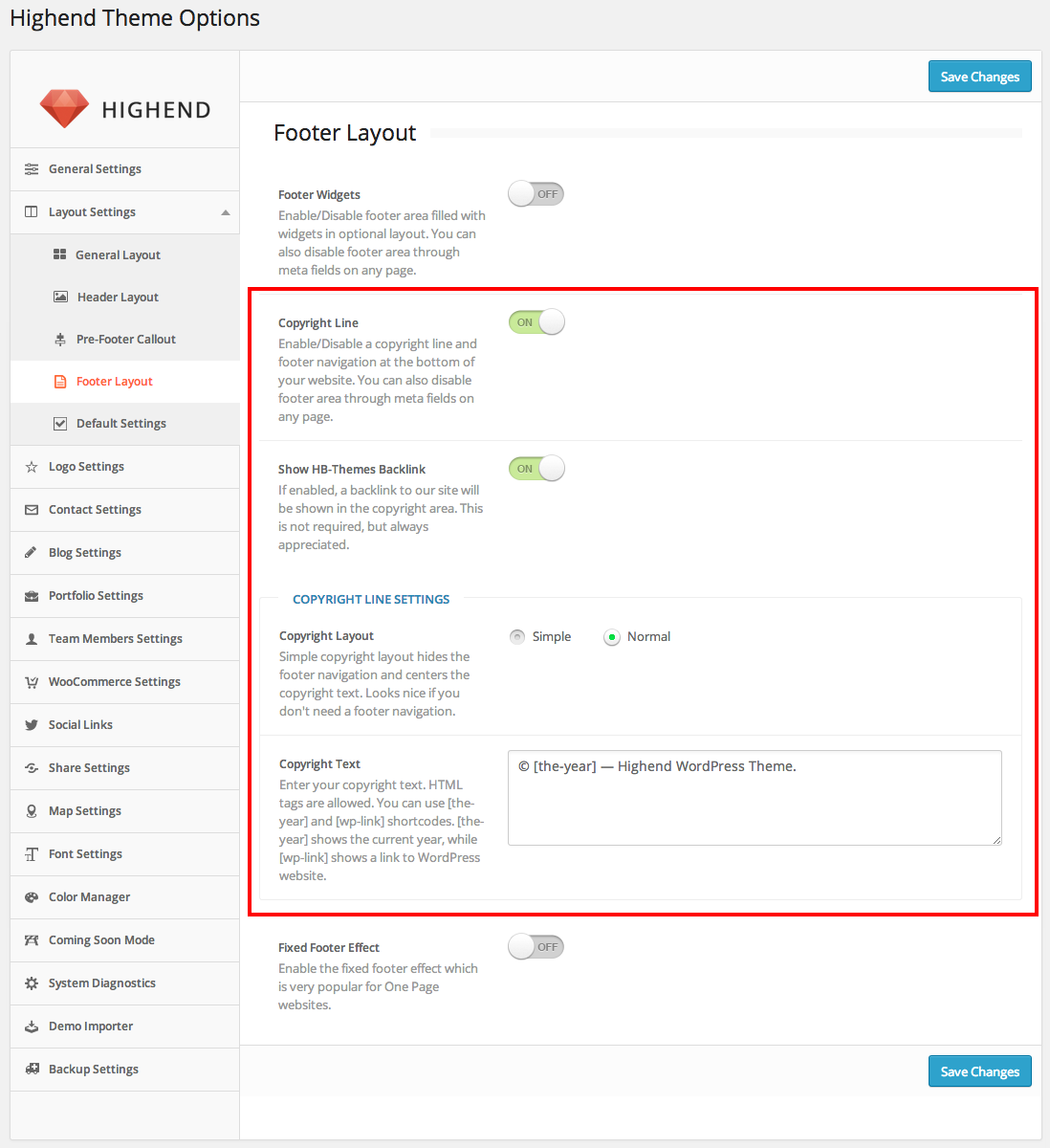
First, go to your WordPress dashboard. Look for the Appearance tab on the left side. Click it to open a menu. Find and click on Theme Options. This is where you can change many settings. It is a key place for your theme’s style.
In Theme Options, search for the Footer section. This is where you can make changes to the footer. You can add or remove text. Change colors to match your site. It’s simple and easy.
Make sure to save your changes. Find the save button at the top or bottom. Your changes will now show on your site. Check to see if everything looks good.
Credit: documentation.hb-themes.com
Locating Footer Settings
First, find your WordPress dashboard. It’s the control center. Look for the “Appearance” option. It’s on the left side. Click it. A new menu opens. Choose “Customize” from this menu. Now, you are in the theme customizer. This is where magic happens.
Next, find the “Footer” option. It might be inside “Layout” or another section. Click to open. Different themes show settings differently. Explore each option. Look for footer widgets or footer text. These settings change your footer.
Customizing Footer Widgets
Adding New Widgets to your footer can make your site look better. Start by going to the WordPress dashboard. Click on ‘Appearance’ and then ‘Widgets’. You will see a list of available widgets. Drag the widget you want to use into the footer area. You can add text, images, or links. Each widget has options. You can customize these options. This helps you display information in your footer.
Removing Unwanted Widgets is simple. Go back to the ‘Widgets’ page in your dashboard. Find the widget you want to remove. Click on it and drag it out of the footer area. This will take it away from your site. You can also click on the widget and choose ‘Delete’. This will remove it permanently. Keeping your footer clean is important. It makes your site easy to use.
Editing Footer Text
Changing the footer text in the Highend WordPress theme is simple. Navigate to the WordPress dashboard, select “Appearance,” then “Customize,” and click on “Footer. ” Update your desired text in the footer settings. Save changes to see the updated footer on your website.
Using Footer Editor
The Highend WordPress theme has a Footer Editor. It allows easy changes to the footer text. Start by navigating to the Appearance section in your dashboard. Select the Editor option. This will open the theme files.
Locate the file named footer.php. This file contains the footer text. Make sure to edit carefully. Save changes and refresh your site. You should see your new footer text.
Html And Shortcodes
Using HTML and shortcodes can enhance your footer. Add links or images easily with HTML. Shortcodes allow dynamic content. These are useful for social media icons or contact forms. Ensure you understand the code before making changes.
Test changes to avoid errors. Preview your site to see results. Adjust if necessary.
Changing Footer Colors And Fonts
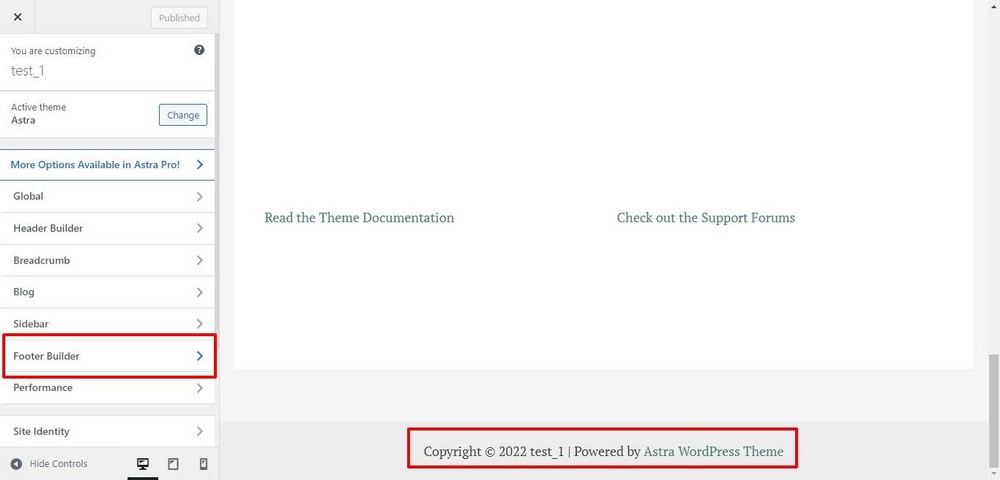
To change the footer colors, go to your WordPress dashboard. Look for the Appearance tab and click on Customize. You will find options for Footer. Click on it and choose Colors. Select the color you like. Press Save to keep the changes.
For changing the footer fonts, go back to the Footer section. Click on Typography. Here you can see different font styles. Choose the font that looks best. Check how it looks on your site. If you are happy, click Save.
Updating Footer Links
Changing footer links is easy. First, go to your WordPress dashboard. Find the option labeled Appearance. Click on it. Now, select Customize. A new window will open. Look for Footer settings. Click on it. You will see options to edit links.
Select the links you want to change. Type in the new URL. Also, update the link text. Make sure all details are correct. Save the changes. Refresh your page to check. The new links should show in the footer.
If they don’t, try clearing your browser cache. This helps fix display issues. Editing footers is important. It keeps your site updated. Visitors will find correct links.
Saving Changes And Previewing
It’s important to save your changes. Look for the Save button in the editor. Click it to ensure your work isn’t lost. Before finalizing, always preview your changes. This helps you see how the footer looks on the site. Make sure everything is in place and looks good. If something seems off, go back and edit. Previewing also helps catch any mistakes early. After checking, you can publish the changes. Always double-check for any errors. This ensures a smooth process.
Credit: www.wpcrafter.com
Troubleshooting Common Issues
Changing the footer in the Highend WordPress theme involves navigating to the theme options. Customize your footer text or widgets easily through the settings. Save your changes to update your website’s appearance instantly.
Widgets Not Displaying
Widgets can be tricky sometimes. Check if they are activated in the dashboard. Make sure the right footer area is selected. Sometimes, widgets are added but not in the correct section. Verify that the widget is in the footer area you want. Double-check your theme settings. Widgets might be hidden due to theme options. If widgets still don’t show, try refreshing the page or clearing the cache.
Footer Not Updating
This issue can be frustrating. Ensure changes are saved properly. After editing, click the save button in the dashboard. Check for plugin conflicts. Some plugins might prevent changes. Disable plugins one by one. This helps find the problem. Ensure your theme is updated to the latest version. Outdated themes might cause issues. If the footer remains unchanged, consider contacting support for help.
Additional Resources
Explore the official Highend theme documentation for step-by-step guides. It offers detailed instructions for beginners. Check out online forums like WordPress.org. These forums have user experiences and solutions. Many users share tips and tricks there.
YouTube is a great place for tutorials. Search for Highend theme footer changes. Many creators post helpful videos. They explain each step clearly. Join Facebook groups for WordPress enthusiasts. These groups are active and full of advice.
Professional blogs often have guides. They cover different themes including Highend. Look for blogs with tech focus. They might have hidden gems for you. Bookmark useful links for quick access later.
Credit: documentation.hb-themes.com
Frequently Asked Questions
How Do I Access Footer Settings In Highend Theme?
To access footer settings, navigate to your WordPress dashboard. Click on “Appearance” then “Customize. ” In the customization menu, find “Footer” settings. Here, you can change layouts, colors, and widgets. Save changes to update your footer. This ensures your site’s footer matches your desired design.
Can I Add Widgets To The Footer In Highend?
Yes, Highend Theme supports footer widgets. Go to “Appearance” and select “Widgets. ” Drag and drop your preferred widgets into the footer widget area. Customize widget settings to suit your needs. Make sure to save changes for them to reflect on your site.
Widgets enhance footer functionality and aesthetics.
How Do I Change Footer Text In Highend Theme?
To change footer text, access “Theme Options” from your dashboard. Find the “Footer” section and edit the text fields. You can add custom text, links, or copyright information. Save changes to apply them. Customizing footer text helps personalize your website and provide relevant information to visitors.
Is It Possible To Customize Footer Design?
Absolutely, Highend Theme allows footer design customization. In “Theme Options,” navigate to “Footer” settings. Choose different layouts, colors, and styles. Customize widgets and text for a unique appearance. Save your changes to update the design. Tailoring the footer design enhances the overall site look.
Conclusion
Changing the footer in Highend WordPress theme is straightforward. Follow the steps carefully. You can customize it to fit your site’s style. Make sure your changes are saved. Preview your site to see the new footer. This boosts site appeal and user experience.
A well-edited footer enhances your brand’s identity. Keep experimenting with different designs. Make your website unique and memorable. Remember, small changes can have a big impact. Enjoy the creative process and improve your site’s look. Happy editing!


