
Are you looking to give your WordPress site a fresh look by changing the font color of your Twentyeleven theme? You’re in the right place!
Customizing your website’s appearance is one of the simplest ways to make it stand out and better reflect your brand’s personality. Imagine having a website that doesn’t just deliver content but captivates your audience with its unique style. Changing the font color can significantly enhance readability, improve user experience, and make your content more engaging.
In this guide, you’ll discover an easy step-by-step process to update the font color on your Twentyeleven WordPress theme, even if you’re not a tech expert. Get ready to transform your site and keep your visitors coming back for more!

Credit: wpsitebuilding.com
Accessing WordPress Dashboard
First, you need to log into your WordPress dashboard. Use your username and password. Once inside, you will see the main screen. This is called the dashboard. It helps you manage your website. Look on the left side for the Appearance tab. Click on it. A menu will pop up. Find the Editor option and click it. Now, you are in the theme editor. Be careful here, changes affect your website. Make sure to back up your files. This ensures safety in case of mistakes.
Credit: jetpack.com
Locating The Theme Editor
First, log into your WordPress dashboard. Find the menu on the left side. Click on Appearance. Here, locate Theme Editor. It is under the Appearance menu. This is where you make changes.
Now, look for the style.css file. It is in the right column. This file has all the styling. Here, you will change the font color. Make sure to backup before editing. Mistakes can happen.
After finding style.css, scroll to find the font color code. You can use Ctrl + F to search. Change the color code to your choice. Save changes after editing. Your new font color should appear now.
Understanding Css Basics
CSS stands for Cascading Style Sheets. It is a language used to style web pages. CSS makes websites look good. It controls colors, fonts, and layouts. This language works with HTML to create beautiful pages. CSS is easy to learn. It uses simple rules to change styles. Each rule has a selector and a declaration. The selector points to the HTML element. The declaration shows what to change. This is how CSS works.
CSS is very important in WordPress themes. It changes the look of your site. With CSS, you can change font colors. You can also change backgrounds and layouts. WordPress themes use style.css file. This file has all the CSS rules. By changing this file, you change the theme’s style. It is simple and powerful. CSS makes your WordPress site unique.
Identifying Font Color Elements
Common Font Color Tags include for paragraphs and for headings. These tags define text and its style. To change the font color, CSS is used. CSS stands for Cascading Style Sheets. It helps in styling web pages. Use the color property in CSS. Example: color: blue; changes text to blue. You can pick any color you like.
Finding Specific Elements in Twentyeleven can be tricky. First, open your WordPress dashboard. Go to Appearance, then Editor. Look for the style.css file. This file contains all style rules. Search for text you want to change. You might see classes like .entry-title or .post-content. Change the color property here. Save your changes. Check your website to see the new colors.
Modifying Font Color In Stylesheet
Changing the font color in the Twentyeleven WordPress theme involves editing the stylesheet. First, locate the CSS file in the theme editor. Then, find the specific CSS selector for the text element and adjust the color code to your preferred shade.
Save changes to see the new color in action.
Editing The Style.css File
Find the style.css file in your theme folder. Open it. Look for lines with color properties. Change these to the color you want. Use color names or hex codes. Save the file. Refresh your site to see changes.
Using Custom Css For Changes
Access the Customizer in your WordPress dashboard. Select Additional CSS. Enter your CSS rules here. Start with selector. Set the color property. Save changes to apply them. This won’t affect the original style.css file.
Using WordPress Customizer
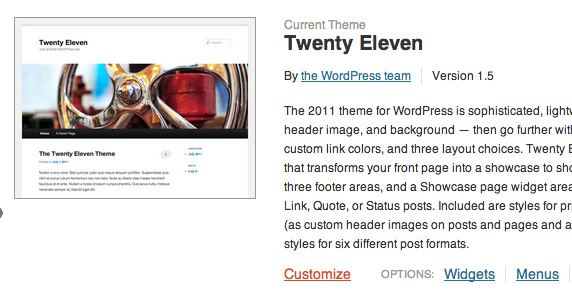
Start by logging into your WordPress dashboard. Find the Appearance option. Click on it. Look for the Customize button. This opens the Customizer. Now, you’re ready to change colors.
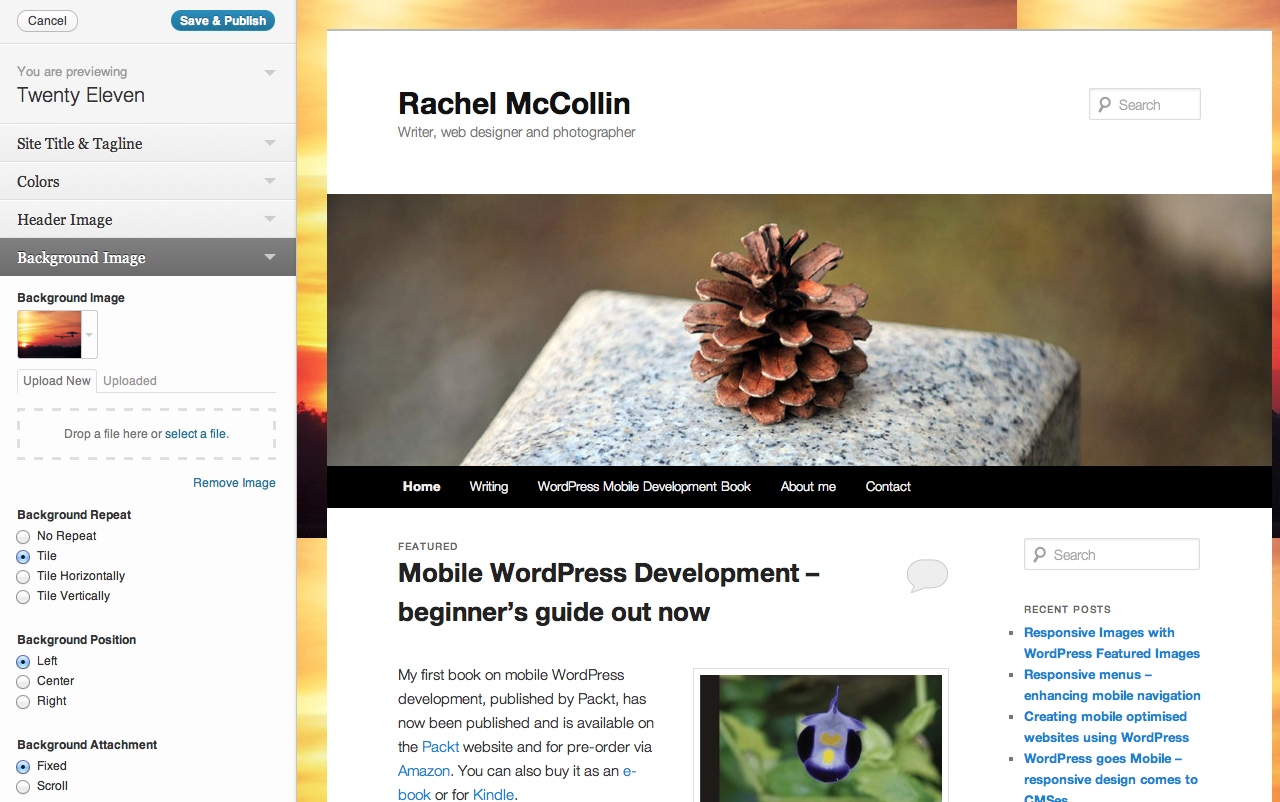
In the Customizer, search for Colors. This section allows color changes. Choose your desired font color. Click on the color picker. Select the color you like. It’s that simple. Remember to click Save to keep changes.
Testing Changes On Different Devices
Changing the font color in WordPress is fun. But it’s important to test the changes. Always check how it looks on different devices. A phone might show colors differently than a computer. Use tools to see the website on a tablet, phone, and desktop. This way, you make sure everyone sees the same thing.
Ensuring Responsiveness
Responsive design means the website changes size for different screens. Make sure the font color looks good on all sizes. Use a tool like Google’s Mobile-Friendly Test to check. If the words are hard to read, change the color again. Your website should be easy for everyone to read.
Checking Browser Compatibility
Different browsers show colors in different ways. Test your website on Chrome, Firefox, and Safari. Check that the font color looks the same. Sometimes, a color might look strange in one browser. Fixing this ensures everyone gets the best view. Keeping the font color consistent helps users.
Troubleshooting Common Issues
Easily change the font color in the Twentyeleven WordPress theme by accessing the theme’s stylesheet. Adjust the CSS code to update the desired text color, then save changes to see the new look on your site.
Reverting Unwanted Changes
Sometimes, changes can look bad. Fonts may turn too bright or dark. It’s easy to fix this. First, check your theme settings. Find the font color option. Change it back to the original. This method works well most times.
Dealing With Caching Problems
Caching can cause issues. Old settings may still show. Clear your browser cache. This helps update the font color. Sometimes, plugins cache the site. Disable caching plugins temporarily. Check if the problem is fixed. Restart your browser to see changes. These steps often solve caching problems.
Leveraging Plugins For Customization
Plugins can help change font colors with ease. Easy Google Fonts is a good choice. It lets you modify fonts without coding. WP Google Fonts is another option. This plugin is simple to use. It offers many font styles. Both plugins are popular and trusted by users.
Always check plugin settings first. They often have color options. Look for a color picker tool. This tool helps choose your desired shade. Before using, ensure the plugin is updated. Updates fix bugs and improve security. Make a backup of your site too. This protects your work if something goes wrong. Follow these steps for smooth changes.
Credit: www.smashingmagazine.com
Maintaining Consistent Theme Updates
Easily change font color in the Twentyeleven WordPress theme by accessing the Theme Editor. Navigate to Appearance, then customize the CSS code. Adjust the color code for the desired text color, ensuring consistent theme updates for an appealing website look.
Importance Of Keeping Themes Updated
Updating themes is very important. It keeps your website safe. It adds new features too. Updated themes fix bugs. Bugs can make your site slow. They can also make it unsafe. New updates improve your site’s look. They help your site work better. Everyone likes a fast and pretty site.
Backing Up Before Making Changes
Always backup before changing anything. Backups save all your work. If something goes wrong, you can fix it. Backups are easy to make. They keep your data safe. You can use plugins for backups. Plugins make it simple. Never skip this step. It is very important.
Frequently Asked Questions
How To Change Font Color In Twentyeleven?
To change font color in Twentyeleven, access your WordPress dashboard. Navigate to Appearance > Customize. Select ‘Colors’ and adjust the font color settings. Save changes to apply them. You can also use custom CSS for more precise control over specific elements.
Can I Use Css To Modify Font Color?
Yes, you can use custom CSS to modify font color in Twentyeleven. Go to Appearance > Customize > Additional CSS. Add your desired CSS code targeting specific elements or classes. Save the changes to see the effect. This method offers greater flexibility in styling.
Which File Contains Font Color Settings?
Font color settings are often found in the style. css file of your theme. You can access this file via Appearance > Theme Editor. Make changes carefully, as incorrect edits can affect your site’s appearance. Consider using child themes for safer modifications.
Are Plugins Helpful For Font Color Change?
Plugins can be helpful for changing font color without coding. Search for typography or color customization plugins in the WordPress plugin directory. Install and activate them to easily tweak font colors. Some plugins offer additional styling options for enhanced customization.
Conclusion
Changing the font color in Twentyeleven is simple. Just follow the steps shared. Customize your website to reflect your style. Adjusting colors enhances user experience. Keep experimenting for the best look. Ensure your changes improve readability. Visitors appreciate clear, attractive sites.
Regular updates keep your site fresh. Stay creative with your design choices. Your site can be both functional and beautiful. Remember to save changes after editing. Happy designing!


