
Are you looking to expand your WordPress site but unsure how to add a new page to your theme? Don’t worry, you’re not alone.
Many website owners find themselves in the same boat, eager to enhance their online presence without hitting a technological roadblock. Whether you’re launching a new service, showcasing a portfolio, or sharing insightful content, adding a page is a crucial step to engage your audience and keep your site fresh and relevant.
Imagine the satisfaction of seamlessly integrating a new page that not only matches your theme but also captivates your visitors. It’s simpler than you think, and mastering this skill can transform how you manage your site. Stick around, and you’ll discover step-by-step guidance, expert tips, and a few secrets that can make this task a breeze. By the end of this article, you’ll have the confidence and know-how to effortlessly add a page to your WordPress theme, turning your vision into a reality. Ready to make it happen? Let’s dive in!
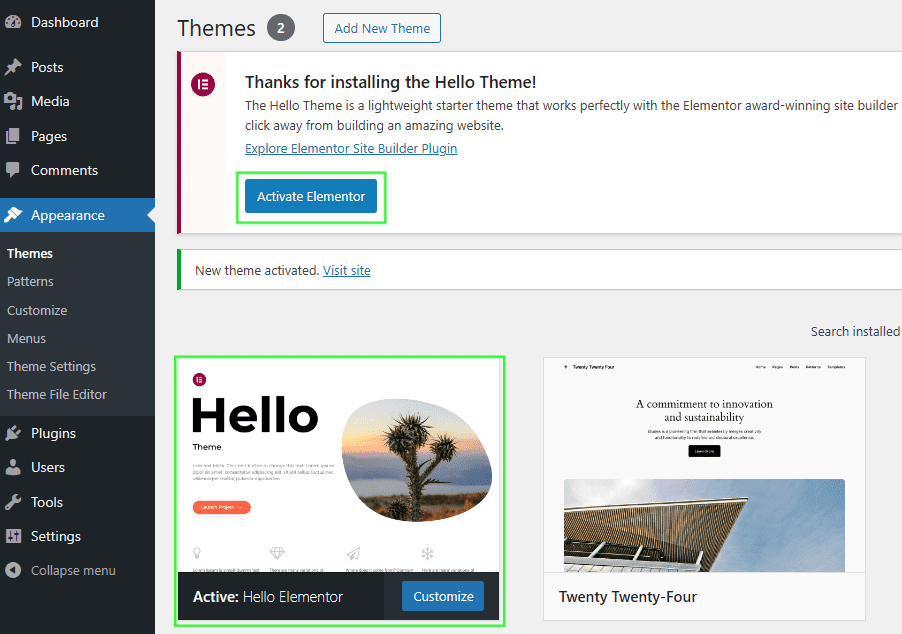
Credit: help.elements.envato.com
Choosing The Right Theme
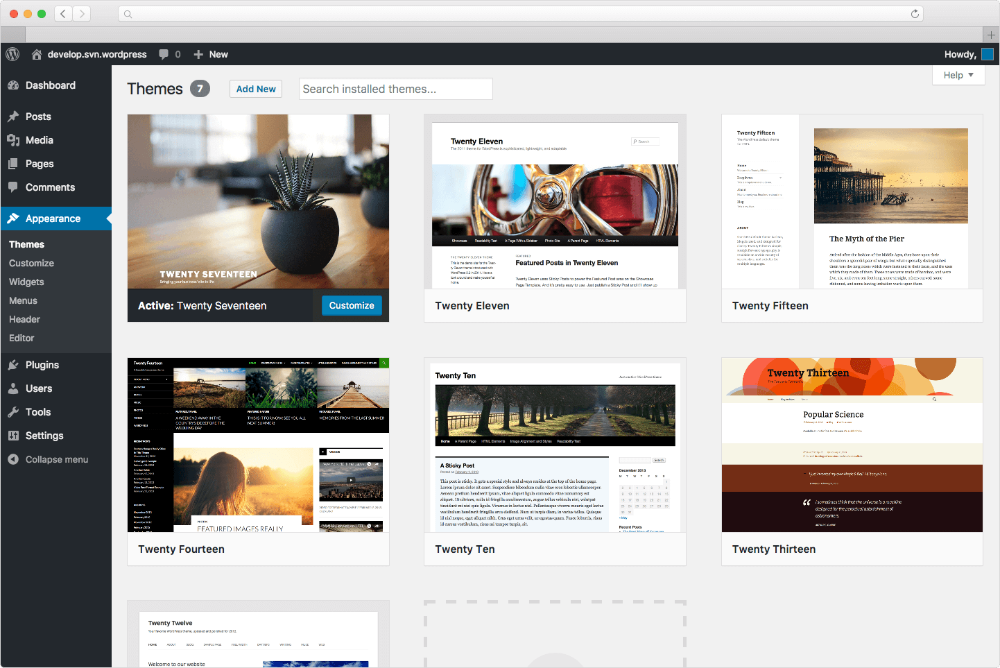
Pick a theme that fits your needs. Compatibility is key. Check if the theme supports all features. Some themes work better with specific plugins. Look for updates and support options. A well-supported theme saves time. Also, consider the theme’s loading speed. Faster themes perform better. Speed helps with SEO too. Lastly, check for mobile responsiveness. Many users browse on phones. A good theme works on all devices.
Themes come with options to change appearance. Use the WordPress Customizer to make changes. Adjust colors and fonts to fit your brand. Add your logo if available. Many themes allow layout changes. Try different layouts to see what looks best. Some themes have built-in widgets. Use them to add features quickly. Always save changes before exiting. Preview your site to see the updates. Make sure everything looks good.
Creating A New Page
Log in to your WordPress account. Find the Dashboard on the left. Click on Pages. You will see a button called Add New. Click that button. This opens the page editor. You can start creating your new page. The dashboard is your home for editing. You can manage pages and posts here. Remember, the dashboard is important. It’s easy to find and use.
Enter a title for your new page. Write content in the big text box. Add text, images, or videos. Look on the right side. You will see settings there. You can choose visibility and publish options. Check everything before publishing. Use the toolbar for formatting. You can make text bold or italic. Don’t forget to save changes often. The page editor is simple but powerful.
Adding Content To Your Page
Adding text to your page is simple. Click on the text area. Start typing what you want to say. Use the toolbar to make words bold or italic. To add images, click on the image icon. Choose a picture from your computer. Drag it to the spot you want it. Pictures make your page look nice. They help tell your story.
Videos can make your page interesting. Click on the video icon to add them. Paste the video link in the box. Then click embed. Now your video will show on the page. Add music too! Click the audio icon. Find your song and upload it. People can now listen while they read.
Customizing Page Layout
Page templates help make each page look special. They offer different styles and layouts for your content. You can choose a template in the page settings. Some templates have extra design choices. These choices let you change colors or add images. Templates can be simple or fancy. A simple template might have just text. A fancy one might have text and pictures. Try different templates to see what you like best.
Widgets are like small tools for your page. They can add extra features like menus or galleries. You can find widgets in the WordPress dashboard. Drag and drop them to use. Some themes have special widget areas. These areas show where you can place your widgets. Try adding a search bar or a calendar. Widgets make your page more useful and fun.
Incorporating Plugins
WordPress plugins can make your site better. They add cool features. Enhancing functionality is important for a site. Some plugins help with security. Others help with design. Some plugins even help with speed. Choose the right plugins for your site.
Picking the best plugins can be hard. There are many plugins to choose from. Always check the ratings and reviews. These will tell you if a plugin is good. Look for plugins that get updated. This means they are safe to use. A plugin should do what you need. It should not have too many extra features. Too many features can slow down your site.

Credit: www.namecheap.com
Optimizing For Seo
Learn to add a page to your WordPress theme easily. Navigate to your WordPress dashboard and select “Pages”. Then, click “Add New” to create your page. Customize it with your desired layout and content before publishing.
Utilizing Seo Plugins
SEO plugins help your WordPress site rank better. They guide you in choosing the right keywords. These tools suggest ways to improve your content. Many plugins are free. They are easy to install and use. Some popular ones are Yoast and All in One SEO. These plugins help you add meta tags and descriptions. They also check your content’s readability.
They ensure your site is fast and mobile-friendly. A fast site keeps visitors happy. A mobile-friendly site reaches more people. Use these plugins to track your site’s performance. They show which pages need fixing. This helps improve your site’s visibility. With plugins, your site can attract more visitors.
Previewing And Publishing
Check if your page looks good. Look at the colors and images. Make sure all the text is clear. Click all links to see if they work. If something is wrong, fix it now. This step is important before you go live. It helps you avoid mistakes.
Click on the publish button when you’re ready. This button is often at the top. Your page will now be live on the internet. Anyone can see it. You can always go back and make changes later. Remember to save after each change. Saving is key to keeping your work.
Troubleshooting Common Issues
Adding a page to a WordPress theme can be challenging. Users often face issues like missing templates or incorrect settings. Navigating the theme’s customization options helps resolve these common problems efficiently.
Resolving Display Problems
Pages might not show up right. Check the theme settings first. Sometimes themes have special options. Adjust these for better display. Refresh the page after changes. This helps see updates. Clear the browser cache too. Cached files can cause display issues. Use a different browser if needed. Ensure page templates match your theme. Wrong templates can cause errors. Double-check your page URL settings.
Addressing Plugin Conflicts
Plugins can cause conflicts. Disable all plugins first. Then activate them one by one. This helps find the problem plugin. Look for updates for your plugins. Old plugins might not work well. Check plugin settings for errors. Some plugins clash with themes. Choose plugins that fit your theme. Read plugin reviews before using them.
Credit: docs.presscustomizr.com
Frequently Asked Questions
How Do I Add A New Page In WordPress?
To add a new page in WordPress, navigate to your dashboard. Click on “Pages” then “Add New. ” Enter your page title and content. Select a page template from the right sidebar. Finally, hit “Publish” to make your page live.
Can I Customize Page Templates In WordPress?
Yes, you can customize page templates in WordPress. Access your theme files via the Appearance menu. Edit the page templates using code or a page builder. Ensure you save changes and preview your custom template before publishing.
What Plugins Help With Adding Pages?
Several plugins assist in adding pages to WordPress. Popular choices include Elementor, Beaver Builder, and WPBakery. These plugins offer drag-and-drop functionality. They simplify creating custom page layouts without coding. Choose one based on your specific design needs.
Why Is My New Page Not Showing In Menu?
If your new page isn’t showing in the menu, check menu settings. Go to “Appearance” then “Menus. ” Ensure your page is added to the correct menu. Save changes to display it properly on your site.
Conclusion
Adding pages to a WordPress theme is simple. Follow the steps carefully. Customize your theme to fit your needs. Use the WordPress dashboard for easy access. Always preview your changes. Make sure your page looks good on all devices. Keep your design clean and user-friendly.
Ensure your content is readable and engaging. Review SEO settings for better search visibility. Remember, practice makes perfect. Try different styles to find what works best. WordPress offers flexibility and control. Enjoy creating and managing your website. Happy building!


