
Have you ever found yourself staring at your WordPress site, wishing you could give it a fresh, new look without a major overhaul? Sometimes, a simple change like altering the header color can make all the difference.
The header is one of the first things your visitors see, and changing its color can dramatically impact the overall vibe and branding of your site. Imagine how a bold, vibrant header could capture attention instantly, or how a subtle, calming shade could encourage your visitors to linger longer.
In this guide, you’ll discover how easy it is to change the header color in your WordPress theme. With just a few clicks, you can transform your site’s aesthetic and make it more appealing to your audience. Ready to give your website a new lease of life? Let’s dive in!
Credit: www.ryrob.com
Choosing The Right Theme
Theme compatibility is very important. Some themes allow easy color changes. Others may require custom coding. User support is also key. Good support can save time and trouble. Theme updates should be regular. This keeps your site safe and current. Many themes offer responsive design. This makes your site look good on all devices.
Some themes are very popular. Astra is a good choice. It is fast and easy to use. OceanWP offers many options. It is also free. Neve has a clean design. You can change colors easily. Hestia is another great theme. It is modern and simple. All these themes allow header changes.
Accessing Theme Customizer
Dashboard navigation helps you find the right tools. First, log into your WordPress admin area. Look at the left side of the screen. This is your dashboard. It has many options. Click on Appearance. A menu appears. Next, choose Customize. This opens the theme customizer. You can change many things here.
Navigating The Dashboard
The dashboard is like a control center. It shows your site’s information. You can create new posts or pages here. You can also check your site’s stats. It’s important to know where things are. This helps make changes easily.
Locating The Customizer
Finding the theme customizer is simple. After clicking Appearance, find Customize. This is under the Appearance menu. Once you click it, the customizer opens. You can see your site here. On the left, there are options. These let you change colors, fonts, and more.
Changing Header Color Via Customizer
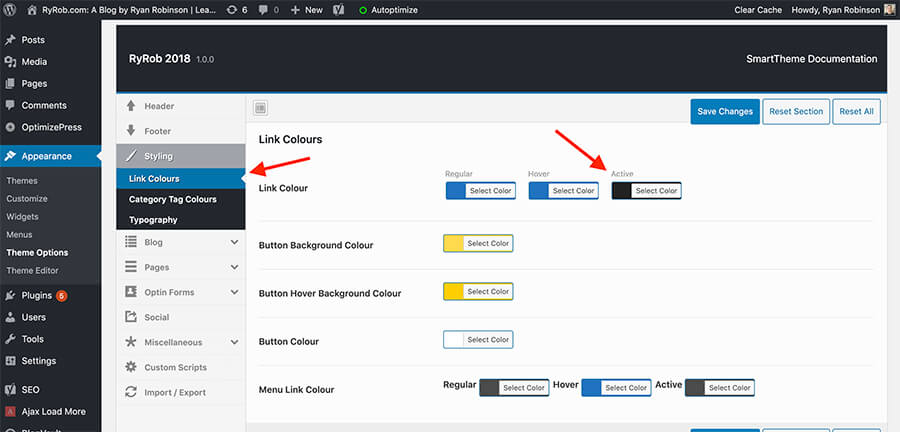
Open the WordPress dashboard. Select Appearance from the menu. Click on Customizer. Look for the Header section. You might see it under Header & Navigation or a similar name. Click the section to see more settings. Find the option for Header Color. It might say Background Color or just Color. Each theme may label it differently. Now, you can pick your new color.
Click the color box to open a color picker. Choose your desired color. You can use the slider or input a color code. Some themes let you see changes live. Preview how it looks on your site. Happy with your choice? Click Publish to save the changes. Your header will now have the new color.
Using Additional Css
Custom CSS lets you change the look of your site. It gives you more control over colors and styles. Themes may not offer all color choices. Custom CSS helps fix this. It’s a simple way to make your site unique. You get to match your brand colors. Visitors will notice the change. It can make your site feel special. No need for coding skills. Just a few lines of CSS can change a lot.
Begin by going to your WordPress dashboard. Find the “Appearance” tab. Click on “Customize”. Look for “Additional CSS” at the bottom. Click it to open a blank editor. Here, you can add your CSS code. For the header, use the CSS selector for your theme. Type the code to change the color. Use simple CSS like: header { background-color: #yourcolor; }. Save and see the change live. Refresh your site to view the new header color.
Changing Header Color With Page Builders
Many people use page builders to customize their WordPress sites. These tools are great for making changes easily. Some popular ones include Elementor, Beaver Builder, and WPBakery. They help users with no coding skills. The drag-and-drop feature is very simple.
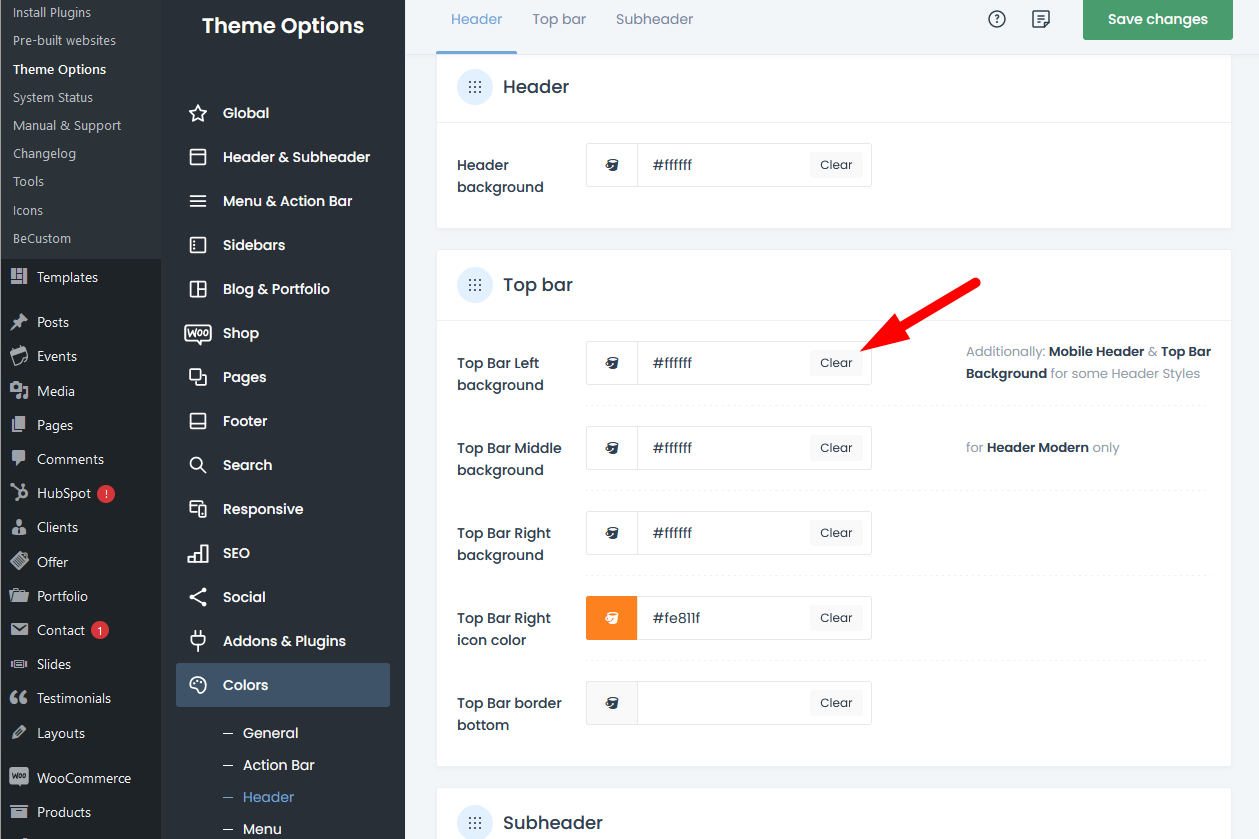
First, open your page builder. Find the header section. This part shows your site name or logo. Click on the header to edit. Look for color settings. Choose the color you like. Save the changes.
You can also preview before saving. This helps to see how it looks. If you don’t like it, change it again. Some builders offer more color options. Use them to find the best match.
Credit: forum.muffingroup.com
Testing Changes Across Devices
Responsive design is crucial for modern websites. It ensures your site looks good on all devices. This includes phones, tablets, and desktops. A responsive site adjusts its layout automatically. This improves user experience and reduces bounce rates. For WordPress themes, testing changes is essential.
Importance Of Responsive Design
Users visit sites from different devices. Consistency is key for a good impression. A non-responsive site can frustrate users. This may lead to them leaving your site. Adjusting the header color might affect readability. Make sure it looks good everywhere. Test your changes on various devices.
Tools For Testing
Several tools help test responsiveness. Google Chrome offers a built-in tool. Use “Inspect” and switch to “Device Toolbar.” Another option is BrowserStack. It allows testing on multiple devices. Finally, Responsinator shows how your site looks on phones and tablets. These tools help ensure everything looks perfect.
Troubleshooting Common Issues
Changing the header color in a WordPress theme can be tricky. Start by navigating to the theme customizer. Look for the header section to find color options. Make sure to save changes before exiting.
Changes Not Visible
Sometimes, header color changes don’t appear. Check your browser’s cache. Clear it to see updates. Refresh the page afterwards. If problems persist, review theme settings. Ensure changes were saved. Confirm theme supports custom header colors. Not all themes allow this feature. Look for theme-specific instructions or documentation.
Reverting To Previous Settings
Accidentally changed header color? Return to old settings easily. Access the theme’s customization panel. Navigate to header section. Look for a revert or reset option. This restores default header color. If unavailable, manually change it back. Use color code or palette. Always save changes to apply them.

Credit: www.youtube.com
Exploring Plugins For Enhanced Customization
Discover ways to change the header color in WordPress by exploring plugins. Easily customize themes for a unique look. Enhance your site without coding skills using user-friendly tools.
Recommended Plugins
Changing header colors is easy with plugins. Elementor is a popular choice. It offers a simple drag-and-drop feature. Customize your header with many color options. YellowPencil is another great plugin. It allows you to edit design in real-time. Choose from various color palettes. Header Footer Elementor is also useful. It works well with many themes. It helps in styling headers easily.
Installing And Using Plugins
Start by visiting the WordPress dashboard. Click on “Plugins” and then “Add New”. Search for the plugin you want to install. Click “Install Now” and wait. After installation, click “Activate”. Go to the plugin settings. Adjust the colors as you like. Save your changes to see the effect. Explore different plugins to find the best one for you. Remember, each plugin has unique features.
Frequently Asked Questions
How Can I Change Header Color In WordPress?
To change the header color in WordPress, navigate to the Appearance section, then select Customize. Find the Header options and adjust the color settings. Save your changes to apply the new color. This process may vary slightly depending on your specific theme.
Do All Themes Support Header Color Changes?
Not all WordPress themes support header color changes directly. Some themes offer built-in customization options, while others require custom CSS code. Check your theme’s documentation for guidance. If needed, you can use a child theme or custom CSS to achieve the desired changes.
Is Css Required For Changing Header Color?
CSS might be required if your theme doesn’t offer built-in color customization options. Adding custom CSS allows you to change the header color. Use the Additional CSS section in the Customizer to apply your code. Ensure you have basic CSS knowledge for a seamless experience.
Can Plugins Help Change Header Color?
Yes, plugins can help change header color in WordPress. Some plugins offer advanced customization features, including color changes. Look for plugins specifically designed for theme customization. Always check compatibility with your theme before installing and activating any plugin.
Conclusion
Changing your WordPress header color is easy. Just follow the steps above. It gives your website a fresh look. Colors can impact your visitor’s mood. So choose wisely. Experiment with different shades. Find what fits your brand best. Remember to save changes.
A well-designed header attracts attention. It helps your site stand out. Regular updates keep your site engaging. Always test on different devices. Make sure it looks good everywhere. Visitors appreciate thoughtful design. So take the time to perfect it. Happy designing! Your WordPress header will look amazing.


