
Are you looking to customize your WordPress site without the risk of breaking your design during updates? Adding a child theme is your perfect solution.
It allows you to tweak your site’s appearance and functions while keeping the original theme intact. No coding expertise? No problem. Creating a child theme is simpler than you might think, and it’s a skill that can save you both time and headaches down the line.
In this guide, you’ll discover the step-by-step process to add a child theme to your WordPress site effortlessly. Ready to unlock the full potential of your website? Let’s dive in and make those customizations stress-free!
Credit: happyaddons.com
Benefits Of Using A Child Theme
A child theme keeps your changes safe. Updates won’t remove them. The main theme stays unchanged. This is important for security. Child themes allow custom designs. Add new features easily. Your site can have a unique look.
Learning is fun with child themes. You understand WordPress better. You can practice coding skills. Mistakes won’t break your site. You can test ideas first. It’s a great way to grow your skills.
Using a child theme saves time. No need to redo changes after updates. It’s a smart way to work. Keep your site fresh and updated. Enjoy the benefits of child themes.
Credit: elementor.com
Pre-requisites For Creating A Child Theme
Knowing basic HTML and CSS is helpful. It allows easy theme changes. A text editor like Notepad++ or Atom is needed. Choose a reliable FTP client such as FileZilla. This helps in file uploads. Access to your WordPress dashboard is crucial. You need a parent theme. Check for updates regularly. Make sure the parent theme is active. Keep a backup of important files. This ensures safety.
Setting Up A Child Theme Directory
First, open your WordPress files. Look for the wp-content/themes folder. This is where all your themes are stored. Create a new folder here. Name it after your main theme. Add “-child” at the end. This folder will be your child theme directory.
Inside your new folder, create a file. Name it style.css. This file is important. It will contain your theme’s styles. Next, create a functions.php file. This file helps add extra features. Both files are needed for a child theme. Make sure they are in the right place.
Creating A Style.css File
First, create a new folder for your child theme. This folder needs a special file. This file is called style.css. It’s very important. Open a text editor, and create a new file. Save this file as style.css.
Inside your style.css, you need to add some code. This code tells WordPress about your theme. At the top of the file, add this code:
        /
        Theme Name: My Child Theme
        Template: parent-theme-folder-name
        /
Replace parent-theme-folder-name with the real folder name. Now, your child theme knows its parent. Save the file in the child theme folder. Your child theme now has a style file. It’s ready to use!
Configuring The Functions.php File
The functions.php file is important. It adds features to your theme. First, open the file. Then, add your custom code. Be careful with each line. Errors can break your site.
Always backup your file before changes. This helps if something goes wrong. Test your code after adding. Make sure everything works fine. Add one change at a time.
For beginners, keep it simple. Avoid complex code. Use clear comments. They help you remember what each part does. Little steps lead to big results.
Activating The Child Theme In WordPress
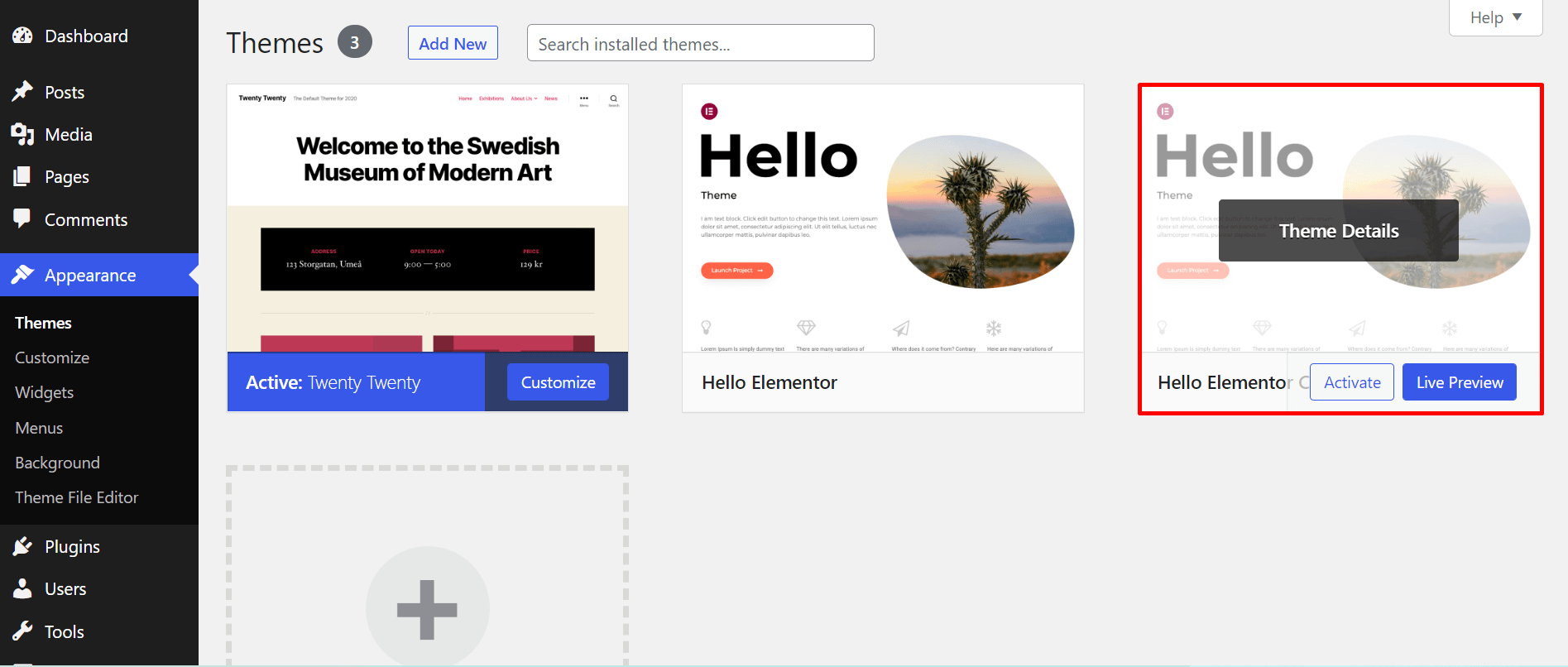
First, go to your WordPress dashboard. Click on Appearance and then Themes. You will see a list of themes. Find the theme you want to use as a child theme. Click on Activate to make it active. If the theme is not there, upload it first. Use the Add New button to upload. Then activate it.
Once activated, check your website. See if everything looks good. Sometimes, you might need to adjust settings. Go to Theme Customizer for changes. Make sure all your settings are correct. Save them when done. Your child theme is now active and ready.
Customizing The Child Theme
Creating a child theme in WordPress allows for easy customization while preserving original settings. Start by installing a child theme plugin, then modify styles and functions without altering the parent theme. This approach ensures updates won’t overwrite your changes, maintaining a personalized yet stable site.
Modifying The Styles
Change the look of your child theme. Use CSS to modify styles. Add new colors and fonts easily. Open the style.css file. Make changes there.
Create a modern design. Use padding and margin for spacing. Adjust the header and footer. Keep it simple and nice. Preview to check changes. Save your work often.
Adding New Features
Enhance your website with extra features. Include widgets and plugins. Make your site interactive and fun. Edit the functions.php file. Here, you can add new code.
Implement sliders or galleries. Offer social media links. Add forms for contact. Ensure features work smoothly. Test them regularly. Keep your website user-friendly.
Testing The Child Theme
Activate your child theme in WordPress. Go to the dashboard. Click on Appearance. Choose Themes. Select your child theme. Make sure it is active. Visit your site. Check if the design looks right. Look for missing parts. Check colors and fonts. Ensure everything matches your parent theme.
Test some features. Navigate through pages. Open blog posts. Click on links. See if they work. Test widgets and menus. Make sure they appear correctly. Look for errors or broken parts. Fix them if needed. Use the Customizer. Adjust settings. See changes instantly. Save your changes. Refresh your site. Confirm everything looks good.
Check your site speed. Use a tool to analyze it. Ensure loading times are fast. Optimize images if needed. Fix slow parts. Ensure your site is responsive. Test on different devices. Check phones and tablets. Ensure text and images fit properly. Confirm that users can navigate easily.
Troubleshooting Common Issues
Many users find their child theme not showing changes. Clear your cache to fix this. Sometimes, the parent theme updates can cause problems. Ensure the parent theme is up to date. Check your functions.php file for errors. A simple typo can break your site. Use a text editor to spot mistakes easily.
Some users face style.css issues. Make sure your styles are correctly linked. Look for missing or wrong file paths. Verify permissions on the server. Incorrect permissions can stop file changes. Set them to 644 or 755 for safety. If problems persist, try activating a default theme first. Then switch back to your child theme.

Credit: developer.wordpress.org
Frequently Asked Questions
What Is A WordPress Child Theme?
A WordPress child theme is a sub-theme that inherits styles and functions from a parent theme. It allows customization without altering the original theme files. This ensures updates to the parent theme won’t overwrite your customizations, making it a safe way to modify your site’s appearance and functionality.
Why Use A Child Theme In WordPress?
Using a child theme allows you to customize your website safely. It helps maintain your changes even when the parent theme updates. This prevents loss of custom modifications. Child themes are essential for anyone wanting to tweak their site without risking core theme files.
How Do I Create A Child Theme?
To create a child theme, start by creating a new theme folder. Add a style. css file with theme details and import the parent theme’s styles. Then, create a functions. php file to enqueue styles and functions. This simple setup lets you start customizing safely.
Can I Customize A Child Theme?
Yes, customizing a child theme is easy and safe. You can modify styles, templates, and functions without affecting the parent theme. This lets you tailor your site’s appearance and behavior while ensuring your changes persist through theme updates.
Conclusion
Creating a child theme in WordPress is simple and rewarding. It ensures your customizations stay safe during updates. Follow the steps carefully to avoid mistakes. A child theme gives you flexibility and control. Experiment with styles and functions without risks.
Remember, practice makes perfect. Spend time learning and applying your knowledge. Your WordPress site will benefit greatly from these efforts. Enjoy the process, and watch your website grow. With patience, your skills will improve. Soon, you’ll handle child themes like a pro.
Happy customizing!


