
Are you tired of your WordPress theme looking just like everyone else’s? Do you crave a unique style that truly reflects your brand or personality?
Applying CSS changes to your WordPress theme is the key to unlocking a world of customization. Whether you’re a complete beginner or a seasoned developer, knowing how to tweak CSS can transform your website from generic to extraordinary. Imagine having the power to adjust colors, fonts, and layouts in a way that makes your site stand out.
You’ll discover simple and effective strategies to apply CSS changes to your WordPress theme, making your website not only visually appealing but also a true reflection of who you are. Ready to dive in and give your website a fresh new look? Let’s get started!
Understanding WordPress Themes
WordPress themes decide how a website looks. Themes control colors, fonts, and layout. They make each site unique. Every theme has its own style and features. You can change themes easily. This helps in keeping the site fresh.
Switching themes is simple. Go to your WordPress dashboard. Click on “Appearance” and then “Themes.” Choose a new theme or upload one. Always preview before applying. This ensures it looks good. Themes can also be customized. Adjust settings to fit your needs.
Some themes are free. Others you have to buy. Paid themes often offer more features. They might have better support too. It’s important to choose a theme that suits your purpose. A good theme makes your site user-friendly.
Locating Theme Stylesheets
Themes in WordPress have stylesheets. They control the look of a site. Stylesheets are usually in the theme folder. This folder is inside the WordPress directory. Each theme has its own folder. Inside, you can find the stylesheets. The main file is often called style.css.
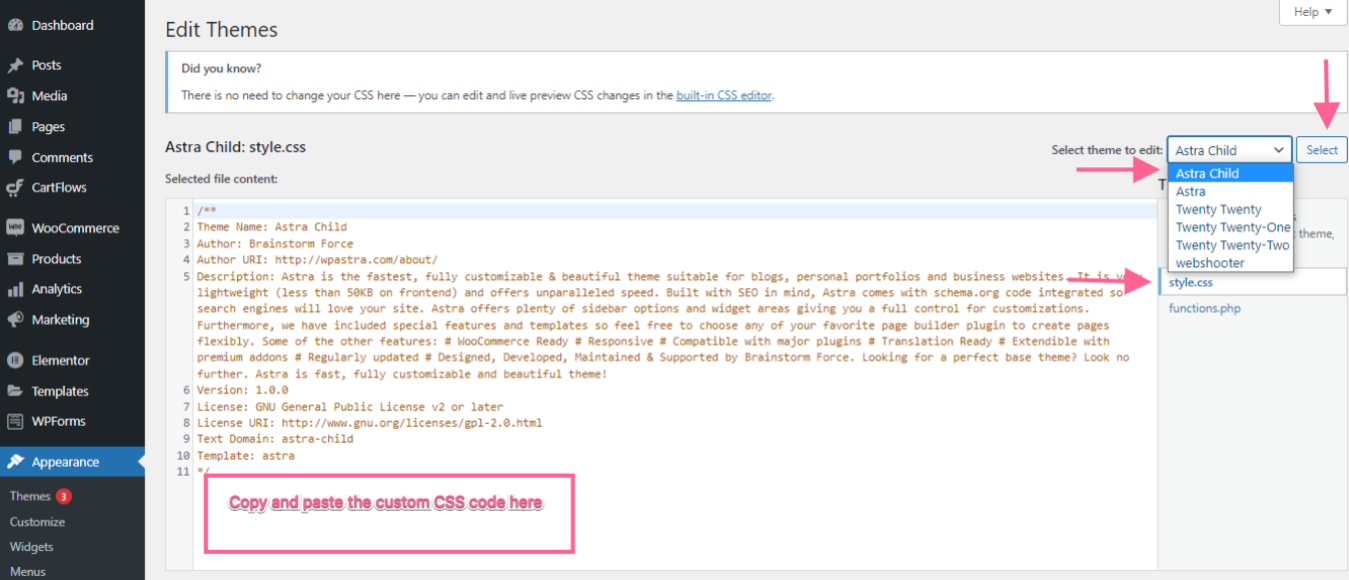
Open the WordPress admin panel. Go to the Appearance section. Click on Theme Editor. Here, you can see the files. Look for style.css. This file holds the CSS rules. You can change them here. Make sure to save your changes.
Using The WordPress Customizer
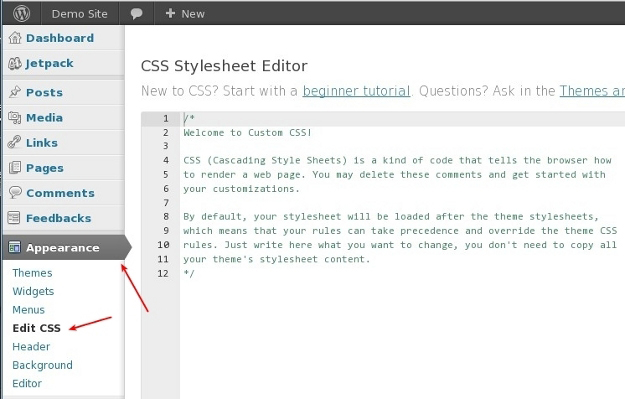
Explore the WordPress Customizer to easily apply CSS changes to your theme. Navigate to “Additional CSS” and input your custom styles directly. Instantly preview changes and achieve the desired look for your website without complex coding.
Accessing The Customizer
Start by logging into your WordPress dashboard. Look for the Appearance menu on the left. Click on Customize under this menu. This opens the WordPress Customizer. Here, you can see a preview of your site. You can make changes and see them instantly. It’s easy to use and very helpful. You don’t need to know coding to use it.
Adding Custom Css
In the Customizer, find the Additional CSS option. Click on it. A box appears for you to type your CSS code. Type the CSS changes you want. Click Publish when you’re done. Your changes will show on your site. You can always come back and edit this. It’s a simple way to change your site’s look. Remember to save your changes.
Credit: wpastra.com
Editing Css Through Theme Editor
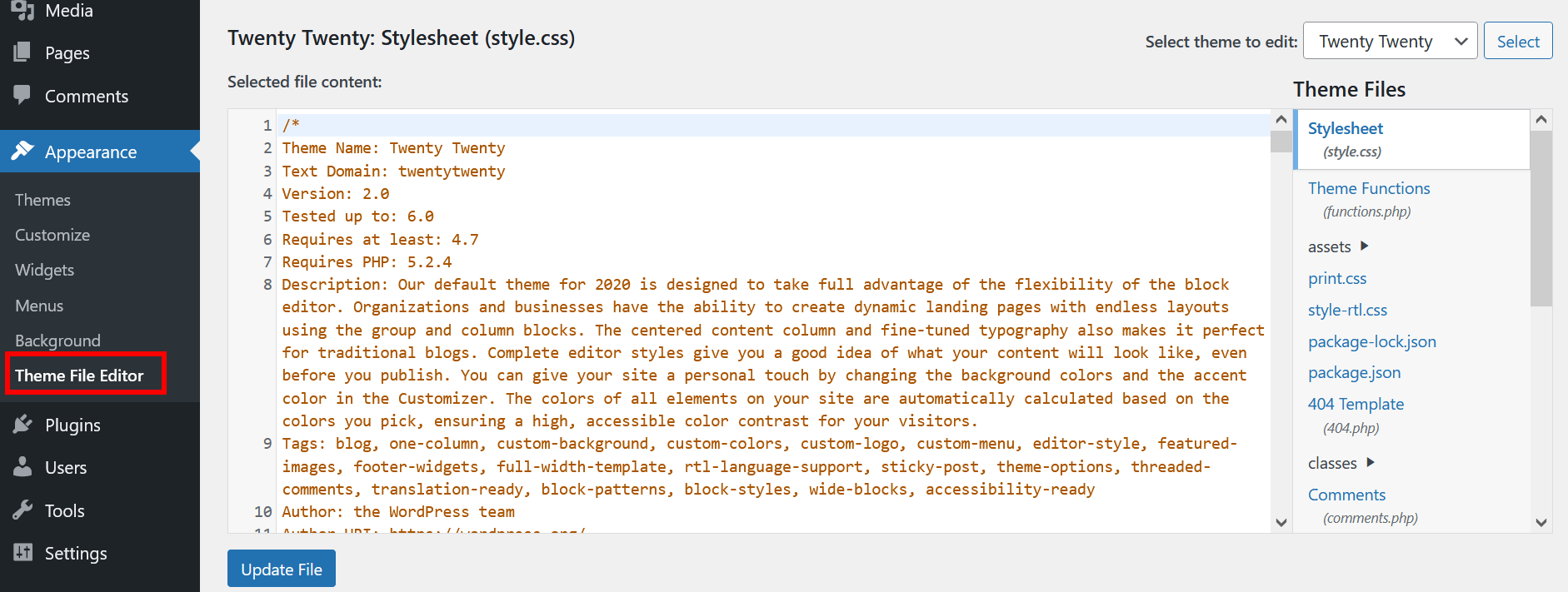
First, access your WordPress dashboard. Look for the Appearance option. Click on it, then select Theme Editor. This will open the editor screen. On the right side, you will see theme files. Find the style.css file. This is where you can add or change CSS. Make sure to save any changes you make.
Direct changes are easy but be careful. Always back up your theme first. In the style.css file, scroll to find the right section. Make your changes or add new CSS rules. Use simple selectors for basic changes. Change colors, fonts, or layout styles. Click the Update File button to save. Refresh your site to see changes. If anything breaks, restore your backup.
Using Child Themes For Css Modifications
A child theme is a copy of your main theme. It allows you to make changes without affecting the original theme. First, create a new folder in your themes directory. Name it something related to your main theme. Add a style.css file to the new folder. Write a comment at the top of the file. Use this format: Theme Name: Your Child Theme Name, Template: Parent Theme Folder Name.
Enqueue styles to add CSS to your child theme. Go to the functions.php file in your child theme folder. Use the wp_enqueue_style function. Link your style.css file. This tells WordPress to use your CSS changes. Ensure the parent theme’s style is loaded first. Use the get_template_directory_uri function. It helps in correctly linking to the parent theme’s style.
Credit: www.ionos.com
Leveraging Plugins For Css Changes
Enhance your WordPress theme effortlessly by using plugins to modify CSS. These tools simplify styling changes, enabling customization without coding expertise. Optimize your site’s design while ensuring a seamless user experience.
Popular Css Editing Plugins
CSS Hero is a popular plugin. It helps change your theme easily. You can edit colors, fonts, and sizes. SiteOrigin CSS is another useful tool. It offers a live preview of changes. It is free to use.
Installing And Using A Plugin
First, go to your WordPress dashboard. Click on “Plugins” and select “Add New.” Search for your chosen plugin. Click “Install Now” and wait. After installation, click “Activate” to enable it.
Once activated, find the plugin settings. Start making changes to your theme. Save changes to see them live. Plugins make editing simple and fun. Always check your site after changes.
Testing And Debugging Css Changes
Browser Developer Tools help to check CSS changes quickly. They let you see how your site looks with new styles. Open the browser and right-click on any page part. Choose “Inspect” to open the tools. You will see HTML and CSS code on the side. Change the CSS here to test new styles. Watch the page update in real-time. This is a great way to try different looks before making final changes. Remember to save your changes in your theme files.
Websites must look good on all browsers. This means checking your site on Chrome, Firefox, Safari, and Edge. Each browser shows CSS a bit differently. Test your CSS changes on each one. Fix any problems you see. Use tools like BrowserStack for testing. This helps make sure all users see your site the same way. A consistent look is important for a good user experience.
Credit: www.8theme.com
Best Practices For Css In WordPress
CSS needs to stay neat. Clean code helps everyone understand. It makes updates easy. Keep lines short. Each line should do one thing. Use comments for clarity. Comments explain tricky parts. They help others know your thinking. Avoid clutter. Clutter confuses people. Organize styles by type. Group similar styles together. This makes finding them simple. Use consistent naming. Names should tell what styles do. Choose names wisely. They guide readers. Neat code is the goal.
Organize files smartly. Separate files by purpose. One file for layout. Another for colors. This keeps things tidy. Use a clear structure. Structure helps find styles fast. Keep related styles together. Group by section or feature. This makes files easy to read. Use folders for bigger projects. Folders hold related files. They make navigation simple. Name files well. Names show what files do. Good names save time. An organized file is a happy file.
Frequently Asked Questions
How Do I Edit Css In WordPress?
To edit CSS in WordPress, access your theme’s customizer. Navigate to Appearance > Customize > Additional CSS. There, you can add your custom CSS code. Save changes to apply them immediately. This method is safe and won’t affect your theme’s core files, ensuring updates don’t erase your modifications.
Can I Use A Plugin For Css Changes?
Yes, you can use CSS plugins like Simple Custom CSS. They allow you to add custom styles without altering theme files. Plugins provide an easy interface for managing CSS. They ensure changes persist through theme updates, maintaining your website’s design consistency effortlessly.
What Is The Best Method For Css Changes?
The best method depends on your needs. For simple changes, use the Customizer’s Additional CSS. For extensive modifications, consider using a child theme or a CSS plugin. Child themes keep your changes intact during updates, providing a more robust solution for significant customizations.
Will Css Changes Affect Website Performance?
Minimal CSS changes usually don’t impact performance. However, excessive or poorly written CSS can slow down your site. It’s essential to optimize your CSS for speed and efficiency. Use tools like CSS minifiers to reduce file size, ensuring your website remains fast and responsive.
Conclusion
Making CSS changes to your WordPress theme can be simple. Follow the steps carefully. Ensure backups before editing. Use the WordPress Customizer for small tweaks. For bigger changes, use a child theme. This protects your edits during updates. Stay organized with clear comments in your code.
Test changes on different devices for consistency. Remember, CSS skills improve with practice. Dive in and experiment. Don’t fear mistakes; they are learning tools. With patience, your site design will shine. Enjoy the creative process and watch your website transform.


