
You’ve spent countless hours perfecting your WordPress site, and now you’re ready to add that final touch—a shortcode that brings everything together beautifully. But how exactly do you add a shortcode in the WordPress Theme Editor without risking a headache or a site crash?
This is where many site owners hit a snag. Don’t worry; you’re not alone, and this guide is here to make the process smooth and straightforward. Imagine being able to enhance your website’s functionality and aesthetics with just a few lines of code.
The ability to add shortcodes directly into your theme can transform your site into a more dynamic and engaging platform. Whether you’re looking to insert a contact form, embed a video, or display a custom post list, mastering shortcodes can significantly boost your site’s performance. You’ll discover step-by-step instructions tailored for you, ensuring that even if you’re a beginner, you’ll be able to confidently add shortcodes without breaking a sweat. So, if you’re ready to take your WordPress site to the next level with ease, keep reading. Your site’s transformation is just a few scrolls away!
Credit: www.inmotionhosting.com
Understanding Shortcodes
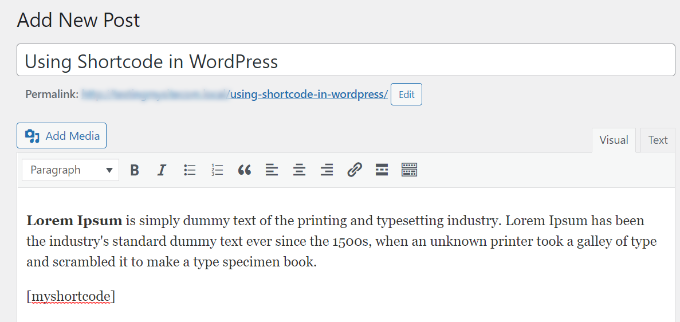
Shortcodes are small pieces of code in brackets. They help add features without coding. WordPress uses them a lot. You can make a button or gallery with them. They save time. No need for complex code. Just type the shortcode, and the magic happens.
Shortcodes are very handy. They make tasks easy. You can add features fast. No need for plugins all the time. They keep your site clean. Pages load quicker. This is good for visitors. Also, they help keep your code tidy. Less messy code means fewer errors.
Credit: www.wpbeginner.com
Locating The Theme Editor
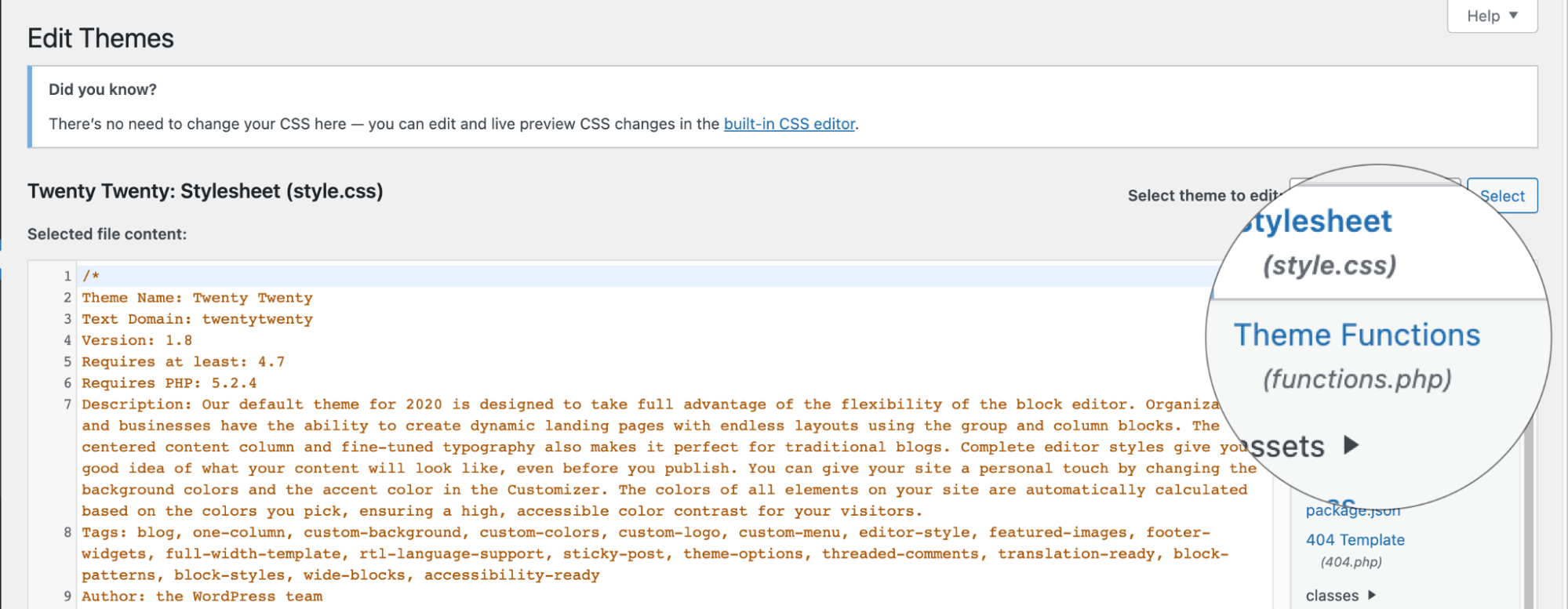
Finding the Theme Editor in WordPress is essential for adding shortcodes. Navigate to Appearance, then select Theme Editor. Access the theme files for customization.
Accessing The WordPress Dashboard
Start by logging into your WordPress Dashboard. Use your username and password. Look for the menu on the left side. You will see many options there. Find the one named Appearance. Click on it. This will show more options.
Navigating To Theme Editor
After clicking Appearance, you will see Theme Editor. It’s usually at the bottom. Click on Theme Editor. You will see the code files for your theme. Be careful here. You can change things easily. Look for the file you want. Now, you can add your shortcode.
Creating A Custom Shortcode
A shortcode in WordPress is a special code. You can use it to add different features to your site. It starts with [ and ends with ]. Inside, there’s a word that tells WordPress what to do. For example, shows a gallery of pictures. The basic structure is simple and easy to use. You place it in the page or post where you want the feature.
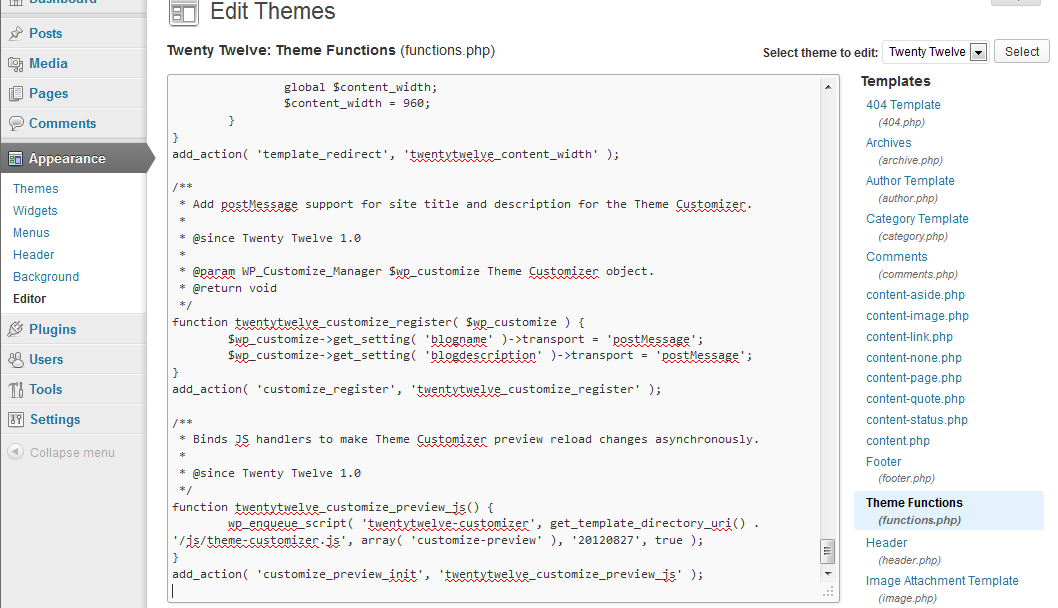
To make a shortcode work, you add a function in your theme’s functions.php file. This function tells WordPress how to handle the shortcode. Use add_shortcode() to link the function and shortcode. For instance, add_shortcode('greeting', 'greeting_function') connects the shortcode [greeting] to the greeting_function. Now, when you use [greeting], it runs the function. This way, your shortcode does what you want.
Inserting Shortcode Into Theme Files
First, you need to find the right file. Go to your WordPress dashboard. Click on Appearance and then Theme Editor. Look at the right side. You will see a list of files. Check the file names. Find the one that matches your need. Common files include header.php, footer.php, and page.php. Choose the file where you want the shortcode.
Now, you can add the shortcode. Open the theme file you chose. Find the spot for the shortcode. Place the PHP code like this: php echo do_shortcode('[your_shortcode]'); ?. Replace ‘your_shortcode’ with the actual shortcode. Save the file after adding the code. Check your site to see changes.
Testing And Troubleshooting
Easily add shortcodes in WordPress by accessing the Theme Editor. Navigate to “Appearance,” then “Theme Editor. ” Locate the file where you want the shortcode and insert it directly into the code. Save changes to enhance functionality without altering the theme’s core structure.
Verifying Shortcode Functionality
Ensure your shortcode works as expected. Place it in a post or page. View it in the browser. Check for any errors or issues. Sometimes, shortcodes don’t display correctly. This could be due to missing code or syntax errors.
Inspect the shortcode code carefully. Make sure you’ve copied it correctly. Test it in different places. Look for consistent results. If the shortcode doesn’t work, try refreshing the page. This can fix small problems.
Common Issues And Fixes
Shortcodes might not show up. This is often due to incorrect placement. Double-check your code. Ensure it’s in the right spot. Another issue could be plugin conflicts. Disable plugins one by one. Check if the shortcode starts working. If it does, identify the conflicting plugin. Update or replace it.
Permissions might also cause issues. Ensure you have adequate access to edit the theme. Sometimes, updating WordPress can solve problems. Always back up your site before making changes. This helps prevent data loss.
Credit: www.a2hosting.com
Best Practices
Easily add shortcode in WordPress theme editor to enhance site functionality. Locate the desired template file and insert the shortcode where needed. This method helps display dynamic content, making your website more interactive and user-friendly.
Ensuring Compatibility
Always check the WordPress version before adding shortcodes. Some shortcodes may not work with older versions. Test the shortcode in a staging environment first. This helps in identifying any issues. Use child themes to avoid losing changes after updates. Ensure your theme functions properly with the shortcode. Incompatible themes can cause errors or display issues.
Maintaining Code Quality
Clean code is crucial. It makes your site run smoother. Use indentation for better readability. Keep your code organized and well-commented. Comments help others understand your code. Avoid using too many shortcodes. It can slow down your site. Regularly update your WordPress and plugins. This keeps your site secure and efficient.
Frequently Asked Questions
How Do I Add Shortcode To WordPress Theme?
To add a shortcode to your WordPress theme, you can use the `do_shortcode()` function. Simply insert “ into the desired PHP file within your theme editor. Ensure the shortcode is active and correctly formatted before saving changes.
Can Shortcodes Be Used In Theme Files?
Yes, shortcodes can be used in theme files. By utilizing the `do_shortcode()` function within PHP files, you can embed shortcodes directly into your theme. This allows you to enhance functionality and design without altering core theme structures.
What’s The Purpose Of WordPress Shortcodes?
WordPress shortcodes simplify content insertion by enabling predefined functions within posts, pages, and theme files. They help streamline processes such as embedding multimedia, forms, and other dynamic elements. Shortcodes offer flexibility and reduce the need for extensive coding knowledge.
Is It Safe To Edit Theme Files Directly?
Editing theme files directly can be risky. It’s important to back up your theme before making changes. Consider using a child theme to preserve modifications during updates. Ensure you understand PHP basics to avoid potential errors or conflicts within your site.
Conclusion
Adding shortcodes in WordPress themes isn’t hard. It enhances your site’s functionality. Follow simple steps for a smooth process. Remember to back up your files first. This prevents any data loss. Customize your site with creativity. Shortcodes offer flexibility and ease.
Explore different options and experiment. Keep your audience in mind. Always aim for a user-friendly design. Your site should be engaging and efficient. Happy coding and designing. Make your WordPress site stand out. Enjoy the journey of customizing your themes.


