
Ever wonder why some articles just seem more trustworthy and engaging? One simple reason could be the author photo.
Adding an author photo to your WordPress Newspaper Theme not only personalizes your content but also builds a connection with your readers. Imagine your audience being able to put a face to the insightful words they are reading. This small yet significant touch can lead to increased reader trust and longer engagement times.
If you’re eager to enhance your blog’s credibility and create a stronger bond with your audience, you’re in the right place. In this guide, you’ll discover exactly how to seamlessly add an author photo to your WordPress Newspaper Theme, making your blog not just a source of information but also a relatable, authentic space for your readers. Ready to dive in and give your blog that personal touch it deserves? Let’s get started!

Credit: forum.tagdiv.com
Choosing The Right Author Photo
A clear photo is very important. Blurry photos look unprofessional. Use a camera with a high resolution. This makes the photo sharp. Bright lighting can make a big difference. It helps to show your face clearly. Avoid shadows on the face. They can make the photo look bad.
A smile makes a photo more friendly. Choose clothes that look professional. Simple backgrounds are best. They keep the focus on you. Avoid distracting things in the background. They can take attention away from the face. Personal touches are great. But keep it simple.
Credit: forum.tagdiv.com
Preparing The Image
Choose a photo that represents the author. Use an image editor to resize it. Ensure the photo is clear. Size should be suitable for the web. Aim for a square shape. Common size is 150×150 pixels. Keep the image proportions correct.
Photos should load quickly on web pages. Save images in JPEG or PNG format. These formats are web-friendly. Compress the image without losing quality. Use tools like TinyPNG or JPEGmini. Smaller file size improves page speed. Fast loading enhances user experience.
Accessing WordPress Dashboard
Start by opening your web browser. Type your website’s URL. Add “/wp-admin” at the end. Press Enter. You will see the login page. Enter your username and password. Click the “Log In” button. You are now inside the WordPress dashboard. It is your control center. From here, you can manage everything.
Look for the menu on the left. Find “Users” in the list. Click on it. A new page will open. Here, you see all users. Find your name or the author’s name. Click on it. This opens the user profile. You can change details here. Adding a photo is simple. You just need to find the right option.
Uploading Author Photo
Gravatar is a simple tool. It uses your email to show a picture. First, go to the Gravatar website. Then, sign up using the email linked to your WordPress account. Upload a photo. Make sure it is clear and professional. Gravatar will link this photo to your email. Next, check your WordPress profile. Your new author photo should appear. If not, ensure the email on WordPress matches your Gravatar email.
Some themes allow direct uploads. First, log into WordPress. Go to your user profile. Find the option to upload a photo. Click on it. Choose a photo from your computer. It should be a clear headshot. Click upload. Save changes. Your photo will show on your author profile. This method is quick and easy. Ensure your photo size is not too big. This helps your site load fast.
Configuring Newspaper Theme Settings
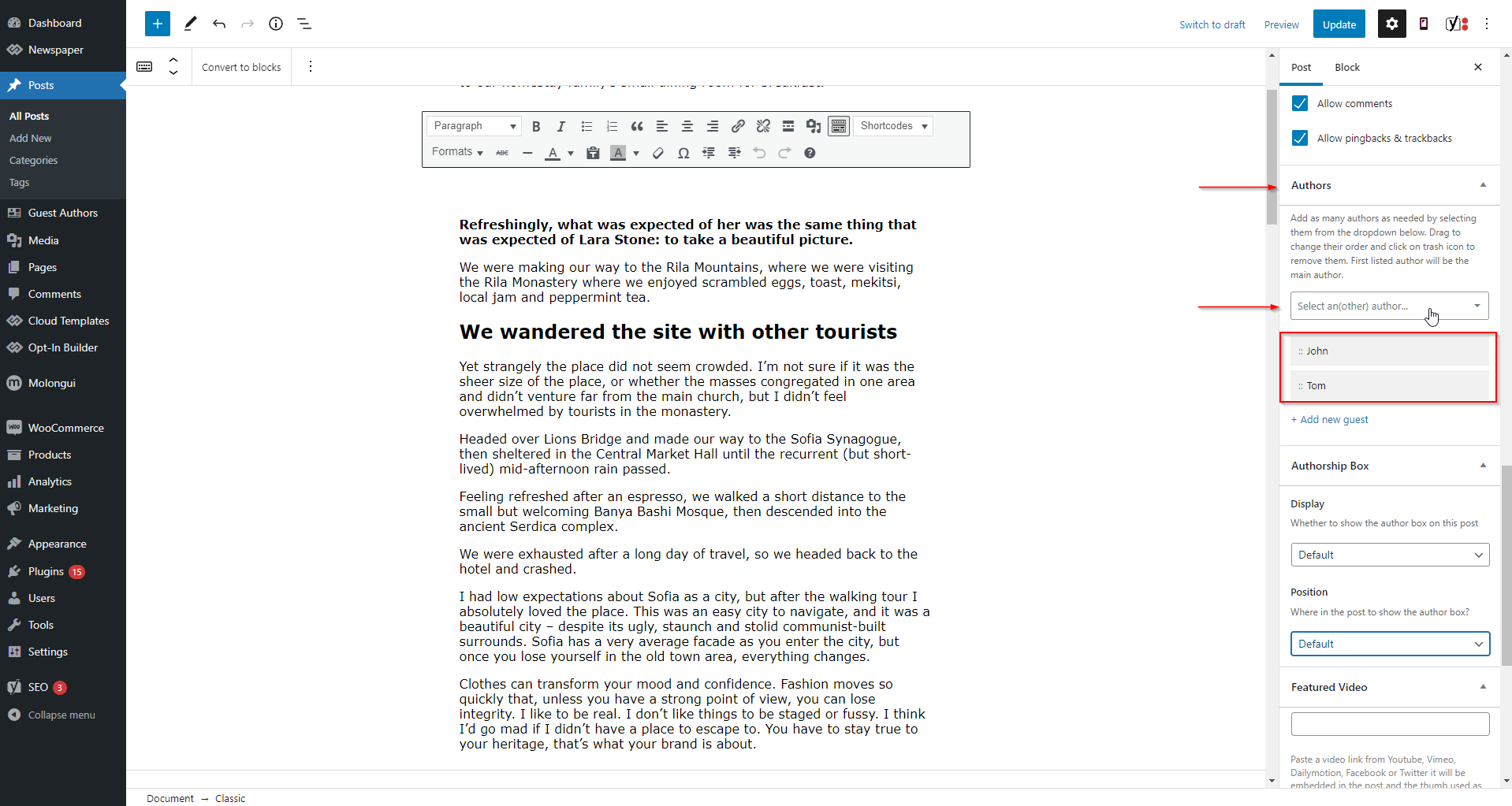
First, open your WordPress dashboard. Find the Newspaper Theme on the left menu. Click on the theme name. A new page will open. Look for the Theme Panel option. It is usually at the top. Click on it to open the settings. The options are easy to find.
Go to the Author Box settings. This option is in the theme panel. Click on it. You will see the display settings. Find the photo setting. Ensure the author photo is enabled. You can upload your photo here. Click save when you finish. Now your author photo will show on posts.
Troubleshooting Common Issues
Easily add an author photo in the WordPress Newspaper Theme by accessing your user profile settings. Upload a picture in the “Profile Picture” section and save changes. Refresh your site to see the author photo displayed on your articles.
Image Not Displaying
Sometimes, the author photo does not show up. Check if the image file is uploaded correctly. Ensure the file path is right. Use the media library to upload images. Select the right photo from there. Refresh the page to see changes. Still not showing? Clear your browser cache. This helps in loading updated content. Verify if the theme settings allow author photos. Adjust settings if needed.
Incorrect Image Size
Images may appear too big or too small. Adjust the image dimensions in the media library. Make sure the aspect ratio matches the theme’s requirements. Use an image editor for resizing. Upload the new image again. Check if the theme provides size guidelines. Follow these for best results. Refresh your site to see the correct size. Consistency ensures a better look across the site.
Enhancing Author Bio
Author photos make your bio look better. They help readers know who you are. Adding a photo is simple. Go to your WordPress dashboard. Find the user settings. Upload your photo there. Make sure it’s clear. A friendly smile works best.
Social media links are useful. They let readers follow you. Add Facebook, Twitter, and Instagram links. Go to your profile settings. Find the social media section. Paste your links there. Check if they work. Readers love staying connected.
Bio writing is fun. Tell who you are. Share your interests. Keep it simple. Use easy words. Write short sentences. Make readers feel happy. Share your goals. Invite people to know more. Keep it friendly and warm.
Credit: tagdiv.com
Frequently Asked Questions
How Do I Add An Author Photo?
To add an author photo, navigate to your WordPress dashboard, select “Users,” then “Your Profile. ” Upload a photo under “Profile Picture” using Gravatar or a custom plugin. Ensure the image is optimized for fast loading. This enhances your site’s personalization and boosts user engagement.
Can I Use Any Image Format?
Yes, you can use common image formats like JPEG, PNG, or GIF. Ensure the image is optimized for web use to maintain quick load times. PNGs offer transparency, JPEGs are suitable for photographs, and GIFs allow simple animations, providing flexibility in choosing the best format for your theme.
Why Is Author Photo Important?
An author photo enhances trust and credibility, making your blog more personal and relatable. It helps readers connect with the author, fostering engagement. A recognizable photo can improve brand recognition and increase user retention, contributing positively to your blog’s overall impression and SEO.
How To Optimize Author Photo For Seo?
Optimize your author photo by using relevant alt text and captions. Compress the image to reduce file size, ensuring faster loading times. Choose a descriptive file name and utilize structured data markup. These practices improve image search visibility and enhance overall SEO performance.
Conclusion
Adding an author photo in WordPress Newspaper Theme is simple. A clear, engaging author photo builds trust. It connects readers with the writer. An image enhances your online presence. Follow the steps outlined to easily upload your photo. Customize it to fit your theme’s style.
Ensure the photo is professional and suitable. Regular updates keep your profile fresh. Readers appreciate a personal touch. A small effort leads to better engagement. Explore other customization options for your theme. Keep your blog visually appealing. A well-maintained blog attracts more visitors.
Enjoy the benefits of a personalized author photo today.


