
Are you looking to give your WordPress site a fresh, modern look with eye-catching icons? Adding Font Awesome to your WordPress theme can do just that.
With its vast library of icons, Font Awesome allows you to enhance your site’s design, making it more engaging and user-friendly. But how do you integrate it seamlessly into your theme? Don’t worry; it’s easier than you think. In this guide, we’ll walk you through the simple steps to add Font Awesome to your WordPress theme, ensuring your site not only looks great but also stands out in the digital crowd.
Ready to transform your website’s appearance and captivate your audience? Let’s dive in!
What Is Font Awesome?
Font Awesome is a popular icon library. It provides many scalable vector icons. These icons can be customized easily. Change their size, color, or drop shadow. Use them on your website for better design. Icons help users understand content quickly. Font Awesome is widely used in WordPress themes. It offers a huge collection of free and paid icons. Designers love its versatility. Developers find it easy to integrate. It’s simple and efficient.
Icons improve website navigation. They make buttons and links clear. Font Awesome supports web accessibility. Screen readers can recognize these icons. This ensures everyone can use your site. Using Font Awesome saves time. No need to design icons from scratch. It’s a valuable tool for web developers. Users get a better experience with icons. Websites look modern and professional.

Credit: docs.fontawesome.com
Benefits Of Using Font Awesome
Font Awesome offers a wide range of icons. These icons are easy to use. They make websites look modern and stylish. Icons can be scaled to any size. This keeps them clear and sharp. No need for extra images. This saves space and reduces load times. Font Awesome is free to use. It can be added to any site quickly. Many themes support it easily.
Customization options are vast. Change colors, sizes, and styles. This gives websites a unique feel. Icons can be used in menus, buttons, and more. They help users navigate sites better. Font Awesome is constantly updated. New icons are added regularly. This keeps your site fresh and up-to-date.
Installation Methods
A Content Delivery Network (CDN) is a quick way. It helps to add Fontawesome to your WordPress theme. First, go to the Fontawesome website. Copy the CDN link. Then, open your WordPress dashboard. Go to the Appearance section. Click on Editor. Find the header.php file. Paste the CDN link in the head section. Save your changes. Now, Fontawesome is ready to use.
Download Fontawesome files from the official site. Unzip the file on your computer. Open your WordPress dashboard. Go to Appearance. Click on Editor. Find your theme’s folder. Upload the Fontawesome files there. Next, add the link to the header.php file. This helps WordPress find the files. Save your changes. Enjoy using Fontawesome on your site.
Plugins make life easy. Open your WordPress dashboard. Go to Plugins. Click on Add New. Search for Fontawesome. Click Install Now. After installing, click Activate. Your site now has Fontawesome. Using plugins saves time and effort. It is a simple method. No need to touch code files.
Adding Font Awesome Via Cdn
First, visit the Font Awesome website. Look for the CDN link on the homepage. Copy the link. Make sure it includes “https”. This keeps your site safe. The link is usually long. But don’t worry. Just copy and paste it.
Go to your WordPress dashboard. Find the Appearance section. Then click on Theme Editor. Look for the header.php file. Open it. Paste the CDN link before the closing tag. This makes sure the icons load properly. Always save your changes. Now, your theme will use Font Awesome.
Installing Font Awesome Files
Add Font Awesome to your WordPress theme by downloading the font files. Place them in your theme’s directory. Link the CSS file in your theme’s header. Enjoy a wide range of icons to enhance your site’s design.
Downloading The Files
Download Font Awesome from its website. Save the files on your computer. Ensure you have the complete package. This includes CSS and font files.
Uploading To Your Server
Log in to your server using FTP. Locate your theme’s folder. Create a new folder named “fontawesome”. Upload the downloaded files to this folder. Check that all files are uploaded correctly. This step is crucial for the next process.
Enqueuing The Stylesheets
Open your theme’s functions.php file. Add the code to link Font Awesome. Use the wp_enqueue_style function. This ensures the stylesheets are loaded. Make sure the file paths are correct. Test your site to see the new icons.
Using A WordPress Plugin
FontAwesome makes icons easy. Many plugins can add it to WordPress. Pick the one with the best reviews. Also, check the number of downloads. A plugin with lots of downloads is trusted. Make sure it is compatible with your WordPress version. Read user comments for any issues. Choose a plugin that updates often. This keeps it working well.
After installing, go to the plugin settings. Look for a settings link on the WordPress dashboard. Enable the FontAwesome option. Some plugins may have extra features. Choose only what you need. Save your changes. Check your site to see the icons. If they show up, you did it right!
Testing Font Awesome Integration
Easily add Font Awesome to your WordPress theme to enhance your site’s design. Include the Font Awesome CDN link in your theme’s header file. This integration allows you to use a wide range of icons effortlessly.
Inserting Icons In Posts
Adding Font Awesome icons is easy. Open your WordPress editor. Find the icon you want on the Font Awesome website. Copy the icon code. Paste the code into your post. The icon should appear in your post.
Verifying Icon Display
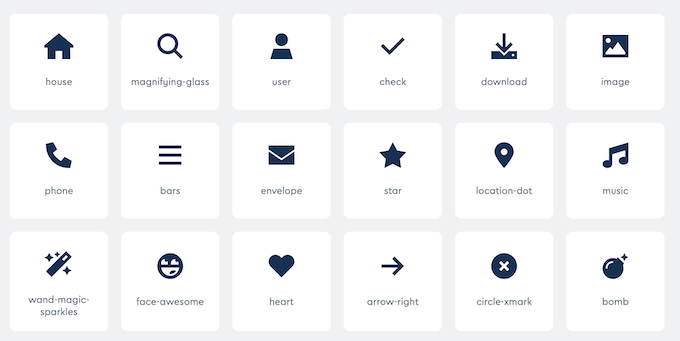
Check if the icon shows up correctly. Look at the preview of your post. Make sure the icon is visible. Icons should be clear and in the right place. If the icon does not show, check your code again. Correct any mistakes in the code. Make sure Font Awesome is added to your theme.
Credit: www.wpbeginner.com
Troubleshooting Common Issues
Integrating Fontawesome into a WordPress theme can enhance design flexibility. Start by adding the Fontawesome CDN link in the header. Ensure you enqueue the styles correctly to avoid conflicts and ensure smooth functionality.
Icons Not Displaying
Icons may not show if Fontawesome isn’t properly linked. Check your theme’s header file. Ensure the Fontawesome script is included. Sometimes, updates break links. Verify the URL for any changes. Use a reliable source for the Fontawesome script.
Inspect your CSS files. Conflicts can hide icons. Ensure no CSS rules override Fontawesome styles. Look for font-family conflicts. They can stop icons from appearing. Correct these conflicts by prioritizing Fontawesome styles.
Resolving Conflicts With Other Plugins
Plugins might clash with Fontawesome. Disable suspicious plugins one by one. Check if icons appear. If they do, the plugin is the issue. Update or replace it. Sometimes, two plugins use the same resources. This causes conflicts.
Use a plugin conflict checker. It identifies problematic plugins. Follow its advice for solutions. Regular updates reduce conflicts. Keep plugins and your WordPress theme updated. This ensures compatibility.
Best Practices For Font Awesome
Integrating Font Awesome into WordPress themes enhances visual appeal and functionality. Start by enqueuing the Font Awesome script in your theme’s functions. php file. Customize icons using CSS for a unique design, ensuring your site stands out with crisp, scalable vector icons.
Keeping Files Updated
Font Awesome releases new versions. These versions fix bugs and add icons. Always use the latest version for better performance. Check updates regularly. Visit the Font Awesome website. Download the newest files. Replace old files in your theme. This keeps your icons fresh and functional.
Optimizing For Performance
Performance matters in web design. Font files can be large. Large files slow down your site. Use a content delivery network (CDN) for Font Awesome. A CDN speeds up loading times. It distributes files across servers. Only include the icons you need. This reduces file size. Smaller files load faster. Fast loading improves user experience.

Credit: wpengine.com
Frequently Asked Questions
How To Integrate Fontawesome In WordPress Theme?
To integrate Fontawesome, enqueue it in your theme’s functions. php file. Use wp_enqueue_style function with Fontawesome’s CDN URL. This ensures the icons are loaded correctly. Alternatively, you can download the Fontawesome kit and include it in your theme folder, then enqueue the stylesheet locally.
Can I Use Fontawesome Without Coding?
Yes, you can use Fontawesome without coding by leveraging a WordPress plugin. Popular plugins like “Font Awesome” allow easy integration. Simply install and activate the plugin, and icons will be available for use in posts and pages without any manual coding.
Is Fontawesome Free To Use In Themes?
Fontawesome offers a free version with a wide range of icons. You can use this version in WordPress themes without cost. For access to more advanced features and icons, a Pro version is available for purchase. The free version suffices for most standard icon needs.
Why Isn’t Fontawesome Displaying On My Site?
Fontawesome may not display due to incorrect path or enqueueing issues. Check your functions. php file for correct CDN or path. Ensure the stylesheet is properly enqueued. Additionally, clear your browser cache and refresh the page to resolve display issues.
Conclusion
Adding Fontawesome to your WordPress theme is simple and effective. It enhances your site’s visual appeal. Icons improve navigation and user experience. Follow the steps mentioned above to integrate Fontawesome easily. Your website will look more professional and engaging. Icons are versatile and adaptable.
Use them to highlight important features. They can guide visitors effortlessly through your content. Regularly update your theme to keep it fresh. Explore Fontawesome’s vast icon library for creative options. With a little effort, your site becomes more attractive and functional.
Enjoy the benefits of a visually appealing website.


