
Are you looking to make your website more dynamic and engaging? A slider can do just that.
Imagine captivating your audience from the very first glance with stunning images and messages that glide smoothly across the screen. With the Sydney theme in WordPress, you have a powerful tool at your fingertips. But how do you add a slider to it?
Don’t worry—it’s easier than you might think. In this guide, you’ll discover step-by-step instructions to seamlessly integrate a slider into your WordPress Sydney theme. Get ready to elevate your site’s visual appeal and keep your visitors hooked. Read on to transform your website into a captivating digital experience.
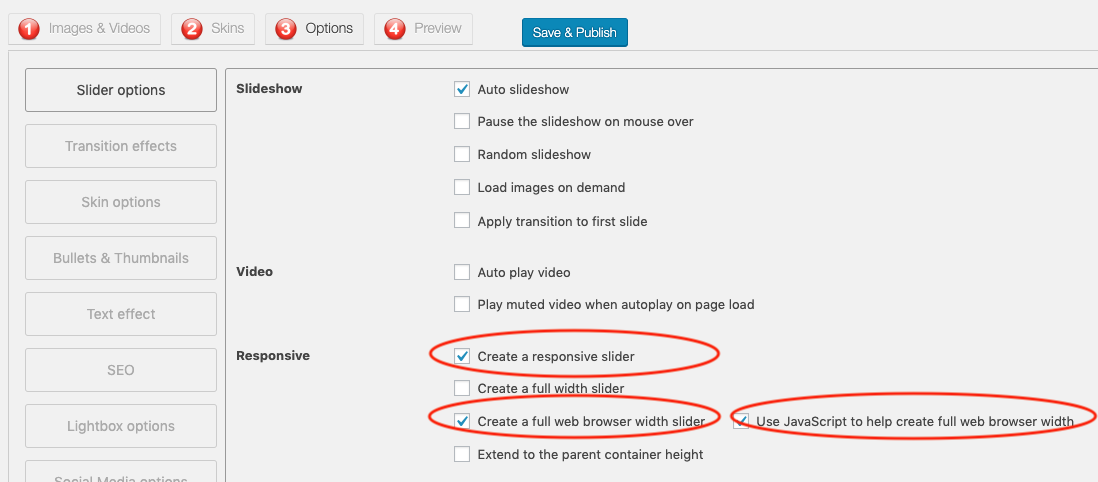
Credit: www.wonderplugin.com
Choosing The Right Slider Plugin
Some popular slider plugins can help make your site look nice. Smart Slider 3 is user-friendly and offers many features. Slider Revolution is another popular choice. It has many design options. MetaSlider is easy to use and works well with beginners. These plugins help add a slider to your WordPress site.
Choosing the best plugin needs some thought. Look for plugins with easy setup and customization options. Check if they are compatible with the Sydney theme. Read user reviews for more insights. Ensure the plugin gets regular updates. Updated plugins work better and are secure. Also, consider how the plugin affects site speed. A fast site is important for users.

Credit: wordpress.org
Installing The Slider Plugin
First, go to your WordPress dashboard. Find the Plugins section. Click on Add New. You will see a search bar. Type slider plugin in the search bar. Many options will show up. Read the descriptions carefully. Choose the slider plugin that you like best. Make sure it is compatible with Sydney Theme. Always check the reviews. This helps you pick the best plugin.
Once you find the right plugin, click on Install Now. Wait for the installation to finish. Next, click on Activate. Now the slider plugin is active. You can start using it. Go to Appearance in the dashboard. Look for the new slider settings. Follow the setup steps. Add images to the slider. Adjust the settings as needed. Your slider is ready to use!
Configuring Slider Settings
Adding a slider to the WordPress Sydney theme enhances visual appeal. Navigate to the theme’s settings to configure slider options easily. Customize image size, transition effects, and speed for a personalized display that captivates visitors.
Setting Up Slides
First, go to the dashboard in WordPress. Click on the Slider option. Add a new slide by clicking the Add New button. Give your slide a title and add a description. Upload a picture that you want on the slide. Save your slide by pressing Save Changes.
Customizing Appearance
Choose the size of your slider. Pick a background color if needed. Add a border to make it pop. Select a font for slide text. Make sure it is clear and readable. Adjust the text size for better visibility.
Adjusting Transition Effects
Select a transition effect for slide changes. Options might include fade or slide. Choose how long each slide stays visible. Set it to a few seconds. Adjust the speed of the transition. Save all changes to see the effects live.
Integrating Slider With Sydney Theme
Sydney’s Page Builder helps you make a beautiful slider. First, open the Sydney Customizer. Choose a page where you want the slider. Click on the Page Builder tab. Add a new row. Inside the row, add a Slider widget. This will make the slider appear. You can add images or text to the slider. Make sure images are clear and bright. This helps the site look nice. Save your changes. Now, you have a slider!
Adding a slider to the homepage is fun. Go to the Homepage settings in the Customizer. Find the Slider options. Choose the images you want. Add catchy captions to make it interesting. Select animation styles for each slide. This makes it look cool. The slider will show on your homepage. It makes your site look lively.
Positioning the slider is easy. Go to the slider settings. Choose where you want it. Top, middle, or bottom of the page. Align the text to the left, center, or right. This helps with design. Make sure everything looks neat. Adjust the size of the slider. Make it fit the page well. Save your settings. Now, your slider is in the right spot!
Optimizing For Performance
Fast load times are crucial for any website. A slow site frustrates visitors. It can cause them to leave quickly. Sydney theme is known for its speed. But adding a slider can slow things down. Choose a slider plugin that is lightweight. It should not use too much memory. Optimize slider images for web. Smaller images load faster. Use caching plugins to store data. This speeds up your site for returning visitors. Regularly update your plugins. Outdated plugins can slow down your site.
Ensuring Fast Load Times
Test your site speed often. Use tools like Google PageSpeed Insights. They show how fast your site loads. They also give tips to improve speed. Compress your images. Smaller images mean faster loads. Use lazy loading for sliders. This loads images only when needed. It saves resources. Minimize the use of animations. Too many animations can slow things down. Keep your site clean and simple. A simple site loads faster.
Testing Responsiveness
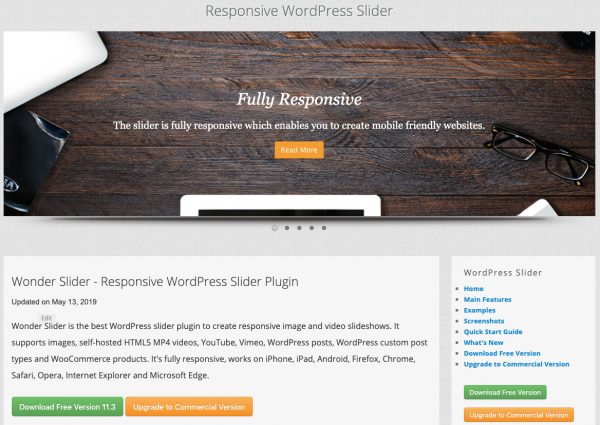
Responsive designs work on all devices. Test your slider on phones and tablets. Make sure it displays correctly. Check if buttons are clickable. Test for different screen sizes. A slider should adapt to any screen. Use tools like BrowserStack for testing. They show how your site looks on various devices. Make adjustments as needed. Responsive design ensures users stay longer. It improves overall user experience.
Credit: www.wonderplugin.com
Troubleshooting Common Issues
Encounter difficulties adding a slider to your WordPress Sydney theme? Check plugin compatibility and update your theme. Ensure JavaScript is enabled for smooth functionality.
Slider Not Displaying
The slider might not show due to a missing plugin. Ensure the plugin is installed. Then, activate it properly. Check the slider settings. Ensure they are correct. Look for any shortcodes. Make sure they are placed correctly. Sometimes, themes or plugins clash. This can prevent the slider from showing. Try disabling other plugins. Then, check if the slider appears. If yes, find the conflicting plugin. Then, look for updates or alternatives. Always update your theme. Keeping it current can fix many issues.
Resolving Compatibility Problems
Compatibility issues can cause many problems. Some plugins might not work with the Sydney theme. Test each plugin one by one. Deactivate them all. Then, activate them individually. This helps find any issues. Sometimes, JavaScript errors block sliders. Open the browser console. Look for any error messages. Fix them to ensure smooth slider operation. Updating WordPress also helps. An older version can create bugs. Regular updates keep everything running smoothly.
Frequently Asked Questions
How Can I Add A Slider In Sydney Theme?
To add a slider, install a slider plugin like Smart Slider 3. Once activated, create a new slider and customize it. Then, use the slider shortcode or widget to integrate it into your Sydney theme’s homepage or desired location.
What Are The Best Slider Plugins For Sydney Theme?
Some popular slider plugins for Sydney theme include Smart Slider 3, Slider Revolution, and MetaSlider. These plugins offer customizable options and are compatible with most WordPress themes, including Sydney. They allow easy integration and provide responsive designs for a seamless user experience.
Is It Possible To Customize Slider Settings?
Yes, you can customize the slider settings using the plugin’s options. Adjust dimensions, transition effects, and autoplay settings. Most slider plugins offer advanced customization features, making it easy to tailor the slider according to your website’s design and functionality requirements.
Can I Use Multiple Sliders On One Page?
Absolutely, you can use multiple sliders on a single page by adding different shortcodes or widgets for each slider. Ensure each slider is appropriately configured in the plugin settings to avoid conflicts and maintain smooth performance on your Sydney-themed WordPress site.
Conclusion
Adding a slider to the Sydney theme boosts your site’s appeal. It’s a simple way to share visuals with visitors. The steps are easy to follow, even for beginners. You enhance user experience by showcasing content creatively. This feature makes your site stand out, attracting more viewers.
Remember to optimize images for fast loading. This keeps your site running smoothly. Regular updates ensure compatibility with new features. Keep exploring WordPress tools. They can make your site even better. Your website deserves a fresh look. A slider might be just the change you need.


