
Are you looking to elevate the look and feel of your WordPress website? Adding web fonts could be your game-changer.
Fonts do more than just display text; they convey your brand’s personality and keep your audience engaged. Imagine your readers staying on your site longer simply because they find it visually appealing. Sounds great, right? In this guide, you’ll discover exactly how to add web fonts to your WordPress theme with ease.
Whether you’re a seasoned developer or a curious beginner, this step-by-step process will empower you to transform your site’s typography and captivate your audience. Let’s dive in to give your website the professional edge it deserves!
Credit: www.wpbeginner.com
Choosing The Right Web Font
Adding web fonts to a WordPress theme can enhance the site’s look. Start by selecting a font from Google Fonts. Then, integrate it into your theme using the WordPress customizer or a plugin. This simple step can make your website more visually appealing.
Exploring Font Libraries
Web fonts come from various font libraries. Google Fonts is popular. It offers a wide range of free fonts. Adobe Fonts has many options too. Some are free, others need a subscription. Check both to find the perfect style.
Considering Readability And Style
Fonts must be easy to read. Choose a style that fits your site. Some fonts look fancy. But they might be hard to read. Simple fonts are usually better. They make the text clear. Make sure your visitors can read with ease.
Checking Licensing And Usage Rights
Font licenses are important. Free fonts are easy to use. But some need a license. Check the terms before using them. Some fonts are free for personal use. Others need a fee for business use. Always read the rules to avoid trouble.
Using Google Fonts
Integrating Google Fonts into your WordPress theme enhances your site’s visual appeal. Start by accessing the WordPress dashboard and navigating to your theme editor. Insert the Google Fonts link in the header section of your theme’s code. This simple addition can significantly improve readability and style.
Selecting Fonts From Google Fonts
Google Fonts offers many font styles. Users can find fonts easily. Search using categories like Serif, Sans Serif, or Handwriting. Click on a font you like. A new page will show details. You can see font examples there. Choose font weights and styles you want. Copy the link provided. This link will help you later.
Integrating Google Fonts With WordPress
Go to your WordPress dashboard. Click on Appearance, then Theme Editor. Find the file named header.php. Paste the Google Fonts link inside it. This link loads the fonts. Your site now uses Google Fonts. Check your site to see changes. Fonts should appear. If not, check the pasted link again.
Customizing Font Display In Theme
Open your WordPress dashboard again. Choose Customize under Appearance. Click on Typography settings. Select the elements you want to change. Use the font family from Google Fonts. Save your changes. Your site will now show new fonts. This makes your site look unique. Visitors will notice the difference.
Self-hosting Web Fonts
Integrating web fonts into a WordPress theme enhances design flexibility and user experience. Self-hosting these fonts involves uploading font files to your server, then updating your theme’s CSS to ensure proper display across browsers. This method offers more control and faster load times compared to using third-party services.
Downloading Fonts For Self-hosting
First, choose a font you like. Go to a trusted font website. Click on the download button. Save the font files on your computer. Make sure to check the license. Some fonts need permission to use.
Uploading Fonts To WordPress
Open your WordPress dashboard. Click on the “Media” section. Choose the “Add New” option. Upload your font files here. Remember where you save them. You will need this path soon.
Implementing Fonts Via Css
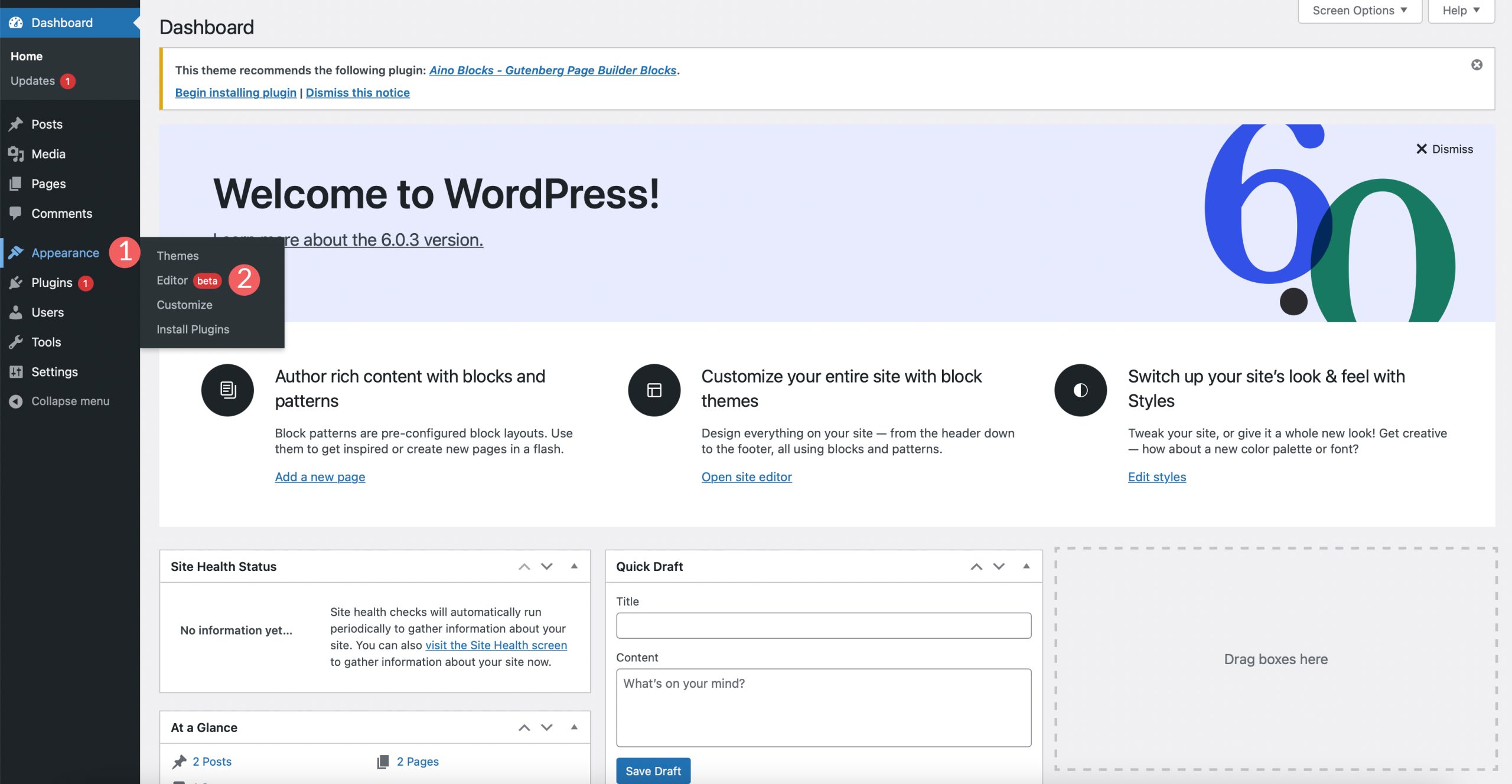
Go to the Appearance menu in WordPress. Click on “Editor” or “Customize”. Find your theme’s style.css file. Add a new rule with `@font-face`. Use the path where you uploaded the fonts. Set your font’s name and format. Use this name in other CSS rules to apply the font.
Credit: www.elegantthemes.com
Utilizing Adobe Fonts
First, visit the Adobe Fonts website. Sign in with your account. Next, search for the fonts you like. Click on a font to see details. Add the font to your kit. Name your kit for easy access. Once done, Adobe provides an embed code. Keep this code handy. You will need it soon.
Go to your WordPress dashboard. Find the Appearance tab. Click on the theme editor. Locate the header file, often called header.php. Paste the Adobe embed code here. Save your changes. Your fonts will now appear on your site. Refresh your page to see the new fonts.
Open your WordPress customizer. It’s under the Appearance tab. Look for typography settings. Here, you can adjust font size and style. Test different combinations. Make sure your fonts are clear and readable. Try different headings and body text. Your site should look neat and professional.
Optimizing Font Performance
Slow fonts can make websites load slowly. Use lightweight fonts to keep speeds fast. Choose fonts that are not too big. This helps pages open quicker. Optimize by using the right format. WOFF and WOFF2 are good choices.
Fonts can show in different ways. Use font-display to control this. Choose “swap” to display text quickly. This makes pages readable faster. Other options include “block” and “fallback”. Each has different effects.
Browsers can save fonts. This is called caching. Use caching to make fonts load faster. Set cache rules in your site. It tells browsers to keep fonts for a long time. This reduces load time for returning visitors.
Credit: www.wpbeginner.com
Troubleshooting Common Issues
Integrating web fonts into a WordPress theme can lead to display issues. Ensure fonts are correctly uploaded to your server. Check CSS settings to confirm proper font paths and styles are applied.
Resolving Font Loading Errors
Font loading errors can stop web fonts from displaying. Check file paths for mistakes. Paths must match exact locations on the server. Use tools like Google Fonts for reliable delivery. Sometimes, clearing the cache helps solve issues. Ensure fonts are properly linked in CSS files. Look for typos in font names or properties. Proper syntax is crucial for loading.
Addressing Compatibility Problems
Compatibility issues arise due to different browsers. Older browsers may not support new fonts. Use web-safe fonts as a fallback option. Check for browser updates. Keep your theme updated regularly. Use tools like Can I Use to check font support. Include CSS prefixes for better compatibility. Test fonts across multiple browsers.
Ensuring Cross-browser Consistency
Cross-browser consistency ensures fonts look the same everywhere. Use standard font formats like WOFF and WOFF2. Include eot and ttf formats for older browsers. Test fonts on mobile and desktop devices. Check for style differences in font rendering. Adjust CSS for consistent appearance. Regular testing helps maintain uniformity.
Frequently Asked Questions
How Can I Add Custom Fonts To WordPress?
To add custom fonts, you can use a plugin like Easy Google Fonts. Alternatively, manually add them using the @font-face rule in your theme’s CSS file. Download the font files, upload them to your server, and define the font in your stylesheet.
What Are Web Fonts In WordPress?
Web fonts are fonts that are hosted online and used by websites. They allow you to display consistent typography across different devices. Using web fonts can enhance your site’s design and readability. Popular web fonts include Google Fonts, Adobe Fonts, and Font Squirrel.
Do Web Fonts Impact WordPress Site Speed?
Yes, web fonts can impact site speed if not optimized. Large font files can increase load time. To minimize impact, choose only necessary font weights and styles. Use font-display: swap in CSS to improve loading performance by displaying fallback fonts until the web font is fully loaded.
Can I Use Google Fonts On WordPress?
Yes, Google Fonts can easily be used on WordPress sites. Use a plugin like Google Fonts or add fonts manually by linking them in your theme’s header. php file. Google Fonts offers a wide range of free, web-safe fonts that can enhance your site’s typography.
Conclusion
Adding web fonts to your WordPress theme can enhance its look. Fonts express style, mood, and personality. Choose the right font to match your website’s vibe. Integrate web fonts easily with plugins or manual coding. This ensures a seamless visual experience for visitors.
A well-chosen font improves readability and engagement. It helps convey your message clearly. Regularly check font compatibility and loading speed. Keep your site’s design fresh and appealing. Stay updated with font trends. Your site reflects your brand. Make sure it looks its best.
Happy designing!


