
Are you looking to create a seamless shopping experience on your WordPress site? Adding WooCommerce theme options to the WordPress Customizer can be a game-changer.
Imagine having the power to tweak your online store’s design and functionality with just a few clicks, all from one convenient location. This not only saves you time but also empowers you to craft a shopping environment that resonates with your customers.
In this guide, you’ll discover how to effortlessly integrate WooCommerce theme options into the WordPress Customizer. Whether you’re a seasoned developer or a WordPress newbie, this step-by-step approach will make the process straightforward and manageable. By the end of this article, you’ll be equipped to enhance your site’s aesthetics and performance, giving your visitors a reason to stay longer and shop more. Don’t miss out on transforming your e-commerce platform into a user-friendly powerhouse!

Credit: wpastra.com
Understanding Woocommerce And WordPress Customizer
WooCommerce is a popular plugin for online stores. WordPress Customizer helps change your website’s look. Together, they make a powerful team. You can add many features to your store. Customize colors, fonts, and more with ease.
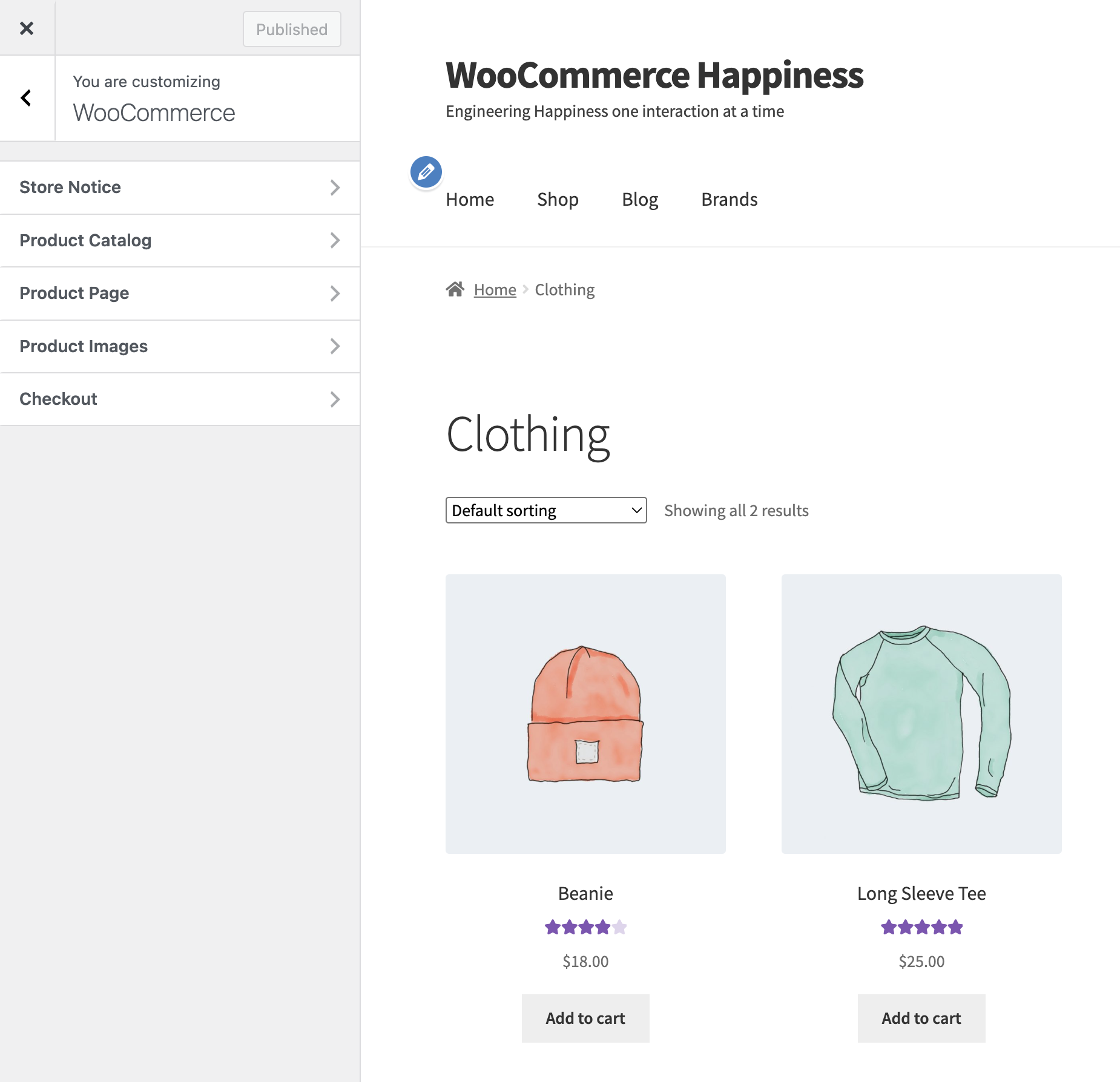
WordPress Customizer is user-friendly. It offers a live preview of changes. This means you can see changes instantly. WooCommerce adds extra settings to the Customizer. These settings help make your store unique. With practice, customizing becomes fun.
Benefits Of Customizing Woocommerce Themes
Customizing WooCommerce themes offers several advantages. Personalizing your store makes it unique. Customers enjoy a tailored experience. This boosts their engagement. A customized theme reflects your brand’s identity. It improves recognition among users. Design elements can be adjusted easily. This gives a fresh, modern look to your store. The layout can be user-friendly. Navigation becomes simpler. Products are easy to find. Loading times can be optimized. Faster sites keep visitors happy. SEO benefits are another advantage. Search engines favor well-structured sites. A customized theme helps with this. Pages can be organized neatly. This makes them more accessible. Mobile responsiveness is important. Themes should work on all devices. Customizing ensures they do. Your store can be ready for smartphones and tablets. This widens your audience. More people can shop at your store. It’s a win-win for everyone.
Setting Up Your Development Environment
Start with the right tools for your project. Install a code editor like Visual Studio Code or Sublime Text. These help you write and edit code easily. Use a local server like XAMPP or MAMP. This lets you test your changes locally before going live. For WordPress, you need the WordPress software. Download it from the official site. Make sure to have WooCommerce installed too. This is essential for e-commerce features. Version control like Git helps you track changes. It makes collaboration easier. A browser with developer tools is also handy. It helps debug issues in real time. Together, these tools create a smooth workflow.
For WooCommerce, some plugins are must-haves. WooCommerce Blocks adds new blocks to your site. Yoast SEO helps with search engine optimization. Jetpack offers security and performance boosts. Elementor is great for building pages. Contact Form 7 lets users contact you easily. Each plugin adds unique features. Choose based on your needs.
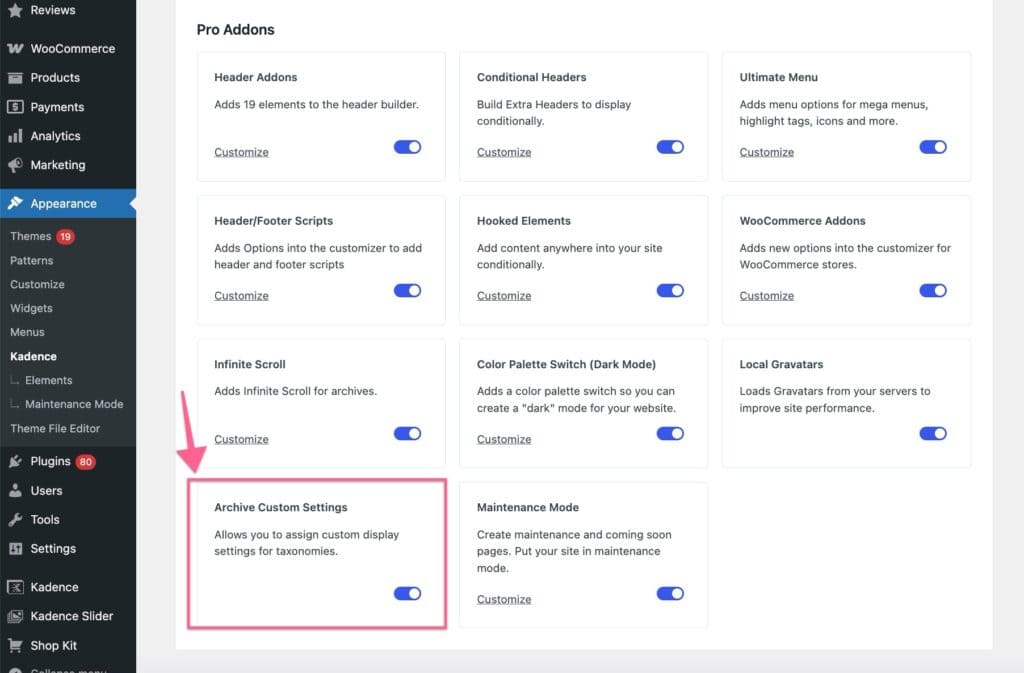
A child theme keeps your changes safe. It protects them during updates. First, create a new folder in the themes directory. Name it something like “mytheme-child”. Inside, make a style.css file. In this file, write the theme details. Next, create a functions.php file. This file can add new features. Finally, activate your child theme. Go to the WordPress dashboard. In the themes section, select your new child theme. It’s now ready for customizations.
Credit: www.kadencewp.com
Creating Customizer Sections
Customizer sections help in organizing options. These sections make navigation easy. To add a section, use add_section function. Each section should have a unique ID. Add a title to describe the section. You can also include a description. This helps users understand its purpose. Remember to register the section after adding.
Panels group sections together. This helps keep the customizer tidy. Use the add_panel function to create a panel. Assign sections to this panel for better organization. Each panel needs a unique ID. A clear title is also important. Descriptions can be added to panels too. This enhances user experience.
Adding Theme Options
WordPress customizer helps with theme options. Woocommerce theme options are important. They allow users to change settings easily. Adding theme options starts with defining custom settings. Use functions to create settings. Functions tell WordPress what changes to allow. This step is crucial. It sets the base for all options.
Controls are next after defining settings. Controls let users interact with options. Implementing controls requires code. Use specific code to add different controls. Controls can be sliders or text boxes. The user clicks and changes settings. This makes the theme flexible. Users can make themes look unique.
Styling With Live Preview
Connect your CSS with the WordPress Customizer for easy changes. Use the customizer to change colors, fonts, and more. Write your CSS in the theme’s style file. This file should link directly to the customizer. This setup helps you see changes live.
Add the CSS code using the wp_add_inline_style function. This lets you add custom styles without editing the main CSS file. Ensure the function is in your theme’s functions.php file. With this method, adjustments become simple. It saves time and effort.
Live preview lets you see changes instantly. Make sure your theme supports it. This feature helps in checking new styles. It lets you fix any issues before going live. Click the publish button only when satisfied. This ensures your site looks great every time. Using the customizer is simple and fun. Enjoy styling your site in real-time.
Ensuring Compatibility
WooCommerce themes must work well with the WordPress Customizer. It’s important for users to have a smooth experience. Themes should integrate seamlessly with WooCommerce features. This allows users to make changes easily. Compatibility ensures all options are visible in the Customizer.
Integrating With Woocommerce Features
The theme should support all WooCommerce features. Product pages and shopping carts must display correctly. Users need to see their changes in real-time. Ensuring feature support helps in better customization. Every WooCommerce element should be adjustable.
Testing Across Devices
Theme options should be tested on various devices. Mobile, tablet, and desktop users must have the same experience. Testing helps in finding any issues with different screens. Ensuring a responsive design is vital for user satisfaction. This makes the theme more reliable.
Best Practices And Tips
Enhance your WordPress site by integrating WooCommerce theme options into the Customizer. Start by creating a custom function to add settings and controls. Utilize the `customize_register` action hook for seamless integration. This approach offers a user-friendly interface, ensuring easy modifications for your online store.
Maintaining Code Quality
Organize your code neatly. Use comments to explain tricky parts. Keep functions short and clear. Double-check for errors. Clean code helps others understand your work. Use tools to find mistakes. Test your code often. Good code works smoothly.
Optimizing Performance
Make your theme load fast. Reduce image size. Compress files to save space. Fast websites make users happy. Avoid too many plugins. They slow things down. Choose themes carefully. Lightweight themes run faster. Test speed with tools online. Speed affects user experience.
Troubleshooting Common Issues
Explore adding WooCommerce theme options to the WordPress Customizer. Simplify your design process with this guide. Enhance your site’s appearance by integrating theme options seamlessly.
Identifying Errors
Errors can stop your theme options from showing. First, check for typos in your code. Misspellings can cause big problems. Next, make sure your theme files are correctly installed. Sometimes files get missed during setup. Check for any missing or broken files. Also, look at your WordPress version. Older versions might not support new themes. Keep it updated.
Solutions And Workarounds
Start by deactivating plugins one by one. Plugins can often cause conflicts. Test your theme after each one. Sometimes, a simple plugin is the problem. If the issue remains, switch to a default theme. This can help isolate the issue. Always back up your site before making changes. Remember, a backup protects your work.
Credit: woocommerce.com
Frequently Asked Questions
What Are Woocommerce Theme Options In WordPress?
WooCommerce theme options allow customization of the look and feel of your online store. They enable tweaking layouts, colors, and fonts to match your brand. Integrating them into the WordPress Customizer ensures a user-friendly interface, making it easier to see changes in real-time.
How Do I Access Woocommerce Theme Options?
Access WooCommerce theme options through the WordPress Customizer. Navigate to Appearance > Customize in your WordPress dashboard. Here, you will find sections dedicated to WooCommerce settings, allowing you to adjust various aspects of your theme to suit your store’s needs.
Can I Customize Woocommerce Without Coding?
Yes, you can customize WooCommerce without coding by using the WordPress Customizer. It offers a graphical interface for theme adjustments. You can change colors, fonts, and layouts without touching code, making it accessible even to those with no technical background.
Why Integrate Woocommerce With WordPress Customizer?
Integrating WooCommerce with the WordPress Customizer enhances user experience by providing a seamless customization process. It allows real-time preview of changes, ensuring your store design aligns with your vision. This integration simplifies modifications, saving time and effort for non-technical users.
Conclusion
Adding WooCommerce theme options to the WordPress Customizer enhances your site’s flexibility. You gain control over design choices, improving user experience. Customizing becomes straightforward, even for beginners. Explore different themes to find what suits your brand best. Remember, simplicity often attracts more visitors.
Regular updates keep your site fresh and engaging. Take time to experiment with settings. This approach helps you create a unique, appealing online store. Feel empowered to make changes and watch your website evolve. Happy customizing!


