
Creating a new page in your WordPress theme might feel like a daunting task, but it doesn’t have to be. Imagine having the power to craft the perfect page for your website, tailored precisely to your needs and vision.
Whether you’re looking to add a stunning portfolio, a professional contact page, or an engaging blog section, knowing how to do it yourself can save you time and money. You’ll discover a simple, step-by-step guide that will empower you to create new pages effortlessly.
No more waiting for web developers or getting lost in technical jargon. Instead, imagine the satisfaction of seeing your ideas come to life on your website, just the way you envisioned. Ready to take control of your WordPress site? Let’s dive in and unlock the potential of your online presence.
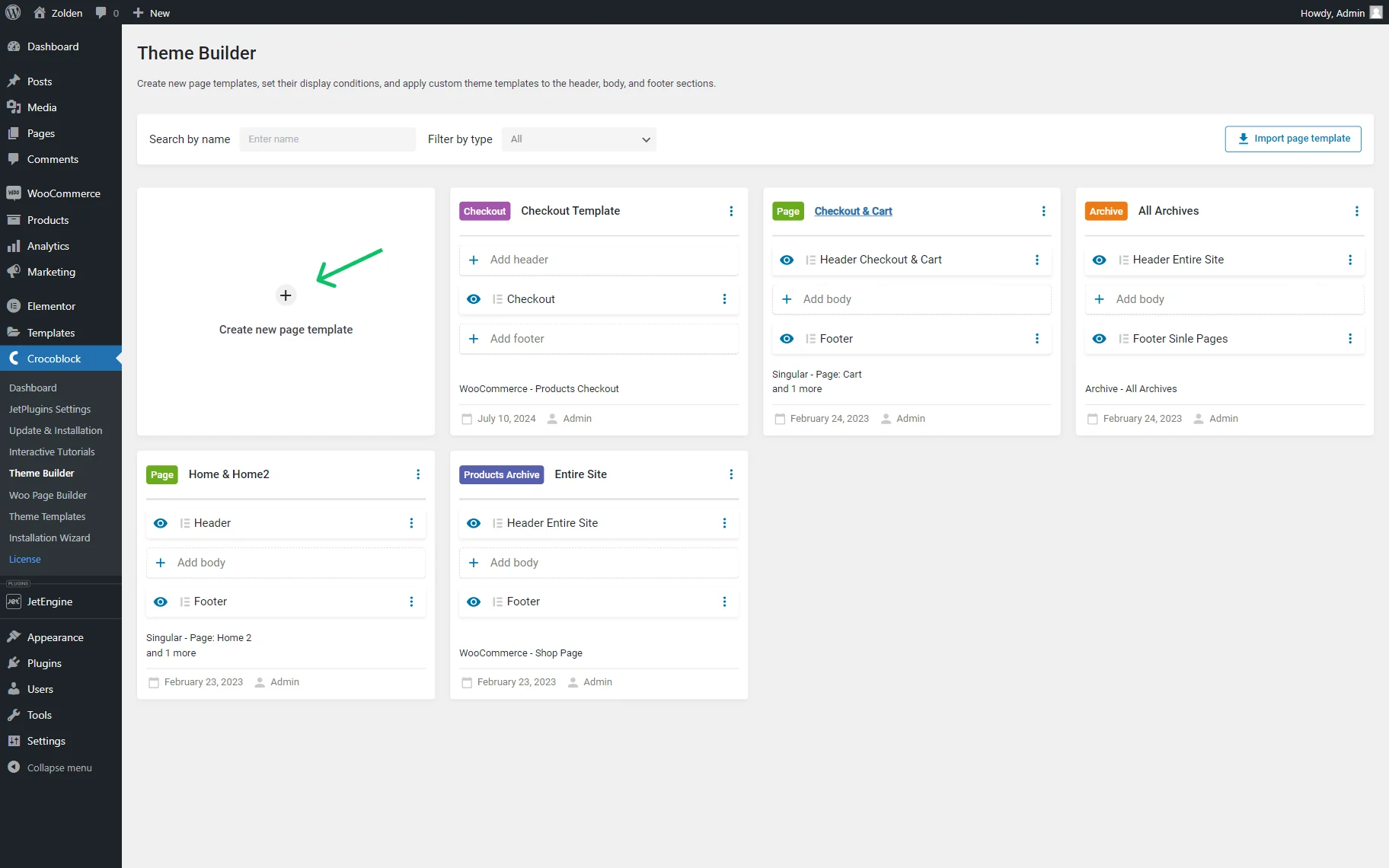
Credit: crocoblock.com
Choosing The Right Theme
Picking a theme that fits your website’s needs is key. Check if the theme supports all plugins you want to use. Some themes limit what you can do. Ensure it works with the latest WordPress version. Outdated themes can cause problems. Always read reviews. They tell you about bugs and issues.
Design flexibility is important for making a unique page. Some themes let you change colors and fonts. Others may have fixed styles. Look for themes with customizable templates. This helps in making your page look special. Easy-to-use page builders can save time. They allow quick changes without coding. Choose a theme that fits your design ideas.

Credit: www.cloudways.com
Setting Up A Child Theme
Child themes keep your changes safe. Updates won’t erase your work. Customizations stay protected. The main theme can update freely. Your site remains stable. You have control over design tweaks. Flexibility is yours without risk. Easy to revert or modify changes. No need to worry about mistakes.
| Step | Description |
|---|---|
| 1 | Create a new folder. Name it your theme-child. |
| 2 | Add a style.css file. Write theme details inside. |
| 3 | Make a functions.php file. Enqueue parent styles here. |
| 4 | Activate child theme in the WordPress dashboard. |
| 5 | Customize child theme as needed. Changes stay safe. |
Creating A Custom Page Template
WordPress uses a system called template hierarchy. This system decides which template file to use for each page. Pages can use different templates based on their type. For example, a single post page uses one template. A category page uses another. Knowing the hierarchy helps in choosing the right file. Start with the most specific template. Then move to general ones if needed.
To create a new template, begin with a PHP file. Add the following code at the top: php / Template Name: CustomPage / ?. Replace “CustomPage” with your template name. Add the HTML and PHP code you want in the file. Save the file in the theme folder. This makes the template ready to use. Select it in the WordPress dashboard.
Adding New Page In WordPress Dashboard
Begin by logging into your WordPress dashboard. Look for the Pages tab on the left menu. Click on it to open the section. You will see a list of all your existing pages. To create a new page, click on the Add New button at the top. This will open the page editor. Here, you can start building your new page.
Once in the editor, give your page a title. This is the name that will appear on your site. Below the title, you can add content in the main editor area. There are options on the right to choose a template or set a featured image. These settings help customize the look of your page. Remember to click Publish to make your page live.
Assigning The Custom Template
Choose the template in the page editor. Open your page editor first. Find the Template option on the right side. Click on the dropdown menu. Look for your custom template. Select it. Save your changes. Your page now uses the new template.
Verifying Template Assignment
Check if the template is applied. View your page. Does it look different? If yes, your template is working. If no, go back to the editor. Make sure the right template is chosen. Save again. Now, view your page. It should be correct now.
Credit: www.youtube.com
Customizing Page Elements
Content blocks make your page look neat. Use blocks to add text, images, and videos. They are easy to manage. Click the plus sign to add a block. Choose the type you want. Drag and drop to move them around. Blocks help you organize your ideas. Make sure to preview your page. Check if everything looks right. Edit if needed. Keep blocks simple for easy reading.
CSS makes your page look unique. Use CSS to change colors, fonts, and layout. Start by opening the style editor. Add code to change the look. Test your changes often. Simple changes can make a big difference. Do not use too many styles at once. Keep the design clean and easy to read. Your page should be user-friendly. Ensure it looks good on all devices.
Testing And Publishing
Creating a new page in a WordPress theme involves testing and publishing steps. Begin by designing your page layout, ensuring it aligns with your theme’s aesthetic. Then, preview your page to check for errors before making it live for visitors.
Previewing The Page
Click the Preview button. This shows how your page looks. Check for any mistakes. Look at the layout and colors. Make sure everything looks good. This helps you find any problems before publishing. You can fix them easily now.
Making Final Adjustments
Look at your page again. Check the text and images. Ensure all links work. Adjust fonts if needed. Fix any spacing issues. Make sure your page is clear and easy to read. Once everything looks good, you are ready. Click Publish to make your page live.
Troubleshooting Common Issues
Template errors can confuse users. Ensure your theme files are complete. Check if the template files are in the right folder. Sometimes, files might be missing or misplaced. Check names of template files. They should match what’s in your theme settings. If files have wrong names, errors appear.
Styling conflicts make pages look wrong. First, check your CSS files. Look for duplicate styles. Remove or fix them. Conflicts can come from plugin styles. Check plugin settings. Adjust them to prevent conflicts. Sometimes, custom CSS causes issues. Review custom codes for errors or conflicts.
Frequently Asked Questions
How Do I Add A New Page In WordPress?
To add a new page in WordPress, log into your dashboard. Navigate to Pages > Add New. Enter your page title and content. Customize using the page editor. Publish by clicking the ‘Publish’ button. Your new page is now live on your WordPress site.
Can I Use A Template For My Page?
Yes, WordPress allows you to use templates for pages. Choose a template from the page attributes section. Templates offer pre-designed layouts. They enhance the look of your page. Select the template that fits your design preferences. Customize it further using WordPress editor tools.
How To Customize A WordPress Page?
Customize a WordPress page using the built-in editor. Change text, images, and layouts. Use blocks for different content types. Add widgets for more functionality. Utilize theme customizer for global changes. Save and preview changes before publishing the page.
Why Is My New Page Not Showing?
Ensure your page is published and not saved as a draft. Check your site’s menu settings. Add your page to the menu if needed. Clear your browser cache. Verify theme settings to ensure visibility. Contact your hosting provider if issues persist.
Conclusion
Creating a new page in your WordPress theme is simple. Follow the steps outlined above. You can customize pages to fit your needs. Play around with different layouts. Discover what works best for your site. Remember, practice makes perfect. The more you experiment, the better you get.
Don’t hesitate to try new features. They might enhance your website’s look. Keep your audience engaged. A clean, well-organized page attracts visitors. It improves user experience. Make your website easy to navigate. Happy designing! Your WordPress journey starts here.


