
Are you looking to breathe new life into your WordPress site? The secret is simpler than you might think—it’s all about choosing the right theme.
A fresh theme can instantly enhance your website’s look and feel, captivate your audience, and even improve functionality. Whether you’re a seasoned blogger or a small business owner, learning how to add a theme to WordPress can be a game-changer for your online presence.
Imagine transforming your site with just a few clicks, making it more appealing and user-friendly. You’ll discover step-by-step guidance to effortlessly install a theme, ensuring your website not only looks stunning but also performs at its best. Ready to unlock the potential of your WordPress site? Let’s dive in and make your vision a reality.
Credit: thimpress.com
Choosing The Right Theme
Picking the right theme for your website is important. It should match the functionality you need. Some themes come with lots of features. Others are simple. Think about what your website will do. Will it need a store or blog? Make a list of must-have features. This will help you choose better.
Visual appeal matters a lot. Your site should look nice. Pick colors and styles that fit your brand. A theme with good design attracts visitors. It should make your site easy to read and navigate.
Always choose a responsive theme. Many people use phones to visit sites. A mobile-friendly theme works well on all devices. This keeps your visitors happy. It also helps your site rank better in search engines.

Credit: wpmarmite.com
Locating Themes In The WordPress Repository
Find the appearance option on your dashboard. Click it. Then, choose themes from the list. This shows the theme directory.
Look at the top right. There’s a search bar. Type the theme name you want. Press enter. Results will show below.
Filters help narrow down options. Click the feature filter button. Select what you need: colors, layout, or features. Press apply. See the refined choices.
Each theme has a preview button. Click to see how it looks. Find one you like? Click install. Simple steps help find the best theme.
Installing A Theme From The Repository
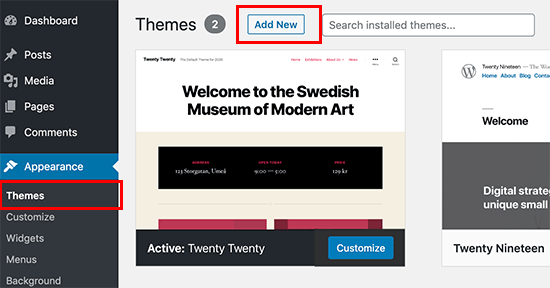
Begin by logging into your WordPress dashboard. This is the control center for your website. Look for the menu on the left side. Find the Appearance section. Click on it. You will see an option named Themes. Click on it. This will show you all available themes.
First, click the Add New button. This will take you to the theme repository. You can search for themes here. Use the search bar to find a theme. Once found, hover over it. A button labeled Install will appear. Click on it. Wait for a few seconds. The theme will be installed. Finally, click Activate. Your new theme is now live. Your site will have a fresh look.
Uploading A Theme From A File
To start, visit a trusted theme website. Find a theme you like. Click the download button. Save the theme file to your computer. It will be in a .zip format. Keep this file safe, you will need it soon.
Open your WordPress dashboard. Find the “Appearance” menu. Click on “Themes”. Then, click the “Add New” button. Next, choose the “Upload Theme” button. A box will appear. Click the “Choose File” button. Find your .zip file from earlier. Select it. Finally, click “Install Now”. Wait for the process to complete. Your new theme is now ready.
Activating The New Theme
Previewing Before Activation is important. It helps you see the new theme’s look. Go to the WordPress dashboard. Find the ‘Appearance’ tab. Click on ‘Themes’. Choose your new theme. Click ‘Live Preview’. This shows your site with the new theme. You can check if everything looks good. If it does, click ‘Activate’.
Activating and Customizing is the next step. After activation, go to the ‘Customize’ option. It lets you change colors, fonts, and layouts. Make sure you save changes. Check your site again. See if it looks right. This makes your site unique. You can always change settings later. Explore different options. Have fun with it!
Customizing Your Theme
WordPress offers a great tool called Customizer. This tool helps change themes easily. You can update colors, fonts, and images. It gives a preview of changes. This makes it easy to see your edits. You can adjust layouts and styles too. The tool is user-friendly. Even beginners can use it without trouble. Make your site look unique and special.
Widgets help add extra features to your site. They can show calendars or social media links. Menus organize your site. They guide visitors to important pages. You can add and edit them from the dashboard. It is simple to move them around. This allows easy customization. Your site can look neat and organized.
Troubleshooting Common Issues
Adding a theme in WordPress can sometimes lead to errors. Common issues include compatibility problems, missing style sheets, and theme installation failures. Solutions involve checking theme requirements, ensuring files are complete, and using FTP for manual uploads.
Theme Compatibility Problems
Themes may not work with your plugins. This can break your site. Always check if the theme is updated. Updates fix many compatibility issues. They make themes work better with plugins. You can contact the theme developer for help. Many developers offer support to fix problems. Keep backups before changing themes. This way, you can restore your site easily.
Resolving Installation Errors
Installation errors can occur if the theme file is broken. Ensure you download the theme from a trusted source. Files should be in a .zip format. Uploading the wrong file type leads to errors. Sometimes, server limits can cause problems. Check your PHP memory limit. Increasing it might solve the issue. Contact your web host for support if needed. They can assist with server-related problems.

Credit: www.greengeeks.com
Frequently Asked Questions
How Do I Install A WordPress Theme?
To install a WordPress theme, navigate to your dashboard and click on “Appearance. ” Select “Themes,” then “Add New. ” Search for your desired theme or upload it from your computer. Once located, click “Install,” then “Activate” to apply it to your site.
Can I Customize My WordPress Theme?
Yes, you can customize your WordPress theme. Use the “Customizer” under “Appearance” in your dashboard. This tool allows changes to colors, fonts, and layouts. Some themes offer advanced customization options, enhancing flexibility for personalizing your site according to your needs.
Is It Safe To Use Free WordPress Themes?
Free WordPress themes from reputable sources are generally safe. They are reviewed for security and quality. Always download themes from WordPress. org or trusted developers. Regularly updating your theme helps maintain security. Avoid downloading from unknown sites to prevent security risks.
How Do I Change My WordPress Theme?
To change your WordPress theme, go to “Appearance” in your dashboard. Click “Themes” and browse available options. Select your preferred theme and click “Activate. ” Ensure compatibility and backups before switching to prevent data loss or site issues.
Conclusion
Adding a theme to WordPress is simple and rewarding. It changes your site’s look and feel quickly. Follow the steps to install your theme easily. Explore different themes to find one that suits your site best. Each theme offers unique features.
Choose a theme that aligns with your brand and goals. Customizing your theme can make your site more personal. Regular updates keep your theme fresh and secure. Enjoy the process of creating a visually appealing website. Your visitors will appreciate the effort.
A well-chosen theme enhances user experience significantly. Happy designing!


