
Are you tired of the same old look of your Twenty Eleven WordPress theme? Want to give your website a fresh and inviting feel without spending a dime on premium themes or plugins?
Changing the font color is a simple yet effective way to breathe new life into your site. It’s like giving your website a makeover, instantly catching the eye of your visitors and keeping them engaged. In this guide, you’ll discover easy steps to tweak the font color of the Twenty Eleven WordPress theme, making your content pop and your brand stand out.
Keep reading to learn how to make these changes effortlessly, and watch your website transform before your eyes!

Credit: wordpress.org
Accessing The WordPress Dashboard
First, open your web browser. Type the website URL. Add “/wp-admin” at the end. Press Enter. This takes you to the login page. Enter your username and password. Click on the Login button. Now, you are in the WordPress Dashboard. This is the control center of your website.
On the left, you see a menu. These are your tools. Find the Appearance option. Click it. A drop-down menu appears. Choose Editor from the list. Here, you can change your theme. But be careful. Changes affect your entire website.
Credit: www.smashingmagazine.com
Navigating To The Theme Customizer
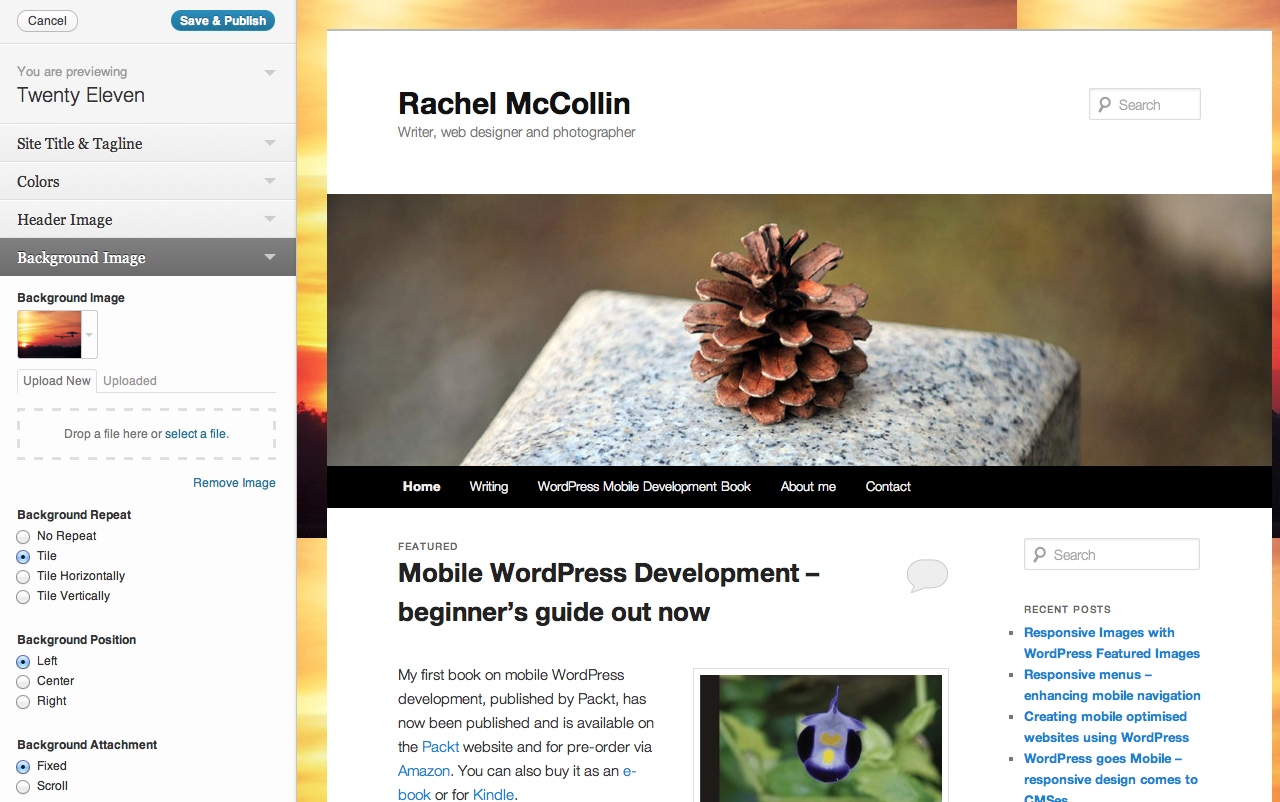
Start by logging into your WordPress dashboard. Locate the Appearance tab on the left. Click on it to find the Theme Customizer option. This is where you can change the font color. The customizer lets you see changes live. It’s easy to use and fun. Look for the Colors section. You can pick new colors here. The changes will show immediately. Try different colors until you find one you like. Don’t forget to save the changes. This will keep your new font color. The customizer is a helpful tool. It makes your site unique. Always check how your site looks after changing colors.
Locating The Css Editor
First, find your WordPress dashboard. Look for the “Appearance” tab. Click on “Editor” under this tab. You will see the theme files here. Find the style.css file. This file controls the theme’s style.
The CSS Editor is where you change styles. You can change font color here. Look for the code that says color:. This code changes text color. Change the color code to your favorite color. For example, change it to #FF5733 for an orange color.
After making changes, click “Save”. Your new font color will show on your site. Always check your site to see the changes. If not, clear your browser’s cache. This will show the updated style.
Identifying Font Color Elements
Finding the right font color is easy. First, go to your WordPress dashboard. Look for the Appearance section on the left menu. Click on it. Next, select Customize. A new page will open. Here, you can see different options. Choose Colors. This is where you can change font colors.
You will see different color settings. Each one has a purpose. Text Color is for regular text. Link Color is for hyperlinks. Background Color changes the page background. Click on the color you want to change. A color picker will appear. Select your favorite color. Then, click Save & Publish. Now, your website will show the new font colors.
Modifying Font Colors
To change the font color, first decide on the desired shade. Open the theme customizer and navigate to the Colors section. You will see a color picker tool. Use this tool to find the exact color you want. Experiment with different shades. The choice is yours.
Access the Additional CSS area in the customizer. Type the CSS code to change the font color. Use selectors to specify which text you want to change. For example, use body { color: #yourcolor; } for general text. Save changes to see your new font color. Refresh the page and admire your work.
Previewing Changes
Changing the font color can be fun. First, open your theme customizer. Look for the Typography section. There, you can see options to change font settings. Find the color settings. Pick a color you like. Click on it. You will see changes instantly. It’s like magic! Your page will show new colors. You can check your page. See how it looks. If happy, save changes. If not, try another color. Experiment with different options. Play with shades and tones. Enjoy the process. Make your website unique. Change one element, then preview. Repeat until satisfied. It’s easy and quick.
Saving And Publishing Adjustments
First, click the Customize button in the WordPress dashboard. This opens the settings. Find the Colors section. Here, you can change the font color. Choose the color you like. Make sure it matches your site’s style. Preview the changes to see how they look. If satisfied, click the Publish button. This saves your changes. Now everyone can see the new font color. Always check how it looks on different devices. It’s important that the color is easy to read. Do not use colors that are too bright. This ensures your visitors can read easily. Enjoy your new font color!
Troubleshooting Common Issues
Easily change font color in the Twenty Eleven WordPress theme by accessing the stylesheet editor. Navigate to “Appearance” and select “Editor” to modify CSS code. Adjust the color values to your preference and save changes. Enjoy a personalized look with simple tweaks.
Ensuring Css Syntax Accuracy
Double-check the CSS code for mistakes. Each line must end with a semicolon. Open brackets and closing brackets must match. Use color codes or names correctly. For example, use “red” or “#FF0000”. If the code is wrong, the color won’t change.
Clearing Browser Cache
Browsers save old website data. This includes colors and styles. Clear the browser cache to see changes. Press Ctrl + Shift + Delete on Windows. On Mac, press Command + Shift + Delete. Choose “Cached images and files”. Then click “Clear Data”. Refresh the page to see the new color. This helps show the new font color.
Credit: jetpack.com
Frequently Asked Questions
How Do I Change Font Color In Twenty Eleven?
To change the font color in the Twenty Eleven theme, access the WordPress dashboard. Navigate to Appearance > Customize > Additional CSS. Add custom CSS code to define your desired font color. Save changes to apply the new font color throughout your site.
Can I Use A Plugin To Change Font Color?
Yes, you can use a plugin like “Simple Custom CSS” to change font colors. Install the plugin, then add your custom CSS code. This allows you to modify font colors without directly editing theme files, making it user-friendly and efficient.
Is Coding Necessary To Change Font Color?
No, coding is not always necessary to change font color. WordPress offers plugins and theme customizer options. These tools allow you to modify font colors without coding, providing an easy and accessible way for users with varying technical skills.
Does Changing Font Color Affect Site Performance?
Changing font color usually does not affect site performance. It involves simple CSS adjustments. However, excessive use of CSS or multiple plugins can slow down your site. Always optimize your site and test changes to ensure smooth performance.
Conclusion
Changing font color in the Twenty Eleven theme is easy. Follow simple steps and customize your blog’s look. Use the WordPress dashboard for a smooth experience. Experiment with colors until you find the perfect match. A unique font color enhances readability and style.
Make your blog stand out with your chosen color palette. Keep readers engaged with visually appealing designs. Enjoy exploring your creative options. Enhance your WordPress theme effortlessly. Your blog deserves a personal touch that reflects your style. Remember, customization is key to a unique website experience.
Happy blogging!


