
Are you tired of your WordPress theme’s limitations? Imagine having complete control over the features and settings of your website, all in one convenient place.
Creating an options page for your WordPress theme isn’t just a dream; it’s a game-changer. It’s your secret weapon to customize your site effortlessly, enhancing both functionality and user experience. In this guide, you’ll discover the simple steps to craft an options page that transforms your WordPress theme into a powerhouse.
Whether you’re a seasoned developer or just starting out, unlocking this skill will empower you to make your site truly yours. Dive in and learn how to give your website the flexibility it deserves!
Credit: accreditly.io
Choosing The Right Framework
Several frameworks are popular for WordPress themes. Genesis is one of them. It is known for its clean code and fast speed. Underscores is another choice. Developers like it for its simplicity. Bootstrap is not just for WordPress. It helps with responsive designs. Gantry offers a drag-and-drop interface. This makes it easy to use. Each framework has its own pros and cons.
Check if the framework is easy to customize. Look for support and documentation. Does it have a large community? This helps with problem-solving. Is it updated regularly? Security features are also important. Some frameworks offer built-in SEO tools. This can help your site rank better. Mobile responsiveness is crucial today. Make sure the framework supports it.
Credit: accreditly.io
Setting Up Your Development Environment
Begin with a code editor like Visual Studio Code or Sublime Text. These editors help in writing clean code. Web browsers such as Chrome or Firefox are vital for testing. Local server software like XAMPP or MAMP lets you run WordPress locally. Keep your environment updated. Use version control like Git for tracking changes. These tools make development smoother. PHP and MySQL are core to WordPress. Ensure they are installed correctly.
Install WordPress on your local server. This creates a safe space to test themes. Adjust permalinks for clean URLs. Set up a database using MySQL. Connect it to WordPress during installation. Activate the theme you are building. Use debugging tools for error tracking. These steps ensure a stable setup. Customize settings based on needs. Plugins extend functionality. Choose them wisely for best results.
Designing The Options Page Layout
A clear design helps users. Simple layouts are easy to use. Avoid clutter and too many options. Icons and labels should be clear. This helps users understand the options. Use large buttons for easy clicking. Add short instructions if needed. Colors can guide users but keep them soft.
Group similar settings together. This makes finding them easy. Tabs can separate different settings. Use a logical order for controls. Important settings should be at the top. Use toggles for on/off options. Make sure each control is easy to understand. This keeps the page simple and neat.
Integrating Theme Options With WordPress
Create an options page for your WordPress theme to enhance customization. Use Theme Options for easy control over layout, colors, and fonts. Simplify user experience by integrating these features directly into the WordPress dashboard.
Using WordPress Apis
WordPress APIs help in adding theme options. They provide simple ways to access data. APIs are like bridges to connect parts of a theme. Using them keeps themes flexible and easy to update. Start by learning basic API functions. This can include getting and saving data. Use functions like `get_option()` and `update_option()`. These help in handling theme settings. Make sure to test your code often. Testing ensures everything works smoothly. WordPress APIs are powerful tools for developers.
Customizing The Theme Customizer
The Theme Customizer lets users change theme settings. This is done in real-time. It’s a handy tool for theme developers. Add new sections and controls to the customizer. Use `add_setting()` and `add_control()` functions. These help in making the customizer user-friendly. Ensure the customizer reflects the theme’s style. Good design makes it easier for users. Always test changes in different browsers. This guarantees a consistent experience. Customizing the Theme Customizer enhances user interaction.
Creating Custom Settings
Custom settings allow users to change how their site looks. These settings are added in the WordPress theme. Options pages are where users make these changes.
Defining Option Types
Options are different types. They can be text, number, or checkbox. Text lets users type words. Number allows users to enter a number. Checkbox is for yes or no choices.
WordPress has functions to add these options. Use add_settings_field to define each option type. For text, use text_field. For number, use number_field. Checkbox uses checkbox_field.
Adding Validation And Sanitization
Validation checks if user input is correct. It helps stop errors. Use validate_callback for checking. Sanitization cleans user input. It stops bad data from saving. Use sanitize_callback to clean input.
Both validation and sanitization are important. They keep your site safe. They ensure options work well.
Enhancing User Experience
Creating an options page boosts the theme’s usability. The design must be responsive on all devices. It’s vital for users who switch between gadgets. A flexible layout ensures content fits any screen size. Buttons should be large enough to tap easily on touch screens. Text should be readable without zooming. These elements create a smooth user experience.
Responsive Design Considerations
Responsive design is key for an options page. The layout must adapt to various screen sizes. Images should resize without losing quality. This helps the page load quickly. Fast-loading pages keep users happy. A slow page can frustrate users. They might leave the site. Make sure all features work on mobile and desktop.
Incorporating Help And Documentation
Adding help sections aids users. Instructions should be simple and clear. A FAQ section answers common questions. It saves users time. Users appreciate easy-to-find help. This can reduce support requests. Include tooltips for extra guidance. Tooltips offer brief tips when users hover over elements. This assists users without cluttering the page.
Testing And Debugging
Many users face common issues when testing their options page. Pages might not load correctly. Sometimes, buttons might not work. These problems can frustrate theme developers. One fix is checking for missing files. Another fix is ensuring all code lines are correct. Debugging tools can help find errors. They show where the problem starts.
Common Issues And Fixes
Compatibility issues often arise with plugins. Some plugins may not work with new themes. This can cause unexpected errors. Fixing these requires checking plugin versions. Ensure plugins are updated. Conflicts may occur with outdated plugins. Developers should test plugins thoroughly. This reduces errors when users install them.
Ensuring Compatibility With Plugins
Themes need to work smoothly with plugins. Make sure themes don’t break when plugins are added. Testing with popular plugins is helpful. This ensures wider compatibility. Always backup before testing. This prevents losing important data.
Credit: www.advancedcustomfields.com
Deploying Your Theme Options
Deploying your theme options needs careful planning. First, test all options on different devices. Ensure that everything works smoothly. Users should find options easy to use. Check for any bugs or errors. Fix them before releasing the theme. User experience is very important. Make sure the design looks good and is user-friendly. Gather feedback from testers. This helps improve the theme. Make changes based on their suggestions. Your theme should be ready for release.
Preparing For Theme Release
Preparation is key to success. Create a checklist for release tasks. Include testing, feedback, and final adjustments. Ensure your theme is compatible with latest WordPress version. Check for any broken links or images. Prepare documentation for users. Provide clear instructions for setup and use. This helps users understand your theme. Make sure all files are organized and ready. Upload theme files to a secure server. Finally, announce the release on your website.
Ongoing Maintenance And Updates
Regular updates keep your theme fresh. Check for WordPress updates often. Make necessary adjustments to your theme. Fix any bugs or issues quickly. Listen to user feedback. Improve the theme based on their suggestions. Keep your theme compatible with new technologies. Regularly update documentation. This helps users stay informed. Provide support for users who need help. Respond to their queries promptly. Ongoing maintenance ensures your theme stays relevant.
Frequently Asked Questions
How Do I Create A WordPress Theme Options Page?
To create a WordPress theme options page, use the `add_theme_page()` function. This function adds a custom settings page to the WordPress admin dashboard. Customize this page with fields using the WordPress Settings API. This allows users to easily adjust theme settings without modifying code.
What Plugins Help With Theme Options Pages?
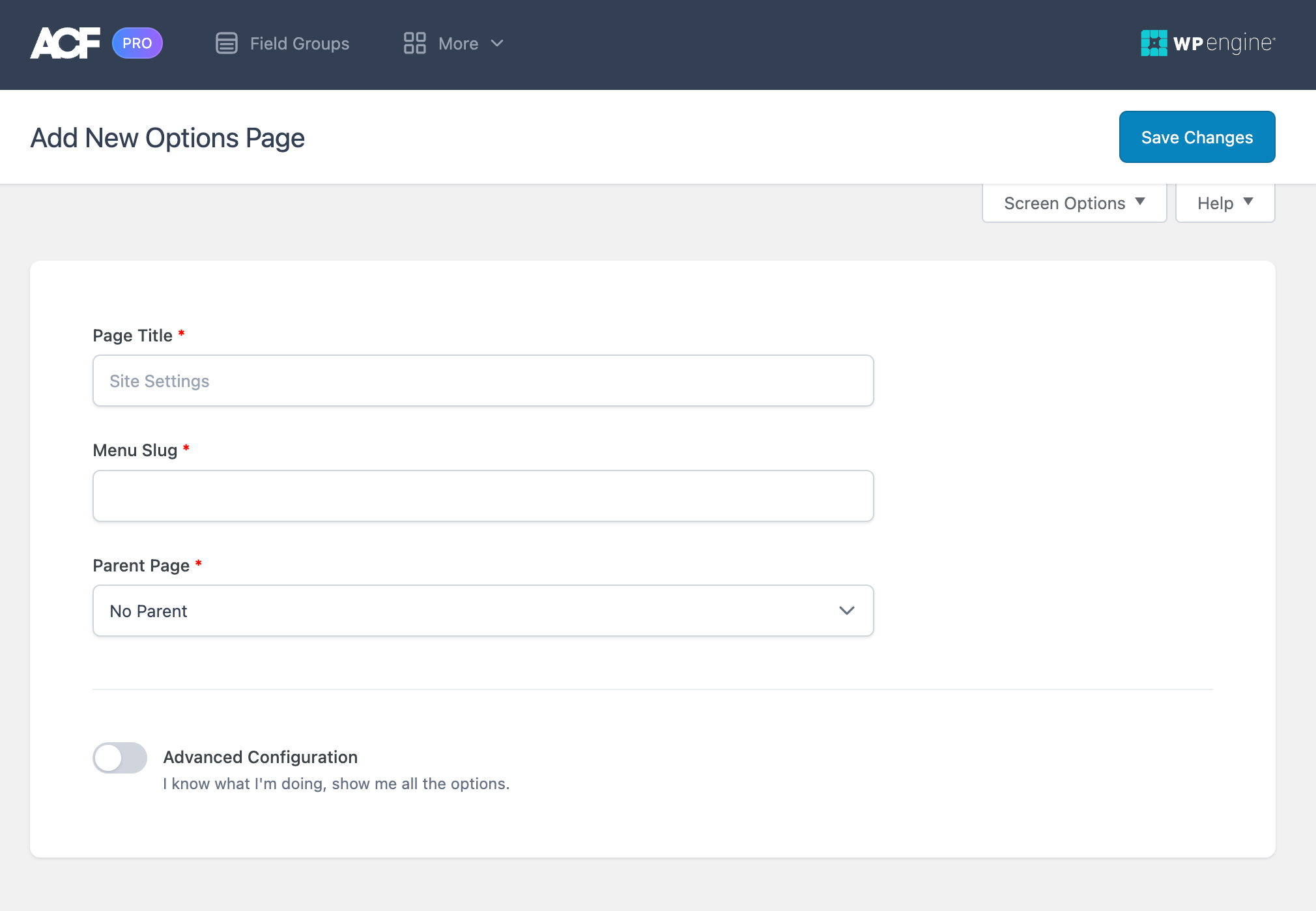
Several plugins can assist with theme options pages in WordPress. Plugins like Advanced Custom Fields and Redux Framework offer powerful options for customizing settings pages. They provide user-friendly interfaces, making it easy to add and manage options without coding knowledge.
Can I Customize Theme Options Without Coding?
Yes, you can customize theme options without coding by using plugins. Plugins such as Customizer and WPForms offer intuitive interfaces for adjusting settings. They allow users to change colors, layouts, and other features, simplifying the customization process for non-developers.
How Do Theme Options Enhance User Experience?
Theme options enhance user experience by allowing easy customization of website appearance. Users can adjust colors, fonts, and layouts to match their preferences. This flexibility ensures a personalized look and feel, improving engagement and satisfaction without requiring technical skills.
Conclusion
Creating an options page for your WordPress theme enhances customization. It empowers users to tailor their site easily. The process is straightforward and rewarding. Start by identifying essential features. Use WordPress hooks and functions effectively. Prioritize user-friendly design and accessibility.
Test your options thoroughly. Ensure they work smoothly across devices. This boosts user satisfaction and engagement. A well-crafted options page strengthens your theme’s appeal. It makes your theme versatile and adaptable. Dive in and start building your options page today.
Your users will appreciate the added flexibility and control.


