
Are you looking to bring your website ideas to life with GoDaddy? Adding web hosting is a crucial step that can make or break your online presence.
Whether you’re launching a blog, an e-commerce store, or a personal portfolio, knowing how to add web hosting with GoDaddy is key to ensuring your site runs smoothly and efficiently. Imagine the peace of mind you’ll have, knowing your website is in good hands and ready to reach its full potential.
In this guide, we’ll walk you through the simple steps to get your site up and running, so you can focus on what matters most: sharing your passion with the world. Stick around to discover how easy it is to enhance your online experience with GoDaddy’s web hosting solutions.

Credit: www.godaddy.com
Choosing The Right Hosting Plan
Godaddy offers different types of hosting. Shared hosting is the most common. It is like sharing a room with friends. You use the same server with others. VPS hosting gives more space and control. It’s like having your own room. Dedicated hosting is like owning a house. You have your own server. Cloud hosting is flexible. It grows with your needs. Each type has its own benefits. Choose the one that fits your website.
Think about your website’s size. Small sites can use shared hosting. Big sites need more resources. VPS or dedicated hosting might be better. How much traffic do you expect? More traffic needs more power. Consider your budget. Some plans cost more. Decide what features you need. Do you want email accounts? Check if the plan offers them. Security is important too. Choose a plan with strong security features.
Setting Up Your Account
Easily add web hosting to your GoDaddy account in just a few steps. Log in, navigate to the hosting section, and select your desired plan. Follow the on-screen instructions to complete the setup.
Creating A Godaddy Account
Start by visiting the Godaddy website. Click on the “Sign Up” button. Fill in your details like name and email. Choose a strong password. Agree to the terms. Click “Create Account”. You’ve made your account!
Accessing Your Control Panel
Log in with your new details. Find the dashboard after logging in. Look for the Control Panel link. Click it to enter. The control panel is your toolkit. Here, you manage everything. Add domains, emails, and more. Explore the features inside.
Purchasing Web Hosting
Choosing the right package is important. Godaddy offers many options. Shared hosting is for beginners. It is cheap and easy to use. VPS hosting is for growing sites. It offers more power. Dedicated hosting is for big sites. It gives full control. Check your site’s needs first. Select the package that fits best.
Use coupons to save money. Godaddy often has discounts. Look for these online. Apply the code at checkout. This reduces your cost. Always check terms first. Some codes have limits. Ensure the code is valid. Enjoy your savings with discounts.
Configuring Your Domain
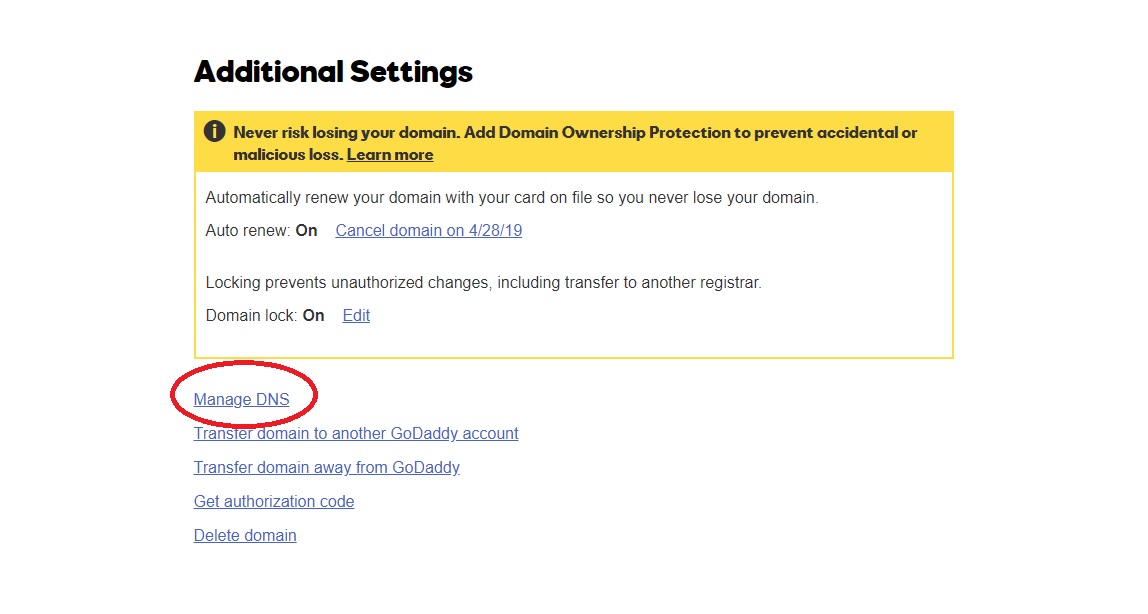
First, log in to your GoDaddy account. Find your domain in the list. Click on it. Look for the “Manage DNS” button. Click it to open settings. Now, locate the “Nameservers” section. This is where you link your domain to hosting. Choose the option to change nameservers. Enter the nameservers provided by your hosting. Save changes. Your domain is now linked.
Go to the DNS Management page. Find the A Record. This record points your domain to the server. Enter the IP address of your hosting server. Save the changes. Also, check the CNAME Record. Ensure it points to the correct location. Save any updates. Changes might take some time to apply.
Uploading Website Files
The File Manager tool is easy to use. It helps you upload files quickly. First, log in to your GoDaddy account. Find the File Manager in the hosting section. Click on it to open. You will see a list of folders. Choose the folder you want. Click the Upload button on top. Select the files from your computer. Wait for them to finish uploading.
FTP clients help upload many files at once. Popular FTP clients include FileZilla and Cyberduck. First, download and install an FTP client. Open the FTP client on your computer. Enter your GoDaddy FTP details. You can find these in your GoDaddy account. Connect to your server. Drag and drop files from your computer to the server. Watch as the files upload.
Managing Databases
Start by logging into your Godaddy account. Go to the hosting dashboard. Find the section labeled Databases. Click to create a new database. Enter a name for your database. Choose a username and password. Keep this information safe. Click Create to finish. Your database is ready to use.
You have a database created. Now, import data into it. Go to the phpMyAdmin tool in your hosting dashboard. Select your database. Click on the Import tab. Choose the file you want to import. Make sure it’s in the correct format. Click Go to start the import. Wait for it to complete. Check your data to make sure it’s all there.
Installing Applications
Choosing one-click installations saves time. Applications like WordPress are easy to install. Click the button and wait. No coding needed. Perfect for beginners. The system does everything for you. The process is fast and simple. Your site will be ready in minutes. Popular apps are just a click away. Enjoy quick setup with no hassle.
Custom software gives more control. You can choose what you need. Advanced users prefer this method. It takes more time. Steps are more complex. You have to know the software. Manual setup allows customization. You can make it unique. Great for special needs. Experts can do more with this method.
Ensuring Security
SSL Certificates are crucial for website security. They protect data sent between a user and a server. Without SSL, sensitive data can be stolen. SSL Certificates encrypt information, making it unreadable to others. Websites with SSL have a padlock symbol. This symbol shows users that a site is secure. SSL is essential for e-commerce websites. It keeps customer details safe. SSL also improves trust. Search engines prefer sites with SSL. This can help with rankings.
Websites must have regular backups. Backups save your website’s content and data. If a site crashes, backups help restore it. Without them, you can lose everything. Backing up your site is easy with GoDaddy hosting. You can set backups to happen automatically. This ensures data is always safe. Restore quickly if something goes wrong. Save time and stress. Keep your site running smoothly.
Troubleshooting Common Issues
Sometimes, websites can be slow or not load at all. This is a connectivity problem. First, check your internet connection. Make sure your Wi-Fi is on and working. If it is, restart your router. This can fix many issues. Still not working? Try using a different browser. Sometimes, browsers have issues loading pages. Clearing your browser cache can also help. If problems persist, contact your internet service provider.
A server error can stop your site from showing. These errors often have numbers, like 500 or 404. For a 500 error, refresh the page. This might solve the problem. If not, check if your hosting plan is active. Log into your GoDaddy account and verify. A 404 error means a page is missing. Check the URL for mistakes. If all else fails, contact GoDaddy support for help.
Credit: www.godaddy.com
Credit: www.godaddy.com
Frequently Asked Questions
How To Add Web Hosting In Godaddy?
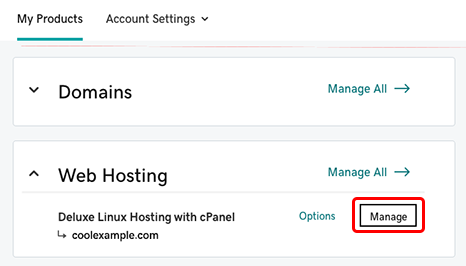
Log in to your GoDaddy account. Navigate to “My Products”. Select “Web Hosting”, then click “Manage”. Choose your hosting plan and follow the setup instructions. Complete the process by confirming your selections.
How Do I Add A Website To Hosting?
Log into your hosting account. Navigate to the control panel. Select “Add New Domain” or “Add Website. ” Enter your domain details. Save changes to complete the setup.
How Do I Add Another Website To Godaddy?
Log in to GoDaddy. Access the “My Products” page. Click “Web Hosting. ” Choose “Manage” next to your hosting account. Select “Add Website” and follow the instructions to add another site. Ensure you have a domain name ready for the new website.
How To Give Hosting Access To Godaddy?
Log in to your GoDaddy account. Go to “My Products” and select your hosting plan. Click “Manage” and choose “Delegate Access. ” Enter the person’s email address and assign permissions. Confirm and send the invitation. They will receive an email to accept access.
Conclusion
Adding web hosting with GoDaddy is a straightforward process. Follow the steps carefully, and your website will be up. Hosting enhances your site’s performance and reliability. It provides the space and tools needed to grow online. Choose a plan that fits your needs and budget.
Make sure to review features before purchasing. Remember, good hosting boosts your site’s visibility. It attracts more visitors and keeps them engaged. Explore GoDaddy’s options to find the right fit. Enjoy a seamless experience and get your website live quickly.
Happy hosting!


