
Are you struggling to center the secondary menu in your Virtue Theme on WordPress? You’re not alone.
Many users find themselves scratching their heads, trying to align their secondary menu just right. But don’t worry, you’re in the right place. This guide will walk you through the exact steps to effortlessly center your menu, giving your website a polished and professional look.
Imagine your website with perfectly aligned elements that draw your visitors’ eyes exactly where you want them. A centered secondary menu not only looks aesthetically pleasing but also enhances user experience, keeping your audience engaged longer. You’ll feel more confident about your site’s design, knowing that everything is in its place. Ready to transform your website’s appearance with a few simple tweaks? Let’s dive in and get your secondary menu centered in no time!
Credit: docs.kadencewp.com
Secondary Menu Overview
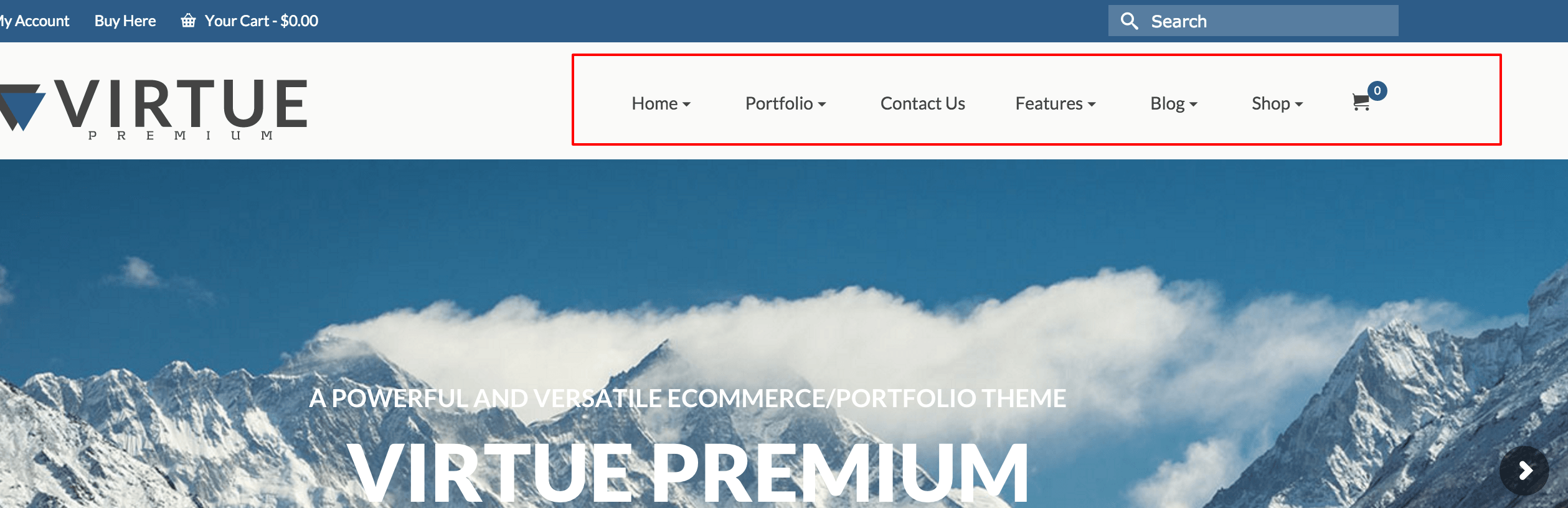
The secondary menu helps users find information fast. It is often near the top of the page. This placement makes it easy to see. A well-placed menu improves website navigation. Users can visit important pages quickly. It reduces the need to scroll. A clear menu helps users feel in control. They can easily find what they need. This makes them happy. A happy user stays longer on the site.
The secondary menu plays a key role in navigation. It links to important pages. Think of it as a guide for your site. It helps users move around with ease. The menu should be simple. Use clear words for each link. This way, everyone understands. Simple words help all users. Especially those who know little English. It makes the site friendly for everyone. Good navigation keeps users coming back.
Accessing Theme Settings
Log into your WordPress Dashboard with your username and password. This is where you manage your site. The dashboard looks like a control panel. On the left side, you see many options. Click on Appearance to find theme settings. You will see a list of themes. Choose Virtue Theme to access its settings.
After selecting Virtue Theme, look for Theme Options. This is usually below the theme name. Click on Theme Options to open it. Here, you find settings to change your site’s look. In the options, locate the Menu Settings. This section lets you adjust menu positions and styles. Choose the settings to center the secondary menu.
Using Custom Css
First, go to your WordPress dashboard. Find Appearance on the left side. Click on Customize. Now, look for Additional CSS. Click on it to open the section.
Copy the following CSS code:
.secondary-menu {
  display: flex;
  justify-content: center;
}
Paste the code in the Additional CSS section. This code will center your secondary menu. After pasting, click Publish to save changes. Your menu should now be centered nicely.
Adjusting Menu Alignment
The secondary menu is important for website navigation. It must look nice. To center it, go to the theme’s settings. Find the menu alignment option. Choose “center” from the list. This simple step helps balance the design. A centered menu looks neat and tidy. It makes the website easier to use. Your visitors will thank you.
Always check your changes. Open your website in a new tab. See if the menu is in the center. If not, try again. Sometimes it takes a few tries. Make sure it works on all devices. Use your phone or tablet to check. A good menu works everywhere. It should be easy to find and click.
After centering, think about appearance. Adjust the color and style. Choose colors that match your site. Use simple fonts. They are easy to read. Avoid too many decorations. They can be distracting. Keep the menu simple. It should help visitors, not confuse them.
Mobile Responsiveness
Mobile compatibility is key for any website. Users need a site that fits their screens. Menus must be easy to use. Every element should adjust to different devices.
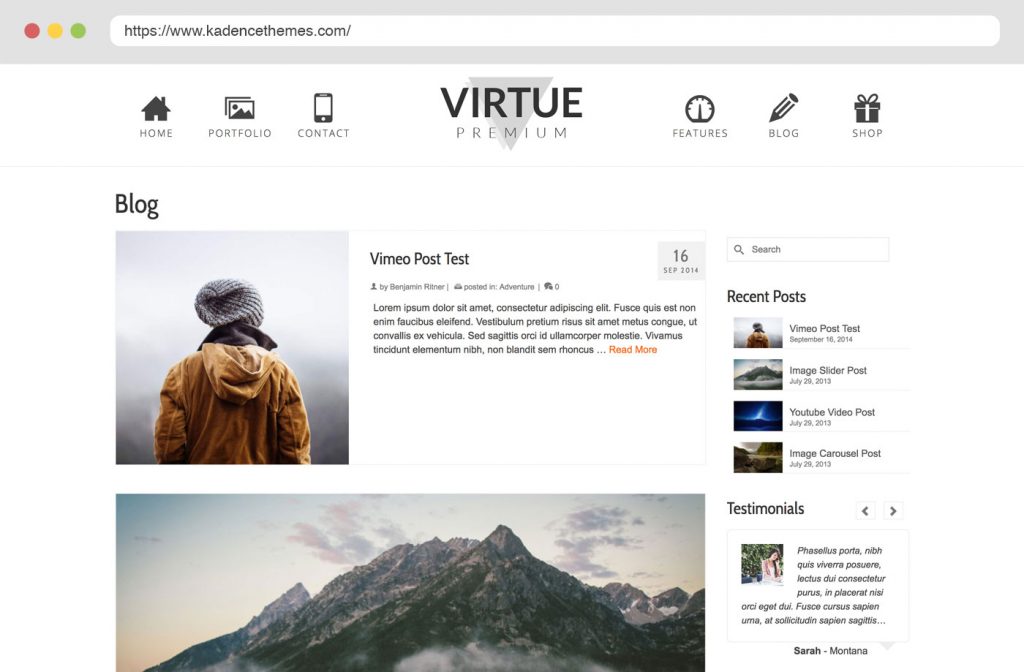
Responsive design makes sites look good on phones. It helps the secondary menu stay centered. This improves user experience. Visitors will enjoy exploring your site.
Think about screen sizes and resolutions. Each device is unique. Designers should test menus on phones. Tablets too. This ensures good visibility and easy navigation.
CSS is helpful for styling. Use media queries to change layout. Make sure the menu doesn’t break on small screens. Focus on simple styles. This keeps the site fast.
Credit: www.kadencewp.com
Troubleshooting Common Issues
Sometimes, the secondary menu may not show properly. This can happen if CSS rules are missing. Check the theme’s CSS file. Look for any missing brackets or semicolons. These small errors can cause big problems. Ensure the menu class is correct. Mistakes here can make menus disappear. Also, clear the cache after changes. This helps see the updates.
Some plugins may conflict with the theme. Disable plugins one by one. This helps find the problem. Some themes have custom CSS options. Use these to fix conflicts. If a plugin causes trouble, contact support. They can provide advice or solutions. Always keep themes and plugins updated. This prevents many conflicts.
Exploring Advanced Options
Centering the secondary menu in the Virtue Theme on WordPress involves adjusting CSS settings. Access the theme’s customization panel and input specific code. This tweak ensures a balanced and visually appealing layout for your website.
Using Plugins For Enhanced Control
Plugins make adjustments easy. Menu alignment becomes simple. Many plugins offer customization features. Choose a plugin wisely. Some plugins allow drag-and-drop options. Others provide visual editors. These tools save time. Look for good reviews. Check user ratings. Ensure plugin compatibility. Always backup before changing. Plugins can enhance functionality. They can improve appearance. Remember to update regularly. Keep plugins secure. Avoid overloading your site.
Customizing With Child Themes
Child themes protect changes. They keep your original theme safe. Changes stay even after updates. Create a child theme first. It’s a good practice. Learn how to make one. Follow a step-by-step guide. It’s not hard. Customize your menu freely. Add your own style. Use CSS for changes. Adjust positions and colors. Test your changes carefully. Ensure everything works well. It’s fun to customize. Enjoy the process.
Credit: docs.kadencewp.com
Frequently Asked Questions
How Do I Center The Secondary Menu?
To center the secondary menu in Virtue Theme, go to Appearance > Customize. Navigate to Header Settings, then adjust the menu alignment to center. Save changes to see the effect.
Can I Use Css To Adjust Menu Position?
Yes, you can use custom CSS to center the menu. Add a CSS snippet in the Additional CSS section under Customizer. Ensure you’re targeting the correct menu class for precise alignment.
Does Menu Alignment Affect Mobile View?
Menu alignment primarily affects desktop view. For mobile, check responsive settings in the Customizer. Ensure the menu is user-friendly across all devices for optimal navigation.
Is Virtue Theme Customizable For Menu Styling?
Virtue Theme offers extensive customization options. You can modify menu styles, colors, and positions. Utilize the Customizer for a user-friendly interface to tweak your menu settings.
Conclusion
Centering the secondary menu in Virtue Theme is simple. Follow the steps closely. Your website will look balanced and professional. Clear navigation improves user experience. A centered menu keeps things tidy. Visitors find information easily. This boosts engagement on your site.
Remember, small changes have big impacts. Take time to make adjustments. Your efforts are worth it. A well-organized site attracts more visitors. Keep your WordPress skills sharp. Explore other customization options. Enjoy the process of enhancing your website. Happy customizing!


