
Imagine transforming your WordPress site with just a few clicks, giving it a unique look that perfectly matches your brand. Sounds appealing, right?
Adding a theme customizer to WordPress is not just a techie task; it’s a game-changer for anyone looking to personalize their website without hassle. You don’t need to be a coding expert or spend hours tweaking settings. In this guide, you’ll discover how to effortlessly integrate a theme customizer into your WordPress site, allowing you to modify elements like colors, fonts, and layouts with ease.
By the end of this article, you’ll be equipped with simple steps and tips that can make a significant difference in your site’s appearance and functionality. Ready to unlock the full potential of your WordPress theme? Let’s dive in!

Credit: stackoverflow.com
Benefits Of Theme Customizers
Theme customizers make website design easy. They let you change colors, fonts, and layouts. You can see changes instantly. This saves time and effort. No coding skills are needed. Even beginners can use them. Customizers help you create a unique look. Your site becomes more personal. It stands out from others. This attracts more visitors.
Customizers also improve site functionality. They offer many options. You can add widgets and menus. This makes navigation simple. Users find information faster. A well-organized site boosts user experience. Happy visitors return often. They spend more time on your site. This increases engagement and conversion rates.
Setting Up Your WordPress Environment
Picking the correct tools is important. Begin with a good code editor. Examples are Visual Studio Code or Atom. These editors make coding easy. They highlight syntax and offer useful tips. Next, install WordPress locally. Use software like XAMPP or MAMP. These create a local server on your computer. Now, test and develop safely. Finally, use a browser with developer tools. Google Chrome or Firefox are great choices. These tools help check your website’s code. They also assist in fixing errors.
A child theme is a copy of another theme. First, create a new folder in your themes directory. Name it something like “my-child-theme”. Next, make a style.css file in this folder. Add a header comment at the top. Write the name of the parent theme in the header. Then, create a functions.php file. Add code to link the parent theme’s styles. Now, activate your child theme in WordPress. Your changes will be safe and easy to manage.
Understanding WordPress Theme Customizer Api
The WordPress Theme Customizer API helps you change your website’s look. It includes several key components. The first is settings. They store the values of the website options. Next, we have controls. These allow users to change settings. Then there are sections. Sections group controls together. Lastly, panels. Panels are for grouping sections.
Common functions and methods help with customizing themes. The function `customize_register` is used often. It adds settings and controls. Another function is `wp_customize`. It links settings to controls. The method `get_theme_mod` retrieves values from settings. Also, `set_theme_mod` saves changes. These tools make theme customization easier.
Adding Theme Customizer Support
First, you need to register settings with the WordPress customizer. This process allows users to change settings in the theme. Use the customize_register action hook for this. It connects your settings to the customizer. You need to use the add_setting() function. This function will add new settings. Each setting should have a unique ID. This ID helps in identifying the setting.
After registering settings, you need to add sections. Sections are like folders. They help organize settings. Use the add_section() function for this. Each section can have multiple controls. Controls are like buttons or sliders. They help users change the settings. Use the add_control() function to add controls. Ensure each control matches a setting. This makes the theme user-friendly.
Customizing Theme Options
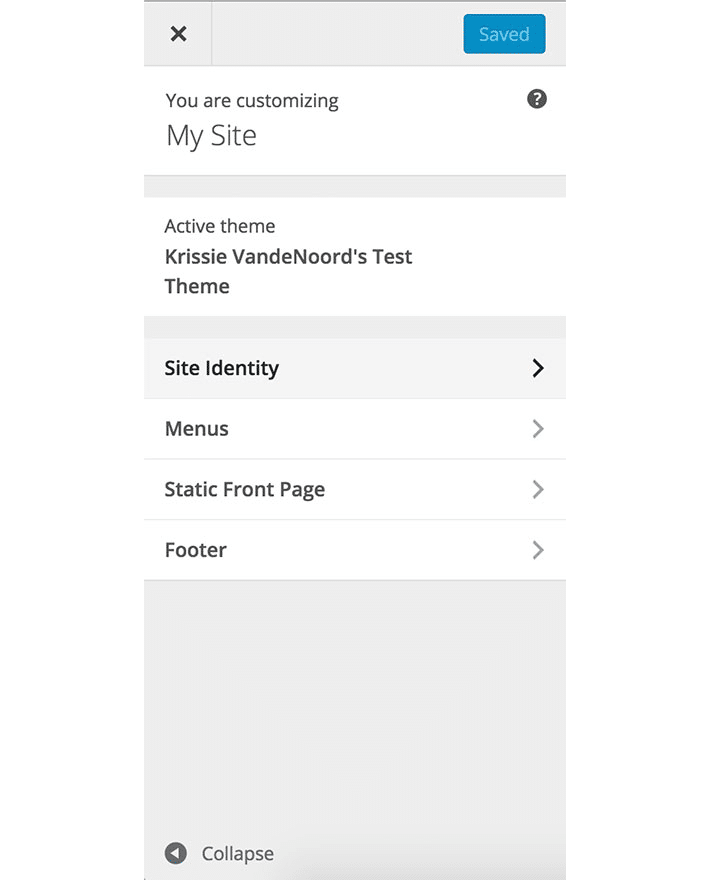
Color and Background Settings let users make their site pretty. Choose bright colors for your site. Pick colors that match your brand. Background colors matter too. They make your site look neat. Use light backgrounds for a clean look. Dark backgrounds can be bold. Patterns are fun for backgrounds. Solid colors are simple and classy.
Typography and Font Choices help your words shine. Fonts should be easy to read. Big letters are good for headings. Small letters work for paragraphs. Choose fonts that fit your style. Fancy fonts can be fun. Simple fonts are clear and easy. Mix fonts for a creative touch. Keep it neat and organized.
Credit: wpengine.com
Enhancing User Experience
Live Preview Features make changes easy to see. Users can view updates instantly. This helps in making quick decisions. No need to refresh the page. It saves time and effort. Users feel more in control. They can try out different looks. It makes the website fun to customize. Everyone can enjoy this feature.
Responsive Design Considerations are important. Websites must look good on all devices. Phones, tablets, and computers. The theme customizer can help with this. It lets users see changes on different screens. Users can adjust settings for each device. This ensures a consistent look. It enhances the overall experience. Everyone wants a website that looks great everywhere.
Testing And Debugging Customizer Changes
Common issues can appear with the WordPress theme customizer. Sometimes changes do not show up. Other times, settings may not save. First, clear your browser cache. This can solve many display problems. Also, ensure all your plugins are updated. Outdated plugins can cause conflicts.
Another common issue is PHP errors. Check your error logs. They can help identify the problem. Make sure your theme and WordPress are updated. Updates fix many bugs. If problems persist, consider deactivating plugins one by one. This can help find the conflict source.
Tools For Testing
Several tools make testing easier. Browser developer tools are helpful. They let you inspect elements and see real-time changes. Firebug is a popular choice. It works well with Firefox. Chrome DevTools is another option. Use it to debug and monitor CSS changes.
For more detailed testing, consider Query Monitor. It’s a WordPress plugin. It shows errors and slow queries. Another useful tool is Theme Check. This plugin tests your theme for common issues. Both tools help improve theme quality.
Deploying Your Custom Theme
Get ready to show your new theme to the world. Double-check your theme files. Ensure everything is in place. Test your site on different devices. See how it looks on tablets and phones. Fix any issues you find. Make sure the site loads fast. Slow sites can lose visitors. Review the design. It should look good and be easy to use.
Themes must work on all browsers. Check compatibility with Chrome, Firefox, and Safari. Your site should look the same on each. Update plugins regularly. Outdated plugins can break your site. Test the theme with new updates. Some updates can cause issues. Keep backups. They help if something goes wrong. Regular checks keep your theme running well. A smooth site is a happy site.
Future-proofing Your Customizer
WordPress often updates its software. It’s important to keep your customizer up-to-date. This prevents problems. Always check for new updates. Install them quickly. Some updates fix bugs. Others add new features. Keeping up helps your site run smoothly.
Regular maintenance is crucial. Start with backups. Backups save your work. If something breaks, you can restore it. Test your site often. This finds errors early. Fix errors before they become big problems. Update plugins regularly. They help your site function well. Clean your code. Clean code is easy to read and fix. Follow these steps to keep your site healthy.
Credit: www.scalahosting.com
Frequently Asked Questions
What Is The WordPress Theme Customizer?
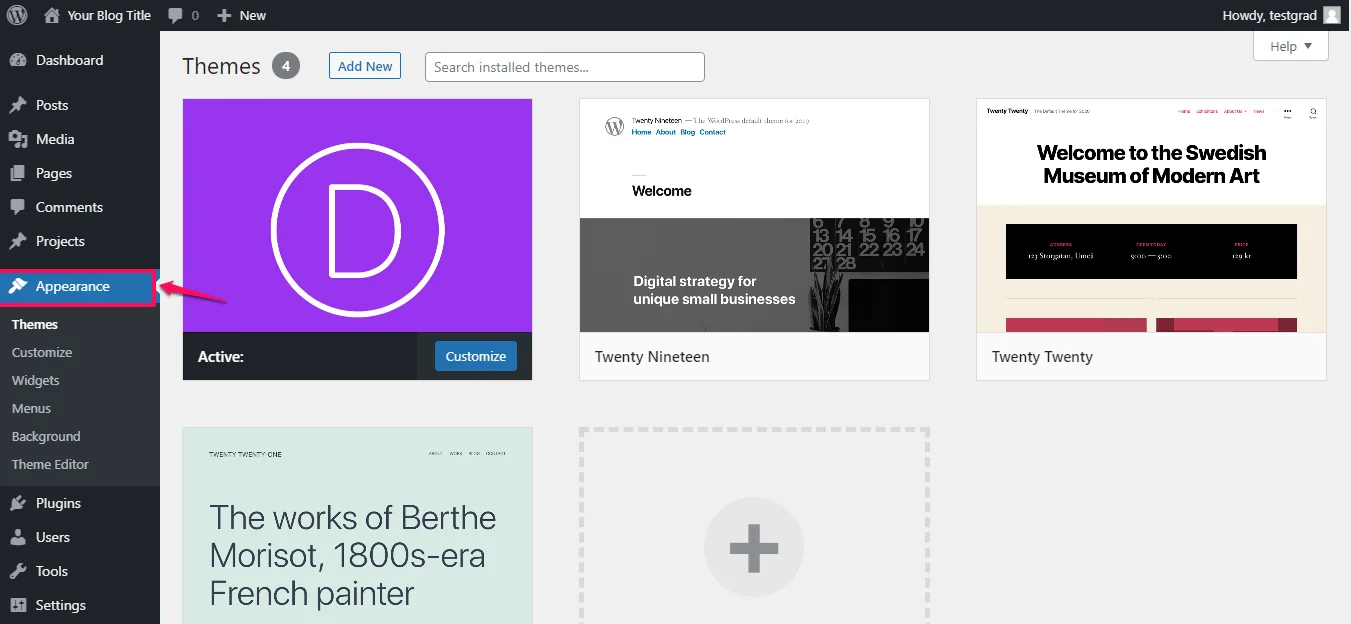
The WordPress Theme Customizer is a tool that allows users to modify their site’s appearance. It provides a live preview of changes to themes. Users can adjust settings like colors, menus, and widgets. It’s accessible from the WordPress dashboard under “Appearance.
“
How Do I Access Theme Customizer In WordPress?
To access the Theme Customizer, log into your WordPress dashboard. Navigate to “Appearance” and click on “Customize. ” You’ll see options to modify your theme. Changes can be previewed live before saving. This tool is user-friendly and doesn’t require coding skills.
Can I Add Custom Options To Theme Customizer?
Yes, you can add custom options to the Theme Customizer. Developers can use the WordPress Customizer API for this purpose. This allows you to create custom settings and controls. It’s helpful for tailoring themes to specific needs or preferences.
Why Use Theme Customizer For WordPress Themes?
Using the Theme Customizer simplifies theme modifications without coding. It offers a live preview of changes and is user-friendly. You can personalize your site’s appearance quickly. It’s especially useful for beginners and those wanting an easy customization process.
Conclusion
Adding a theme customizer to WordPress simplifies your design process. It offers flexibility and control. You can easily change colors, fonts, and layouts. This tool enhances your site’s look with minimal effort. Customizing becomes straightforward. Users enjoy a personalized web experience.
Following these steps ensures a smooth implementation. Your WordPress site becomes more appealing. A well-customized theme attracts visitors. It also boosts engagement. Keep exploring and refining your skills. The more you practice, the better you get. Embrace the creative possibilities.
Your website reflects your unique style. Happy customizing!


