
Are you looking to enhance your website’s performance on WordPress? Adding Google Analytics (GA) code directly to your theme might seem like a daunting task.
However, it’s simpler than you think. By integrating GA code, you can gain invaluable insights into your visitor behavior, helping you make informed decisions to boost engagement and conversions. Imagine having the power to track your audience’s every move, understanding what works and what doesn’t.
This guide will walk you through the process step-by-step, ensuring you can easily implement GA code and start reaping the benefits without any hassle. Keep reading, and unlock the secrets to optimizing your WordPress site like a pro.

Credit: orbitingweb.com
Why Add Google Analytics Code
Google Analytics helps track website visits. It shows how users find your site. Knowing this helps improve your content. It tells which pages are popular. You learn what users like the most. This data helps make better decisions.
Adding the code to your theme is simple. It doesn’t require plugins. Plugins can slow down your site. Directly adding is faster. A fast website keeps users happy. Happy users stay longer on your site. More visits mean more success for your website.
Preparing For Code Addition
A backup is like a safety net. It saves your website’s files. Mistakes happen. Files can be lost. Backup protects from this. Use plugins for easy backup. Many plugins are available. Choose one that is simple to use. Follow the steps in the plugin. Always keep a recent backup. It’s important for safety.
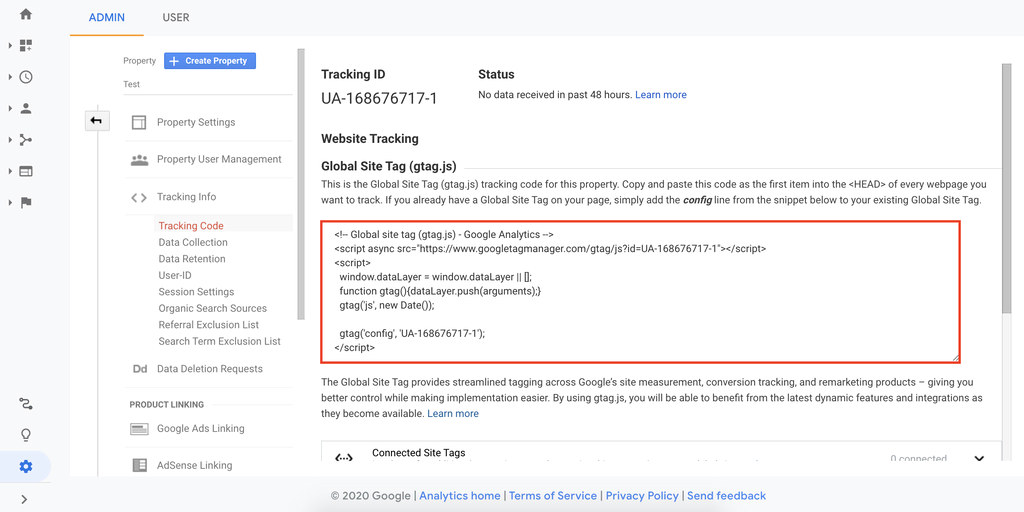
First, open your Google Analytics account. You need a username and password. Log in with these details. Once logged in, find the tracking code. This code is important. Copy the code carefully. Make sure there are no errors. The code will be added to your theme. Keep the code safe. You will need it soon.
Locating Theme Editor In WordPress
Accessing the Theme Editor is simple. First, log into your WordPress Dashboard. Look on the left side menu for Appearance. Click on it. A drop-down menu will appear. Click on Theme Editor. This will take you to the editor page. Be careful while editing. Changes here affect your website.
Before making changes, ensure you have the correct theme. Look at the top-right corner. You will see a dropdown named Select Theme to Edit. Choose the active theme for your site. This ensures the changes apply correctly. Always double-check your selection before proceeding.
Credit: www.hostinger.com
Finding The Header File
Adding Google Analytics code directly to a WordPress theme involves finding the header file. Access your theme editor, locate “header.php,” and insert the code before the closing tag. This method helps track website data efficiently without plugins.
Identify Header.php
First, open your WordPress dashboard. Navigate to the Appearance section. Click on Theme Editor. This will show your theme files.
Look for a file named header.php. It is usually at the top. This file controls the header of your site. You will add the Google Analytics code here.
Understanding The File Structure
Your theme has many files. They are like building blocks. Each file has a job. The header.php file is one of them. It handles the top part of your site.
Find the head tag in this file. This is where codes often go. Be careful when editing. A small mistake can break your site. Always backup your files before changes.
Inserting Google Analytics Code
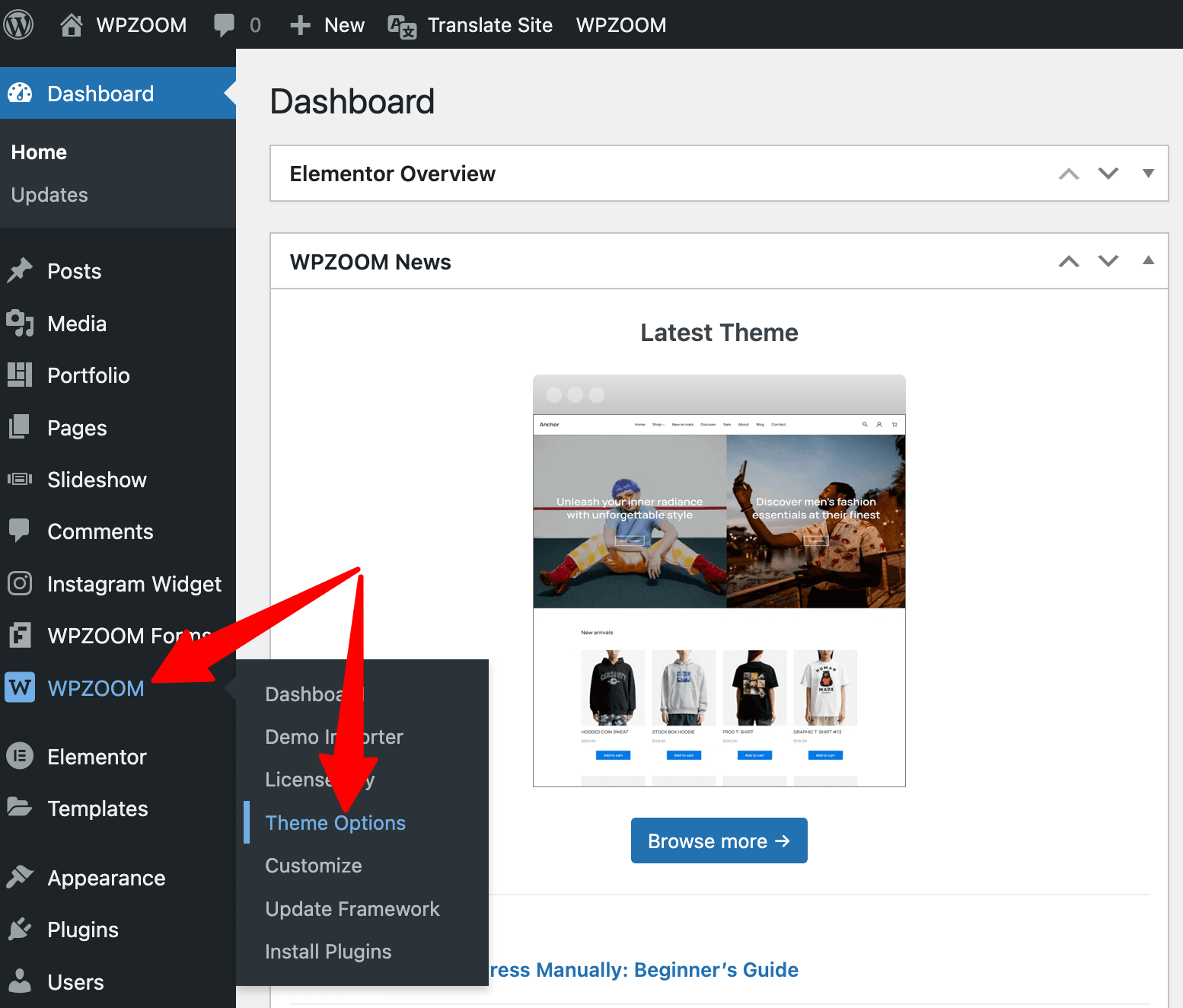
Open your WordPress dashboard. Navigate to the Appearance section. Select Theme Editor. Find the file named header.php. Look for the tag. It’s near the top.
Copy your Google Analytics code. Return to the header.php file. Paste the code just before the tag. Ensure the code is correct.
Click the Update File button. This saves your changes. Check if the code works. Visit your website. Open the Google Analytics dashboard. Verify data is showing.
Credit: www.wpzoom.com
Verifying The Installation
Ensure the Google Analytics code is correctly installed by visiting your website and checking the source code. Locate the tracking ID in the header section to confirm successful integration. Verify data flow in your Google Analytics account to ensure accurate tracking of user activity.
Check In Google Analytics
Log into your Google Analytics account. Look for the property you created. Find the Real-Time section. Open it to see live data. Visit your website. Check if your visit shows in Google Analytics. If it does, your installation is correct. If not, check your code. Make sure it is correctly placed in your WordPress theme.
Use Browser Tools
Open your website in a browser. Right-click and select Inspect or Inspect Element. Use the Network tab to see if the Google Analytics script loads. Search for “collect” in the Network tab. If you find it, the script is working. If not, review your code placement again. Check for any errors in the console. Correct them to ensure the script runs smoothly.
Common Mistakes To Avoid
Adding Google Analytics code directly to a WordPress theme requires caution. Editing theme files can lead to errors. Always use a child theme to prevent losing changes during updates. Test changes in a safe environment to avoid site issues.
Not Backing Up
Always make a copy of your theme files. Backup helps if you make a mistake. Losing your theme can be tough. Backup is a simple step. It saves time and stress later.
Incorrect Code Placement
Code must be placed carefully. Incorrect placement can break your site. Always check where you add the code. Theme files are sensitive to errors. A small mistake can cause big issues. Use guides or tutorials to find the right spot. Double-check before saving changes.
Alternative Methods
Adding GA code directly to a WordPress theme can be simple. Navigate to the theme editor, locate the header file, and insert the code before the closing head tag. This method ensures Google Analytics tracks visitor data effectively without relying on plugins.
Using A Plugin
Plugins can help add Google Analytics easily. They offer a user-friendly interface. No need to touch the code. Just install the plugin. Activate it and follow the steps. Some plugins are free. Others might need payment. Always choose plugins that are trusted. Read reviews before you download. Plugins can save time.
Child Theme Modification
Editing a child theme is another way. First, create a child theme. This keeps your changes safe. Add the GA code to the header.php file. This helps track data. Make sure to back up your files. Mistakes can happen. A child theme keeps the original theme safe. It allows you to make changes without worry.
Frequently Asked Questions
How To Find Ga Code In WordPress?
To find your Google Analytics code, log into your Google Analytics account. Navigate to the Admin section, select your property, and find the tracking code under Tracking Info. Copy this code to add it directly into your WordPress theme.
Can I Add Ga Code Without Plugins?
Yes, you can add the Google Analytics code directly to your WordPress theme without using plugins. Access your theme files through the WordPress dashboard. Locate the header.php file and paste the GA code just before the closing tag.
Is Adding Ga Code To Theme Safe?
Adding GA code directly to your theme is generally safe. Ensure you backup your theme files before making changes. Directly modifying theme files might be overwritten during updates, so consider using a child theme for better safety.
Will Ga Code Affect Site Performance?
Adding GA code directly to your theme minimally impacts site performance. The code runs asynchronously, meaning it loads without blocking other content. Ensure you paste the code correctly to avoid any potential issues with site functionality.
Conclusion
Adding Google Analytics code to your WordPress theme is simple. Follow the steps carefully. Ensure your theme supports custom code snippets. This helps track site traffic efficiently. Always back up your theme before making changes. Consider using a child theme.
This preserves your original theme. Regularly check your site’s analytics. Monitor performance and make necessary adjustments. Understanding your audience is key. Analytics helps you improve your content strategy. Keep learning and adapting. Your WordPress site will benefit greatly. Enjoy the insights gained from your analytics data.
Happy tracking!


