
Are you looking to expand your WordPress website by adding new pages but not sure where to start? You’re in the right place.
Whether you’re a seasoned web developer or a complete beginner, understanding how to add pages to WordPress themes is essential for growing your online presence. Imagine having the ability to effortlessly update your site with fresh content, new products, or engaging blog posts.
It’s not just about aesthetics; it’s about building an experience that keeps your visitors coming back for more. In this guide, we’ll break down the process step-by-step, ensuring you can confidently manage your site like a pro. Stick around, and you’ll discover how easy it is to enhance your website’s functionality while keeping your audience engaged. Let’s get started!

Credit: www.greengeeks.com
Choosing The Right Theme
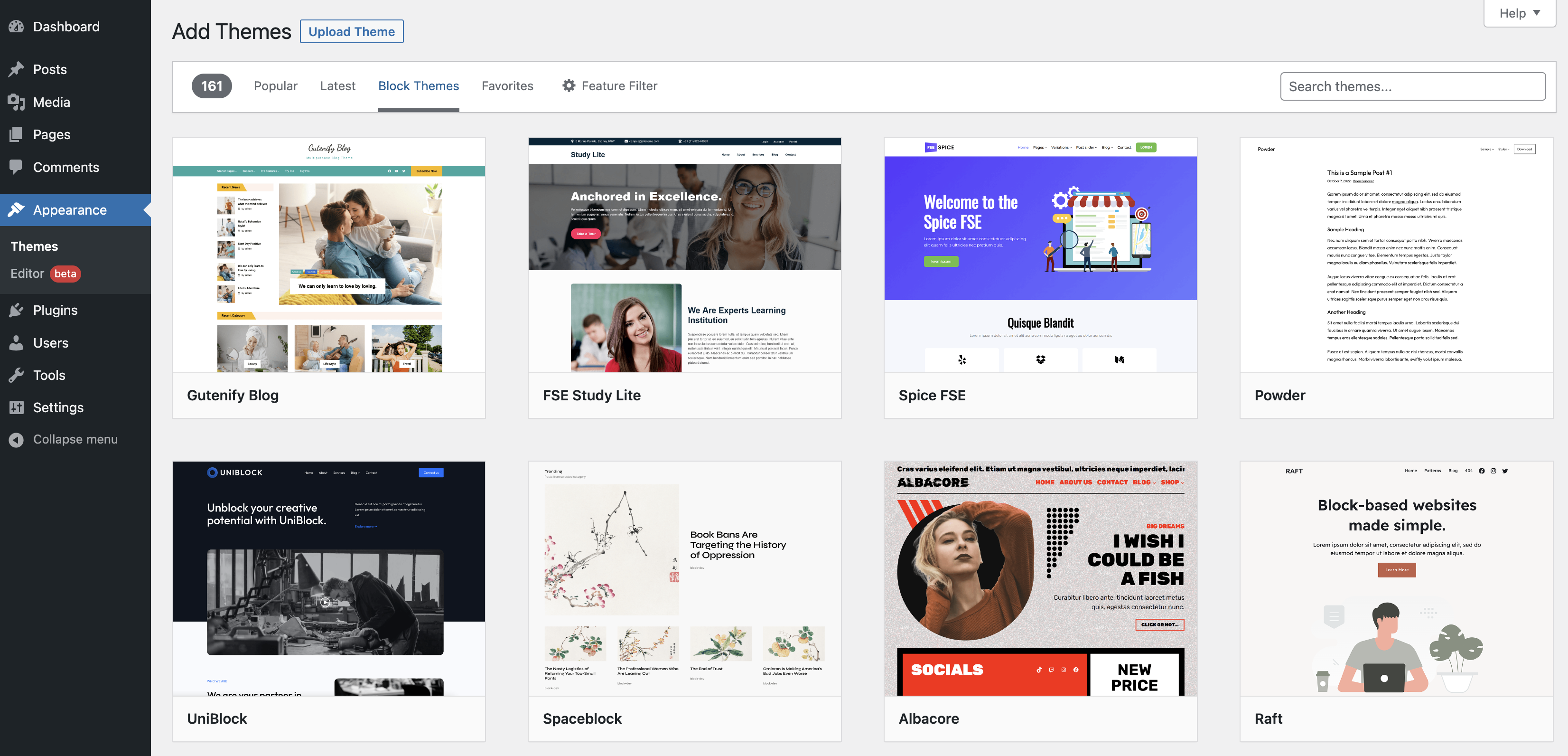
Picking the right WordPress theme is important. Your theme should work well with your website. Check if the theme is compatible with the latest WordPress version. Themes must also support all your needed features. Look for themes that get regular updates. This keeps your site safe and smooth. Always test the theme on a demo site first. This helps spot any issues early.
A child theme is a copy of your main theme. It lets you make changes without losing them during updates. Start by creating a new folder in the themes directory. Name it after your main theme with “-child” at the end. Inside, create a style.css file. Add essential details like theme name and template. A functions.php file can be added for more changes. Use child themes to keep your site updated and personalized.
Setting Up The Development Environment
To create a new page, first set up a local server. It helps test changes without breaking the live site. Many use XAMPP or MAMP for this. These tools make it easy to install a server on your computer. Follow the steps given by the tool you choose. This gives you a safe place to work.
Several tools are needed. First, install a code editor. Popular choices are Visual Studio Code or Sublime Text. These help you write code easily. Also, download WordPress from its official site. Next, install the theme you want to edit. These tools are essential for starting your work.
Creating A New Page Template
WordPress themes have a simple file structure. Every theme has a folder with many files. You will find files like header.php, footer.php, and style.css. These files control how your site looks. To create a new page, you need to understand this structure. Copy an existing file, like page.php. Rename it to something new, like new-page.php. Now you have a basic template for your page.
Giving your template the right name is important. Use the comment Template Name: Your Template Name at the top. This helps WordPress find it. Choose a name that is short and clear. Avoid long or confusing names. This makes it easy for others to use your template. Always check for errors after naming. This ensures your site works well.
Credit: wordpress.org
Adding The Page To WordPress
First, log into your WordPress admin dashboard. Look for the Pages option on the left side. Click on it. You will see a list of existing pages. To create a new page, find the Add New button at the top. Click it. A new page editor will open. Here, you can add your page title and content. Use the tools provided to format your text. Once done, click Publish to make your page live.
Each page can have a special look. This is done with templates. In the page editor, find the Page Attributes box. It is on the right side. Look for the Template dropdown. Here, choose a template that fits your page. If unsure, use the Default Template. After selecting, click Update to save your changes.
Customizing The Page Design
Use CSS Styling to change how the page looks. Pick colors that fit your theme. Choose fonts that are easy to read. Make sure the page is simple and clean. Add borders and shadows for depth. Use padding for space between items. Check how the page looks on different devices. Test on phones and tablets. Keep the design neat and tidy.
Adding Custom Scripts
Add custom scripts for special effects. Use JavaScript to make things move. Add buttons that change color when clicked. Use scripts to load images faster. Make sure scripts don’t slow down the site. Test scripts on different browsers. Keep scripts simple and short. Check if the scripts work on all devices.
Testing And Debugging
Adding a page to WordPress themes involves testing and debugging for smooth functionality. Ensure to check for errors and fix issues to enhance user experience. This process helps keep your website running efficiently and effectively.
Cross-browser Compatibility
Every website should look good on all browsers. Different browsers can show pages differently. Test your page on Chrome, Firefox, Safari, and Edge. Make sure all features work well. Use browser tools to find and fix issues. Check for font issues, layout shifts, and missing images. Some tools can help test on different devices and browsers. These tools can save time and make testing easier. Always keep your browser updated for best results. Use CSS resets to maintain consistency. Check your page on mobile and tablets too. Responsive design helps in this. Fix errors quickly to keep users happy.
Responsive Design Checks
Websites should look good on phones and computers. Responsive design makes this possible. Test your page on different screens. Use tools that show how a page looks on phones. Check buttons and links. Ensure they are easy to click. Images should resize properly. Use media queries to adjust layouts. Test text readability on small screens. Make sure it is clear and big enough. Flexible grids help create a good layout. Check your site speed. Slow sites can lose visitors. Always check after adding new elements.
Optimizing For Performance
Large images make websites slow. Slow sites annoy users. Make images smaller to load fast. Use tools like TinyPNG or ImageOptim. These tools shrink images but keep them clear. Change image formats to JPEG or WEBP. These formats are lighter. Also, use the right size for the image. A big image in a small space is wasteful. Add alt text to images. This helps in searches and assists users who can’t see images.
Caching makes sites fast. It stores copies of pages. Users get these copies instead of waiting. Install plugins like W3 Total Cache or WP Super Cache. They help in caching pages. This reduces server load. Use browser caching too. It keeps site parts in users’ browsers. Next visit, these parts load faster. Remember to clear caches often. This ensures users see updates.

Credit: wordpress.org
Deploying The Page
Adding a page to WordPress themes involves navigating the dashboard and selecting ‘Add New’ under ‘Pages’. Customize the page layout with theme options for a tailored design. Ensure visibility by updating the page settings and preview before publishing.
Migrating From Local To Live
First, ensure your page is complete locally. Check all links and images. Everything should work perfectly. Then, connect to your hosting server. Use an FTP client like FileZilla. Upload the page files to your server. Make sure they go into the right folder. Usually, it’s the public_html folder. This is where your live site files are stored.
After uploading, test the page on the live site. Navigate to the URL in your browser. Confirm that the page looks and functions the same as locally. Fix any broken links or missing images. Remember, your live site should mirror the local version perfectly.
Ensuring Seo Best Practices
SEO is crucial for page visibility. Use keywords in your page title and headings. They should be relevant and natural. Add alt text to images. This helps search engines understand them. Ensure your URLs are clean and descriptive. Avoid using long strings of numbers or letters. They should make sense to humans and search engines.
Finally, check for mobile friendliness. Many people use phones to browse. A responsive design is essential. Test the page on different devices. Make sure it looks good everywhere. This boosts your page’s SEO ranking and user experience.
Frequently Asked Questions
How Do I Add A New Page In WordPress?
To add a new page, go to your WordPress dashboard. Click “Pages” and then “Add New. ” Enter your page title and content. Customize using page attributes. Finally, click “Publish” to make it live. This process allows you to expand your site’s content easily.
Can I Customize Page Layout In WordPress Themes?
Yes, you can customize page layouts using WordPress page builders. Popular options include Elementor and WPBakery. These tools offer drag-and-drop functionality. You can adjust columns, add widgets, and change styles. Ensure your theme supports these builders for seamless customization.
Are Plugins Needed To Add Pages In WordPress?
No, plugins are not necessary to add pages in WordPress. The platform provides built-in functionality to create pages. However, plugins can enhance features, such as design elements and SEO optimization. Choose plugins that align with your theme and site requirements.
What Are WordPress Page Templates?
Page templates are pre-designed layouts within WordPress themes. They offer various styles for different page types. Use templates for blog posts, landing pages, or galleries. You can select a template when creating a new page. This streamlines design and maintains consistency across your site.
Conclusion
Adding a page to WordPress themes is simple and rewarding. It boosts your site’s functionality. Follow the steps above to ease the process. Customize your page to match your brand. Keep content clear and concise. Remember, practice makes perfect. Explore WordPress features to enhance your pages.
Stay updated with new tools and plugins. They offer more options for creativity. Engage your audience with fresh content regularly. This keeps your site lively and interesting. With patience, you can create a vibrant WordPress site. Enjoy building your digital presence!


