
Are you looking to give your WordPress site a fresh look without getting tangled in complex coding? Changing your WordPress theme text might be just the solution you need.
Whether you’re aiming to enhance user experience or simply want to align your site’s aesthetic with your brand’s voice, tweaking theme text can make a big difference. You don’t need to be a tech guru to do this; with a few simple steps, you can transform your site into something that truly represents you.
Curious to learn how? Stick with us, and you’ll discover the secrets to easily updating your WordPress theme text for maximum impact.
Credit: themeisle.com
Choosing The Right Theme
Picking a theme needs careful thought. Design matters a lot. Make sure it looks good and fits your style. Speed is also important. A fast theme makes your site better. Responsive themes work on all devices. This helps users on phones and tablets.
Support is key. Choose themes with good help and updates. Themes with many options let you change colors and fonts easily. Check the reviews to see what others say. A theme with high ratings is often a good pick.
WordPress has many themes. ThemeForest offers lots of choices. They have themes for all types of sites. Elegant Themes is known for its Divi theme. It is flexible and easy to use. StudioPress is good for blogs and businesses. They have clean and fast themes.
WordPress.org has free themes. They are good for beginners. Each source has its own style. Look around to find what fits best. Remember to read user reviews. They help in making a smart choice.
Accessing Theme Files
The WordPress dashboard is very helpful. It lets you change theme text easily. Go to Appearance and click Editor. You will see theme files here. Find the file you need to change. Edit the text you want. Remember to save your changes. Refresh your site to see the new text.
FTP helps access files directly. You need an FTP client like FileZilla. Connect to your server using FTP details. Find the theme folder. Open the files you need. Edit the text in the file. Save changes on your computer. Upload the edited file back to the server. Check your website for changes.
Editing Theme Text Via Dashboard
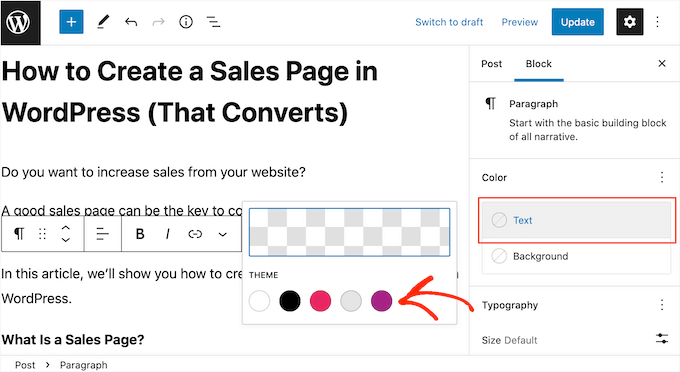
First, log in to your WordPress dashboard. Find the Appearance menu on the left. Click it. Now, select Customize. The theme customizer will open. Here, you can change many things. To change text, find the Typography option. Use it to adjust your text. Make sure to click Publish when done.
Navigate to your Pages or Posts section. Click on any page or post to edit. Use the Editor to change text. Highlight the text you want to edit. Type your new text. Click Update to save changes. Always check your site to see the changes.
Modifying Text In Theme Files
PHP and HTML are the building blocks of WordPress. PHP handles the logic, while HTML displays the content. It’s important to know both. Start with simple HTML tags like
and
. Learn basic PHP functions. This helps in changing text safely.
First, open your WordPress dashboard. Go to Appearance and then click on Theme Editor. Look for files like header.php or footer.php. These files often have text you want to change. Always back up your files. It’s important to keep your work safe.
Using Child Themes
Child themes offer a safe way to change WordPress theme text without altering the main files. They allow easy customization, ensuring your changes stay even with updates. This approach keeps your site looking fresh and unique, while maintaining the original theme’s functionality.
Creating A Child Theme
A child theme is like a baby theme. It copies the main theme, but you can change it. You can make your website look different and special. First, make a new folder. Name it after the theme with “-child”. Add a style.css file. Write the code to link it to the main theme. This makes it work with the main theme. Next, add a functions.php file. This helps the child theme do special things. Save your changes and upload the child theme folder. Now, you can use the child theme. Your website is ready for new changes.
Benefits Of Child Themes
Child themes offer many advantages. They keep your changes safe when updates happen. Your custom work stays intact. You can experiment without breaking the main theme. This makes it easy to learn and grow. You can make small tweaks or big changes. The main theme stays clean and untouched. This is great for beginners and experts alike. Your website can look unique without much risk. Child themes make WordPress sites more flexible and fun.
Credit: www.wpbeginner.com
Utilizing Plugins For Text Changes
Plugins make changing WordPress theme text easy. They offer tools to modify headings, buttons, and menus seamlessly. Customize your site without coding skills, ensuring a user-friendly experience.
Recommended Plugins
Plugins make changing text easy. Some popular options are Loco Translate and WPML. These tools help you edit text without much effort. They are user-friendly and effective.
Plugin Installation And Usage
Installing a plugin is simple. Go to your WordPress dashboard. Click on “Plugins” and then “Add New”. Search for the plugin you want. Click “Install Now” and then “Activate”.
Once activated, find the plugin settings. You can usually find this under “Settings” or “Tools”. Follow the steps given by the plugin. Start editing text as you like.
Testing Changes
To change text in a WordPress theme, access the theme editor. Locate the specific text file. Edit the desired sections using simple HTML or CSS. Always preview changes before saving to ensure proper display.
Previewing Edits
Always check your changes before making them live. Use the Preview button in WordPress. It helps you see how your site will look. This step is important. You don’t want surprises for your visitors.
Checking For Errors
After previewing, look for errors. Check your text carefully. Make sure links work correctly. Ensure images display properly. Errors can confuse readers. Fix them before publishing. It’s better to spend a few extra minutes now.
Best Practices
Changing WordPress theme text involves navigating to the theme editor. Locate the “Appearance” section in your dashboard. Access the “Editor” and modify the text. Save changes and refresh your site to see updates.
Regular Backups
Always keep your website safe. Make backups often. This protects against mistakes and data loss. Use plugins for easy backups. They are simple and quick. Some plugins even do automatic backups. Store backups in a safe place. Cloud storage is a good choice. Never forget to test your backups. Make sure they work when needed.
Maintaining Theme Updates
Updates help keep your theme secure. They fix bugs and improve features. Check for updates often. Use the theme settings to find them. Updated themes work better. They keep your site fast and safe. Some themes update automatically. This is very helpful. Always check your site after updates. Ensure everything works well.
Credit: themeisle.com
Frequently Asked Questions
How Do I Edit Theme Text In WordPress?
To edit theme text in WordPress, navigate to “Appearance” and select “Theme Editor. ” Choose the file where the text appears. Edit the code directly in the editor. Always back up your site before making changes to avoid losing data or breaking your site.
Can I Change Text Without Coding?
Yes, you can change text without coding using WordPress Customizer. Go to “Appearance” and click “Customize. ” Locate the text you want to modify. Use available options to edit text easily. Remember, changes are often limited to certain sections based on theme settings.
Are Plugins Available For Text Customization?
Yes, various plugins can help with text customization. Popular options include “WPBakery Page Builder” and “Elementor. ” These plugins offer drag-and-drop functionality to easily edit text. They provide user-friendly interfaces for non-coders. Always check compatibility with your theme before installation.
Will Changing Theme Text Affect Seo?
Changing theme text can affect SEO if done improperly. Ensure relevant keywords are included in the edited text. Avoid removing important headings or alt text. Properly optimized text can improve your site’s SEO performance and visibility in search engines.
Conclusion
Changing WordPress theme text is simple. Follow the steps outlined above. Customize your website easily. Users will appreciate the fresh look. Remember to save changes. Check your website’s appearance after updates. Test for readability and functionality. Make adjustments as needed.
Explore different themes for variety. Stay updated with WordPress versions. Use tools for better customization. Keep your design user-friendly. Enhance your site’s appeal. A well-designed site attracts visitors. Increase engagement with clear text. Your WordPress site can look amazing. Enjoy the creative process.
Happy customizing!


