
Are you looking to refresh your WordPress site with a personal touch? Changing the icons on your WordPress theme is a simple yet effective way to give your website a unique look and feel.
Icons are not just decorative; they are a powerful tool that helps guide your visitors and enhance their experience on your site. Imagine the delight your audience will feel when they encounter a website that’s not only visually appealing but also easy to navigate.
In this guide, you’ll discover how to change icons on your WordPress theme, turning your website into a more engaging and personalized space. Ready to dive in and transform your site? Let’s get started!
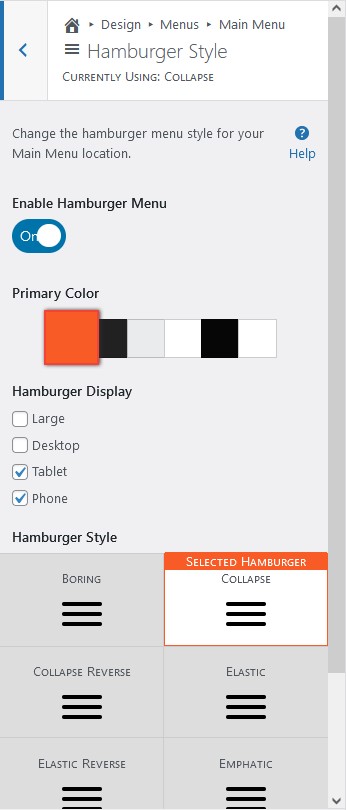
Credit: www.boldgrid.com
Choosing The Right Icon
Choose icons that match your theme’s style. A modern theme needs simple, clean icons. A vintage theme suits more detailed icons. The right icon boosts your site’s look. It makes it more appealing and easy to use. Match icon colors with your theme. This keeps everything looking neat and tidy. A consistent style creates harmony. It makes your site more pleasing to the eye.
Icons must be in the correct format. The most common formats are PNG and SVG. PNGs are good for simple icons. SVGs are best for scalable icons. They do not lose quality when resized. Check the icon size. It should fit well on your site. Too large icons look clumsy. Too small icons might be hard to see. A balance is key. Proper format and size ensure a smooth user experience.
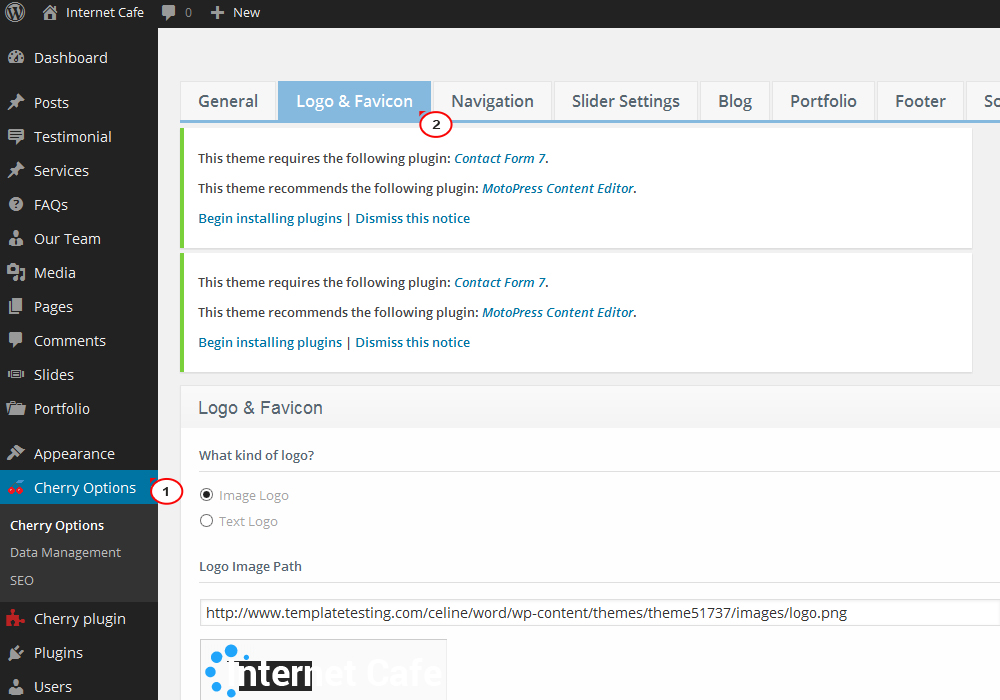
Credit: www.templatemonster.com
Accessing Theme Files
To change the icon, first go to the WordPress dashboard. Next, click on Appearance. Then choose Editor. Here, you can see the theme files. Find the file where the icon is stored. Usually, it’s in the header.php or functions.php. Change the icon by uploading a new image. Save the changes. Your new icon should now show.
Download and install an FTP client like FileZilla. Connect to your website’s server. Use your FTP login details. Navigate to wp-content/themes. Find your theme folder. Look for the file where the icon is stored. Replace the icon file with your new icon. Ensure the new file has the same name as the old one. This keeps everything working. Check your website to see the change.
Locating Icon Files
To change an icon on a WordPress theme, first locate the icon files within your theme’s directory. Access the WordPress dashboard, navigate to Appearance, then Editor. Here, search through theme files to find the specific icon you want to update.
Identifying Icon Paths
Start by checking your theme’s folder. Most themes store icon files here. Look for folders named “icons” or “images”. You might find icons inside these. Use a file manager to open these folders. Each icon path helps you find the exact location. Write down the path for later use.
Common Icon Locations
Icons are often in theme directories. Check the wp-content/themes folder. Inside, find your theme’s folder. Another place to look is the CSS files. They sometimes mention icon locations. Open CSS files with a text editor. Search for “.icon” or “url(” in the code. This reveals more paths.

Credit: stackoverflow.com
Replacing Icons
Changing icons on a WordPress theme is simple. Access the theme’s dashboard, locate ‘Customize’, and select ‘Icons’. Upload or choose your desired icon, and save changes. This quick process updates your site’s look with fresh visuals.
Uploading New Icons
Start by finding the icon you like. Make sure it’s the right size. Icons are often small, like 32×32 pixels. Save the icon on your computer. Then, open your WordPress dashboard. Go to the media library. Click “Add New.” Upload your icon there. Once uploaded, note the file URL. This URL helps in the next step.
Ensuring Proper Naming
Proper naming is key. Use simple names for icons. Avoid spaces in names. Use dashes or underscores instead. For example, “new-icon.png” is good. After naming, go to the theme editor. Find the CSS or HTML file. Locate the old icon’s name. Replace it with the new name. This change updates the icon on your site.
Testing New Icons
Clearing Cache is very important. New icons might not show up. The browser keeps old data. This data is called cache. Clear it often to see changes. Go to browser settings. Find the clear cache option. Click it. This helps a lot. You might need to clear it on your phone too. This keeps everything fresh and updated.
Checking on Different Devices is a must. Icons can look different on phones. Tablets might show them differently too. Check on all devices you own. This ensures the icons are perfect everywhere. Ask friends to check on their devices. Different screens show different results. This helps make sure everything looks great.
Troubleshooting Common Issues
Changing icons on a WordPress theme can sometimes be tricky. Start by accessing the theme settings through the WordPress dashboard. Look for customization options, find the icon you want to change, and upload your preferred design.
Icon Not Appearing
Sometimes the icon might not show up. This happens due to cache problems. Clear the cache on your browser first. Use a different browser to check if it shows up.
Another reason could be incorrect file format. Ensure the icon is in the right format. Use formats like PNG, JPG, or SVG. Check if the icon file is uploaded correctly.
Theme settings might also cause issues. Go to the theme settings and ensure icons are enabled. Look for any plugin conflicts. Some plugins might block the icon. Disable plugins one by one to find the problem.
Display Issues
Icons may display wrong due to CSS errors. Check the CSS code in your theme. Look for any missing or incorrect CSS rules.
Responsive issues can also cause display problems. Icons might not look good on mobile devices. Use responsive design tools to fix this. Ensure the theme supports mobile devices.
Sometimes the icon size might be too big or small. Adjust the icon size in the theme settings. This ensures the icon looks nice on all screens.
Best Practices
Always keep a backup of your original icons. This helps if you need to restore them later. Use a simple folder on your computer. Save all the icon files there. Name the folder clearly. For example, “WordPress Icons Backup”.
Keep your WordPress theme updated. Updates often fix bugs. They also improve security. Regular updates ensure your icons work well. Check for updates weekly. This keeps your website safe and functional.
Frequently Asked Questions
How Do I Change The Icon In WordPress?
To change an icon in WordPress, access the Theme Customizer or a page builder. Look for the icon settings. You can upload a new icon or select from the available options. Save the changes to update the icon on your website.
Can I Use Custom Icons On WordPress Themes?
Yes, you can use custom icons on WordPress themes. Upload your custom icons through the Theme Customizer or a plugin. Ensure they are in a supported format like SVG or PNG. Once uploaded, you can easily assign them to your desired elements.
What Plugins Help Change WordPress Icons?
Several plugins can help change WordPress icons. Popular options include Font Awesome, WP SVG Icons, and Elementor. These plugins offer extensive icon libraries and customization options. They simplify the process of adding and managing icons on your WordPress site.
Are Svg Icons Supported In WordPress Themes?
Yes, SVG icons are supported in WordPress themes. They provide scalability without losing quality. You may need a plugin or code snippet to enable SVG uploads. Once enabled, you can use SVG icons across your WordPress site with ease.
Conclusion
Changing icons on WordPress is simple with the right steps. Customize your theme effortlessly. Make your site unique by updating visuals. Icons can enhance user experience. Follow the guide above for clear directions. Experiment with different designs to fit your brand.
Personalize your site without technical skills. Keep your audience engaged with fresh looks. Regular updates keep your site appealing. Enjoy the process of making your site your own. Your website reflects your style and creativity. Simplify the journey with these practical tips.
Embrace the freedom of customization. Transform your site today.


