
Are you tired of the same old look on your WordPress site? Changing the color theme is one of the simplest ways to give your website a fresh, vibrant appearance.
Imagine the impact a new color scheme could have on your visitors, making your content more engaging and your site more inviting. You don’t need to be a tech wizard to make this change. With just a few clicks, you can transform your site’s aesthetic and boost its appeal.
This guide will walk you through the process, ensuring you feel confident and excited about revamping your site’s look. Ready to discover how easy and fun it is to change your WordPress color theme? Keep reading to unlock the potential of your website’s new look!
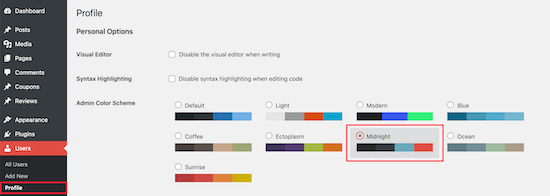
Credit: www.wpbeginner.com
Choosing A Theme
Free themes are easy to find. Many users start with them. They are great for beginners. Premium themes cost money, but offer more features. They have better support too. Deciding which to choose depends on your needs. Budget plays a big role. Consider your website’s purpose. Personal blogs might not need much. Business sites often want more. Free themes might lack custom options. Premium ones can be more flexible. Think about updates and security. Premium themes usually update often. Free themes might not. Updates keep your site safe.
Compatibility is important. Make sure the theme works with your plugins. This avoids problems later. Speed matters for your site. Fast themes keep visitors happy. Check reviews for theme speed. Design is another factor. Choose a theme that fits your style. Simple designs often work best. Ease of use is key. Some themes are hard to use. Others are simple and user-friendly. Look for themes with good support. Help is useful if you face issues.
Accessing The Theme Customizer
Explore the WordPress Theme Customizer to easily change color themes. Navigate to ‘Appearance,’ then select ‘Customize. ‘ Adjust colors to fit your brand’s look, enhancing your website’s visual appeal.
Navigating The Dashboard
Begin by logging into your WordPress dashboard. The dashboard is your main control center. You will find several options here. Look for the Appearance tab. Click on it to expand the menu. This is where you can access themes and custom settings.
Finding The Customizer
After clicking on Appearance, locate the Customize option. This opens the theme customizer. Here, you can change the color themes. You can also adjust fonts and layout. The customizer is user-friendly. It shows a live preview of changes. Make sure to save your changes. This ensures they appear on your site.
Changing Colors
The Color Picker tool helps you change colors easily. Click on the color box. A palette appears. Choose the color you like. You can make backgrounds blue. Or text red. It’s simple and fun. Explore the colors. See how they change your site.
Pick a color for your background. Light colors are calm. Dark colors are bold. Change text colors too. Make them match the background. Or contrast them. This makes reading easy. Users enjoy your site more.
Use color schemes to style your site. Themes have built-in schemes. They are ready to use. Try a few and see. Colors look balanced and nice. Your site looks professional.
Using Custom Css
Transform your WordPress site’s look by using custom CSS to change color themes. Customize shades to match your brand identity seamlessly. Make your site visually appealing and unique with easy adjustments.
Locating Additional Css Option
First, open your WordPress dashboard. Find the Appearance tab. Click on it. Next, select Customize. This will show many options. Look for the Additional CSS section. Click on it. A new box will appear. This is where you can type your CSS.
Writing Basic Css For Colors
Start by typing body followed by curly braces. Inside, use background-color to change the background. Type the color name or code. For example, background-color: blue; changes the background to blue. To change text color, use color followed by the color name. Example: color: white; makes the text white. Use this method for other elements too. Remember, each CSS rule ends with a semicolon.
Installing A Color Plugin
Many plugins change color themes easily. Popular choices include Colorlib and CSS Hero. They help make your site look different. Each plugin has special features. Some offer live previews. Others allow custom palettes. Choose one that suits your needs.
- Go to your WordPress dashboard.
- Click on “Plugins” then “Add New”.
- Search for your chosen color plugin.
- Click “Install” and wait.
- After installing, click “Activate”.
- Go to the plugin’s settings.
- Start customizing your color theme.
Previewing Changes
WordPress allows you to see changes live before saving. This is important. You can test different themes easily. Click on “Appearance” and choose “Customize.” Then, try new color themes. You will see changes in the preview window. It helps make the right choice. Always save changes when you like them.
Themes must work on all devices. Check how your site looks on phones and tablets. Use the responsive view in the customizer. Make sure all elements fit well. This keeps the site user-friendly. Responsive design is key for visitors. They should have a good experience no matter the device.
Saving And Publishing
Click ‘Save’ to keep your changes. This will store your new settings. Don’t forget to do this. Forgetting to save means losing changes. Saving is easy. Just find the ‘Save’ button. It is usually at the top. Always save before leaving the page. This is a crucial step. It prevents losing your work.
After saving, you need to ‘Publish’ your theme. This makes your changes visible. Without publishing, changes stay hidden. Click the ‘Publish’ button. It is often near the save button. Publishing is quick. It takes just a few seconds. Once done, everyone can see the new theme. Your site will look fresh and updated.

Credit: qodeinteractive.com
Common Troubleshooting Tips
Changing color themes on WordPress can be simple. Start by accessing the WordPress dashboard. Navigate to Appearance, then Customize. Look for the Colors section to make changes. Save your adjustments. Refresh your site to see the new look. If issues arise, clear your browser cache or try a different theme.
Dealing With Cache Issues
Old color themes sometimes stay in the cache. This can be a problem. Clear the cache to see changes. Go to your browser settings. Find the cache option. Click to clear it. Sometimes, plugins also store cache. Check your WordPress plugins. Clear cache from there too. If you use a CDN, clear its cache. These steps help in seeing the latest changes. Refresh the page after each step.
Reverting Changes
Not happy with the new theme? You can switch back. Go to your WordPress dashboard. Click on “Appearance”. Then click on “Themes”. Find the old theme you like. Click “Activate”. Your site will return to the old look. Save changes to keep the theme. Always backup your site before changes. It keeps your data safe.

Credit: qodeinteractive.com
Frequently Asked Questions
How Do I Change The WordPress Theme Color?
To change the theme color, go to the WordPress dashboard. Navigate to Appearance > Customize. Look for the Colors section. Adjust the settings as per your preference. Save the changes once you’re satisfied with the new look.
Can I Customize Theme Colors Without Coding?
Yes, you can customize theme colors without coding. Use the WordPress Customizer found in the dashboard. This tool lets you easily adjust colors. No coding skills are required. Just use the intuitive interface to make changes.
What Plugins Help Change WordPress Theme Colors?
Several plugins can help change theme colors. Some popular options include Elementor, WPBakery, and Beaver Builder. These plugins offer user-friendly interfaces. They allow easy customization of colors and other design elements. You can find them in the WordPress plugin repository.
Are Color Changes Visible Instantly?
Yes, color changes are visible instantly. Once you save the changes in the Customizer, they reflect immediately on your site. This allows you to see how your changes look in real-time. Make sure to preview before finalizing.
Conclusion
Changing color themes on WordPress is simple and fun. It lets you personalize your site to match your style or brand. With the right theme, you can make your site stand out. Start by exploring different options in your dashboard.
Experiment with colors and see what fits best. Remember, your site’s look affects user experience. So, choose colors that enhance readability and appeal. Regularly update your theme for freshness and relevance. Keep your design clean and consistent. Enjoy the process of making your site unique and inviting.
Happy designing!


