
Are you eager to unlock your creative potential and design stunning websites without touching a line of code? If so, you’re in the right place.
The Divi Theme for WordPress is your secret weapon, offering a powerful and user-friendly platform to bring your website visions to life. Imagine building a website that stands out, engages visitors, and converts them into loyal customers—all while having fun in the process.
In this guide, you’ll discover the step-by-step process to start designing in Divi, even if you have zero design experience. Say goodbye to overwhelming technical jargon and hello to a world of intuitive design tools that put you in the driver’s seat. Ready to dive in and transform your ideas into reality? Keep reading, and let’s get started on your design adventure with Divi.
Getting Started With Divi
Start by downloading the Divi Theme from your account. Save the file to your computer. Navigate to your WordPress dashboard. Find the Appearance tab and click on Themes. Click the Add New button. Then, click Upload Theme. Choose the Divi zip file and click Install Now. Wait for the installation to finish. Lastly, click Activate to use the theme.
Go to the Divi tab in the WordPress dashboard. Click on Theme Options. Find the Updates tab. Enter your username and API key. Click Save Changes. This will activate your Divi license. You can now enjoy all the features. Updates will also be automatic. Keep your license safe for future use.
Exploring The Divi Builder
The Divi Builder is a powerful tool. It helps you create beautiful websites. The interface is user-friendly. You can drag and drop elements easily. Sections, rows, and modules are key parts. They help you build your page. Each part has settings. You can adjust these settings to change the look. Adding new elements is simple. Just click the + button. You’ll see options to choose from. This makes designing fun and easy.
The Visual Builder lets you see changes live. It’s like painting on a canvas. You move things around with your mouse. No need for coding. Click on text to edit it directly. Images can be swapped with a click. Even colors can be changed fast. This builder makes designing easy for everyone. Mistakes are easy to fix. Just click the undo button to revert changes.
Creating A New Page
Start by logging into your WordPress dashboard. Click on “Pages” and then “Add New”. This opens a blank page for you to design.
Select a layout from the Divi Library. Divi offers many pre-made layouts. These layouts make your work easier. Choose one that fits your needs. Click “Use This Layout” to apply it. You can always change it later.
After choosing a layout, start customizing. Click on any element to edit. Change the text, images, and colors. Make each element your own. Use the Divi Builder’s drag and drop features. This helps you move elements easily. Save your changes often to avoid losing work.
Designing With Modules
Start by finding the plus icon in the Divi Builder. Click it to add a new module. Choose a module type like text, image, or button. Each module has its own unique settings. Click the gear icon to open these settings. You can change the module content here. Adjust the text, upload images, or add links.
It’s simple to move modules. Drag and drop them to new places. Remember to save your work often. This keeps your changes safe. Play with colors and fonts. Make sure your design looks good.
Each module has design settings for style. You can change colors, sizes, and borders. Click on the design tab for these options. Check the advanced tab for custom CSS. Use these settings to make your site unique. Don’t forget to preview your changes. Make sure it looks right on all devices. Mobile and desktop views might differ. Always check both.
Styling With Global Settings
Explore global settings to enhance your design in the WordPress Divi theme. These tools help create consistent styles across pages and elements. Start by adjusting fonts, colors, and spacing to match your vision efficiently.
Setting Global Fonts And Colors
Global fonts and colors help keep your design neat. First, choose a font style that matches your theme. Next, pick colors that fit your brand. These choices set the mood for your website. They make it look professional. Fonts and colors can be changed later if needed. But starting with good choices saves time. Set them once and use them everywhere. This makes updates easier. It also gives your site a uniform look.
Applying Global Styles
Global styles help keep your design consistent. They control how elements look on all pages. Buttons, headings, and text can share the same style. This makes your site look neat and tidy. Set global styles in the theme settings. Use them to apply changes across your site. This saves time and effort. It also makes updates simple. Global styles keep everything looking the same. They help your site look polished and professional.

Credit: oxygenbuilder.com
Responsive Design Techniques
Mobile users need special design care. Divi Theme makes it easy. It offers tools to adjust designs. You can change text size and color. Images can be resized for small screens. Buttons should be big enough to tap easily. Think about loading speed. Fast websites make users happy. Reduce image sizes for quicker loads. Use fewer plugins for speed.
Different devices have different screen sizes. Divi allows custom layouts for each device. You can use grids to fit content nicely. Columns can be adjusted for tablets. Use Divi’s preview tool to see changes live. Test your design on various screens. Make sure it looks good on all. This helps keep users engaged.
Leveraging Divi Library
Saving and Reusing Layouts is easy in Divi. First, design your page. Click on “Save to Library.” Now, name your layout. Press “Save.” Your layout is now in the library. Use it on any page. Save time and effort. No need to design again.
Importing and Exporting Designs helps share your work. Go to Divi Library. Click on “Import & Export.” Choose “Export” to save your designs. Save the file on your computer. To use designs from others, click “Import.” Select the file. Click “Import Divi Builder Layouts.” Designs will load in your library. It’s simple and quick.

Credit: www.youtube.com
Enhancing Design With Plugins
Plugins make your website better. They add extra features. Some plugins help with design. Others help with speed. Yoast SEO is popular for SEO. WP Super Cache helps your site load fast. Gravity Forms is great for forms. They work well with Divi. Always choose plugins wisely. Too many can slow down your site. But the right ones can help a lot. Look for plugins with good reviews. They should update often. Check if they are compatible with Divi. This ensures your site runs smoothly.
Divi has special extensions. They make your design unique. Divi Supreme Modules adds new modules. Divi Carousel lets you create slideshows. Divi Builder is easy to use. These tools help you design like a pro. They fit well with Divi’s features. Always check for updates. This keeps your site secure. New features come with updates. Using these extensions can enhance creativity. They make complex tasks simple. Give them a try. Your site will look great.
Troubleshooting Common Issues
Sometimes, designs do not look right. Plugins might cause design problems. Check if any plugin is causing the issue. Disable one by one to find the culprit. Clear your browser cache regularly. This helps to see the latest design changes. Update your Divi Theme to the latest version. Updates often fix many issues. Always back up your site before making changes. This keeps your data safe.
Join online forums to get help. Many users share their experiences there. Visit the Divi support page for solutions. Read the FAQs for common questions. Contact the support team if you need more help. They can solve bigger problems. Always keep calm and patient while seeking help. Solutions take time sometimes.
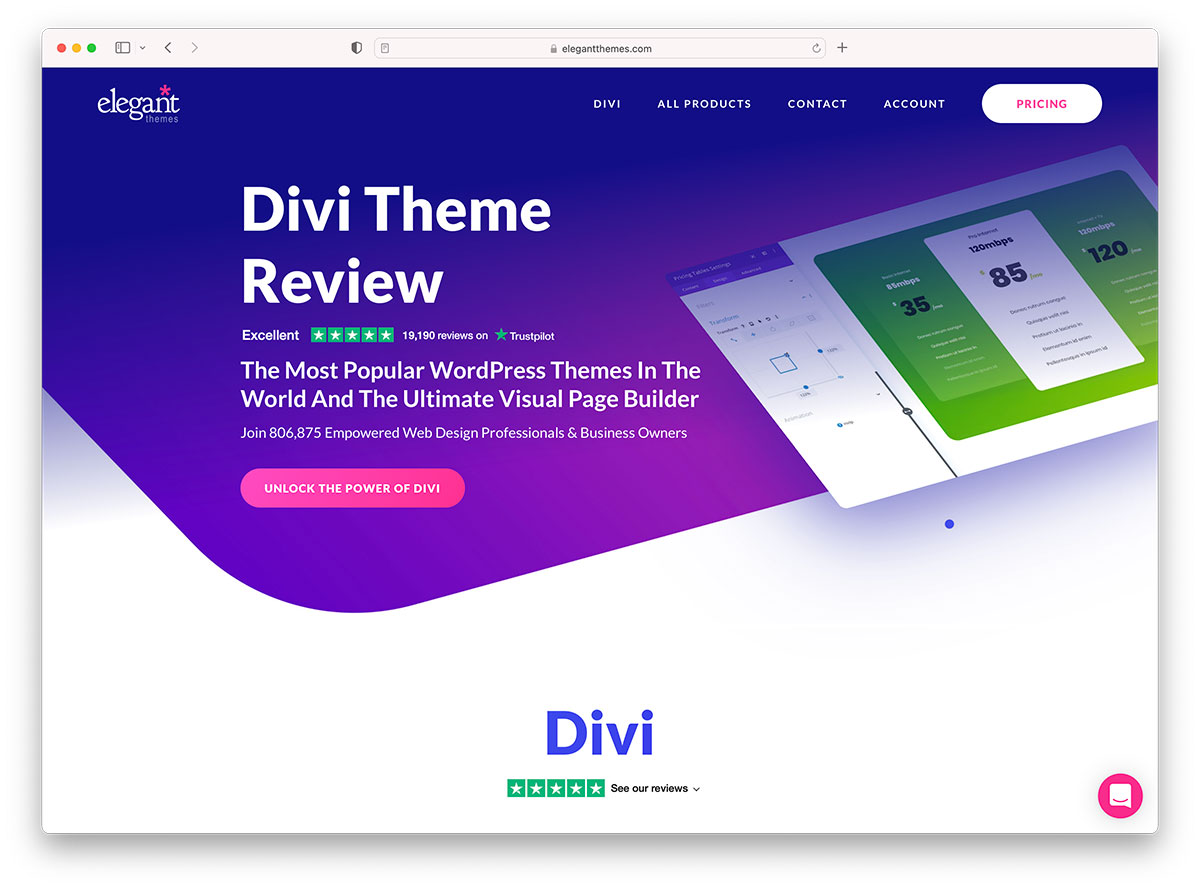
Credit: colorlib.com
Frequently Asked Questions
What Is Divi Theme In WordPress?
Divi Theme is a versatile WordPress theme by Elegant Themes. It offers a drag-and-drop builder for creating custom layouts. With Divi, you can design visually appealing websites without coding. Its flexibility and user-friendly interface make it popular among beginners and professionals alike.
How Do I Install Divi Theme?
To install Divi Theme, first purchase and download it from Elegant Themes. Then, navigate to your WordPress dashboard, click on ‘Appearance,’ and select ‘Themes. ‘ Upload the Divi zip file and activate it. Ensure your WordPress version is compatible for smooth installation.
Can I Customize Divi Theme Easily?
Yes, Divi Theme is highly customizable. It includes a visual builder that allows easy adjustments. You can change layouts, colors, fonts, and more. Its user-friendly interface helps you create a unique design. This makes it accessible even for those with limited technical skills.
Does Divi Theme Support Mobile Responsiveness?
Absolutely, Divi Theme supports mobile responsiveness. It ensures your site looks great on all devices. You can preview changes for mobile layouts within the builder. This feature helps maintain a professional appearance across smartphones, tablets, and desktops, enhancing user experience.
Conclusion
Designing with Divi in WordPress is simple and fun. Start small. Experiment with layouts and modules. Explore different options. Customize to match your style. Practice makes perfect. Use Divi’s tools to craft beautiful websites. Remember, patience is key. Every click gets you closer to your dream design.
Keep learning and exploring. The more you practice, the better you get. Seek inspiration from other sites. Apply what you learn. Share your creation with the world. Enjoy your journey with Divi. Happy designing!


