
Are you struggling to make your WordPress website look just right? Often, the width of your theme can make or break your site’s design, affecting both aesthetics and functionality.
A layout that’s too wide or too narrow can frustrate your visitors and even drive them away. But don’t worry—changing the width in your WordPress theme is easier than you might think! Imagine having complete control over how your website looks, ensuring it’s visually appealing and user-friendly.
We’ll guide you through simple steps to adjust the width of your WordPress theme, helping you create a site that not only looks good but also keeps your audience engaged. Stay with us to learn how you can quickly transform your site’s appearance with just a few clicks.
Choosing The Right Theme
Ensure the theme is compatible with your website. Some themes might not fit well. Check the theme’s features and updates. This helps avoid future problems.
Responsive design is important. It makes the site look good on all devices. Always choose a theme that automatically adjusts to screen sizes. This keeps your site user-friendly.
Credit: support.pipdig.co
Using WordPress Customizer
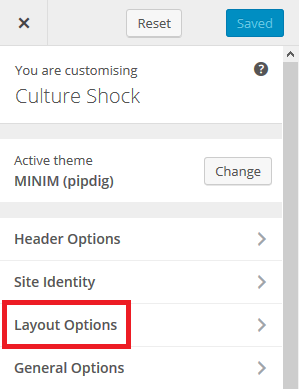
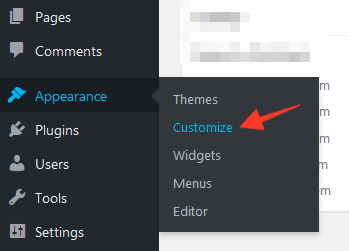
First, find the Dashboard on your WordPress site. Click on Appearance. Choose Customize. This opens the Customizer. You will see many options. Look for the one that says Theme Options. Click on it. You are ready to change the width.
In the Customizer, go to Layout. You will see settings for width. Adjust the width by sliding the bar. Make it bigger or smaller. Watch the preview change as you adjust. Be careful not to make it too wide. Choose a width that looks good. Click Save when you’re happy. Your theme width is changed now!
Editing Css For Width Changes
First, open your WordPress dashboard. Find the Appearance option on the left. Click on it, then select Customize. A new page will open. Look for the Additional CSS section. This is where you can add your custom CSS codes. Make sure to save changes after editing. This step is crucial to adjust the width.
In the Additional CSS section, type your width code. Use simple CSS like: body { width: 80%; }. This will change the width of your page. Adjust the percentage to your liking. Use a specific selector to target different elements. For example, .content { width: 70%; } targets content areas. Always check your theme’s documentation for guidance.
After adding CSS, preview your site. This shows changes in real-time. Check different pages to ensure consistency. If something looks off, tweak your CSS. Refresh the page to see updates. Sometimes, a browser cache might delay changes. Clear cache if needed. This ensures you see the latest version of your site.

Credit: wordpress.com
Modifying Theme Files
Backup files to keep your theme safe. Use a backup plugin for this task. You can also copy the files manually. Save them in a secure folder on your computer. This way, you won’t lose important data.
Find the style.css file in your theme folder. Open it with a text editor. Look for the width property. Change the number to set your new width. Save changes when you finish. Refresh your site to see the changes.
Open the functions.php file. Add code to change width settings. Be careful while editing this file. Errors can cause problems on your site. Always test changes on a test site first. This keeps your main site safe.
Using Page Builders
Adjusting the width in a WordPress theme is simple with page builders. Navigate to the customization settings. Select the layout options to modify the width. This empowers users to create visually appealing websites without coding expertise.
Popular Page Builders For WordPress
Page builders are tools that help design websites. They make website building easy. Elementor and Beaver Builder are popular. These builders offer drag-and-drop features. This helps users create custom layouts. No coding is needed with these tools.
Customizing Width With Page Builders
Adjusting width is simple with page builders. Users can drag edges to change size. This lets you fit content better. Builders offer flexible options. Users can set fixed or full width. Responsive design is essential. It ensures content looks good on all devices. Builders have settings for mobile and desktop views.
Credit: support.pipdig.co
Plugins For Width Adjustment
WordPress plugins can help change your theme’s width. Here are some top plugins to consider.
- Elementor: Allows easy width changes with a drag-and-drop interface.
- Visual Composer: Offers flexible design options for different widths.
- Advanced Custom Fields: Customize widths using fields and settings.
Open the plugin settings. Look for width options. Adjust the slider or input the number. Preview the changes. Check your website. Ensure it looks good. Save the changes if satisfied. Some plugins have extra features. Explore them for more control.
Troubleshooting Common Issues
Changing the width in a WordPress theme often requires adjusting CSS settings or using customizer tools. Start by accessing the theme’s customizer, then navigate to the layout section to tweak width options. Ensure to save changes and preview your site for proper adjustments.
Dealing With Inconsistent Widths
Themes sometimes show different widths on different pages. This can be confusing. First, check your theme settings. Themes often have options to adjust widths. Look for these options in the theme’s settings. If that doesn’t help, check the CSS. Custom CSS can change widths. Make sure no extra CSS is causing trouble. Also, clear your cache. Cached pages might not show your changes right away. Lastly, ensure your theme is updated. Updates fix many issues. These steps should help with width problems. If problems persist, consider asking for expert help.
Resolving Conflicts With Other Plugins
Plugins might cause width problems. Disable plugins one by one. This helps find the problem plugin. Once found, check for plugin updates. Updates might fix the conflict. If not, look for alternative plugins. Some plugins do the same thing. Choose one that works well with your theme. Also, contact plugin support. They might have a solution. Remember to backup your site before changes. This ensures you don’t lose any data. These steps can help resolve plugin conflicts.
Frequently Asked Questions
How Can I Change Theme Width In WordPress?
To change the theme width, go to your WordPress dashboard. Navigate to Appearance, then Customize. Select Additional CSS and insert custom CSS code to adjust the width. This method is straightforward and does not require editing theme files directly.
Is It Safe To Edit Theme Width?
Yes, editing theme width is generally safe. Use the WordPress Customizer or a child theme to prevent losing changes during updates. Always backup your site before making any modifications to ensure you can revert if necessary.
Can I Use A Plugin To Adjust Theme Width?
Yes, you can use plugins like Simple CSS or Yellow Pencil to adjust theme width. These plugins allow you to add custom CSS without directly editing theme files, offering a user-friendly way to make changes.
Will Changing Width Affect Mobile Responsiveness?
Changing width may affect mobile responsiveness. Ensure to use percentage values or media queries in your CSS. This approach helps maintain a responsive design across different devices, enhancing user experience.
Conclusion
Changing the width in a WordPress theme is simple. Follow the steps carefully. Adjust settings in the WordPress dashboard. Use the theme’s customization tools. Experiment with different widths. Check the preview before saving changes. Make sure your site looks good on all devices.
Responsive design is important. Keep your content readable and visually appealing. Regularly review your site’s layout. Adapt to user feedback for improvements. With practice, you’ll gain confidence. Your site will stand out and attract more visitors. Enjoy your new WordPress layout!


