
Imagine having the power to design your WordPress site exactly the way you envision. This isn’t just a dream—it’s entirely possible when you learn how to build a theme in WordPress.
If you’ve ever felt limited by pre-made themes or wanted to add a personal touch that truly reflects your brand, you’re in the right place. In this guide, you’ll discover step-by-step instructions to craft a WordPress theme from scratch, regardless of your technical background.
Whether you’re a beginner or have some coding experience, this article will empower you with the knowledge to turn your ideas into reality. Ready to unlock your website’s full potential and stand out in the digital crowd? Keep reading and transform your WordPress site into a unique masterpiece that’s all your own.

Credit: www.youtube.com
Understanding WordPress Themes
WordPress themes make your site look special. They are like clothes for your website. Each theme has its own style. Some look modern, others are classic. Themes change colors, fonts, and layout. They help your site stand out.
Every theme is customizable. You can change parts to fit your needs. Add your own pictures or choose different colors. This makes your site unique. Themes also help with mobile viewing. They ensure your site looks good on phones and tablets.
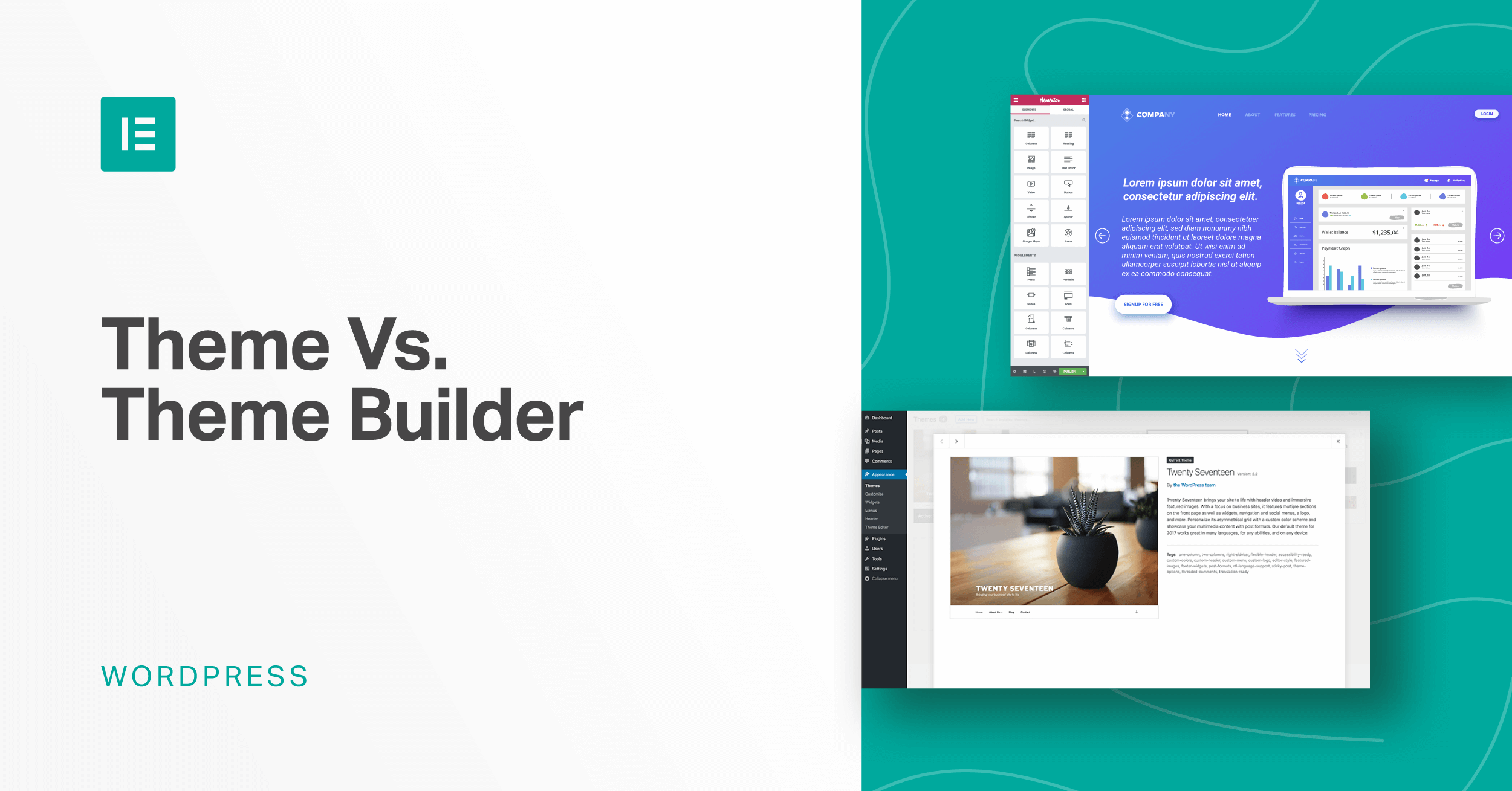
New themes come often. You can find free themes or buy premium ones. Installing a theme is simple. Go to the WordPress dashboard and select “Themes”. Click “Add New” to find a theme you like. Then, click “Install” and “Activate” to use it.
Credit: elementor.com
Setting Up A Development Environment
Picking the correct tools is important. You need a code editor. Popular choices are Visual Studio Code and Sublime Text. A browser helps you check your work. Chrome or Firefox are good options.
Using a version control system like Git is helpful. It keeps track of changes. You also need a local server. XAMPP and MAMP are great picks.
Start by downloading WordPress. You need to unzip the files. Move them to your local server’s folder. Run the server software. Open a browser and type localhost/yourfoldername.
Follow the setup wizard. Enter database info. Create a database using phpMyAdmin. Use simple names for easy access. Finish the wizard setup. Now, WordPress is installed on your computer. You can start building themes.
Creating Essential Files
The file style.css is key for your theme’s look. It tells WordPress about your theme. Use this file to set colors, fonts, and layouts. It helps make your site unique and pretty. Start with basic styles. Then, adjust them as needed. Don’t forget to keep it simple and clean. This helps users enjoy your site more.
The index.php is the heart of your WordPress theme. It shows the main content of your website. Think of it as the main page layout. It pulls content from the database to show users. Make sure it looks good on all devices. Keep the design neat and user-friendly.
The functions.php file adds extra features to your theme. It can load scripts and styles, or add new menus. Use it to register widgets and sidebars. This file makes your theme more powerful. Add code carefully to avoid errors. Always test changes to ensure everything works well.

Credit: yaycommerce.com
Structuring Theme Files
Template hierarchy controls how WordPress displays content. Understanding this is key. WordPress looks for files in a specific order. If it doesn’t find one, it looks for the next. Home page starts with home.php. Then it looks for index.php. For single posts, it begins with single.php. Then, it checks single-{post-type}.php.
For pages, it looks for page-{slug}.php first. Then, page.php, and finally index.php. This order is important. It helps WordPress show the right content. Knowing hierarchy helps in theme building.
A WordPress theme has many files. They need a home. The style.css file is vital. It holds theme information. Place it in the main folder. The functions.php file is also important. It adds features to the theme. Keep it in the main folder too.
Create folders for JavaScript and images. Keep these files organized. It helps in finding them quickly. Use a templates folder for additional templates. Organization makes theme development smooth. It keeps your files neat and tidy.
Designing The Theme Layout
The header is at the top of the page. It shows the site’s name. You can also add a logo here. The footer is at the bottom of the page. It often includes contact info. You can add links here too. Both are important for navigation. They help users find their way around. Make them clear and simple.
Custom page templates let you design pages differently. They give you control over the look of each page. You can create a special design for important pages. This makes your site unique. It helps you stand out. Use HTML and CSS to design them. Keep it simple for easy editing.
Adding Dynamic Content
WordPress loop is a powerful tool. It helps display posts on your site. The loop fetches posts from the database. Then, it shows them on the page. Each post has its own unique data. Titles, dates, and content appear dynamically. You can customize how posts display. Change the order or filter by category. The loop makes your site dynamic and alive. It ensures content always updates.
Custom post types let you add new content formats. They go beyond regular posts and pages. Examples are products, events, or portfolios. Create them with a few lines of code. Define labels and features for each type. Custom post types make your site unique. They tailor content to specific needs. They enhance the site’s functionality. Visitors find information easily. Your site becomes rich and diverse.
Enhancing Theme Features
Widgets add cool features to your theme. Sidebars hold these widgets. They can show recent posts or ads. Adding widgets is simple. Go to the WordPress dashboard. Find the “Widgets” section. Drag and drop items into the sidebar. Choose widgets that suit your site. This makes your site look good. It also helps users find what they need. Widgets and sidebars improve your site’s design.
Menus guide visitors around your site. They show important pages. Create clear paths for users. Use easy names like “Home” or “About Us”. Go to the WordPress dashboard. Click “Menus” under “Appearance”. Add or remove links as needed. Test the menu on your site. Make sure it works well. A good menu helps users explore. It makes the site easy to use.
Making Theme Responsive
CSS media queries help your theme look good on all devices. They allow you to change styles based on screen size. You can set different styles for phones, tablets, and computers. Use @media to write rules for different screens. It makes your site look neat everywhere.
Always check your theme on different devices. Use tools to see how it looks on phones and tablets. This ensures everyone can use your site easily. If something doesn’t look right, fix it. Make sure texts and images fit well. This makes visitors happy and keeps them on your site.
Testing And Debugging
Building a WordPress theme involves careful testing and debugging to ensure smooth functionality. Detect errors early to maintain performance and user experience. Use developer tools to identify and fix issues efficiently, making your theme reliable and user-friendly.
Ensuring Compatibility
Themes must work on all devices. Check if it works on mobile and desktop. Make sure it looks good in different browsers. Use tools to test this. These tools will show how your theme looks. Make changes if it does not look good. Themes should be easy to use for everyone. This means it should be accessible. People with disabilities should be able to use it too. Follow guidelines to ensure this.
Validating Code Quality
Good code makes a theme run fast. It also makes it secure. Use tools to check your code. These tools will find errors in the code. Fix these errors to improve quality. Keep your code clean and organized. This makes it easier to update later. Always follow best practices. This helps in making a strong theme.
Deploying The Theme
First, save the theme files on your computer. Use FTP software to connect to the server. Find the wp-content folder. Inside, locate the themes folder. Upload your theme files to this folder. Check if the theme appears in your WordPress dashboard. Activate the theme in the dashboard. Ensure the theme works correctly on the website. Fix any errors if they appear. Test all the features of your theme.
Prepare your theme for submission. Make sure it follows WordPress guidelines. Create a detailed readme file for the theme. Include instructions for users. Package the theme in a zip file. Go to the WordPress theme repository. Click on submit a theme. Fill out the required forms. Upload your theme zip file. Wait for approval from WordPress. Follow any feedback they provide. Update the theme if needed. Once approved, your theme is live for users.
Frequently Asked Questions
What Tools Do I Need To Build A WordPress Theme?
To build a WordPress theme, you’ll need a code editor like VS Code, a local server (e. g. , XAMPP), and WordPress installed. Familiarity with HTML, CSS, PHP, and JavaScript is essential. Utilize WordPress functions and templates to customize your theme, ensuring it’s responsive and meets user needs.
How Do I Start Creating A Theme?
Start by setting up a local WordPress environment. Create a new folder in the ‘themes’ directory. Design your theme using HTML, CSS, and PHP. Utilize WordPress hooks and functions. Test your theme thoroughly for responsiveness and compatibility across devices and browsers.
Can I Customize An Existing Theme?
Yes, you can customize an existing theme by creating a child theme. A child theme inherits the functionality of the parent theme. Customize styles and templates without altering the original theme files. This ensures your changes remain intact after updates.
What Is The Role Of Functions.php?
The functions. php file is crucial in WordPress theme development. It allows you to add custom features and functionality. Use it to enqueue scripts, define theme support, and create custom functions. Ensure your functions are well-coded and don’t conflict with plugins or core WordPress functions.
Conclusion
Creating a WordPress theme takes patience and creativity. Start by sketching your ideas. Then, dive into coding. Use online resources for guidance. Test your theme on various devices. Adjust and refine until satisfied. Remember, a unique theme sets your site apart.
Keep it user-friendly and visually appealing. Ensure compatibility with plugins and updates. Experiment with colors and fonts. Don’t rush the process. A well-crafted theme enhances user experience. It reflects your vision and style. Enjoy the journey of theme building. Engage your audience with a stunning design.
Keep learning and improving your skills.


