
Are you struggling to tweak the width of your WordPress theme to make your site look just right? You’re not alone.
Many WordPress users find themselves in a similar situation, trying to fit all the elements perfectly on their pages without losing the aesthetic appeal. The good news is that adjusting the width of your theme can be simpler than you think.
With the right guidance, you can customize your website to fit your vision and provide a seamless experience for your visitors. In this guide, we’ll break down the process into easy steps, ensuring you gain the confidence and skills needed to enhance your site’s layout. Ready to make your website shine? Let’s dive in.
Choosing The Right Theme
Choosing a WordPress theme can be fun. Themes can be responsive or fixed width. Responsive themes adjust to screen size. They look good on phones and computers. Fixed width themes have the same size always. They might not fit small screens well. Think about your audience. Are they on phones or computers?
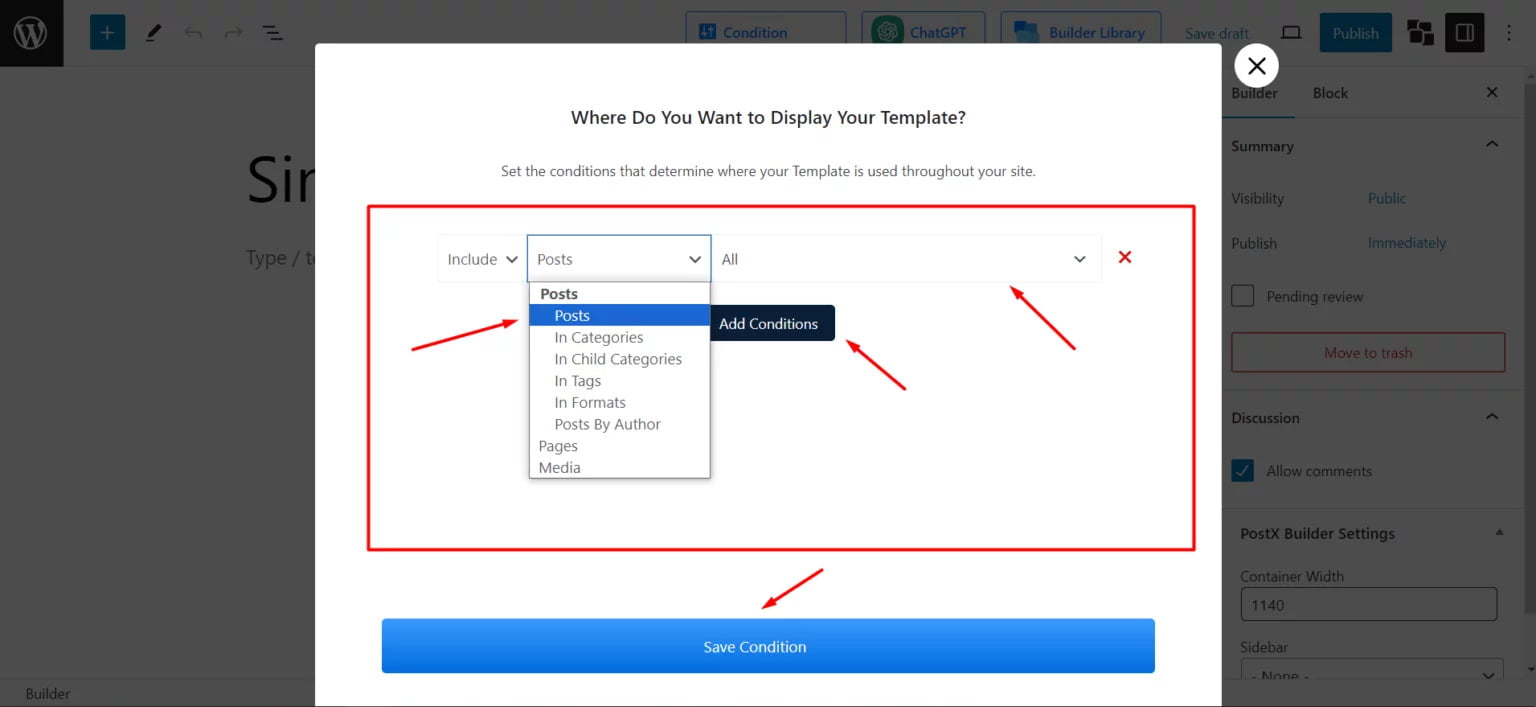
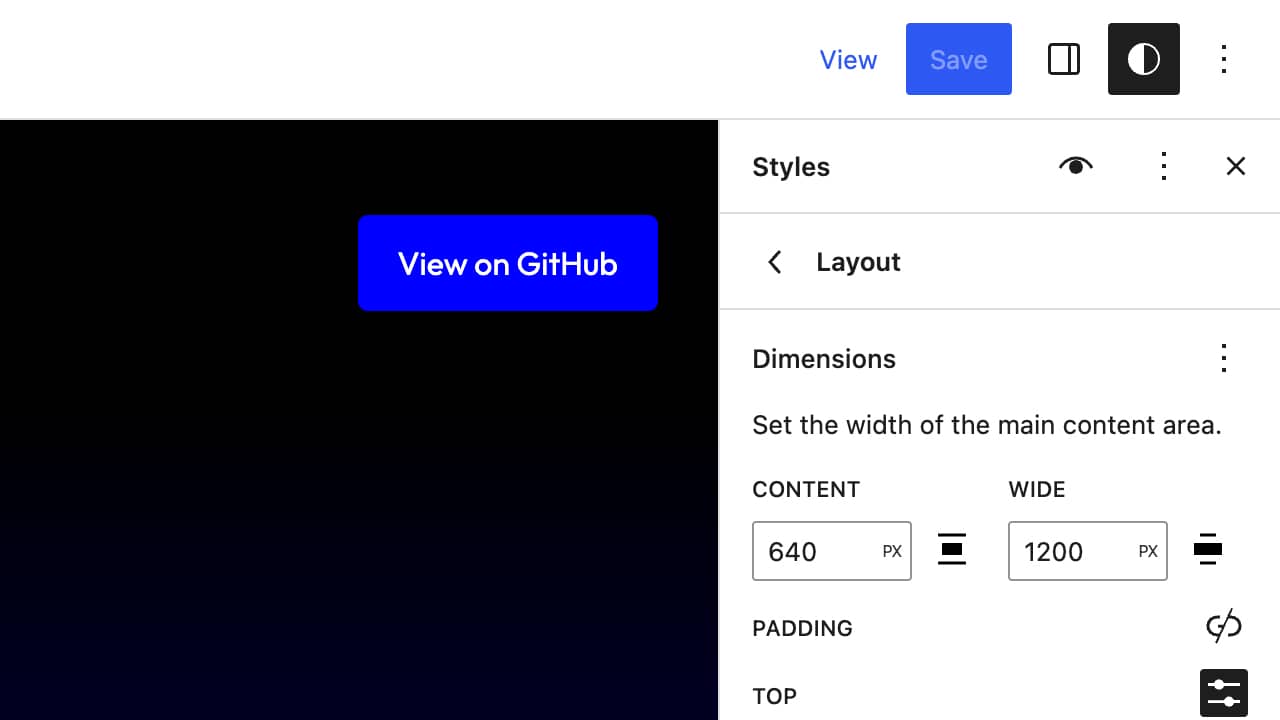
Some themes allow you to change the width easily. Check the theme settings. Look for options like “layout” or “size.” You might find sliders or dropdowns. These help change the width. Not all themes have this. Choose a theme with more options if you want control. This can make your site look unique.
Credit: www.wpxpo.com
Using Custom Css
Begin by opening your WordPress Dashboard. Navigate to Appearance and click on Customize. This area lets you change many theme settings.
Find the Additional CSS section. This is where you add custom CSS. Type your CSS code here. It changes the look of your site.
Use CSS to adjust the width. Below is a sample code for width change:
        .site {
            max-width: 1200px;
            margin: 0 auto;
        }
The max-width property sets the width limit. It keeps content centered with margin: 0 auto. You can change the value to fit your design needs.
Editing Theme Files
First, find your theme’s stylesheet file. It is often named style.css. This file controls how your site looks. You can find it in your WordPress Dashboard. Go to Appearance and then Theme Editor. Look for style.css on the right side. Click it to open. Now you can see all the CSS rules for your theme.
To change the width, look for width properties in the CSS. You may see values like px or %. Change these numbers to make the width bigger or smaller. Save changes by clicking the Update File button. Check your site to see the changes. If you don’t see changes, clear your browser cache. This helps load the new design.
Utilizing Page Builders
Page builders make tasks simple. They help adjust theme widths easily. Many options exist to change layouts. You can drag and drop elements. This saves time. No need for coding skills. Builders offer flexibility for design. Users can see changes live. They can try different layouts quickly. Page builders often have support. This is useful for new users. They can learn and grow.
Choose the page width to suit your needs. Many builders have simple controls. You can use sliders to change width. Some themes have fixed widths. Others offer more flexibility. Make sure the content fits well. Too wide and it may look strange. Too narrow and it can be hard to read. Test on different devices. Ensure it looks good everywhere.
Plugins For Width Adjustment
Elementor is a popular plugin for adjusting theme width. It offers easy drag-and-drop features. You can quickly set the width of any section. Customizer helps with theme settings. It lets you change the width without coding. Beaver Builder is another good choice. It allows you to tweak layout widths easily. WPBakery offers flexibility in layout design. It supports width modifications effortlessly.
First, install the plugin. Go to the settings page. Look for width options. Adjust the width as needed. Save your changes. Preview the site. Check if the width looks right. Make changes if necessary. Some plugins offer advanced options. Explore them for more settings. Always backup your site before big changes.
Testing And Optimization
Ensuring your theme works on different devices is crucial. Check your site on phones and tablets. Make sure the width looks good. Use tools to see how your site appears on other screens. Adjust settings if needed. Responsive design is key. Test your theme on various browsers. Look for any issues with layout. Fix any problems quickly. Your site should be easy to read everywhere.
Fast loading sites are important. Check your theme’s speed. Use tools to measure loading times. Slow sites can lose visitors. Optimize images and scripts. Reduce unnecessary plugins. Keep your theme lightweight. Test speed often. Make adjustments for better performance. A smooth experience keeps people on your site. Every second counts. Aim for quick access to content.
Troubleshooting Common Issues
Themes can act up sometimes. Layouts might look odd or content may overlap. This happens due to incorrect width settings. To fix this, first check the theme’s settings panel. Look for layout options. Adjust the width settings there. If the problem persists, inspect the CSS files. Find the width properties and modify them. Save the changes and refresh your site. Still not fixed? Try clearing the cache. Sometimes old data can cause issues.
Some errors are tricky. If changes don’t work, consider expert help. Seek advice if your theme breaks after edits. Professionals can spot complex coding issues. They ensure your site works well. They can also help if your site looks wrong on different devices. It’s okay to ask for help. They know how to fix serious problems quickly.

Credit: wordpress.com
Credit: frostwp.com
Frequently Asked Questions
How Can I Change Theme Width In WordPress?
To change the theme width in WordPress, access the theme editor. Locate the CSS file and modify the width properties. Alternatively, use the customizer to adjust layout settings. Ensure changes are responsive for different devices. Backup your theme before making any modifications to avoid issues.
Can I Adjust Width Without Coding Skills?
Yes, you can adjust width without coding skills. Use WordPress Customizer for layout adjustments. Many themes offer options to change width easily. Look for themes with built-in flexibility features. Plugins can also provide user-friendly interfaces for width adjustments, making it simple for non-coders.
Which Plugins Help Adjust Theme Width?
Several plugins assist in adjusting theme width. Elementor and WPBakery Page Builder offer drag-and-drop interfaces. They allow easy layout adjustments without coding. Customify and YellowPencil provide user-friendly design tools. Choose plugins compatible with your theme for optimal performance and customization.
Is Theme Width Adjustment Mobile-friendly?
Ensure mobile-friendly adjustments by checking responsive design settings. Use media queries in CSS for different screen sizes. WordPress Customizer often includes mobile preview options. Test your site on various devices. Responsiveness is crucial for user experience and SEO, enhancing accessibility and engagement.
Conclusion
Adjusting the width of your WordPress theme is straightforward. Start with theme settings. Explore customization options. Experiment with CSS tweaks. Use plugins if needed. Ensure mobile responsiveness. Test your changes on different devices. Keep user experience in mind. A well-adjusted theme enhances your site.
Visitors appreciate a clean, organized look. Remember to back up before changes. Stay patient and experiment. Every adjustment counts. Your site reflects your style and professionalism. Enjoy a better, personalized website experience. Embrace the process and improve your WordPress theme confidently.


