
Struggling to make your WordPress site stand out? Sometimes, a simple tweak like changing the font color can make all the difference.
Whether you want to align with your brand colors or just add a splash of personality, altering the font color on your WordPress theme can be a game-changer. Imagine capturing your visitors’ attention instantly with just the right hue—it’s like having a secret weapon that compels them to stay longer and explore more.
In this guide, we’ll walk you through the steps to easily change the font color on your WordPress theme. You don’t need to be a tech wizard to make your website pop! Ready to transform your site’s look with a few clicks? Let’s dive in.

Credit: wcanvas.com
Choosing The Right Font Color
Colors tell a lot about your brand. Choose colors that match your brand’s feel. If your brand is calm, use soft colors. A fun brand might use bright colors. Think about what your brand stands for.
Readers must easily see your text. Light text on a light background is hard to read. Dark text on a dark background is also hard. Use contrast. It helps the reader.
Try different color pairs. Test them. Ask friends for opinions. Check on different screens. Some colors look different on phones and computers. Make sure it looks good everywhere.
Credit: wpdatatables.com
Accessing The WordPress Dashboard
First, open your web browser. Type your website URL. Add “/wp-admin” at the end. Press Enter. You will see the login screen. Enter your username and password. Click the login button. You are now inside the WordPress dashboard.
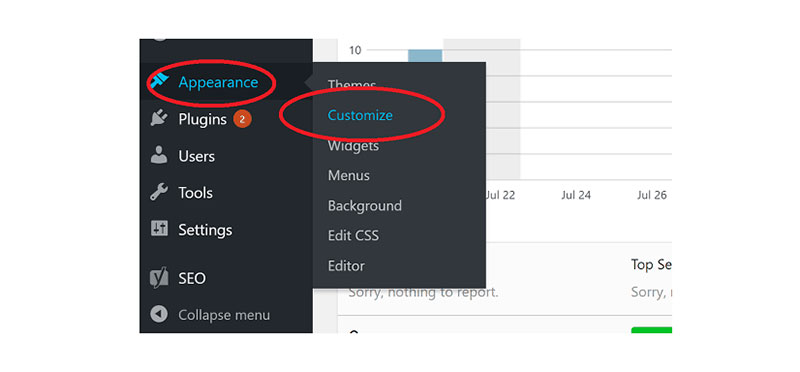
Find the Appearance menu on the left. Click on it. Then, select Customize. The Theme Customizer will open. This tool lets you change your site. Look for the Colors option. It’s usually in the sidebar. Choose it to see font color options. You can now change your font color.
Using The Theme Customizer
Find the Typography section in the customizer. Open your WordPress dashboard. Click on “Appearance” and then “Customize.” You will see many options. Look for the “Typography” section. It controls the text style.
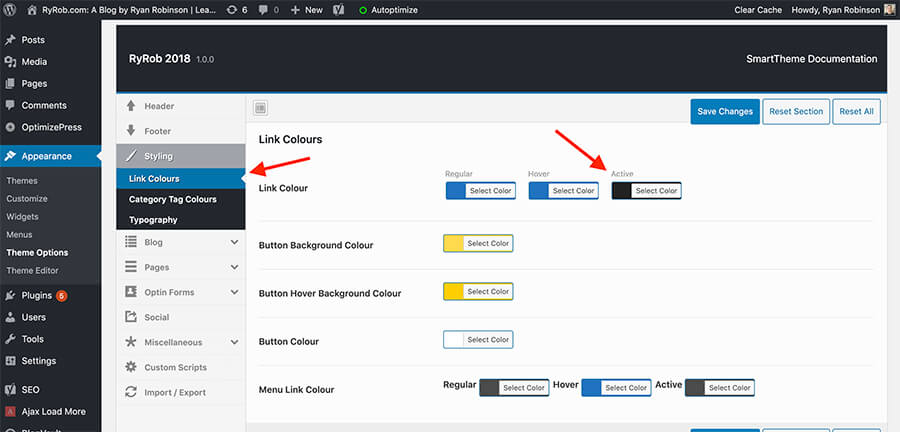
Select Font Color Options to change text color. Click on “Typography” to open more choices. You might see “Font Color” there. Click it to view colors. Pick a new color you like. This changes the text color on your site. Make sure to save changes when done. This will keep your new font color.
Customizing With Additional Css
Changing font color in a WordPress theme is simple with Additional CSS. Access the theme customizer, locate the Additional CSS section, and input the desired color code. This allows for quick personalization without altering the theme’s core files.
Open The Additional Css Panel
First, log in to your WordPress dashboard. Click on Appearance and then Customize. In the menu, find Additional CSS. Click it to open a new panel.
Insert Css For Font Color
Type your CSS code in the box. For example, to change all text to red, write: body { color: red; }. Make sure the code is correct. Check for any errors.
Preview Changes
Look at the preview on the right. See if the font color changed. If happy with the changes, click Publish. Your site will now show the new font color.
Utilizing WordPress Plugins
Change font color on a WordPress theme easily with plugins. They offer simple tools for customization. Adjust your site’s look without coding skills.
Install A Font Customization Plugin
Find a plugin that changes font colors. Popular choices are easy to find. Install the plugin through your WordPress dashboard. Make sure it works with your theme. Once installed, activate it. This lets you start using it right away.
Explore Plugin Features
Plugins often come with many features. Check what your plugin offers. Look for options to change font colors. Some plugins provide presets. Others let you choose custom colors. Make sure you understand how the features work. This ensures you use them correctly.
Apply Font Color Changes
Open the plugin settings. Find the section for font colors. Choose the color you want. Apply changes to your theme. Save the settings. Check your site to see the new colors. Make sure they look good. Adjust if necessary to get the best look.
Troubleshooting Common Issues
Sometimes, themes have built-in styles that clash. Check your theme settings. Look for any custom CSS options. Compare these with your desired font color. Disable any conflicting styles temporarily. This helps identify the problem source.
After changes, your browser may show old styles. Clearing your browser cache can fix this. Refresh your page to see updates. Use Ctrl + F5 for hard refresh. This forces the browser to reload new styles.
Can’t find the issue? Contact your theme’s support team. They know their styles best. Explain your problem clearly. They might offer a solution. Check online forums for additional help. Many users share fixes for common problems.
Credit: www.ryrob.com
Frequently Asked Questions
How Can I Change Font Color In WordPress?
To change font color in WordPress, navigate to the theme customizer. Select ‘Typography’ and modify the font color settings. Alternatively, use custom CSS to target specific elements and change their colors. Plugins like ‘Custom CSS’ can also assist in customizing font colors easily.
Can I Use Css To Change Font Color?
Yes, CSS allows you to change font color in WordPress themes. Add custom CSS to your theme’s stylesheet or through the WordPress customizer. Target specific elements using selectors, like ‘. site-title’, and apply the desired color using the ‘color’ property.
Are Plugins Useful For Changing Font Color?
Plugins are useful for changing font color in WordPress. They provide user-friendly interfaces to customize font colors without coding. Popular plugins, like ‘YellowPencil’, offer extensive design options, making it easy to change font colors across your site.
Does Theme Affect Font Color Options?
Yes, the theme affects font color options. Some themes offer built-in customization features, allowing easy font color changes. Others may require custom CSS or plugins for more flexibility. Always check your theme’s documentation for available customization options.
Conclusion
Changing font color on your WordPress theme is straightforward. Start by accessing your theme customizer. Navigate to the typography settings. There, you can adjust your font colors. Save your changes. This simple tweak enhances your site’s look. It helps express your brand’s identity.
It also improves readability for your visitors. Experiment with different colors. Find what fits your style best. Remember to check mobile view for consistency. Your site should look great on all devices. Explore more WordPress tips to optimize your site further.
Keep learning to make your website better each day.


