
Are you looking to enhance your website’s appearance and functionality with a top bar in the Shapely theme on WordPress? Adding a top bar can be a game-changer for your site.
It helps highlight important information, boost user engagement, and improve navigation. Imagine capturing your audience’s attention right from the start with a sleek, professional look that stands out. In this guide, you’ll discover simple, step-by-step instructions to seamlessly integrate a top bar into your Shapely theme.
Whether you’re a seasoned WordPress user or just starting out, you’ll find this process surprisingly straightforward. Ready to transform your website and elevate your visitors’ experience? Let’s dive in!
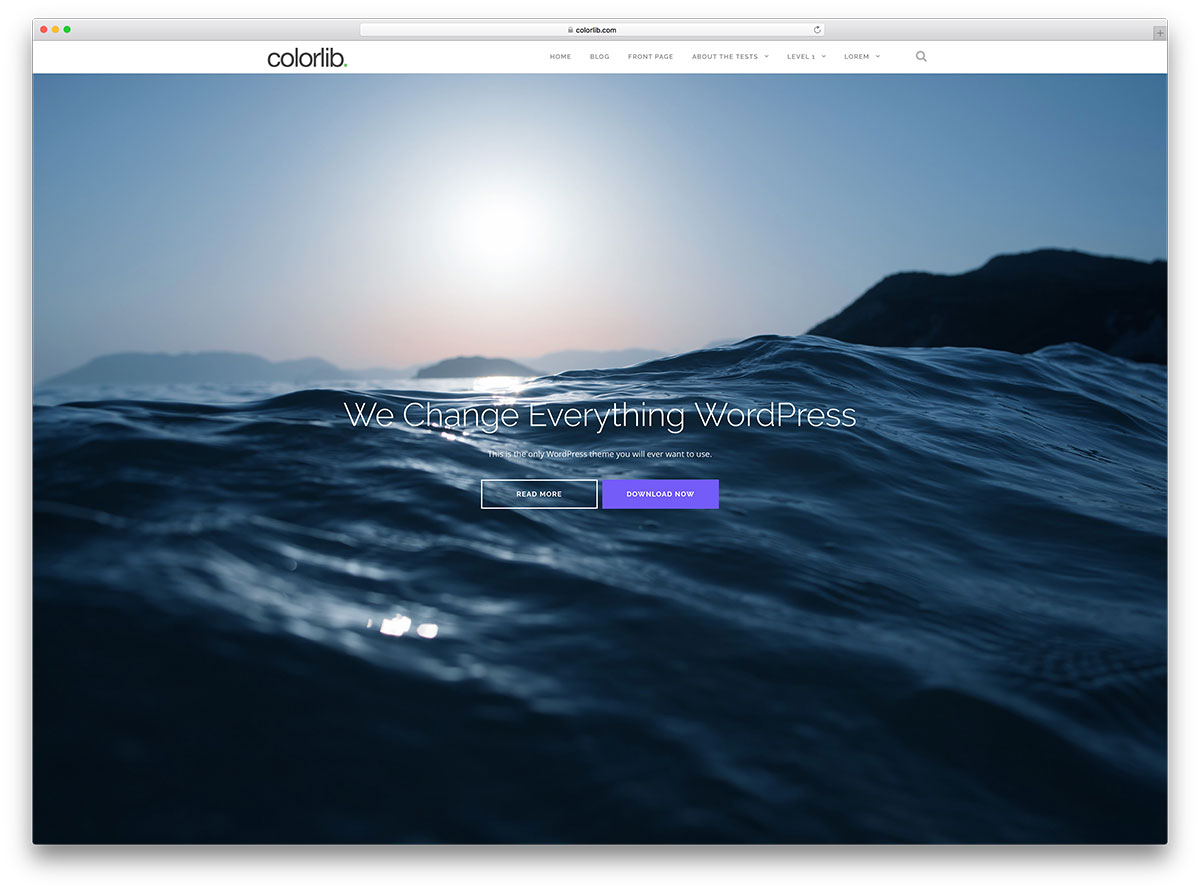
Credit: colorlib.com
Installing Required Plugins
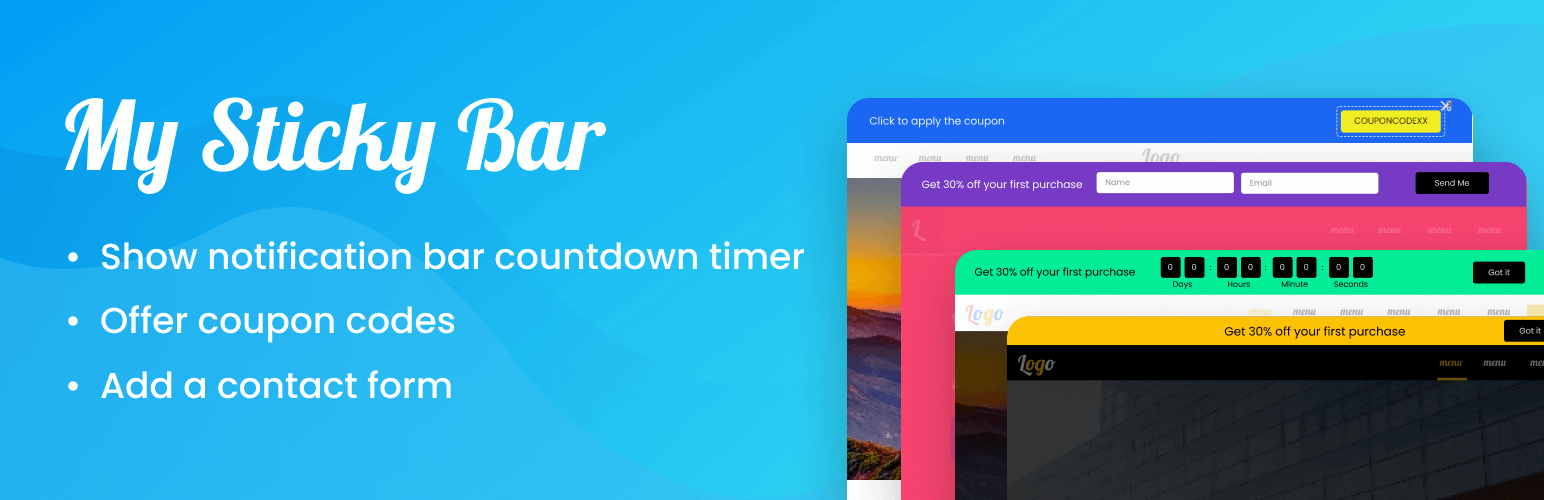
First, open your WordPress dashboard. Look on the left menu for “Plugins”. Click on it. Then, choose “Add New”. In the search box, type “Top Bar”. Many results will show up. Choose a plugin you like. Make sure it is compatible with your WordPress version. Also, check if it has good reviews.
Click on “Install Now”. Wait a few seconds. After installation, click “Activate”. This makes the plugin ready to use. Now, you can add a top bar. Look for a new menu item for the plugin. Usually, it appears under “Settings”.
Explore the plugin settings. Adjust the top bar color, text, and position. Make it look nice for your site. Save your changes. Visit your site to see the new top bar.
Credit: cs.wordpress.org
Creating A Child Theme
Adding a top bar to the Shapely theme starts with a child theme. A child theme lets you make changes without losing them on updates. First, create a new folder on your computer. Name it “shapely-child”. Inside, create two files: style.css and functions.php.
The style.css file should start with a comment block. This block includes the theme name, template, and version. It helps WordPress understand this is a child theme. Next, add custom styles for the top bar in this file.
In the functions.php file, enqueue the parent theme’s style. This ensures your child theme inherits styles from Shapely. Use wp_enqueue_style() function for this task.
Once files are ready, upload them to your WordPress theme directory. Navigate to the appearance section in WordPress. Activate the child theme there. Now, you can customize your top bar safely.
Customizing The Header
Find your WordPress dashboard. Click on Appearance. Next, choose Theme Editor. This opens the editor. Now, locate the header.php file. It sits in the right-hand list. Click to open it. This file holds the header code. Be careful while editing. Small changes can cause big issues.
In the header.php file, spot the spot for the top bar. Add your custom code here. This creates a top bar. Use simple HTML and CSS. Keep the code neat and tidy. Check changes by refreshing the site. If anything breaks, undo the last change. Save your work often. Mistakes can be fixed easily.
Adding Top Bar Code
Create a new file for your top bar. Add a element. This will hold your top bar content. Use tags for navigation links. You can also add a for text or icons.
Style the top bar with CSS. Set a background color and text color. Use padding for spacing. Align text using text-align. Make it fixed at the top with position: fixed;. Ensure it looks nice on mobile devices.
Add some JavaScript to make it interactive. You can hide or show the bar on scroll. Use document.addEventListener for events. Toggle classes for animations. Keep it simple and smooth for users.
Configuring Top Bar Features
Adding social media links to your top bar is easy. Use the theme’s customizer feature. Navigate to the social links section. Add URLs for Facebook, Twitter, and Instagram. These links will show as icons. Icons are clickable and easy to find.
Displaying contact information is important. Use the top bar for phone numbers and email addresses. Make sure information is visible and easy to read. Visitors can contact you quickly. It’s essential for customer support.
Use the top bar for custom text or announcements. Share updates or special offers. You can add short messages. Messages should be brief and clear. This keeps your audience informed. Updates build trust with visitors.
Testing And Troubleshooting
Adding a top bar in the Shapely theme enhances navigation. Start by accessing the WordPress dashboard, then select ‘Appearance’ and ‘Customize’. Explore options to enable and customize the top bar, adjusting colors and text to match your site’s style.
Checking Mobile Responsiveness
Ensure the top bar looks good on all devices. Use a smartphone or tablet to check. The bar should fit well and not overlap. Text must be clear and buttons easy to tap. Adjust settings in WordPress if needed. Mobile view matters a lot for users.
Resolving Common Issues
Sometimes, the top bar might not show. This can be due to theme conflicts. First, check the theme settings. Ensure the top bar option is enabled. Plugins can also cause issues. Deactivate them one by one to find the problem. Update your theme and plugins regularly. This can fix many bugs. Always have a backup before making changes.
Maintaining The Custom Top Bar
Adding a top bar in the Shapely Theme is simple. First, access your WordPress dashboard. Then, find the Appearance section. Click on Customize. Look for the Top Bar settings. Here, you can add text or links. Make sure to save changes.
Updating For Theme Changes
Theme updates can change settings. Check the top bar after an update. Go to the Customize section again. Verify your top bar settings. Adjust if needed. Keeping the bar updated is important.
Ensuring Plugin Compatibility
Plugins can affect the top bar. Some plugins may cause issues. Ensure plugins are up-to-date. Check the plugin settings. Disable any that cause problems. This helps keep the top bar working well.
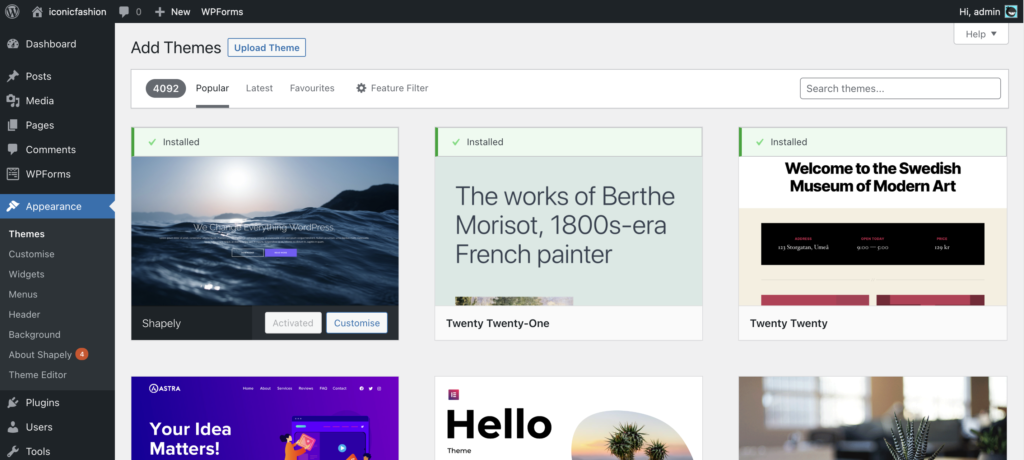
Credit: wpmanageninja.com
Frequently Asked Questions
How To Customize The Shapely Theme Top Bar?
Customizing the Shapely theme top bar involves using WordPress customizer. Navigate to Appearance > Customize > Header Options. Here, you can modify the content, colors, and fonts. Ensure to save changes after customization for them to reflect on your site.
Can I Add A Top Bar Without Coding?
Yes, you can add a top bar without coding by using a plugin. Search for top bar plugins in the WordPress repository. Install and activate a plugin, then configure it through its settings. Plugins like “Top Bar” are user-friendly and require no coding skills.
What Plugins Add A Top Bar In Shapely?
Plugins such as “Top Bar” and “WPFront Notification Bar” add a top bar. They allow customization of text, links, and colors. Install the plugin from WordPress repository, activate it, and follow the setup instructions to integrate it into your Shapely theme.
Is The Top Bar Mobile Responsive?
Yes, the top bar is mobile responsive when using Shapely theme or plugins. Ensure that your theme and plugins are updated to the latest versions. Test your site on different devices to verify responsiveness and adjust settings if necessary for optimal display.
Conclusion
Adding a top bar in the Shapely theme is simple. Follow the steps above. Customize your site with ease. Improve user experience by keeping navigation clear. The top bar helps visitors find important information quickly. Enhance your website’s appearance without hassle.
Stay creative while designing your site. Make sure your content is accessible. A well-placed top bar can boost engagement. Remember to test changes before finalizing. Enjoy your improved WordPress site. Keep exploring new ways to enhance your theme. Your website reflects your style.
Keep it fresh and user-friendly for all visitors.


