
Are you looking to enhance your WordPress site with extra functionality? Adding a shortcode to your theme’s header can be a game-changer.
It allows you to insert dynamic content, control design elements, or add important scripts without the need for complex coding. Imagine the possibilities—customizing your site just the way you want, with minimal effort. This guide will walk you through the simple steps to effortlessly integrate a shortcode into your WordPress theme’s header.
Whether you’re a seasoned developer or a WordPress novice, you’ll find this process straightforward and rewarding. Dive in to discover how you can elevate your website’s capabilities and make it more engaging for your visitors.
Credit: www.wpbeginner.com
Understanding Shortcodes
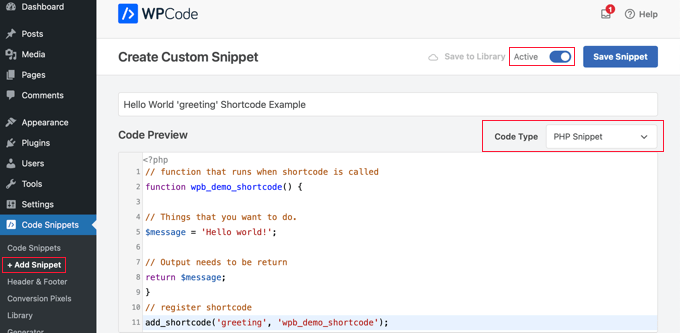
Shortcodes are small pieces of code in WordPress. They make life easy. Developers use shortcodes to add features. You don’t need to know coding. Just add the shortcode. It can display a gallery, video, or form. Shortcodes save time. They are like magic keys. They unlock features in your site. Easy and fast.
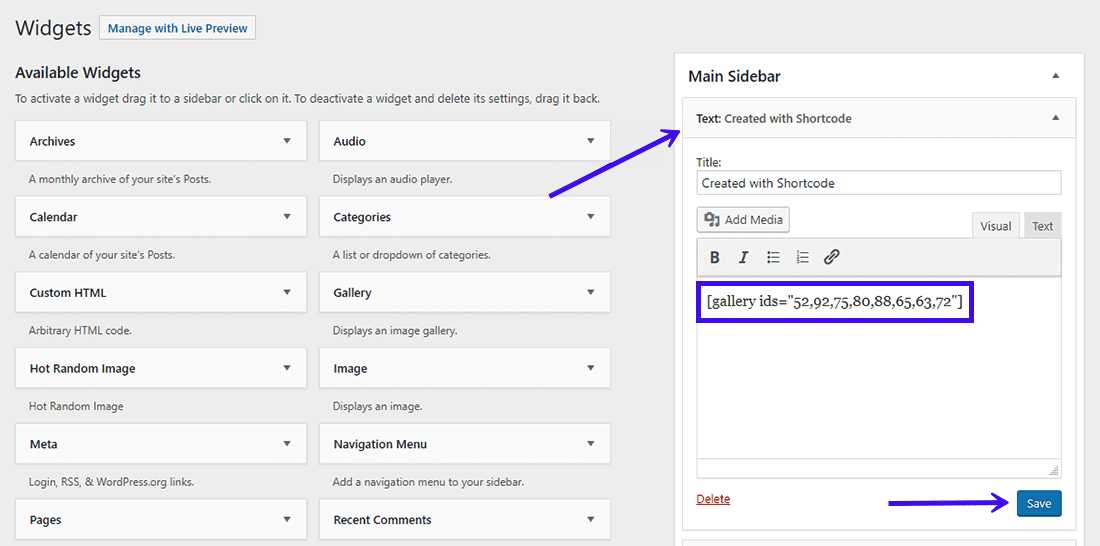
Shortcodes are inside brackets. Like this: [shortcode]. You place them in posts, pages, or widgets. WordPress reads it and shows the feature. Themes and plugins often come with shortcodes. You might find them in the documentation. Explore and see what your theme offers. You might be surprised. Remember, shortcodes are your friends.
Credit: kinsta.com
Locating The Header File
Find the header file in WordPress theme. It is often named header.php. Use your WordPress Dashboard. Go to Appearance, then Theme Editor. Look for the file list on the right.
Click on the header.php file. This opens the code. It is important to not make mistakes here. Changes here affect the whole site. Backup your theme before editing. This keeps your site safe.
Find the right spot in the code. Look for section. This is where short codes go. Be careful with the syntax. Wrong syntax can break the site. Save changes after editing.
Creating A Child Theme
A child theme is a way to change a WordPress theme safely. It lets you keep your changes even when the main theme updates. First, make a new folder in the wp-content/themes directory. Name it something like “my-child-theme”.
Next, create a style.css file inside your new folder. Add this code at the top:
        /
        Theme Name: My Child Theme
        Template: parent-theme-folder-name
        /
Replace “parent-theme-folder-name” with your main theme’s folder name. Save the file. Now, create a functions.php file in the same folder. Use it to add custom functions or shortcodes to your theme. Remember, changes in the child theme won’t affect the main theme.
Editing Header.php
The header.php file is crucial in WordPress. It controls the top part of your site. This part is seen on every page. To add a shortcode here, you need to edit this file. First, go to your WordPress dashboard. Next, click on Appearance and then Theme Editor. Look for the header.php file on the right. Click to open it.
You will see lines of code. Find the spot where you want your shortcode. Shortcodes are bits of text in brackets, like [your-shortcode]. Place it carefully in the right place. Save your changes when you are done. Check your site to see the changes. Be careful with edits. Errors can break your site.
Adding Shortcode To Header
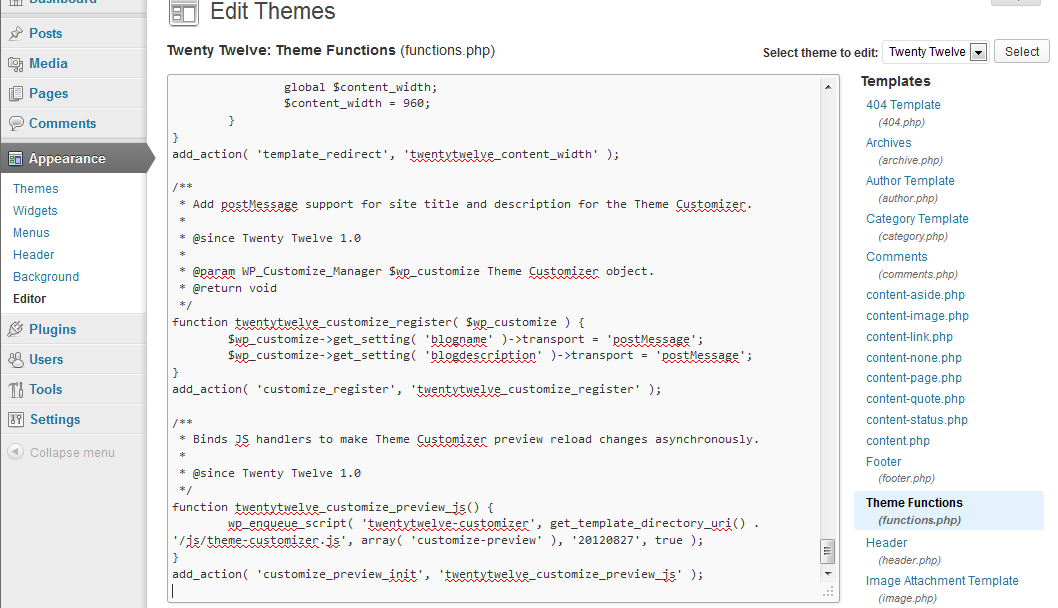
Shortcodes make tasks easy in WordPress. Sometimes, placing a shortcode in the header is needed. Start by accessing your theme files. Use FTP or the built-in editor. Find the header.php file. This file controls the header area. Open the file with a text editor.
Locate where you want the shortcode. Copy your shortcode. Paste it in the chosen spot. Save changes to the file. Refresh your site. Your shortcode should appear in the header. If not, check for errors. Ensure the shortcode is correct.
Be careful with changes. Incorrect changes can break your site. Always back up your files before editing. This ensures safety if mistakes happen. WordPress makes editing flexible. But caution is key.
Credit: www.inmotionhosting.com
Testing The Shortcode
Testing the shortcode is easy. First, add the shortcode to a test page. Then, open the page in a browser. Look for changes on the page. This shows the shortcode is working. Check for any errors on the page. If errors appear, the shortcode may be wrong. Look at the code for mistakes. Fix any errors you find. Then, test the page again. Testing ensures everything works before going live. Always test shortcodes before using them on real pages. This keeps the site working well. Testing is a smart step in coding.
Troubleshooting Common Issues
Many face problems with shortcodes in WordPress headers. Sometimes, the shortcode does not work. This can be because of a coding error. Check if the shortcode is typed correctly. Mistyped shortcodes will not function. Ensure the theme supports shortcodes in headers. Some themes do not allow it. In such cases, consider changing the theme. Another issue is plugin compatibility. Certain plugins may conflict. Disable plugins one by one to identify the culprit. Clear the cache after every change. Caches can hold old data. This stops new changes from showing. Always update WordPress and plugins. Outdated software can cause problems. If problems persist, contact the theme or plugin developer. Their support team can help solve complex issues.
Best Practices For Using Shortcodes
Shortcodes make your website more functional. They help add features easily. Always use shortcodes in trusted themes. This ensures they work properly. Never edit core files directly. This can break your site. Instead, use a child theme. This keeps your changes safe.
Keep your shortcodes organized. Name them clearly. This helps you find them later. Use comments in your code. Comments explain what each shortcode does. This is helpful for you and others. Backup your site before adding new shortcodes. This protects your data.
Test the shortcode on a staging site first. This is a copy of your site. It lets you see changes without risk. After testing, add it to the live site. This keeps your main site safe.
Frequently Asked Questions
How Do I Add Shortcode To My WordPress Header?
To add a shortcode to your WordPress header, edit the theme’s header. php file. Use the `do_shortcode` function to insert the shortcode. Ensure your theme allows direct code modifications. Always backup your theme files before making changes to prevent any potential issues.
Can I Use Plugins To Add Header Shortcodes?
Yes, plugins like “Insert Headers and Footers” allow you to add shortcodes without editing theme files. This is a safer method for beginners. Simply install the plugin, navigate to its settings, and insert your shortcode in the header section.
What Is The Purpose Of Shortcodes In Headers?
Shortcodes in headers help integrate dynamic content, such as analytics or custom functions. They enhance functionality without cluttering the theme’s code. Shortcodes make it easier to manage and update content across your WordPress site.
Are Header Shortcodes Theme-specific?
Generally, header shortcodes are not theme-specific and can work across different themes. However, their functionality might vary based on theme compatibility. Always test shortcodes when switching themes to ensure they function correctly.
Conclusion
Adding short codes to the header in WordPress is simple. It enhances website functionality. Follow the steps carefully for best results. This guide helps beginners and experienced users alike. Short codes make customization easier. They improve the user experience. Use them wisely to optimize your site.
Always backup your theme before changes. Experiment with different codes to find what works best. The right short code can transform your header. Now, you’re ready to enhance your WordPress theme. Dive in and start customizing today. Happy coding!


