
Are you tired of your WordPress theme looking just like everyone else’s? Do you wish you could give it a unique flair that truly represents your style or brand?
You’re not alone. Many WordPress users feel limited by the default designs, but here’s the good news: you have the power to change it. Imagine having the ability to tweak colors, fonts, and layouts with ease. It’s like having a digital paintbrush in your hands, ready to transform your website into a work of art.
In this guide, you’ll discover straightforward ways to change CSS elements in your WordPress theme. No need to be a tech wizard or have a coding background. With simple steps and a bit of creativity, you can make your site stand out and capture your audience’s attention. Ready to unlock the secrets of customization and bring your vision to life? Let’s dive in.
Choosing The Right Theme
Choosing a theme needs care. Make sure it’s compatible with WordPress. Look for themes that support CSS changes. This helps in making your site unique. Some themes might not allow easy changes. You should check if the theme has customization options. Compatibility with plugins is important too. Plugins add features to your site. Not all themes work well with every plugin. So, test them together. Make sure everything runs smoothly. A well-matched theme makes design easy and fun.
Using a child theme is smart. It keeps your changes safe. Parent themes update often. Updates can overwrite your changes. Child themes save your custom CSS. So, your work stays even after updates. Make a child theme before editing CSS. It’s a safe way to change your site. You only change what you need. Parent theme stays as is. This way, you have a backup. It helps if something goes wrong. Always consider using a child theme.

Credit: influencerseo.com
Accessing Theme Files
Open your WordPress dashboard. Click on Appearance. Then choose Theme Editor. You will see theme files on the right. Click on the file named style.css. This file holds most of the CSS code. Make changes to the code. Don’t forget to click Update File to save.
Get an FTP client like FileZilla. Find your site’s FTP details. Enter them in the FTP client. Navigate to the wp-content/themes folder. Open your theme folder. Look for style.css. Download the file. Edit it with a text editor. Upload it back to the server. Changes will show on your site.
Locating Css Files
Most WordPress themes have a main CSS file. This file is often named style.css. You can find it in the theme folder. Start by going to your WordPress Dashboard. Click on Appearance and then on Theme Editor. Look for the style.css file on the right. This file controls the look of your site. You can change colors, fonts, and more. Always save changes after editing.
WordPress themes have a specific structure. Each theme may have different files. Besides style.css, there are other CSS files. These might be in subfolders. Check for folders named css or assets. Themes can also use custom CSS. This is in the Custom CSS section of the theme options. Explore your theme to know its structure better.
Editing Css Safely
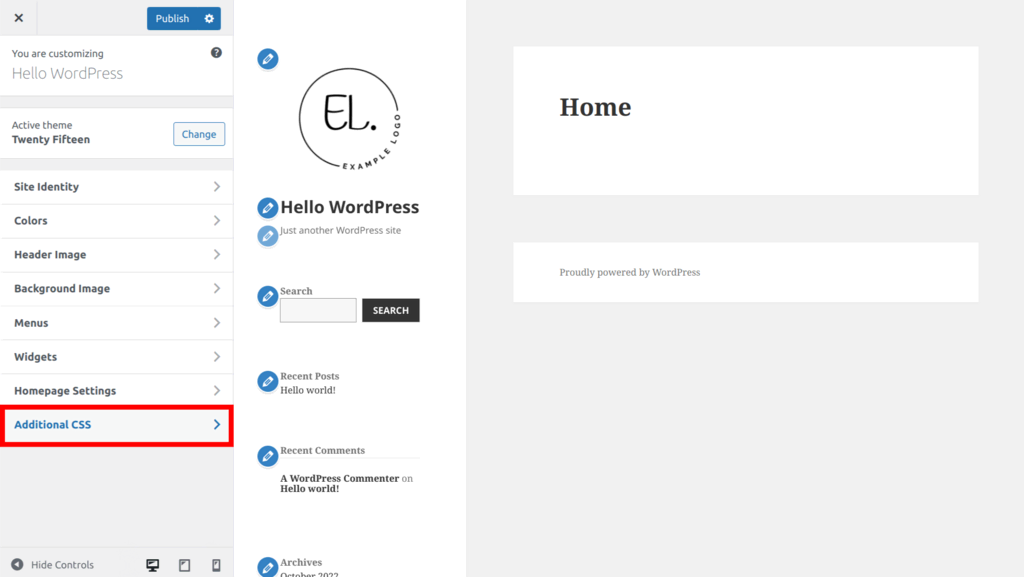
The WordPress Customizer is a safe place to change CSS. You can find it in the dashboard. Look for “Appearance” and then click on “Customize”. Inside, there’s an option called “Additional CSS”. Click on it. A box will open where you can add your CSS code. It’s a simple way to test new styles. Changes show instantly on the preview screen. No need to worry about breaking the site. This method is safe for beginners. Always save changes after editing.
Adding CSS through the Customizer is helpful. It lets you see changes live. First, type your CSS code in the box. Check the preview to see how it looks. If it’s good, click “Publish” to save. This will update the site with your changes. Make sure to test on different devices. The Customizer keeps your theme files safe. Your original CSS stays untouched. This is a great tool for small tweaks.
Utilizing Child Themes
A child theme lets you change your site’s look without altering the main theme. First, make a new folder in the wp-content/themes directory. Name it after your child theme. Inside this folder, create a style.css file. Add a header to this file. Include the theme name, description, and author. Link it to the parent theme with Template: parent-theme-name.
Edit the style.css file to change the design. Add custom CSS rules. Override the parent theme styles. Use !important to ensure your rules apply. Refresh your site to see changes. Keep testing until the design fits your needs. Make backup copies of your changes. This saves time if errors occur. Use a browser tool to inspect elements. This helps you find the right CSS classes to modify.
Using Code Editors
Choose a code editor that feels easy. Notepad++, Sublime Text, and Visual Studio Code are popular choices. They are free to use. These editors highlight code. This makes reading and writing easy. They also have features like auto-complete. This saves time. Download and install them from their websites.
Open the WordPress theme files in your chosen editor. Look for the CSS file. It usually has a .css extension. Make changes to the CSS elements you want. Be careful with changes. Save your changes after editing. Refresh your website to see changes. If something breaks, you can undo changes. Save the file again to fix.
Implementing Changes
After changing the CSS, check the site on different devices. Use a computer, tablet, and phone. Ensure the design looks good on all. Sometimes elements shift or look odd. Adjust the CSS if needed. A site should be responsive. This means it works well everywhere. Users might visit from any device. Testing helps catch problems early.
Sometimes changes don’t show up. Clear the cache to fix this. Browsers save old versions of sites. Refreshing helps see the new look. Go to browser settings. Find the clear cache option. Do this after making changes. It ensures visitors see the latest design. Check the site again after clearing. Make sure all changes are visible.
Credit: www.hostinger.com
Troubleshooting Css Issues
Many people face problems with CSS. CSS errors can make a webpage look broken. Sometimes, a missing semicolon or curly brace causes issues. It’s important to check your code carefully. Look for typos or syntax errors. These are common mistakes. Also, check for conflicting styles. They happen when two styles fight over an element. This can cause unexpected results.
Developer tools help find CSS problems. Right-click on the page. Choose “Inspect” to open the tools. You will see the HTML and CSS code. Look for errors or warnings. The tool shows them in red or yellow. You can also try changing styles here. See how changes affect the page. This helps in fixing problems faster. Always remember to save changes in your CSS file.
Best Practices For Css Changes
Clean code is easy to read. Spaces and tabs help. Use them wisely. Keep your code simple. Avoid messy styles. Messy code is hard to fix.
Always check your changes. Make sure they work. Test on different devices. Clean code runs better. It also helps others understand your work.
Write down every change. Include what you did and why. Use comments in your code. They explain your thoughts. Good documentation helps everyone.
Create a file for changes. Keep it updated. Add dates to each entry. This makes it easy to track changes. Helps when you need to fix problems.

Credit: stackoverflow.com
Frequently Asked Questions
How Do I Access Css Files In WordPress?
To access CSS files, navigate to your WordPress dashboard. Go to Appearance > Theme Editor. Here, you can edit style. css. Alternatively, use an FTP client to locate the wp-content/themes/your-theme folder. Always back up files before making changes to prevent data loss.
Can I Use A Plugin To Edit Css?
Yes, you can use plugins like Simple Custom CSS. Install and activate the plugin from the WordPress repository. It allows you to add custom CSS without modifying theme files. This keeps your changes intact even after theme updates, ensuring your design remains consistent.
What Should I Do Before Editing Css?
Before editing CSS, always back up your theme files. This ensures you can revert changes if necessary. Consider using a child theme to avoid overwriting customizations during theme updates. This practice protects your design and keeps your custom CSS separate and organized.
How Do I Preview Css Changes In WordPress?
Use the WordPress Customizer to preview CSS changes in real time. Navigate to Appearance > Customize, then select Additional CSS. Here, you can enter your CSS code and see immediate changes. This tool helps you test designs before publishing, ensuring optimal results.
Conclusion
Editing CSS in WordPress themes can be simple. Start by identifying the elements you want to change. Use the browser’s developer tools for easy navigation. Explore and experiment with different styles. Save your changes regularly to avoid losing work. CSS editing enhances your site’s look and feel.
Keep your design consistent for a professional appearance. Regular updates keep your site fresh and attractive. Practice makes perfect; the more you edit, the better you get. Enjoy customizing your WordPress theme with your new CSS skills. Happy designing!


