
Are you tired of the default look of your WordPress website? Changing the fonts and colors of your theme can breathe new life into your site, making it more appealing to your visitors.
Imagine a website that stands out, captures attention, and reflects your unique style or brand identity. That’s exactly what you can achieve by customizing these elements. But where do you start? The process might seem daunting at first, but don’t worry.
You’re about to discover how simple tweaks can create a significant impact. Whether you’re looking to make minor adjustments or a complete overhaul, this guide will walk you through each step. By the end, you’ll have the tools you need to transform your website’s appearance and create a stunning visual experience for your audience. Ready to dive in and unleash your website’s potential? Let’s get started!
Choosing The Right Theme
Themes must fit your website needs. Check if the theme supports plugins. Plugins are tools that help your site. Ensure the theme works on mobile devices. Phones and tablets are important. Your site should look good everywhere. Look for updates. Updates keep your theme safe and fresh.
Many themes are free. Some cost money. Free themes are good for beginners. Paid themes have more features. They give you more choices. Always check the ratings. Ratings show what others think. Read the reviews. Reviews help you know if the theme is easy. Good themes have support. Support helps when things go wrong. Always pick a theme you like.
Credit: www.wpbeginner.com
Accessing Theme Customizer
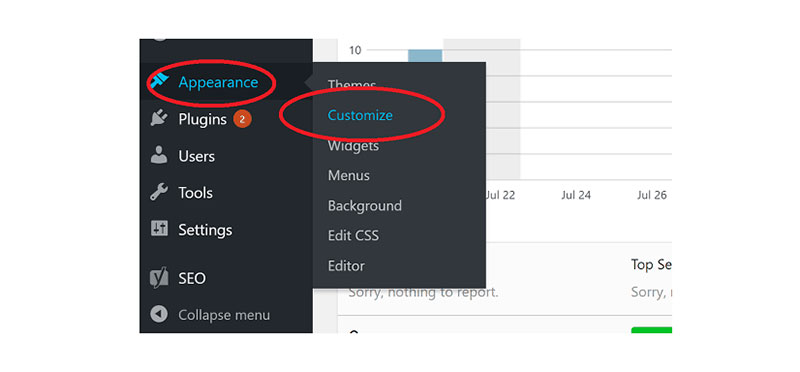
Find the WordPress dashboard. Click on Appearance. Then, choose Customize. This opens the theme customizer. The customizer is easy to use. It helps you change theme settings.
The interface has different options. You can change fonts. You can choose new colors. Look for the Typography section for fonts. Find the Colors section for colors. Each section is simple to understand. Follow the instructions to make changes. Every change updates the preview. This helps you see your changes.
Changing Theme Fonts
Choose the best font for your site. Start by finding the font menu. It’s usually in the theme settings. Some themes have a lot of options. Others have only a few. Try different fonts. See which one fits your style best. If unsure, pick a simple font. Simple is often better.
Google Fonts offers many free fonts. They are easy to add. First, go to Google Fonts website. Browse and select a font you like. Copy the code provided. Paste it into your theme’s header file. This adds the font to your site. Now, you can use it in your design.
Font size affects readability. Make sure text is easy to read. Find the font size settings in your theme. Most themes allow size adjustments. Increase or decrease the size as needed. Keep headlines large and bold. Regular text should be smaller. Adjust until it looks good.
Credit: wpdatatables.com
Adjusting Theme Colors
Pick colors that match your brand. Bright colors can be fun. Soft tones give a calm feel. Choose a main color for your theme. Add two or three more to support it. This keeps your design neat.
Backgrounds matter a lot. They make text easy to read. Light backgrounds work well with dark text. Dark backgrounds need light text. Keep it simple for the best look.
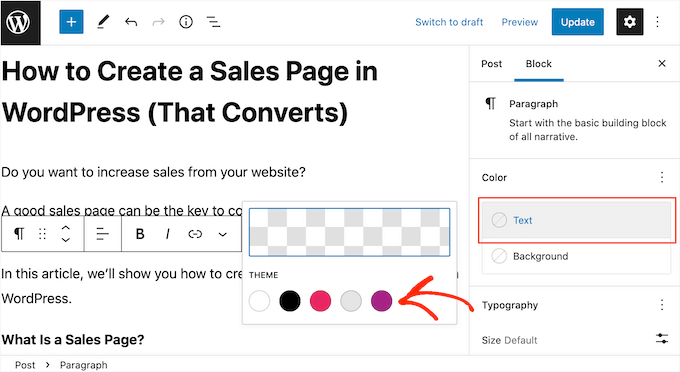
Text color should be clear. It helps with reading. Bold colors are good for headings. Use softer shades for body text. This makes your site easy to read and look at.
Using Additional Plugins
Enhancing your WordPress site’s look is easy with additional plugins. Change theme fonts and colors effortlessly. These tools offer simple steps to personalize your site, making it visually appealing and unique.
Exploring Font Plugins
Font plugins can help change the look of your site. They are easy to use. Some popular ones are Easy Google Fonts and Use Any Font. These plugins let you pick from many font styles. You can change the size and color too. This makes your site unique. Easy Google Fonts is very popular. It is free and simple to use. Use Any Font allows you to add custom fonts. This means you can use any font you like. No need to know coding.
Color Customization Plugins
Changing colors on your site is fun and simple. You can use plugins like WP Color Picker. This plugin offers a wide range of color choices. Color Customizer is another great option. It provides an easy interface to tweak colors. Both plugins help make your site look nice. They are user-friendly. You can change the background, text, and link colors. This makes your site vibrant. It stands out more. Simple steps with big effects.
Previewing Changes
Click on the WordPress Customizer in your dashboard. This tool helps you see changes live. Adjust the fonts and colors as you like. Watch the preview update immediately. It’s fun to try different looks. You can see what works best. Experiment with bold colors or simple fonts. Your website should reflect your style. The live preview is your friend here. Play around and find what you love.
Viewing Live Changes
Notice changes instantly with the preview tool. No need to save first. Just change, and see it live. It’s like magic. Easy and quick. Anyone can do it. You don’t need special skills. Just click, and watch. Your site transforms in seconds. Enjoy the process. It’s all about finding the right look.
Reverting Unwanted Adjustments
Made a change you don’t like? No worries. Simply hit the undo button. The preview will revert back. Easy and stress-free. Mistakes happen, and that’s okay. Just try again. You can always return to the original look. Nothing is permanent until you save. Take your time. Find what fits best for your site.
Saving And Publishing
Saving customizations is very important. After making changes, locate the “Save” button. It is usually at the top or bottom. Click it to save your work. This ensures no changes are lost. You can continue editing later.
Once saved, these changes are not live yet. They are only visible in the preview. You have the option to review them again. Make sure everything looks right before going live.
Publishing your changes makes them live on your site. Find the “Publish” button. It is often near the save button. Click it to make your changes visible to everyone. Now, everyone can see your new fonts and colors. Remember, you can always go back and edit more. Your site should look just the way you want. This process is simple but important.
Troubleshooting Common Issues
Easily adjust fonts and colors in your WordPress theme for a fresh look. Access the theme customizer in the dashboard. Explore typography and color options to match your style.
Resolving Font Display Problems
Fonts may not show correctly. Check if the font file is missing. Sometimes, themes use web fonts. Ensure your internet connection is stable. Clear browser cache to see changes. Use browser tools to inspect elements. Look for CSS issues. Update your theme regularly. This can fix bugs. Install a font plugin if needed. Plugins can help with custom fonts.
Fixing Color Conflicts
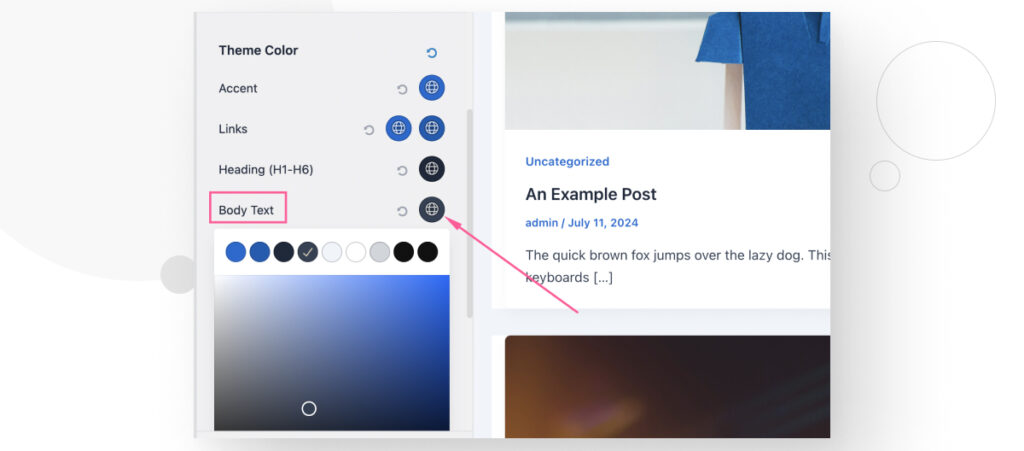
Colors may clash unexpectedly. Check your theme’s color settings. Use a color picker tool. This helps find exact shades. Avoid using too many bright colors. They can make text hard to read. Adjust colors in the theme customizer. Save changes after editing. Refresh your website to view updates. Sometimes plugins cause conflicts. Disable plugins one by one. See if the problem resolves. Update plugins to their latest version.
Credit: wcanvas.com
Frequently Asked Questions
How Do I Customize WordPress Theme Fonts?
To customize fonts, go to your WordPress dashboard, click on ‘Appearance’, then ‘Customize’. Navigate to the ‘Typography’ section. Choose your desired fonts for headings and body text. You can use Google Fonts for more options. Save your changes to see the updated fonts on your site.
Can I Change WordPress Theme Colors?
Yes, you can change theme colors by accessing the ‘Customize’ section in your WordPress dashboard. Under ‘Colors’, select the areas you wish to modify. Use the color picker to choose new colors for backgrounds, text, and links. Save your changes for them to take effect on your website.
What Tools Help In Changing Fonts?
Tools like Google Fonts and Adobe Fonts are great for changing WordPress fonts. You can integrate these with your theme customization settings. Plugin options like Easy Google Fonts allow for even more flexibility. They help in selecting from a wide range of font styles and enhancing website design.
Are Plugins Useful For Color Changes?
Yes, plugins like Elementor and Beaver Builder can simplify color changes. They offer advanced customization options beyond default settings. These plugins allow you to visually adjust colors, enhancing the aesthetic appeal of your website. They are user-friendly and ideal for non-developers seeking control over design.
Conclusion
Changing fonts and colors on your WordPress theme is simple. It gives your site a fresh look. Start by accessing the theme customizer. Experiment with different styles. Choose colors that match your brand. Fonts should be readable and appealing. Keep consistency across pages.
Remember, small changes can make a big difference. Regularly updating your design keeps your site modern. Enhances user experience too. Don’t be afraid to try new ideas. Your site reflects your creativity. Enjoy the process of personalizing your WordPress theme.
Happy designing!


