
Are you looking to give your WordPress site a fresh new look? Adding a theme page might just be the makeover your website needs.
Themes not only enhance the aesthetic appeal but also improve the overall user experience. Whether you’re a blogger, business owner, or creative professional, customizing your site’s appearance can make a significant impact. But how exactly do you go about adding a theme page in WordPress?
Don’t worry—it’s simpler than you might think. In this guide, you will discover the step-by-step process to seamlessly integrate a new theme page into your WordPress site. Ready to transform your site’s appearance and captivate your audience? Let’s dive in and explore how you can easily achieve this with just a few clicks.
Credit: help.elements.envato.com
Choosing The Right Theme
Picking the right theme is important. A theme should fit your website’s purpose. It must also be responsive. This means it looks good on all devices. Check if the theme is easy to customize. You want to change colors and fonts easily. Look for themes that are regularly updated. This ensures they work with new WordPress versions. Also, read user reviews. They tell you if the theme has issues.
Many websites offer WordPress themes. The WordPress Theme Directory is a good place to start. It offers free themes. Another option is ThemeForest. They have many premium themes. Elegant Themes is known for their popular Divi theme. StudioPress offers themes with the Genesis Framework. Always check the theme’s ratings and support options before buying.
Accessing The WordPress Dashboard
First, open your browser. Type the WordPress login URL. Enter your username and password. Click the login button. Now, you are in the WordPress dashboard.
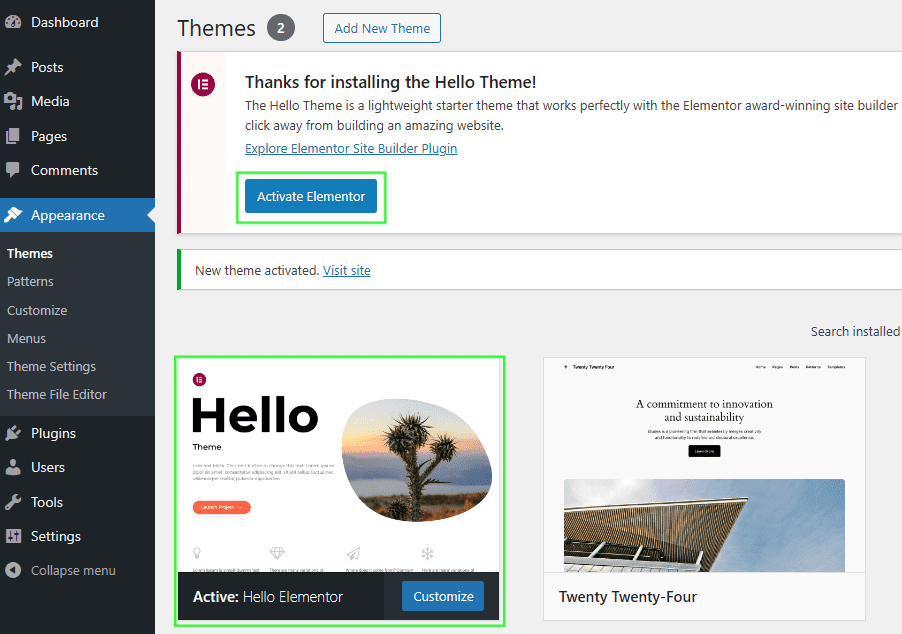
On the left sidebar, find Appearance. Click on it. A new menu appears. Look for Themes. Click on Themes. You can see your current theme and options. Choose Add New for more themes.
Installing A New Theme
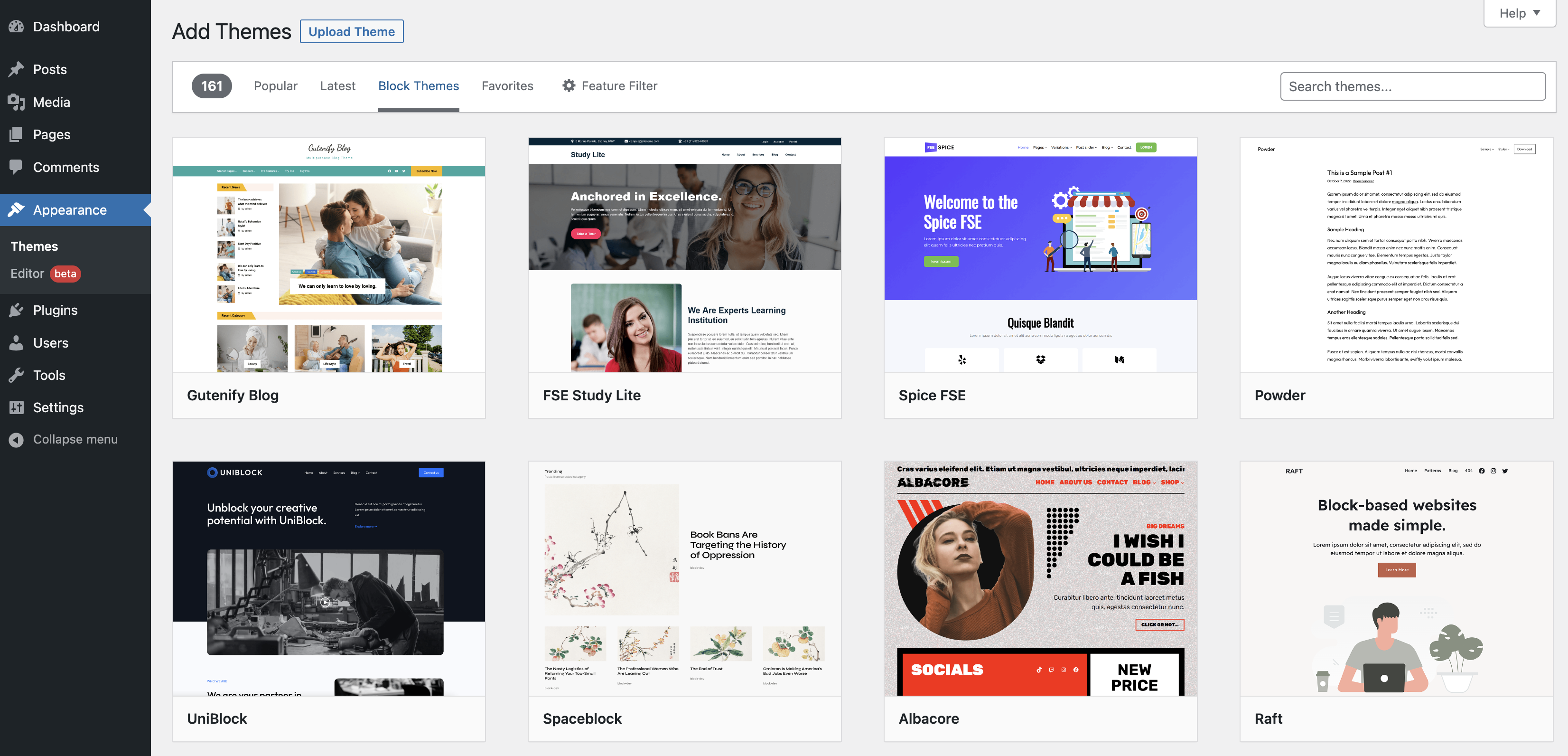
WordPress has a Theme Repository. You can find many free themes there. First, go to your WordPress dashboard. Click on Appearance and then Themes. Click the Add New button. Now you can see many themes. Use the search bar to find a theme you like. Once you find one, click Install. After it installs, click Activate to use the theme. That’s it! You have a new theme.
Sometimes, themes come as a zip file. First, download the theme zip file to your computer. Go to your WordPress dashboard. Click on Appearance and then Themes. Click Add New and then Upload Theme. Choose the zip file from your computer. Click Install Now. After installing, click Activate to start using your new theme. Easy as pie!
Activating Your Theme
Before making a theme live, you can preview it. This helps you see how your site looks. Go to your WordPress dashboard. Click on “Appearance” and then “Themes.” Choose the theme you want to preview. Click on the “Live Preview” button. This shows the theme on your site. But only you can see it. No changes are made to your live site. You can check the layout and design. Ensure it fits your needs. Make sure all elements work well.
After previewing, you can activate the theme. Go back to your WordPress dashboard. Find the “Appearance” menu. Click on “Themes.” Locate the theme you want. Hover over it. Click on the “Activate” button. The theme is now live on your site. Check your site again. Ensure everything looks good. If you find any issues, you can change back. Choose another theme if needed. Always save your work.
Customizing Your Theme
Explore adding a theme page in WordPress to enhance your site’s look. Navigate to the Appearance menu in the dashboard, choose Themes, and click ‘Add New’ to select or upload your desired theme. Customize further to match your style and brand effortlessly.
Using The WordPress Customizer
The WordPress Customizer helps you change your theme. It is easy to find. Look for it in the dashboard. Click “Appearance,” then “Customize.” You will see options. You can adjust colors and fonts. Change the site title too. Preview changes live. This helps you see before saving. Widgets can be added or removed. This makes your site unique. Menus are easy to edit here. Try different layouts for fun. Save changes when you are happy. Make sure to check your site. Visitors will see your updates.
Adjusting Theme Settings
Theme settings are important. They make your site look good. Find them in the Customizer. Explore options like header image. You can upload your own. Pick a background color or image. This sets the mood for your site. Adjust page layouts. Some themes have special features. Use them to enhance your site. Don’t forget to save your changes. Always check how things look. Visitors notice details. Make your site welcoming.
Updating Your Theme
Checking for Theme Updates is important for your website’s health. Themes get new features and fixes. Visit your WordPress dashboard. Click on “Appearance”. Next, choose “Themes”. Here, you’ll see if there are updates. A message will show if an update is available. Always keep your theme updated for the best performance.
Safely Updating Your Theme protects your site from problems. Before updating, make a backup. This keeps your data safe. Use plugins like UpdraftPlus for easy backups. After backing up, click “Update Now” on the theme page. Wait for the update to finish. Check your site after updating. Make sure everything works well. If there are issues, restore from your backup.
Troubleshooting Common Issues
Some themes might not work well. They can cause your website to look odd. Always check if the theme fits your WordPress version. Update your WordPress often. This helps keep things smooth. If a theme doesn’t fit, try another one. Many themes are available. Choose the one that matches your needs.
Errors can happen during theme installation. A common problem is file size. Large themes might not upload. Reduce the file size if needed. Another issue is slow internet. A stable connection helps. Double-check theme files before uploading. Sometimes files are broken. Re-download if needed.

Credit: wordpress.org
Credit: wordpress.org
Frequently Asked Questions
How Do I Access Theme Settings In WordPress?
To access theme settings, go to your WordPress dashboard. Navigate to “Appearance” and select “Themes. ” Click on “Customize” for the active theme. This opens the WordPress Customizer, where you can adjust various theme settings like colors, fonts, and layouts.
Changes are previewed live before saving.
Can I Add A Custom Theme Page In WordPress?
Yes, you can add a custom theme page by creating a new page template file. Use a code editor to create a PHP file, add the necessary HTML and PHP code, and upload it to your theme’s folder. Select it as the template for a new page in WordPress.
What Plugins Help Manage Theme Pages?
Several plugins can help manage theme pages efficiently. Popular options include Elementor, Beaver Builder, and WPBakery Page Builder. These plugins offer drag-and-drop interfaces for designing pages without coding. They provide pre-designed templates and elements to customize the look and functionality of theme pages.
How Can I Preview Theme Changes In WordPress?
You can preview theme changes using the WordPress Customizer. Access it via “Appearance” > “Customize” in the dashboard. Make adjustments to your theme settings, and see changes instantly in the preview window. This helps you visualize the design before applying it to your live site.
Conclusion
Adding a theme page to WordPress is straightforward. Follow the steps outlined above. You’ll have a new theme page in no time. Remember to choose themes that fit your site’s style. Explore different options before settling on one. Customizing your theme enhances user experience.
Make your website visually appealing. Keep it simple and user-friendly. A well-chosen theme boosts your site’s look. Engage visitors with a clean, attractive design. Regularly update and maintain your theme. This ensures optimal performance. Enjoy creating a unique WordPress site.
Happy designing!


