
Are you looking to boost engagement on your WordPress site? Adding a Twitter feed to your WordPress theme could be the game-changer you’ve been searching for.
Imagine captivating your visitors with real-time tweets, enhancing your content with fresh updates, and keeping your audience hooked for longer. It’s not just about displaying tweets; it’s about creating a dynamic experience that keeps your audience coming back for more.
As you dive into this guide, you’ll discover how easy it is to integrate Twitter into your WordPress theme. Ready to unlock the full potential of your website? Let’s get started!
Benefits Of Integrating Twitter Feed
Adding a Twitter feed to your website can be very helpful. Real-time updates can keep your content fresh. Visitors will see the latest tweets. This can make your site more engaging. Social proof is important. When people see your Twitter feed, they feel trust. It shows you are active online. Increased interaction is another plus. Visitors might reply or retweet. This can help grow your audience. Saving time is possible too. Auto-updating means less manual work. You don’t have to post new content all the time. SEO benefits include more content for search engines to index. This might improve your site’s ranking. All these points can make your website better.
Credit: cyberchimps.com
Choosing The Right Plugin
Picking a plugin for your Twitter feed is important. Free plugins can be useful for basic needs. They often offer limited features. Premium options usually provide advanced features. These may include customization and support. Consider your budget and needs. Free plugins are good for beginners. Premium plugins are for users needing more features.
Check if the plugin works with your WordPress theme. Some plugins might not be compatible. This can cause problems. Always read reviews and check ratings. Look for plugins updated regularly. An updated plugin means fewer bugs. Compatibility ensures your site runs smoothly. Test the plugin before going live. Ensure it works well with other plugins. This helps avoid conflicts.
Installing A Twitter Feed Plugin
Navigating the WordPress Dashboard is easy. First, log into your WordPress site. Look at the left sidebar. Find the menu. Click on ‘Plugins’. Then, click on ‘Add New’. A new screen will appear. This is where you add plugins. Adding plugins can add new features. It makes your site more fun.
Plugin Search and Installation is the next step. Look at the search bar. Type ‘Twitter feed’. See the options? Choose one that you like. Click ‘Install Now’. Wait a little. Now, click ‘Activate’. The plugin is ready. You can now see Twitter feeds on your site.
Configuring Plugin Settings
Connecting your Twitter account is the first step. Open the plugin settings in WordPress. Click on the “Connect Twitter” button. You will be asked to log in to your Twitter account. Enter your username and password. Allow the plugin to access your Twitter data. This will link your account to the plugin.
After connecting, you can see customization options. Choose the number of tweets to display. Decide if you want to show retweets. Select the tweet style you like. You can also pick the font and color. These options help match the feed to your website’s theme. Always save changes after making adjustments.
Embedding Twitter Feed In Theme
Widgets make it easy. Go to the WordPress dashboard. Find the Appearance section. Click on Widgets. Drag the Twitter Feed widget to your sidebar or footer. Enter your Twitter username. Save it. Your feed will show up.
Shortcodes are simple. First, install a Twitter plugin. Look for the shortcode it provides. Copy the shortcode. Place it in a post or page. You can also put it in theme files. Your Twitter feed will display there.
Ensuring Mobile Responsiveness
Responsive Design Practices are vital for a smooth mobile experience. Use flexible grids to fit all screens. Images should resize automatically. This ensures they load well on phones and tablets. Always set the viewport in your HTML. This tells browsers how to adjust the page. Avoid fixed width elements. They can break the layout on small screens. Use CSS media queries to apply different styles for different devices.
Testing Across Devices is crucial. Check how your site looks on phones, tablets, and desktops. Use online tools to see the site in different screen sizes. Make sure text is easy to read everywhere. Buttons should be big enough to tap on a phone. Test often to catch problems early. This keeps users happy and engaged. Always aim for a seamless experience.
Troubleshooting Common Issues
Easily add a Twitter feed to your WordPress theme by checking widget settings and plugin compatibility. Ensure Twitter API keys are correctly configured for smooth integration. Troubleshoot display issues by clearing cache or updating theme and plugins.
Api Connection Problems
API connection problems can be tricky. Ensure your API key is correct. Double-check the API settings in your Twitter account. Sometimes, the key expires or gets revoked. Always keep your API key safe and up-to-date. If the problem persists, recreate the API key.
Display Errors
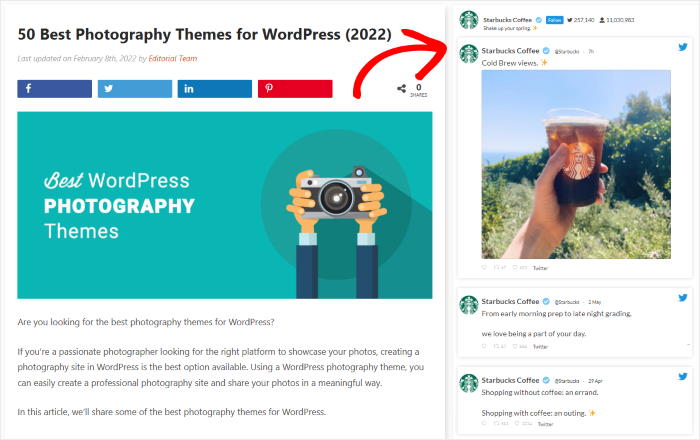
Display errors might occur due to theme conflicts. Some themes may not support Twitter feeds. Ensure your theme is compatible with social media plugins. Update your theme to the latest version. A plugin conflict might also cause errors. Disable other plugins to check if the error resolves. Enabling them one by one can identify the conflicting plugin. Consider using a different plugin if the problem remains.
Credit: smashballoon.com
Keeping Your Feed Updated
Regular Plugin Updates are crucial. They ensure your Twitter feed works well. Plugins can break if not updated. New updates fix bugs and improve features. Regular checks help keep your site safe. An outdated plugin might cause issues. Keeping plugins updated is easy. Check for updates weekly. Update plugins when new versions come out. Never ignore update alerts. They are important for security.
Monitoring Twitter Changes is necessary. Twitter often updates its features. Changes can affect your feed display. Stay informed about Twitter updates. Follow Twitter’s official blog for news. Check community forums for tips. Quick adjustments help maintain feed quality. Always test your feed after changes. This ensures everything works correctly. Make changes promptly when needed. Your feed should always look its best.

Credit: tagembed.com
Frequently Asked Questions
How To Integrate Twitter Feed In WordPress?
To integrate a Twitter feed, use a WordPress plugin like “Twitter Feed”. Install it from the plugin repository. Configure the settings with your Twitter handle. Customize the appearance to match your theme. Use shortcodes or widgets to display the feed on your site.
Can I Customize Twitter Feed Style?
Yes, you can customize the Twitter feed style. Most plugins offer options to change the layout, colors, and fonts. You can also set the number of tweets displayed. Custom CSS can be applied for more detailed styling, ensuring it matches your WordPress theme perfectly.
Are Twitter Feed Plugins Free?
Many Twitter feed plugins are free, but premium versions offer advanced features. Free plugins provide basic functionalities like displaying tweets. Premium plugins offer features like filtering tweets, advanced customization, and analytics. Choose one based on your needs and budget for optimal integration.
Is Embedding Twitter Feed Difficult?
Embedding a Twitter feed is generally easy with plugins. Choose a reliable plugin and follow its setup instructions. Most plugins offer straightforward configuration settings. For manual embedding, use Twitter’s embed code. Copy and paste the code in your desired WordPress section.
Conclusion
Adding a Twitter feed to your WordPress theme enhances engagement. Visitors see real-time updates. This keeps your site fresh and lively. Integration is straightforward. It requires only a few steps. Use plugins or embed codes. Always check compatibility with your theme.
Regular updates ensure smooth operation. Your Twitter feed can display tweets, replies, and more. This boosts interaction with your audience. Keep content relevant and engaging. Monitor your feed for any issues. A well-implemented Twitter feed enriches your website. A simple addition that makes a big difference.
Start today and connect more effectively.


