
Are you tired of the default hyperlink color in your WordPress theme? Changing it can enhance your website’s design and improve user experience.
Imagine a color that perfectly matches your brand, catching your visitors’ eyes every time they hover over a link. Sounds appealing, right? In this guide, you’ll discover simple steps to customize your hyperlink color, making your site not only look more professional but also more engaging.
You’ll be amazed at how a small change can make a big difference. Ready to transform your website? Let’s dive in and get started!
Choosing The Right Color
Colors can make people feel different things. Blue often feels calm and safe. Red can feel exciting or important. Green might feel fresh or peaceful. Knowing how colors make people feel is important. It helps choose the best color for links. Pick a color that tells the right story. Make sure it fits the website’s message.
The color of the links should look nice with the theme. Choose colors that blend well. If the theme is light, a dark link color can stand out. For a dark theme, a light link color can pop. The goal is to make sure the links are easy to see. They should not clash with the rest of the page. Always check how the color looks on different screens.
Credit: kubiobuilder.com
Accessing WordPress Dashboard
First, visit your website’s login page. Enter your username and password. Click the “Login” button to access your WordPress dashboard. Ensure your login details are correct. If forgotten, use the “Lost your password?” link. You will find it below the login form. Reset it through your email.
Find the “Appearance” option in the left menu. Click on it to open a dropdown. Select “Customize” from the list. The Theme Customizer will open. Here, you can change settings. Look for the “Colors” section. It might be named differently. Depends on your theme. Click it to edit colors. Choose the hyperlink color you want. Save changes by clicking “Publish”. Your new settings will apply immediately.
Using Theme Customizer
Locating Color Settings is simple. Open your WordPress dashboard. Find “Appearance” on the left menu. Click on “Customize.” This opens the Theme Customizer. Look for “Colors” or “Typography” settings. Every theme has different options. Explore these to find color settings.
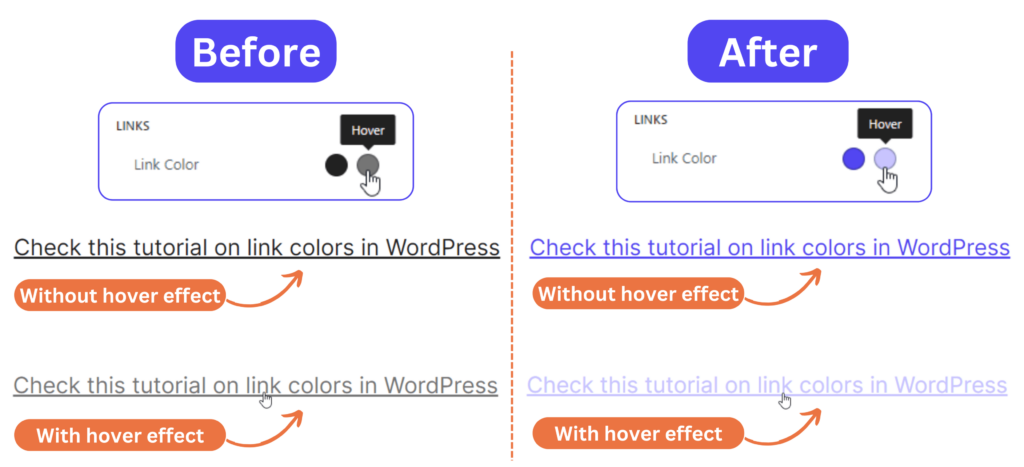
Adjusting Hyperlink Color is easy. Once in the Color settings, find the hyperlink color option. Click on it. A color picker appears. Choose your desired color. Ensure it contrasts well with your background. This makes links easy to read. Save changes by clicking “Publish” or “Save.” Your new link color is now active.
Editing Theme Css
First, log in to your WordPress dashboard. Next, find the Appearance menu. Click on it. Choose Customize from the drop-down. Look for the Additional CSS option. This is where you will make changes.
In the CSS editor, type your custom code. To change link color, use this code: a { color: #yourcolorcode; }. Replace #yourcolorcode with your desired color code. Save changes by clicking the Publish button. Your links should now have a new color.
Using A Child Theme
Changing hyperlink color in a WordPress theme requires using a child theme. This approach allows customization without altering the original theme files. Adjust the CSS in the child theme to modify link colors, ensuring design consistency and easy updates.
Creating A Child Theme
First, create a new folder in your theme directory. Name it anything you like. Inside the folder, add a style.css file. This file will hold your custom styles. Include a comment at the top to identify your child theme. This tells WordPress what theme you are modifying. You can also add a functions.php file. This file allows your child theme to inherit parent theme styles.
Modifying Css In Child Theme
Open your style.css file. Add CSS to change hyperlink color. Use a { color: blue; } for default links. To change hover color, use a:hover { color: red; }. Save your changes. Refresh your site to see new link colors. Make sure your child theme is active. Check your WordPress dashboard. Go to Appearance, then Themes.
Employing A Plugin
Plugins make changing hyperlink colors easy. First, choose a suitable plugin. Many plugins can help. Some are free. Some cost money. Choose what fits your needs. Look at ratings and reviews. Check compatibility with your theme. Pick a plugin that matches your style.
Selecting A Suitable Plugin
Find plugins in the WordPress store. Search for “hyperlink color plugins”. Consider popular ones like Colorlib or WP Link Color. Read user reviews. Look at the plugin’s last update. Make sure it works with your WordPress version. Install it from the store.
Configuring Plugin Settings
Open the plugin settings after installation. Look for color options. Change the hyperlink color easily. Use the color picker tool. Choose a color you like. Save your changes. Refresh your website to see the new colors.
Testing The Changes
Visit each page on your website. Make sure the new hyperlink color shows. Check the homepage, blog posts, and contact page. Each page should have the same color links. If any page looks different, fix the settings. This keeps your site looking the same everywhere.
Open your site on a phone or tablet. Links should be easy to see and tap. If they are too small or hard to read, adjust the size. Mobile users need a good experience too. Test on both Android and iOS. Ensure everyone can use your site smoothly.
Credit: kubiobuilder.com
Troubleshooting Common Issues
Easily change hyperlink colors in your WordPress theme by accessing the customizer. Navigate to Appearance, then Customize. Select Colors, adjust the hyperlink hue, and save your changes.
Resolving Cache Problems
Browsers often store old data. This is called cache. Cache can cause issues. It may not show your new link colors. Clear the cache to fix this. Use browser settings to clear it. Check your website again. Now, see if the colors are correct. If not, clear the WordPress cache too. Plugins like WP Super Cache can help. Always refresh your page after clearing.
Fixing Css Conflicts
Sometimes, themes have many CSS files. These files can clash. This might affect your link colors. Inspect your site using browser tools. Look for any CSS rules that affect links. Override them with new CSS in the WordPress customizer. Use the !important tag if needed. This ensures your styles apply. Test your changes on different pages. Ensure everything looks right.
Credit: ginangiela.com
Frequently Asked Questions
How Do I Change Hyperlink Color In WordPress?
To change hyperlink color, navigate to your WordPress theme’s customizer. Locate the “Additional CSS” section and add CSS code. Use the code `a { color: #yourcolor; }` to set your desired color. Replace `#yourcolor` with your preferred color code to customize hyperlink appearance.
Can I Customize Hyperlink Color In Theme Settings?
Yes, many WordPress themes offer customization options. Visit Appearance > Customize in your WordPress dashboard. Look for options under Typography or Colors. Adjust hyperlink color settings to your preference. If not available, use custom CSS in the Additional CSS section.
Is Css Required For Hyperlink Color Change?
CSS is often used for precise control over hyperlink colors. While some themes allow direct customization, CSS ensures consistency across your site. Add CSS code in the Additional CSS section for straightforward changes. This method provides flexibility and control over hyperlink appearance.
Will Changing Hyperlink Color Affect Seo?
Changing hyperlink color won’t directly impact SEO. However, ensure links are noticeable to improve user experience. Clear, visible links help users navigate your site easily. Good user experience can indirectly benefit SEO by reducing bounce rates and improving engagement metrics.
Conclusion
Changing hyperlink color in WordPress is simple and effective. It boosts your site’s visual appeal. Users can easily follow links. Adjust settings in your theme’s style options. Use custom CSS for more control. Testing changes ensures everything looks right. This small tweak can enhance your site’s user experience.
Readers find information quickly. Your site becomes more engaging. Remember to keep color consistent. It creates a seamless look. Now, your WordPress links stand out. Try changing hyperlink colors today. See the difference it makes!


