
Are you ready to give your website a fresh, unique look by adding your own WordPress theme to GoDaddy? Imagine the excitement of seeing your personalized design come to life online, setting you apart from the countless generic sites out there.
You might be wondering if it’s difficult or time-consuming, but the truth is, with the right guidance, it’s easier than you think. By the end of this article, you’ll know exactly how to seamlessly integrate your custom theme and make your website stand out.
Let’s transform your online presence together, making it as unique as your vision. Ready to get started? Let’s dive in!

Credit: www.godaddy.com
Choosing The Right Theme
Picking a theme starts with knowing what you need. Think about the purpose of your website. Do you want a blog or a store? Each type has different needs. Color and style matter too. A bright theme works for fun sites. A simple look fits business sites. Always keep your audience in mind. Who will visit your site? Make sure the theme suits their taste.
Many themes are free. Others cost money. Visit the WordPress theme library. Look at the popular and new sections. Read reviews by other users. Reviews can tell you what works well. They can also warn you about problems. Some themes are fast. Others have many features. Choose a balance between speed and features. Try a few themes to see which fits best.
Credit: www.godaddy.com
Preparing Your Theme Files
Organizing Theme Files is very important. Put all theme files in one folder. This keeps them tidy and easy to find. Inside the folder, create subfolders. Name them carefully. Use names like styles, scripts, and images. This helps in locating files quickly. Ensure each file is in the correct subfolder. This prevents confusion later.
Ensuring Compatibility with WordPress is crucial. Make sure your theme supports the latest version. Check for any updates needed. Use standard coding practices. This ensures your theme works smoothly. Test your theme on different browsers. This helps catch any errors early. Compatibility is key for user satisfaction.
Accessing Godaddy Hosting
First, open your web browser. Type GoDaddy’s website in the search bar. Click the login button on the top-right corner. Enter your username and password. If you don’t have an account, create one. It’s easy and free. Once logged in, see your dashboard. This is where you control your web services.
Find the My Products section. This is on the left side of the dashboard. Click on it. A list of your products appears. Look for your hosting account. Click on the Manage button. This takes you to the hosting dashboard. Here, you can manage your website files and settings.
Uploading Your Theme
Go to your Godaddy account. Find the File Manager in the hosting panel. Click it. Open the public_html folder. Look for the wp-content folder. Go inside it. Find the themes folder. This is where your theme goes. Click the upload button. Choose your theme file. Make sure it is a .zip file. Wait for the upload to finish. Once done, unzip the file. Your theme is now in the folder.
First, download an FTP client like FileZilla. Open it. Enter your Godaddy FTP details. Connect to your server. Go to the public_html directory. Open the wp-content/themes folder. Drag and drop your theme folder here. Make sure it is not zipped. Wait for the files to upload completely. Check your WordPress dashboard. Your theme should be ready to use.
Activating The Theme In WordPress
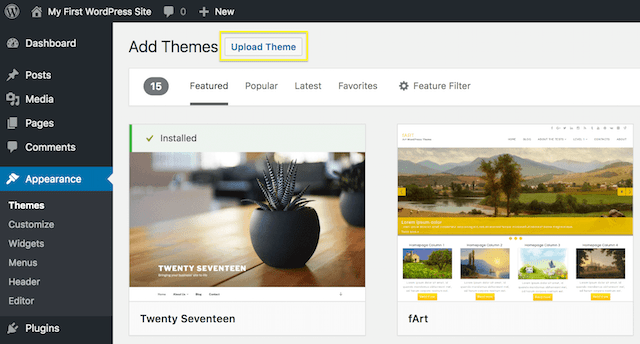
Uploading a custom WordPress theme to GoDaddy involves accessing the hosting dashboard. Navigate to the themes section and click ‘Add New’. Select ‘Upload Theme’, choose your theme file, and click ‘Install Now’.
Accessing The WordPress Dashboard
First, log in to your WordPress account. Use your username and password. Once logged in, you will see the dashboard. This is your main control panel. Here, you can make changes to your site. Find the Appearance menu. It’s on the left sidebar. Click on it to open the menu options.
Activating Your Uploaded Theme
Go to the Themes section in the Appearance menu. Here, you will see all your themes. Find the theme you uploaded. Click on Activate to use it. This changes the look of your site. Make sure it looks good. Check all pages and posts. If you need changes, go back to the dashboard. Keep your site looking neat and tidy.

Credit: www.godaddy.com
Troubleshooting Common Issues
Easily upload your WordPress theme to GoDaddy with a few steps. Ensure the theme’s files are ready on your computer. Use GoDaddy’s file manager or FTP to transfer the theme into the WordPress themes folder.
Resolving Upload Errors
Upload errors can be annoying. Make sure your theme file is in .zip format. Check the file size. It must not be too big. If it is, try compressing it. Use a stable internet connection. A weak connection can cause errors. Try uploading the file again. This often solves the problem. If not, check your hosting settings. Sometimes, these settings cause issues. Contact support if needed. They can help solve tricky errors.
Addressing Compatibility Problems
Themes need to be compatible with your WordPress version. Always use the latest WordPress version. This helps with compatibility. Check if the theme is updated. An old theme might not work well. Look for theme updates regularly. Sometimes plugins cause issues. Disable plugins if the theme fails to work. Enable them one by one. This helps find the problem. Contact theme support if issues persist. They can offer solutions.
Customizing Your Theme
The WordPress Customizer makes theme changes easy. Open the Customizer from your dashboard. You will see options to change colors, fonts, and more. Click on each option to explore. Changes happen in real-time. Try different settings to find what you like. You can see the preview on the right. If it looks good, click “Save” to keep changes. Otherwise, you can cancel and try again.
To make your theme unique, use Custom CSS. Find the “Additional CSS” option in the Customizer. Here, you can write your own CSS code. Custom CSS lets you change the look of your site. You can change text size, colors, and even hide things. Be careful with changes. Mistakes can make your site look wrong. Always test before saving.
Ensuring Site Performance
Uploading your custom WordPress theme to GoDaddy involves a few simple steps. Access the GoDaddy hosting dashboard, then navigate to WordPress. Use the WordPress admin panel to upload and activate your theme.
Optimizing For Speed
Fast websites make visitors happy. Use lightweight themes for quick loads. Compress images to reduce size. Clean code helps speed up your site. Use caching plugins to store data. This reduces load times. Always update plugins and themes for best performance. Choose a good hosting plan for speed. A faster site gets more visitors.
Regular Maintenance Tips
Keep your site up to date. Regular checks keep it running smoothly. Delete unused plugins and themes. They slow down your site. Backup your site often. Backups save data if something breaks. Monitor your site’s speed. Use tools to check load times. Fix slow pages quickly. Check for broken links. Broken links frustrate users. A well-maintained site works better and keeps visitors happy.
Frequently Asked Questions
How Do I Upload A WordPress Theme To Godaddy?
To upload a WordPress theme to GoDaddy, log into your GoDaddy account. Navigate to the WordPress dashboard, click on “Appearance,” then “Themes. ” Choose “Add New,” then “Upload Theme. ” Select your theme’s. zip file and click “Install Now. ” Activate your theme once installation is complete.
Can I Use Any WordPress Theme On Godaddy?
Yes, you can use any WordPress theme on GoDaddy. Ensure the theme is compatible with your WordPress version. Download the theme in a. zip format. Follow the upload procedure through the WordPress dashboard. Activate the theme after installation to start customizing your website.
What If My Theme Won’t Install On Godaddy?
If your theme won’t install, check the. zip file size. GoDaddy has file size limits. Ensure your WordPress version is compatible with the theme. Check for any missing files in your theme package. Contact GoDaddy support if issues persist for further assistance.
Is Installing A WordPress Theme On Godaddy Hard?
Installing a WordPress theme on GoDaddy is straightforward. Use the WordPress dashboard to upload and activate the theme. Familiarize yourself with the dashboard options. Follow the easy step-by-step process provided. Troubleshoot with GoDaddy support if any unexpected issues arise.
Conclusion
Adding your own WordPress theme to GoDaddy is straightforward. First, choose a theme that suits your style. Next, upload it through your WordPress dashboard. Customize the settings to fit your needs. Test the theme to ensure everything works perfectly. Regular updates keep your site secure and functional.
A personalized theme enhances your site’s appeal. It reflects your brand’s unique identity. Remember, simplicity is key for user-friendly navigation. Stay consistent with your design choices. Your website is now ready to impress visitors. Enjoy your new WordPress theme on GoDaddy!


