
Are you looking to make your WordPress site more engaging and visually appealing? Adding a slideshow can be a game-changer for your website, capturing your audience’s attention instantly and keeping them hooked.
Imagine your visitors staying longer, mesmerized by a dynamic display of your top images or featured content. Sounds appealing, right? In this guide, you’ll discover how to effortlessly integrate a slideshow into your WordPress theme, transforming your site’s look and feel.
Get ready to enhance your site’s aesthetic and functionality, all while keeping your audience eagerly scrolling for more. Dive in to unlock the secrets to a more captivating website experience!
Choosing The Right Slideshow Plugin
Some plugins are very popular. Slider Revolution is famous. MetaSlider is easy to use. Smart Slider 3 offers many designs. These plugins help make slideshows. They work well with WordPress themes.
Think about some features. Ease of use is important. Make sure it is simple. Responsive design is a must. It should work on phones and tablets. Check for customization options. Choose colors and styles you like. Look for speed. Fast loading is good for users. Also, check if it supports multimedia. Pictures, videos, and text should work smoothly.
Installing A Slideshow Plugin
Find the plugin directory from your WordPress dashboard. Click on “Plugins” then “Add New”. Search for slideshow plugins in the search bar. Explore options that suit your needs. Read reviews for popular choices. Check ratings to ensure quality. Always choose a plugin that matches your theme’s style. Avoid plugins with poor reviews.
Select your desired plugin. Click the “Install Now” button. Wait for the installation to complete. Once done, click “Activate” to enable the plugin. You can find the plugin settings in your dashboard. Adjust settings for your slideshow display. Ensure compatibility with your theme. Test the slideshow to confirm it works well. Make any necessary changes.
Creating A New Slideshow
To create a slideshow, first open your WordPress dashboard. Find the plugin menu and click on it. Look for a slideshow plugin and install it. Activate the plugin once it is installed. After activation, navigate to the slideshow settings. Click on ‘Create New Slideshow’ to start.
Adding images is simple. Go to the slideshow menu and select ‘Add Images’. Choose images from your media library. Click ‘Select’ to add them. You can upload new images if needed. Ensure images are clear and appropriate for your site. Arrange the images in your preferred order. Save your changes once done.
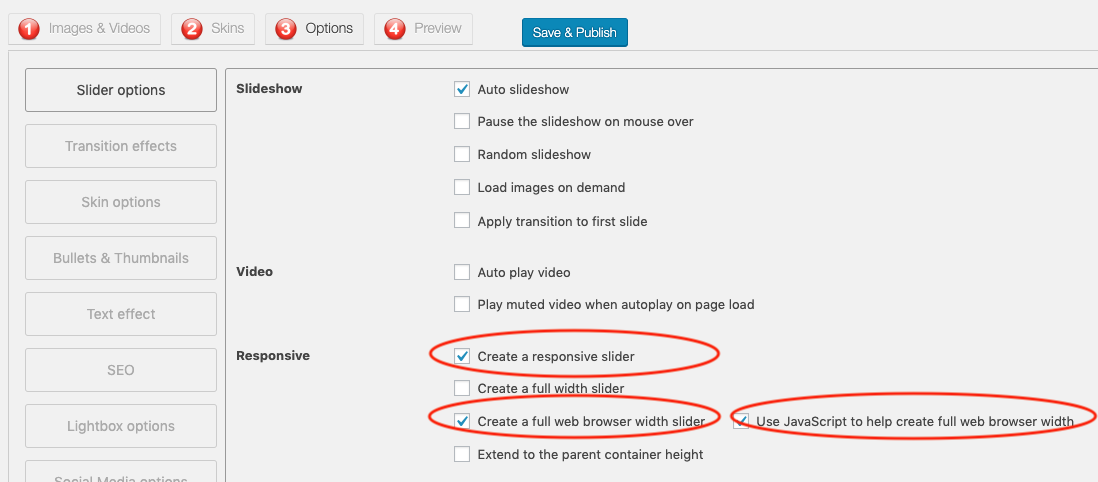
Customization is key to a good slideshow. Go to settings and find options like transition effects. Choose effects like fade or slide for smooth transitions. Set timing for each image display. Adjust width and height for the slideshow. Make sure it fits well on your page. Save your settings to apply changes.

Credit: docs.presscustomizr.com
Embedding The Slideshow In Your Theme
Shortcodes make adding slideshows easy. First, install a slideshow plugin. Next, create a slideshow using the plugin. It will generate a unique shortcode. Copy this shortcode. Go to your WordPress page or post. Paste the shortcode where you want the slideshow. Update the page to save changes. Now, the slideshow will appear on your site.
Sometimes, you need to add slideshows to your theme files. First, locate the theme file where you want the slideshow. Open this file using a text editor. Find the spot to insert the slideshow. Use PHP to add the shortcode. Example: php echo do_shortcode('[your_shortcode]'); ?. Save and upload the file back to your site. Refresh to see the changes.
Customizing Slideshow Appearance
Slideshows need the right size to fit your page. You can change the width and height. Some themes let you drag and resize. Others use numbers. A small slideshow works best on narrow pages. A big slideshow works on wide pages. A good layout makes the pictures look nice. Try different layouts to see what fits. The right layout catches attention.
CSS changes how your slideshow looks. You can change the background and border. Pick colors that match your theme. You can add space between slides with margin. Use padding for extra space inside. CSS lets you be creative. It helps make your slideshow unique. Try different styles to see what you like.
Credit: www.wonderplugin.com
Optimizing Slideshow Performance
Image compression techniques make your slideshows faster. Smaller images load quickly. Use tools like TinyPNG or ImageOptim. These tools reduce image size. Quality stays the same. This helps your site run better. Visitors enjoy fast loading pages.
Lazy loading implementation is another helpful trick. It loads images when needed. Not all at once. This saves data and speeds up the site. Use plugins like a3 Lazy Load. They are easy to install. Your slideshows will perform better. Faster slideshows mean happier visitors.
Troubleshooting Common Issues
Adding a slideshow to a WordPress theme can be tricky. Common issues include plugin conflicts and incorrect shortcode placement. Ensuring compatibility and checking settings can solve these problems efficiently.
Resolving Plugin Conflicts
Plugins often cause conflicts with slideshows. First, check all active plugins. Deactivate each plugin one by one. This helps find the conflicting plugin. Once found, update or replace it. Always ensure plugins are compatible with the theme. This reduces conflict chances. Keeping plugins updated is crucial. Regular updates fix bugs and improve compatibility. Consider using a conflict checker plugin. It identifies issues quickly and efficiently. A safe way to handle plugin problems.
Addressing Display Errors
Display errors can ruin a slideshow’s look. Start by checking image sizes. Ensure all images are consistent in size. Large images slow down loading. Resize oversized images for faster display. Check the slideshow settings. Ensure settings match theme requirements. Use browser tools to inspect errors. This helps identify CSS or HTML mistakes. Correct any identified errors promptly. A clean code ensures smooth display. Regularly clear cache to avoid display problems. Keeping the theme updated also helps. An updated theme supports better slideshow performance.
Credit: qodeinteractive.com
Frequently Asked Questions
How To Create A Slideshow In WordPress?
To create a slideshow, you can use plugins like MetaSlider or Slider Revolution. Install the plugin, then follow the setup instructions. Customize your slides by adding images and adjusting settings such as transition effects and timing. Finally, embed the slideshow using a shortcode or widget in your theme.
Can I Add A Slideshow Without Plugins?
Yes, you can add a slideshow without plugins by using custom code. You’ll need to create a custom post type for slides and write JavaScript for transitions. This method requires coding skills and might be less flexible than plugins but offers more control over design and functionality.
Which Slideshow Plugin Is Best For WordPress?
MetaSlider and Slider Revolution are popular choices. MetaSlider is user-friendly, great for beginners, and offers essential features. Slider Revolution provides advanced options, animations, and customization. Choose based on your requirements and familiarity with WordPress. Both plugins have extensive documentation and support for seamless integration.
How To Customize Slideshow Appearance?
Customize your slideshow by adjusting settings in the plugin interface. Change slide duration, transition effects, and layout options. Some plugins allow adding custom CSS for advanced styling. Experiment with different configurations to match your theme’s design and enhance user experience effectively.
Conclusion
Adding a slideshow to your WordPress theme is simple and rewarding. It enhances your site’s visual appeal. Engages visitors effectively. With tools like plugins, setup is easy. Choose a style that suits your content. Test your slideshow for smooth operation.
Keep images clear and relevant. Regular updates ensure functionality. These steps improve user experience. Boost your website’s interactivity. More visitors will stay longer. Slideshow creation is a useful skill. Try different designs to see what works best. Enjoy the process and watch your site thrive.


