
Are you ready to give your WordPress site a fresh new look? Changing the background theme is one of the simplest ways to transform your website and make it stand out.
Imagine your site with vibrant colors that reflect your brand’s personality or a sleek, minimalist design that enhances readability. It’s all at your fingertips, and you don’t need to be a tech wizard to do it. In this guide, you’ll learn the easy steps to change your WordPress background theme, ensuring your site is both captivating and unique.
Dive in, and discover how a few clicks can make a world of difference to your online presence. You won’t want to miss this opportunity to elevate your site’s aesthetics and user experience.
Accessing The WordPress Dashboard
First, open your web browser. Type your website’s URL. Add /wp-admin at the end. This will take you to the login page.
Enter your username and password. Click the login button. You will now see your dashboard. This is where you control your site.
The dashboard is the heart of your site. It’s like a command center. From here, you can change the background theme. You can also add new features and edit content.
Navigating To The Themes Section
First, log into your WordPress dashboard. Look for the Appearance menu on the left. Click it. The Themes option will appear. Select it. You will see all available themes. Click on any theme to preview. If you like it, activate it. The new background theme is now live.
WordPress has many themes. Choose one that suits you. Customize it to fit your style. Changing themes is easy. Follow these steps to switch themes anytime.
Choosing A New Theme
WordPress offers many free themes. These themes are easy to find. Go to the WordPress dashboard. Click on “Appearance”, then “Themes”. Here, you can see many options. Each theme has a preview. Look at the designs. Choose what you like best. Free themes can be simple but nice. They often have fewer options. Yet, they can still make your site look good. For beginners, free themes are perfect. Easy to use, and no cost involved.
Premium themes offer more features. They often have better designs. Visit the WordPress Theme Store. Here, you can buy themes. Prices vary, so check your budget. Premium themes can include support. This means help if you get stuck. Some themes are very fancy. Others are simple but flexible. Think about your site needs. Premium themes can make a site unique. They might cost money, but offer great value.
Installing The Selected Theme
First, find a theme you like. Go to your WordPress dashboard. Click on “Appearance” and then “Themes”. You can see many themes here. Choose your favorite one. Preview it before installing. This lets you see how it looks. If you like it, click “Activate”.
Activating a theme is simple. Just one click. Once activated, your site will have a fresh look. A new design is exciting! Make sure everything looks good. If not, you can always change it again. Themes are fun to try. They give your site a new feel.
Customizing The Background
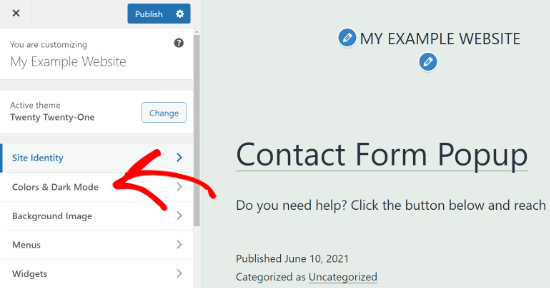
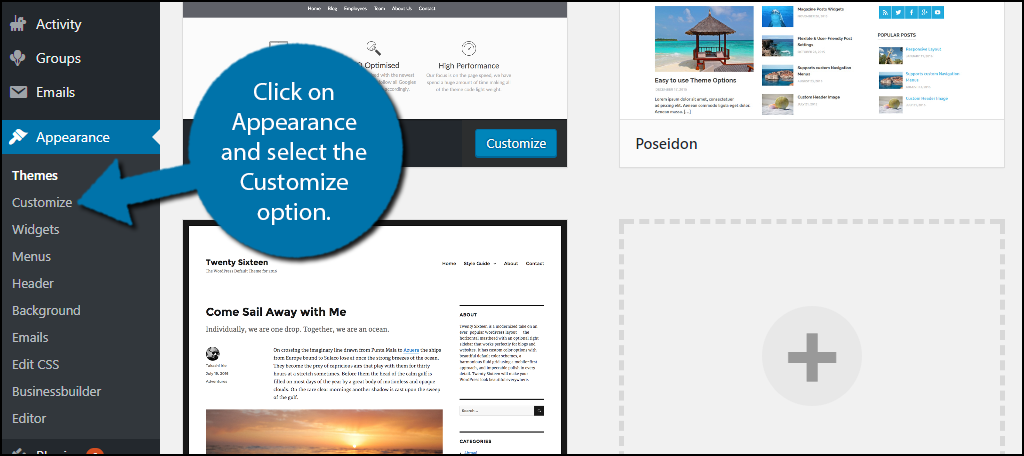
Access the WordPress Customizer from your dashboard. It helps to change the background easily. Find the Appearance menu. Click on Customize. You see many options. Choose the one for Background. Now, you can make changes. It is simple and quick. Enjoy your new look.
Select an image for the background. Go to Background Image settings. Click on Select Image. Choose from your media library. You can upload a new image too. Adjust the position and size. Make it fit your style. Your site gets a fresh feel. Everyone loves a good background.
Pick a color for your background. Go to Background Color settings. You see many colors. Choose your favorite one. Click to apply it. The color changes instantly. Your site looks different now. Experiment with colors. Find the best match for your theme.
Credit: www.wpbeginner.com
Using Plugins For Advanced Customization
Explore advanced customization by using plugins to change your WordPress background theme. These tools offer simple ways to adjust colors, images, and styles, giving your site a fresh look. Enhance user experience while keeping your design process straightforward and efficient.
Exploring Popular Plugins
Plugins make WordPress better. Some plugins are very popular. Elementor helps make pages look nice. WPBakery is another good one. It is easy to use. Beaver Builder is fast and simple. Customify changes the theme easily. These plugins help design a website. They make it look cool. You can try each one. See which you like best.
Installing And Using A Plugin
First, go to your WordPress dashboard. Find the Plugins menu. Click on Add New. Search for the plugin you want. Click Install Now. Wait for it to finish. After that, click Activate. The plugin is now ready. Use it to change your site. Play around with settings. See what works best. Have fun designing!
Testing The New Theme
Checking Responsiveness is very important. Open your site on phones and tablets. See if the design fits well. A good theme should look nice on all screens. Click buttons and links. Make sure they work. All images should load quickly.
Ensuring Browser Compatibility helps your site look good everywhere. Try your site on Chrome, Firefox, and Safari. It should work the same on each one. Check if all features are visible. Look at text and images. They must appear correctly. Fix any issues you find.

Credit: colibriwp.com
Troubleshooting Common Issues
Changing your WordPress background theme can be tricky. Common issues include compatibility problems and theme settings. Always check theme support and update plugins.
Fixing Theme Conflicts
Theme conflicts can cause problems on your site. Sometimes, plugins don’t work with your theme. This can make your site look strange. First, check your plugin updates. Make sure they are up to date. Next, try using a different theme. This helps see if the problem goes away. Also, deactivate plugins one by one. This finds which plugin causes trouble. If a plugin is the problem, you can look for another one. Or contact support for help.
Restoring Previous Themes
Want to go back to your old theme? It’s easy to do. Go to your WordPress dashboard. Click on “Appearance” and then “Themes”. Find your old theme. Click “Activate” to use it again. Your site will change back to the old look. Sometimes, changes might not show right away. Clear your browser cache to fix this. This helps see your old theme correctly. If changes still don’t show, ask for help from a friend or support.
Maintaining Theme Updates
Changing the background theme on WordPress enhances your site’s appearance. Access the dashboard, select ‘Appearance’, then ‘Themes’. Choose a theme that fits your style and activate it. Regular updates ensure compatibility and security.
Checking For Updates
Always check for theme updates. Updates keep your site safe. They fix bugs and improve features. Visit the theme page in your WordPress dashboard. Look for any new updates. Update your theme regularly. It takes just a few clicks. Updates help your site run smoothly.
Ensuring Compatibility With Plugins
Plugins add features to your site. But not all plugins work with every theme. Check if your theme is compatible. Look for plugin compatibility notes. Read user reviews on the plugin page. Sometimes plugins need updates too. Ensure both theme and plugin are up-to-date. This prevents errors and keeps your site functional.
Credit: www.greengeeks.com
Frequently Asked Questions
How Do I Change The Theme In WordPress?
To change your WordPress theme, navigate to your dashboard. Click on “Appearance” and then “Themes. ” Browse available themes, or upload a new one. Once you’ve chosen a theme, click “Activate” to apply it. Your website’s design will update instantly, reflecting the new theme.
Can I Customize WordPress Theme Colors?
Yes, you can easily customize theme colors. Go to “Appearance” and click “Customize. ” Within the customizer, locate the “Colors” section. Adjust the color scheme to fit your brand. Save changes to see updates on your site immediately. Customizing colors helps maintain a consistent brand image.
What If My New Theme Breaks My Site?
If a new theme breaks your site, revert to the previous theme. Navigate to “Appearance” and select the former theme. Click “Activate” to restore it. Ensure compatibility by checking theme documentation or contacting support. Always test themes on a staging site before using them live.
Are WordPress Themes Mobile-responsive?
Most modern WordPress themes are mobile-responsive. They automatically adjust to fit different screen sizes. Check a theme’s description or demo for responsiveness features. Mobile responsiveness enhances user experience and boosts SEO. It ensures your site looks great on all devices.
Conclusion
Changing your WordPress background theme is simple. Follow the steps outlined above. Experiment with different themes. Find one that suits your style. A new theme can refresh your website’s look. It can also improve user experience. Keep your audience in mind.
Choose themes that are easy to navigate. Make sure your site remains functional and visually appealing. With practice, you’ll gain confidence in customizing your site. Enjoy exploring the many theme options. Personalize your WordPress site today. Enhance its appearance and functionality effortlessly.
Happy designing!


