
Are you looking to give your WordPress site a fresh new look? One of the simplest yet most impactful changes you can make is altering the color of your buttons.
It may seem like a minor tweak, but a well-chosen button color can grab attention, guide user actions, and boost your site’s overall aesthetic. If you’ve ever wondered how to change button color in your WordPress theme, you’re in the right place.
In this guide, we’ll walk you through the steps to make this change effortlessly. Imagine the power of colors that not only enhance your design but also engage your visitors on a whole new level. Ready to transform your site? Let’s dive in!
Credit: www.wpbeginner.com
Selecting The Right Theme
First, look at your theme’s settings. Many themes offer easy customization options. Check the theme customizer in your WordPress dashboard. This tool helps you change colors. See if your theme has a color palette option. If not, you may need to use CSS. But don’t worry, it’s easy to learn.
Always save changes after editing. This way, you won’t lose your work. Remember, each theme is different. So, explore your options carefully.
Make sure your theme supports color changes. Some themes do not allow easy edits. Check the theme documentation for guidance. This will tell you if you need extra plugins. Sometimes, themes need updates for new features. Keeping your theme updated is important.
If you can’t change colors, consider switching themes. Choose a theme with more customization options. This makes it easier to design your site.
Using Theme Customizer
Easily change button colors in your WordPress theme using the Theme Customizer. Navigate to the Colors section, select the button color option, and adjust to your desired shade. This simple process enhances your site’s visual appeal without any coding knowledge.
Accessing The Customizer
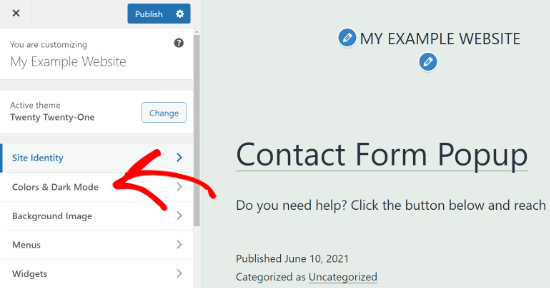
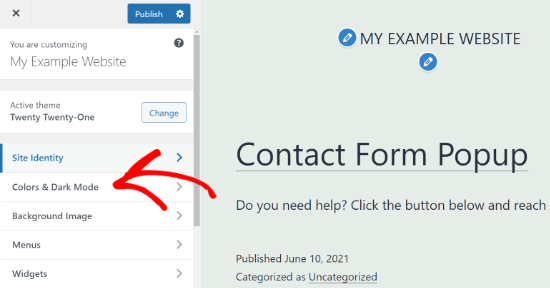
Open your WordPress dashboard. Click on Appearance. Find the Customizer option. Click to access it. The Customizer lets you change your theme easily. No coding needed. It makes changes simple.
Locating Button Color Settings
Inside the Customizer, look for Colors. Sometimes it’s under Appearance. Search for Button Color settings. Different themes have different locations. Explore the menu carefully. Find where to change button colors.
Applying Changes
Click on the button color option. Choose a new color from the palette. Make sure it looks good. Preview changes before saving. Save your changes to update the theme. Button color will change instantly. Easy and quick!
Editing With Css
Changing button color in a WordPress theme is easy with CSS. First, access your theme’s stylesheet. Then, locate the button class and adjust the background-color property. Save changes to see the new color in action.
Understanding Css Basics
CSS helps control how things look on a website. It tells the browser how to show colors, fonts, and sizes. Learning CSS is not hard. CSS stands for Cascading Style Sheets. It works with HTML to make websites look nice. Each style affects how elements look. So, understanding these basics is key.
Finding The Right Css Classes
Every element on a webpage has a CSS class. Classes help identify the styles applied. To change a button’s color, find its class first. Use browser tools like Inspect Element. Right-click on the button and check the code. Look for the class name. This class will help in the next steps.
Inserting Custom Css Code
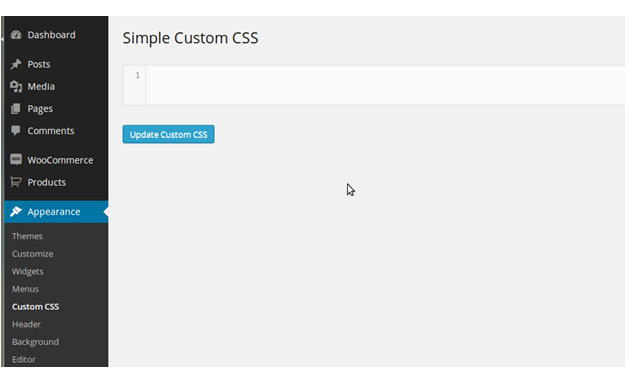
After finding the class, you can change the color. Go to your WordPress dashboard. Find the Custom CSS section. Paste your CSS code there. Example: .button-class { background-color: red; }. Save the changes. Your button color should change. This method is simple and easy.
Credit: themelooks.com
Utilizing Page Builders
Popular page builders like Elementor and Beaver Builder offer easy ways to change button colors. Find the button settings in these builders. You can choose a new color from the palette. Preview the changes to see if you like the new look. Save the changes once satisfied.
Start by opening the WordPress dashboard. Navigate to the page builder you use. In the editor, look for the button element. Click on it to open settings. Choose a new color for the button. Confirm by saving your changes. Refresh the page to view the updated button.
Leveraging Plugins
Plugins help change button colors fast. Many plugins are available. Choose one with good reviews. Read the plugin description. Check if it changes button colors. Ensure compatibility with your theme. Try free plugins first. Some paid plugins have extra features.
Most plugins have simple settings. Open the plugin settings page. Look for button color options. Select your desired color. Save the changes after selection. Test the button on your site. Adjust settings if needed. Some plugins offer more customization. Explore all settings for best results.
Testing And Previewing Changes
Cross-browser compatibility is important. Different browsers may show your button differently. Always test changes on various browsers. This helps ensure your button looks good everywhere. Use browsers like Chrome, Firefox, and Safari. Each browser might show colors differently. Pay attention to how the button appears. Make adjustments if needed.
Previewing on different devices is also key. A button might look fine on a computer. But it might be strange on a phone. Use tools to preview changes on tablets and phones. This ensures the button looks nice on all devices. Check sizes and colors. Adjust settings if things look odd. A consistent look is crucial for users.
Troubleshooting Common Issues
Changing button color in a WordPress theme often requires tweaking CSS settings. Navigate to the WordPress dashboard, locate the ‘Additional CSS’ section, and insert the desired color code. This simple adjustment can refresh your site’s look and feel.
Resolving Css Conflicts
Sometimes, multiple CSS files can cause color issues. Check your theme’s CSS file. Ensure there is no conflicting code. Use browser tools to inspect the button. Look for any overlapping styles. Remove or change styles that clash. Clear these conflicts to see changes.
Dealing With Cache Problems
Cache can stop color changes. Clear your browser cache often. Use CTRL + F5 to refresh. Also, clear your WordPress cache. If you use cache plugins, empty them. This helps to see new button colors. Check changes after clearing cache. It solves most cache-related issues.
Credit: www.themelocation.com
Frequently Asked Questions
How Can I Change Button Color In WordPress?
To change button color, go to Appearance > Customize. Navigate to the ‘Additional CSS’ section. Add your CSS code to change button color. Use the correct CSS selector for your theme’s button class. Save changes and refresh your site to see the updated color.
Is Coding Necessary To Change Button Color?
No, coding is not always necessary. Many themes offer built-in color customization options. Check the theme settings under Appearance > Customize. If unavailable, use CSS to change colors. CSS can be added via ‘Additional CSS’ in the WordPress Customizer.
Which Plugin Helps Change Button Color?
Plugins like “YellowPencil” or “CSS Hero” can help. They offer visual editors to modify button colors without coding. Install and activate your preferred plugin. Use its interface to select and change button colors. Most plugins provide a user-friendly experience for customization.
Can I Use Css For Button Color Change?
Yes, CSS is a reliable method. Access the WordPress Customizer and locate ‘Additional CSS’. Use CSS rules targeting button classes to change colors. Ensure you use the correct class names specified by your theme. Save your changes and refresh your page to see the effect.
Conclusion
Changing button colors in WordPress themes is simple. Start by accessing the theme’s customization settings. Adjust the color using the color picker tool. Preview changes instantly. Save your modifications once satisfied. This enhances your site’s appearance and user experience. Consistent color schemes create visual harmony.
Remember to test on different devices. Ensure buttons are visible on all screens. This small change can make a big impact. Keep experimenting with different colors. Find what works best for your brand. A visually appealing site attracts more visitors.
Enjoy exploring new design possibilities!


