
Are you looking to give your WordPress site a fresh new look? Changing theme files can seem daunting, especially if you’re not tech-savvy.
But don’t worry, you’re not alone. Many website owners and bloggers like you want to customize their site’s appearance without the hassle. Imagine having the power to tweak your site’s design to perfectly fit your brand and attract more visitors.
It’s easier than you think, and you can do it without hiring a developer. In this guide, we’ll walk you through the steps to change theme files within WordPress. By the end, you’ll have the confidence and skills to make your website uniquely yours. Keep reading, and let’s transform your site together!
Credit: www.wpzoom.com
Accessing WordPress Dashboard
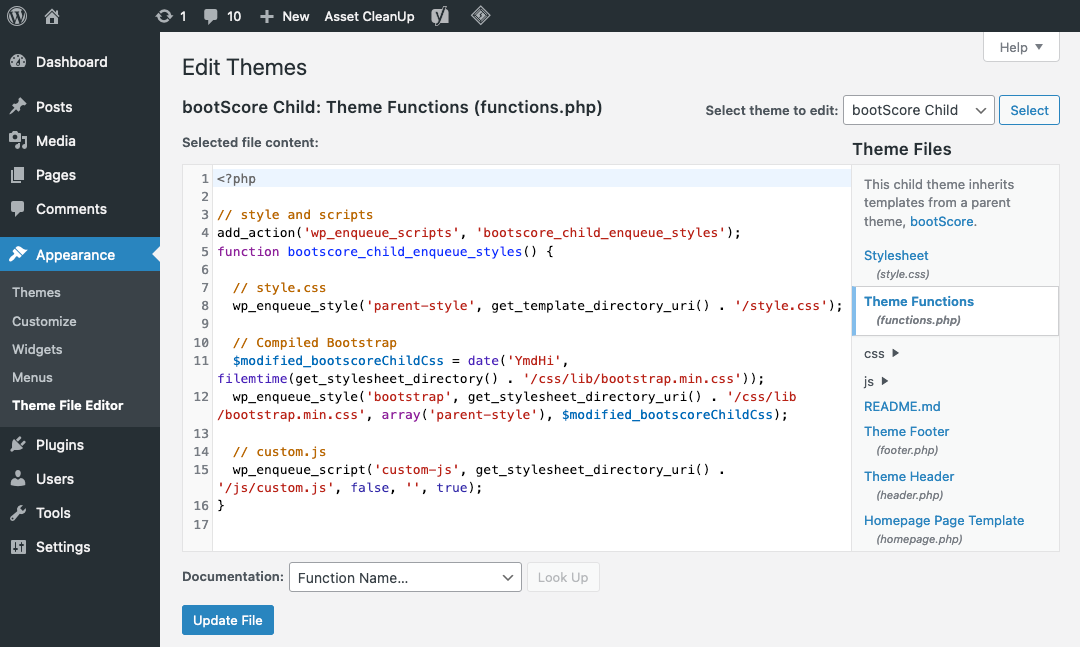
Begin by logging into your WordPress Dashboard. Use your username and password. On the left, find the menu. Look for the option labeled “Appearance”. Click on it. A new menu will appear. This menu has several choices. Choose “Theme Editor”. This is the place to change theme files. You will see a warning message. This warns about risks of editing. Be careful when making changes. Check the files you want to edit. Each file has a name. Click on a file name to open it. The file content will appear on the right. Make changes as needed. Always remember to save changes. Use the “Update File” button for this. Now, you have edited theme files in WordPress.
Locating Theme Files
WordPress stores theme files in the wp-content/themes folder. Access them through your hosting account or FTP client. Look for the folder named after your theme. Each theme has folders for templates, styles, and scripts. These contain HTML, CSS, and JavaScript files. These files control the design and layout of your site.
Inside the theme folder, find style.css. This file is crucial for styling. For layout changes, check template files. Common template files are header.php and footer.php. Make copies before editing. This prevents loss of data. Use a child theme for safe changes.
Using The Theme Editor
First, log into your WordPress dashboard. On the left, find the Appearance option. Click on it. A list will drop down. Find Theme Editor in this list. Click to open it. This section lets you see your theme files. You can change these files here. Always be careful when editing. Changes affect your site directly.
Inside the editor, you see many files. Each file has a purpose. Styles.css changes the look of your site. Functions.php adds features. Never edit without knowing what the file does. Always make a backup first. This keeps your site safe. To edit, click on a file name. It will open in the editor. You can start typing to make changes. Once done, click Update File to save.
Utilizing Ftp For File Changes
First, choose an FTP client like FileZilla. It’s easy to use. Download and install it on your computer. After installation, open the client. You will need your server details next. This includes your username, password, and host address. These details are crucial to connect.
Enter your server details in the FTP client. Click on “Quickconnect” to connect. Wait for a moment. You will see your server files now. Explore these files to find your theme folder. This folder holds your theme files.
Select the file you want to edit. Right-click and choose “Download”. This saves the file to your computer. Open the file using a text editor. Make your changes carefully. Once done, save the file. Now, upload the file back to the server. Right-click and select “Upload”. Your file changes are now live.
Using Child Themes
A child theme is a copy of the main theme. It lets you make changes without affecting the main theme. First, create a new folder in the theme directory. Name it like your main theme with “-child” at the end. Inside, create two files: style.css and functions.php. In style.css, add a header with your child theme’s name. Link it to the parent theme using Template: parent-theme-name. In functions.php, enqueue the parent theme’s stylesheet. This keeps your design intact. Follow these steps to set up your child theme.
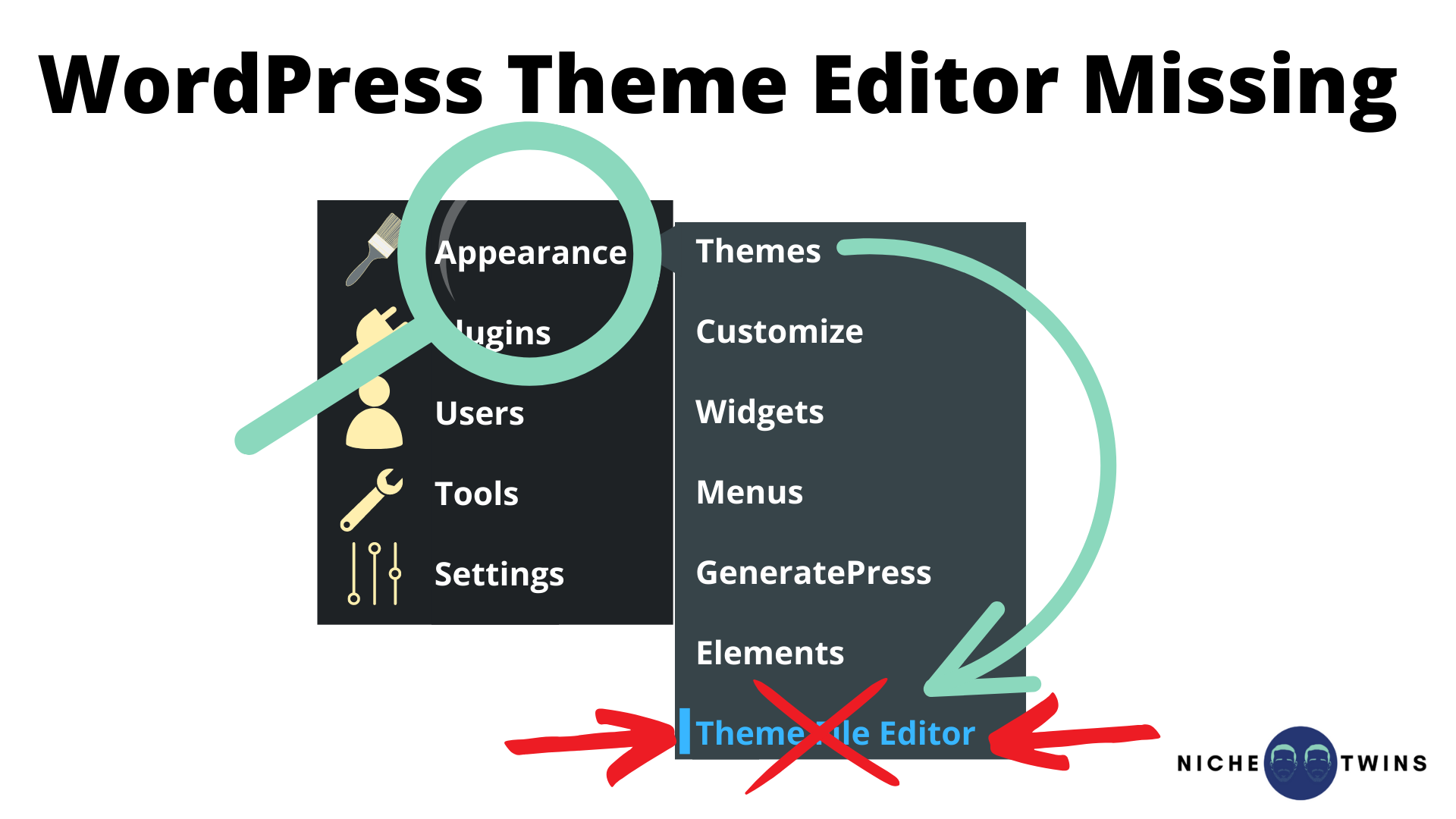
Go to the WordPress dashboard. Click on Appearance and then Themes. Find your child theme. Click Activate to use it. Now, you can customize your theme safely. Edit files or add new styles in style.css. Add new functions in functions.php. Your main theme stays safe. Any updates won’t erase your changes. Keep experimenting with designs. Enjoy creating a unique look for your site.
Credit: nichetwins.com
Theme File Backup
Backing up theme files is very important. It protects your work. Mistakes can happen. A backup saves you from losing everything. It is like a safety net. Without a backup, you might have to start again. That takes a lot of time. Ensure your work is safe. Always keep a backup ready.
There are many ways to backup files. One way is using a plugin. Plugins make it easy. They do the work for you. Another way is manual backup. You copy files to your computer. Both ways work well. Choose the method you prefer. Keep your files safe and secure.
Testing Changes Safely
Changing theme files in WordPress safely involves using a child theme. This method prevents losing customizations during updates. Always back up your site before making changes to ensure data security.
Staging Sites
Staging sites help test changes without breaking your live site. They are like practice sites. You can try new things here. If it works, your live site stays safe. You can make mistakes and learn. It helps keep your website looking good. Staging sites are very helpful.
Using WordPress Plugins
WordPress plugins can change your site easily. They add new features. Some plugins help test theme changes. They keep your live site safe. Plugins are tools that make tasks simple. You can try many plugins. Each plugin has different features. They help make your site better.
Common Errors And Fixes
Syntax errors happen often while editing theme files. A small mistake can cause a big problem. Check your code for missing semicolons or brackets. These tiny errors can break your site. Use a code editor to spot errors quickly. It highlights mistakes in your code. Fixing syntax errors is easy when you know what to look for. Always backup your files first. This saves your work from being lost.
The white screen of death can be scary. It is a blank screen. No error message appears. This might happen due to a plugin conflict. Or a theme error. Deactivate all plugins to see if the site works. If it does, reactivate plugins one by one. This finds the bad plugin. If that does not help, switch to a default theme. This checks if the theme is the issue.
Restoring Original Files
Backups help bring back lost files. You should keep backups often. Backups are like a safety net for your website. If a theme file breaks, backups fix it. Use a plugin or manual method to backup. Choose a method that is easy for you. Always store your backup safely. This way, you can restore files anytime.
Reinstalling a theme is another way to get original files. First, delete the old theme. Then, add the theme back from the WordPress theme library. Make sure to save all your changes before you reinstall. Otherwise, you might lose important data. Always check the theme settings after reinstalling. This helps to ensure everything is correct.

Credit: wordpress.org
Frequently Asked Questions
How Do I Access Theme Files In WordPress?
To access theme files, navigate to the WordPress dashboard. Go to Appearance > Theme Editor. Here, you can see and edit all theme files. Always back up your site before making changes to avoid potential issues. Editing theme files can break your site if not done correctly.
Can I Change Theme Files Without Coding?
Yes, you can change theme files without coding by using plugins. Plugins like Elementor allow visual editing without touching the code. Also, consider using child themes for safe modifications. This prevents losing changes during updates. Always ensure compatibility with your main theme.
What Is A WordPress Child Theme?
A WordPress child theme lets you modify your site safely. It inherits features from the parent theme. Using a child theme protects your changes when updating the parent theme. Create it by adding a new folder with style. css and functions.
php files in the themes directory.
Why Should I Backup Before Changing Theme Files?
Backing up is crucial to prevent data loss. If edits go wrong, you can restore the site quickly. Use plugins or manual methods to back up your site. Regular backups ensure you have a recent version to revert to if needed.
It’s a safety net for your website.
Conclusion
Changing theme files in WordPress is simple with the right steps. Start by accessing the WordPress dashboard. Use a child theme to keep changes safe. Editing theme files can enhance your site’s look. Remember to backup files before making changes.
This prevents data loss. Learn basics of HTML and CSS for better results. Explore tutorials for extra tips. Keep your site updated for security. Regularly check for errors after edits. With practice, you’ll feel confident. Enjoy customizing your WordPress site easily.
Happy editing!


