
Are you looking to make your WordPress site more engaging and dynamic? Adding an auto type effect to your theme could be the perfect solution.
Imagine capturing your visitors’ attention right from the first glance with text that seems to magically type itself out. It’s a simple yet powerful way to enhance user experience and keep your audience hooked. In this guide, you’ll discover how to effortlessly incorporate this eye-catching feature into your WordPress theme.
By the end of this article, you’ll have the tools to mesmerize your audience and give your website a modern, interactive edge. Dive in to learn how you can transform plain text into an engaging visual experience that keeps visitors coming back for more.
Choosing The Right Plugin
Plugins make things simple. They add auto type effects without coding. This saves time. You can change settings easily. Plugins are safe and tested. They work well with themes. Using them is smart for your site. They keep your site updated too.
Many plugins add auto type effects. Typed.js is popular and easy. TypeIt is another good one. It offers many options. Auto Typing Text is simple and free. Textillate.js combines animations and typing. Each has unique features. Choose one that fits your needs.
Installing The Plugin
Accessing the WordPress Dashboard is easy. First, log into your WordPress site. You will see the dashboard. This is where everything starts. Look for the sidebar on the left.
Navigating to Plugin Directory comes next. On the sidebar, find “Plugins”. Click on it. You will see “Add New”. Click “Add New”. This opens the plugin directory. Search for “Auto Type Effect”.
Installing and Activating the Plugin is simple. Find the plugin in the search results. Click “Install Now”. Wait for the plugin to install. Once installed, click “Activate”. This makes the plugin ready to use.
Configuring Plugin Settings
Enhance your WordPress theme with an auto type effect by configuring plugin settings. Customize speed, style, and text options easily. Engage visitors with dynamic, attention-grabbing animations on your website.
Accessing Plugin Settings
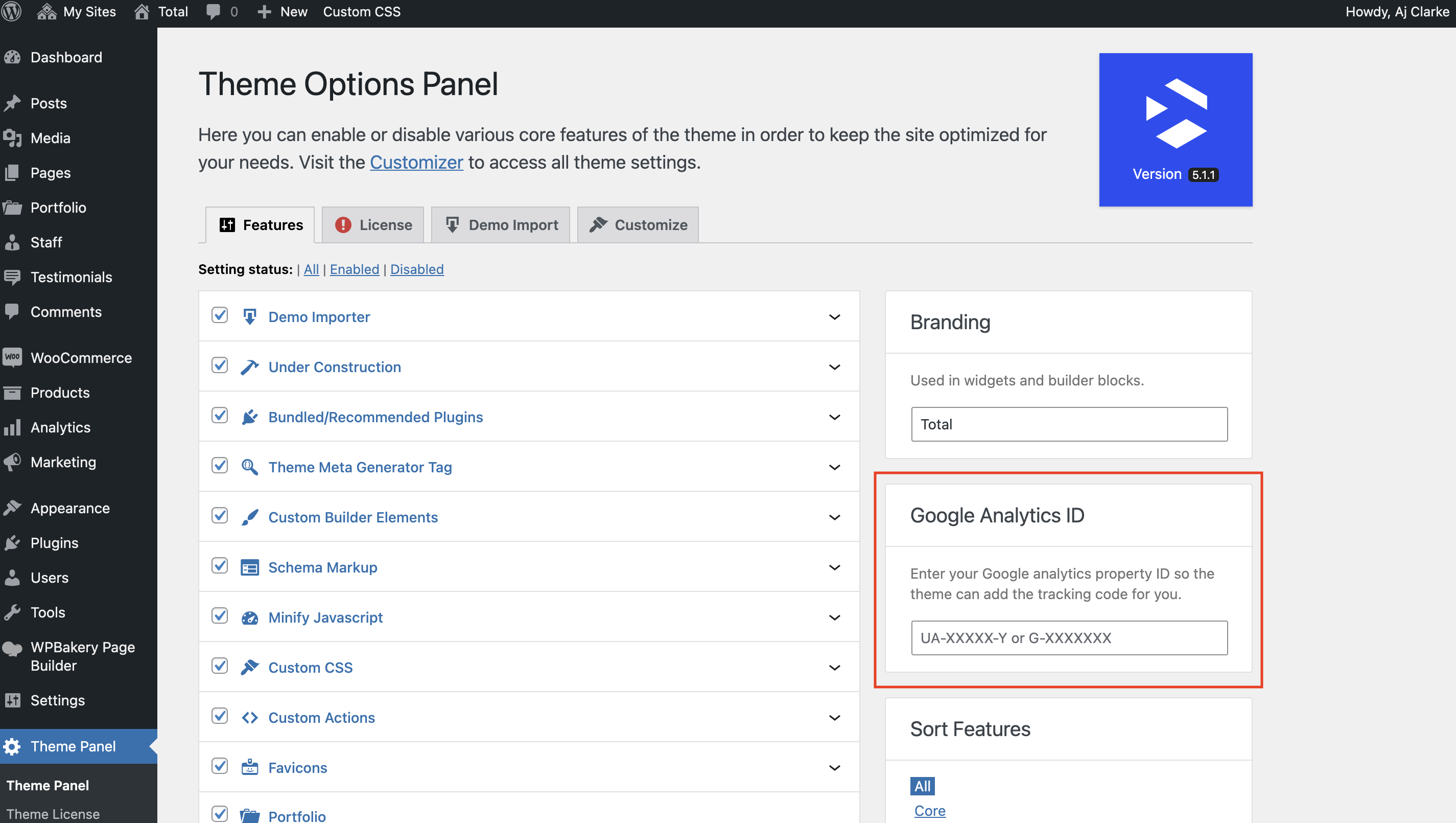
First, locate the plugin in your WordPress dashboard. Find the settings option under the plugin name. Click to open the settings page. This is where you can make changes. Make sure you know what each option does. Explore each setting before making changes. This helps to avoid mistakes. Always remember to save your changes.
Customizing Text Styles
Choose a font that fits your theme. You can change the color of the text. Select a size that is easy to read. Make sure the text is clear. Bold or italicize important words. This makes them stand out. Experiment with different styles. Find what looks best on your site.
Adjusting Speed And Effects
Set the speed for the auto type effect. Choose a speed that matches your site. Not too fast or too slow. Test different speeds to find the right one. Add special effects if you like. Effects can make text look cool. But don’t overdo it. Too many effects can be distracting.
Credit: totalwptheme.com
Implementing Auto Type In Theme
Enhance your WordPress theme by adding an auto type effect. Install a plugin or use custom JavaScript to create dynamic, engaging text animations. Customize settings to match your site’s style and capture visitors’ attention effortlessly.
Selecting Pages Or Posts
Choose where you want the auto type effect. It can be on a specific page or a post. Ensure the page or post is important. This makes the effect more useful. People will notice it better.
Inserting Shortcodes
Shortcodes help add effects easily. Copy the shortcode for the auto type effect. Place it in the content area. This makes adding effects fast and simple. The auto type will start working right away. This is an easy way to make text lively.
Using Widgets For Placement
Widgets make placing effects flexible. Add a widget to the sidebar or footer. This lets the auto type effect show in more places. It helps to catch the viewer’s eye. Widgets are easy to use and help a lot.
Customizing With Css
CSS helps style your text. Color and font changes make text look unique. Font-size controls how big text appears. Use padding to give space around text. Margin adds space outside text. Change background-color for text area. CSS is powerful!
Advanced CSS brings special effects. Animation can make text move. Keyframes control animation steps. Use transition for smooth changes. Transform text with rotate or scale. Shadow adds depth to text. CSS makes things fancy!
Responsive design helps text fit all screens. Media queries adjust styles for devices. Flexbox aligns text nicely. Grid organizes text in neat blocks. Viewport settings keep text readable. Responsive design is smart!
Testing And Troubleshooting
Always preview changes before going live. This helps spot any errors early. Check if the auto type effect works as expected. Look for any unwanted delays or glitches. Ensure the text changes at the right speed. Adjust settings if needed. Previewing helps keep your website smooth and professional.
Sometimes, the effect might not work. This could be due to plugin conflicts. Try disabling other plugins one by one. See if the problem resolves. Another issue is incorrect JavaScript placement. Ensure the script is in the right section of your theme. Sometimes, clearing the browser cache solves the issue.
Test your website on different browsers. This ensures everyone sees the same effect. Some effects might not work on all browsers. Chrome, Firefox, and Safari are popular choices. Adjust your code if needed. Use tools to simulate different browsers. This helps in making your site look good everywhere.
Enhancing User Experience
Adding an auto type effect makes buttons more interesting. It draws the eyes of visitors. A typing effect can make calls to action stand out. This encourages users to click and explore. It’s a fun way to guide users on your site.
The speed of the typing effect is important. Too fast, and it’s hard to read. Too slow, and users may lose interest. A balanced speed is key for keeping visitors engaged. Ensure the text is clear and easy to follow.
Everyone should enjoy your site, even those with disabilities. Ensuring the auto type effect is accessible is vital. Use readable fonts and colors. Ensure screen readers can read the text. This makes your site welcoming to all.
Credit: wcanvas.com
Exploring Alternatives
Discovering ways to add an auto type effect to your WordPress theme can enhance your site’s visual appeal. This effect captures attention by dynamically displaying text, making your content more engaging. Explore easy plugins or custom code to integrate this feature seamlessly into your website.
Javascript Libraries
JavaScript libraries can make text effects easy. They are great tools. Typed.js is a popular choice. It helps create a typing effect. These libraries are easy to use. Add them to your website fast. Many websites use these libraries. They save time and effort.
Custom Code Solutions
Creating custom code offers more control. You can write your own JavaScript code. It allows you to customize everything. Make it look just how you want. This option might need more skills. But it can be very rewarding. You learn a lot in the process. It’s a good choice if you like coding.
Comparing Pros And Cons
| Option | Pros | Cons |
|---|---|---|
| JavaScript Libraries | Easy, fast, popular | Less control, limited customization |
| Custom Code Solutions | Full control, unique design | Requires skill, time-consuming |
Credit: wcanvas.com
Frequently Asked Questions
How Do I Add Auto Type Effect In WordPress?
To add auto type effect in WordPress, use a plugin like Typed. js or WP Auto Typing. Install and activate the plugin, then configure settings in the plugin dashboard. You can customize text speed, style, and effects to match your theme design easily.
Can I Customize Typing Speed And Style?
Yes, customizing typing speed and style is possible with most auto type effect plugins. Access the plugin settings to adjust text speed, font style, and animation effects. These features allow you to tailor the auto type effect to fit your WordPress theme seamlessly.
Do I Need Coding Skills For Auto Type Effect?
No, coding skills are not necessary for adding an auto type effect. Most WordPress plugins offer user-friendly interfaces. You can easily configure and customize the auto type effect settings without any coding knowledge. Just follow the plugin instructions for a smooth implementation.
Are Auto Type Plugins Free?
Many auto type plugins are available for free on WordPress. However, some offer premium versions with advanced features. Free plugins typically provide basic functionalities, while premium versions offer more customization options and support. Choose a plugin based on your specific needs and budget.
Conclusion
Adding an auto type effect enhances your WordPress theme creatively. It engages visitors and makes your site stand out. Implementing this feature is simple, even for beginners. Follow the steps and watch your text come to life. Experiment with different styles and speeds.
Customize to fit your theme’s vibe. This small touch can make your content more dynamic. Keep your audience interested with moving text. It’s a fun way to add personality to your site. Dive in and try it today. Enjoy the visual impact on your WordPress theme.
Your site will feel more lively and interactive.


